
Are you looking to customize your WordPress site without altering the core theme? Adding CSS and JavaScript to a child theme is the way to go!
Whether you want to tweak design elements or enhance functionality, knowing how to safely add these codes can empower you to create a website that truly stands out. Imagine having the ability to change styles effortlessly or add interactive features to captivate your audience.
In this guide, you’ll discover simple, step-by-step methods to seamlessly integrate CSS and JavaScript into your WordPress child theme. Dive in to unlock the potential of your site and take control of its appearance and performance.
Understanding WordPress Child Themes
Child themes are great for customizing your website. They help keep the original theme safe. This means your changes will not disappear after updates. Child themes allow you to experiment. You can try new styles and features. They are a safe playground for learning. Using child themes makes your work organized and clean. You can easily switch back to the original theme. This is helpful if something goes wrong. Also, child themes are great for sharing your customizations with others. They can use your child theme without affecting their own settings.
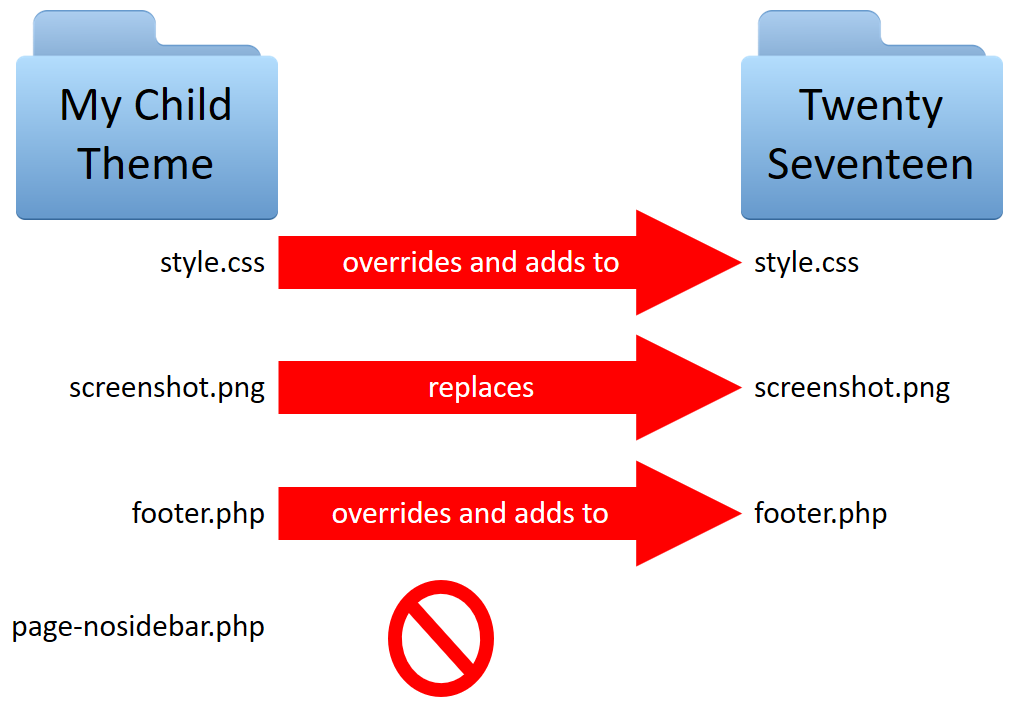
A child theme needs a folder in the themes directory. This folder should have a style.css file. The style.css file is very important. It tells WordPress about your child theme. You may also need a functions.php file. This file adds new features to your child theme. You can include other files too. Such as template files and JavaScript files. Keep your child theme files organized. It helps manage your changes better. The parent theme files remain untouched. This way, updating the parent theme is safe and easy.

Credit: developer.wordpress.org
Setting Up A WordPress Child Theme
Create a new folder in your WordPress themes directory. Name it after your child theme. This folder will hold all your custom files. It’s important to keep it organized. Keep files related to the theme inside this folder. This helps you manage the theme easily.
Inside the child theme folder, create a file named style.css. This file controls the look of your child theme. Add a special comment at the top of the file. This comment should include your theme’s name, template, and version. Make sure you link back to the parent theme. This helps WordPress understand the relationship.
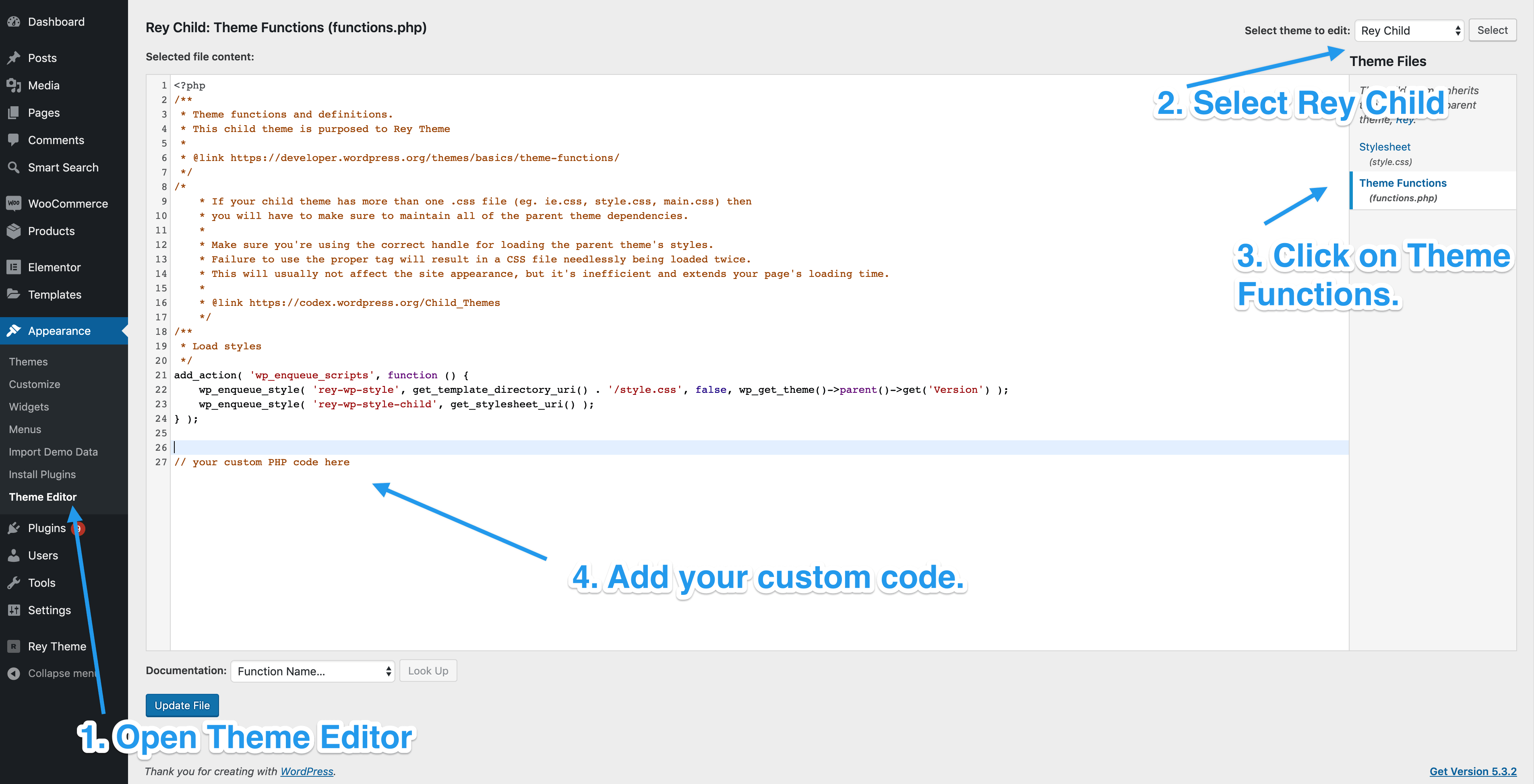
Create a functions.php file in the child theme folder. This file lets you add extra features to your theme. Use it to enqueue your child theme’s CSS and JavaScript files. This keeps your styles and scripts separate from the parent theme. Write a function to enqueue the style.css file. Do the same for any JavaScript files you need.
Adding Css To A Child Theme
Open your child theme’s folder in your file manager. Find the style.css file. This is where you can add new styles. Use a text editor to open it. Add your new CSS code at the bottom. Be sure to save your changes. These changes will reflect on your site.
Go to the WordPress dashboard. Click on Appearance and then Customize. Look for the Additional CSS option. Enter your CSS code here. This will apply styles without editing files. Remember to click Publish to save changes. This method is very easy for beginners.
Credit: learn.wordpress.org
Including Javascript In A Child Theme
First, create a JavaScript file for your theme. Name it something like custom-script.js. Place this file in the child theme’s folder. This is usually inside the js directory. Make sure the file is saved correctly. You can use any code editor to create this file. Add your desired JavaScript functions and scripts in it.
To add your JavaScript file, open the functions.php file. This file is in your child theme’s main folder. Use the wp_enqueue_script function. This function adds JavaScript to WordPress themes. Here is a simple code to add:
    function enqueue_child_theme_scripts() {
        wp_enqueue_script('custom-script', get_stylesheet_directory_uri() . '/js/custom-script.js', array(), null, true);
    }
    add_action('wp_enqueue_scripts', 'enqueue_child_theme_scripts');
Remember, this code links your custom JavaScript file to the theme. It ensures the file loads correctly. Now your child theme can use JavaScript. This helps enhance your site’s features.
Managing Dependencies And Priorities
To manage dependencies and priorities, add CSS and JS in a WordPress child theme by using the functions. php file. Enqueue scripts and styles properly to ensure smooth website performance. This method keeps your changes organized and prevents conflicts with the parent theme.
Understanding Script Dependencies
Scripts often depend on other scripts. It’s important to understand these dependencies. If one script needs another, it must load first. For example, jQuery is a common dependency. Many scripts need it. You must ensure it loads before those scripts. This avoids errors. WordPress handles dependencies. Use the wp_enqueue_script function. You can set dependencies easily. This helps in organizing scripts properly.
Setting Script Loading Order
Loading order matters. Scripts must load in the right sequence. Wrong order causes problems. Use wp_enqueue_script carefully. Set the order by managing dependencies. Prioritize important scripts. JavaScript files must load after CSS files. This is key for styling. Keep scripts organized. Proper order ensures smooth operation.
Testing And Debugging
Easily add CSS and JS to a WordPress child theme by editing the functions. php file. Enqueue styles and scripts correctly to ensure they load properly and don’t conflict with other elements. This method keeps customizations intact during theme updates, maintaining a seamless user experience.
Tools For Debugging Css And Javascript
Many tools help find errors in CSS and JavaScript. Browser Developer Tools are handy. These tools let you see how your code runs. Console logs show error messages. They help fix problems fast. Style editors show CSS changes live. Another tool is Firebug for Firefox. It helps check code, styles, and layout. Chrome DevTools is great too. It shows network activity and helps with debugging. These tools make fixing code errors easier.
Common Issues And Solutions
Common issues pop up when adding CSS and JS. Sometimes, styles don’t show up. This can be due to incorrect paths or syntax errors. Another issue is JavaScript not working. Check script order. Scripts must load in the right order. Missing semicolons can cause problems. Always check your code for errors. Cache issues can stop updates. Clear cache regularly. These steps solve many common issues quickly.
Best Practices For Child Themes
Organize your CSS in small, clear sections. Use comments to label each section. This helps you find things fast. Group similar styles together. This makes your CSS easy to read. Keep your CSS clean. Remove unused styles often. This improves your site’s speed. Use simple names for classes and IDs. This makes your code easy to understand.
Use fewer JavaScript files. Combine files where you can. This reduces loading time. Minify your JavaScript. This makes files smaller. Smaller files load faster. Use asynchronous loading for scripts. This lets the page load while scripts load. Avoid blocking the main thread. This keeps your site responsive. Test your code often. Look for slow functions. Optimize them for better speed.
Credit: support.reytheme.com
Frequently Asked Questions
How Do I Enqueue Css In A Child Theme?
To enqueue CSS in a child theme, use the `wp_enqueue_style()` function in your child theme’s `functions. php` file. Ensure you specify the parent theme’s handle and your child theme’s stylesheet path. This method helps in loading styles efficiently and maintaining compatibility with the parent theme.
How Can I Add Js To A Child Theme?
Adding JavaScript to a child theme involves using `wp_enqueue_script()` in the `functions. php` file. Specify the script’s source path and dependencies, if any. Enqueuing scripts properly ensures they are loaded in the correct sequence and enhances your site’s functionality without conflicts.
Why Use A Child Theme For Css/js?
A child theme allows you to customize CSS and JS without altering the parent theme. This method ensures updates to the parent theme don’t overwrite your modifications. It provides a safe environment for experimentation and helps maintain your site’s unique design and functionality.
What Is The Correct Way To Override Styles?
To override styles, enqueue your child theme’s stylesheet after the parent theme’s styles. Ensure your CSS selectors are specific to override parent styles. This technique guarantees your custom styles take precedence, allowing for seamless customization while preserving the parent theme’s structure.
Conclusion
Adding CSS and JS to your WordPress child theme is simple. This process enhances your site’s design and functionality. Always customize in a child theme. It protects your changes from updates. Use proper methods like wp_enqueue_style and wp_enqueue_script. These ensure smooth integration.
Regularly update and test your code. This keeps your site running efficiently. Explore various plugins for added features. Stay creative and experiment with designs. It’s all about making your site unique and engaging. Your WordPress child theme is now ready for customization.
Enjoy building a website that stands out!


