
Are you struggling to add a Google Maps API key to your WordPress theme? You’re not alone.
Many WordPress users face this challenge, but the good news is that it’s easier than you might think. Imagine your website visitors effortlessly finding your business location with an interactive map, enhancing their overall experience. By adding a Google Maps API key, you not only make your website more functional but also more engaging.
This guide will walk you through each step, making the process straightforward and stress-free. Keep reading to transform your WordPress site into a more dynamic and user-friendly platform.
Credit: wordpress.org
Preparing Your Api Key
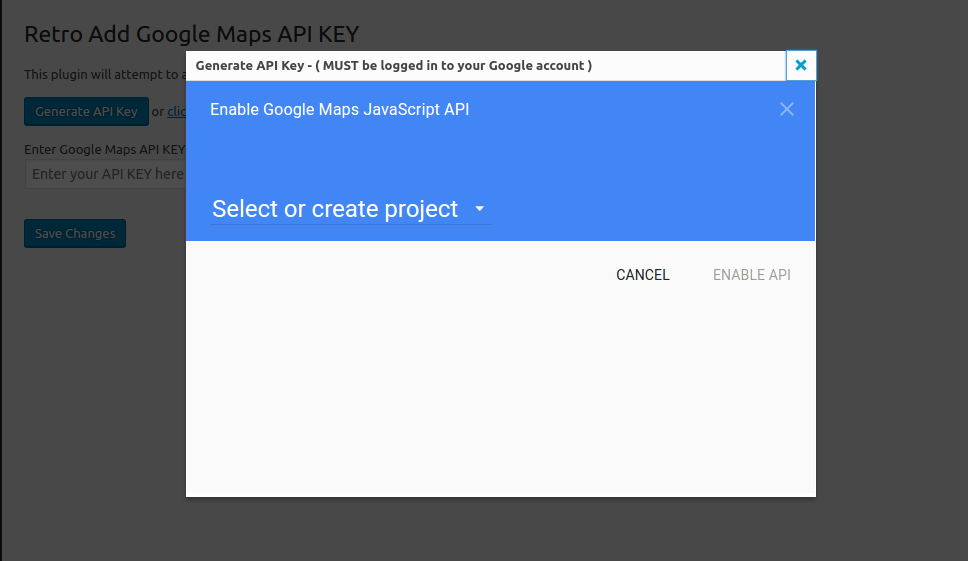
Start by visiting the Google Cloud Console. Sign in with your account. Create a new project by clicking on the project dropdown. Choose New Project. Name your project and click Create.
On the console, find the Navigation Menu. Click on APIs & Services. Choose Library. Search for Maps JavaScript API. Click on it and press Enable.
Head to the Credentials section. Click on Create Credentials. Choose API Key. Your key will show up. Copy the key. Keep it safe. You will need it later.
Credit: oshine-knowledgebase.brandexponents.com
Securing The Api Key
Integrating Google Maps API into a WordPress theme requires careful handling of the API key. First, obtain the API key from Google’s developer console. Then, add it to your theme’s functions. php file or through a plugin to ensure proper map functionality.
Restricting Api Key Usage
Limit where your API key works. Set restrictions to specific websites. Only your site can use it. This keeps your key safe. It stops misuse from other sites. Google Maps will work smoothly. Protect your key this way.
Setting Application Restrictions
Choose applications for your API key. Decide which apps use it. This is important. Keep your key secure by limiting its use. Only approved apps will access it. Safety is improved with these steps. Your maps stay protected.
Applying Api Restrictions
Set limits on what your API can do. Restrict its functions. This prevents abuse. Only allowed actions are possible. Your Google Maps features stay safe. Control access to your API’s abilities. This is crucial for security.
Integrating Api Key With WordPress
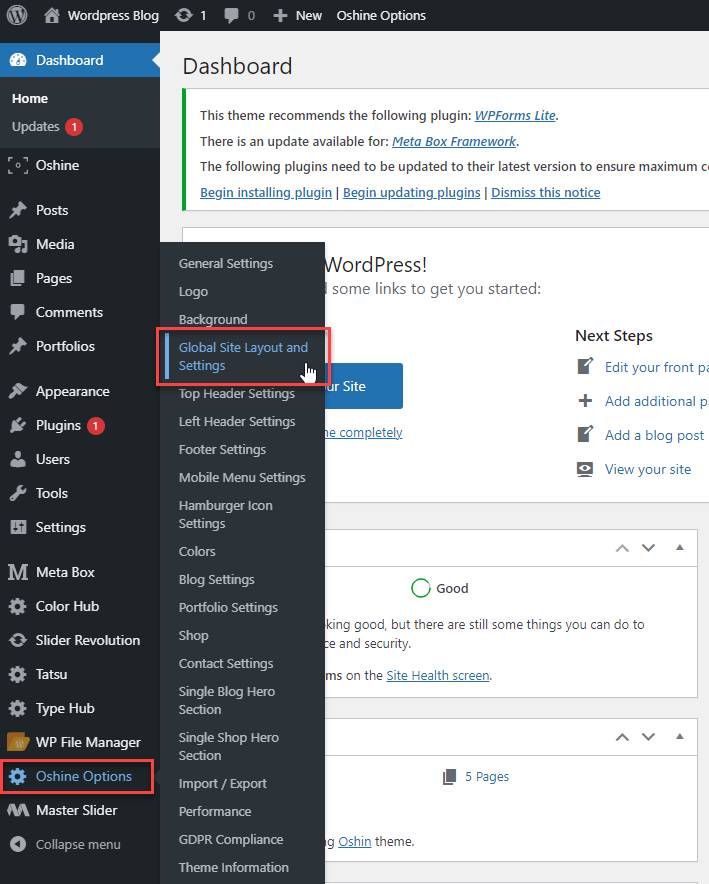
Adding a Google Maps API key to your WordPress theme enhances functionality and user experience. Navigate to your theme settings, locate the Google Maps section, and enter the API key to integrate maps seamlessly on your site. This process ensures accurate location services for visitors.
Using A Plugin For Integration
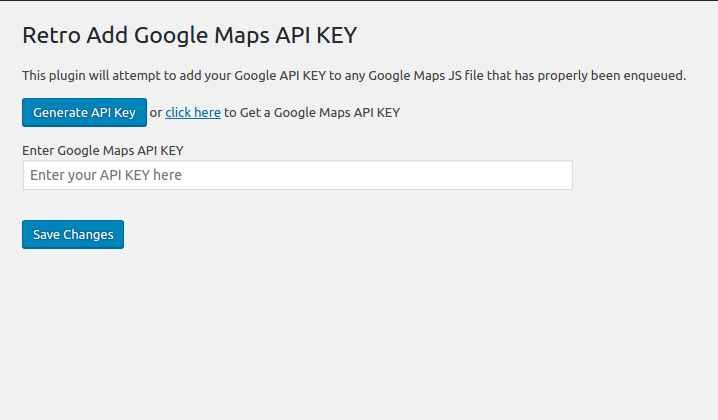
Many plugins help add a Google Maps API Key. They make the task easy. First, install a plugin like “WP Google Maps.” Then, activate it. Next, go to the plugin settings. Look for an option to enter the API Key. Copy your Google Maps API Key. Paste it into the settings. Save the changes. Now, the map will show on your site. Plugins offer easy solutions. They save time and effort. No need to touch the code.
Manual Addition To Theme Files
Manual addition involves editing theme files. Begin by accessing your theme editor. Find the functions.php file. Open it to add your API Key. Create a function to enqueue the Google Maps script. Use wp_enqueue_script to load the script. Include your API Key in the URL. Save changes once done. Go back to your site. Check if the map displays correctly. This method is for those who know coding. Always back up files first.
Configuring Google Maps In WordPress
Begin by opening your WordPress dashboard. Find the plugin that supports Google Maps. Open the settings for this plugin. Enter your Google Maps API Key. Choose the map location you want to show. Save these settings. Now check your website. The map should be visible.
Decide how your map should look. You can change the zoom level. Also, adjust the map size and style. Use the plugin settings to change these options. Try different looks to see what works best. Check the map display on your site. Make sure it fits well.
Troubleshooting Common Issues
Easily integrate Google Maps into your WordPress theme by adding an API key. Navigate to the theme settings, locate the Google Maps section, and input your API key. This process ensures seamless functionality of maps on your site.
Resolving Api Key Errors
Google Maps sometimes shows an API key error. This happens if the key is wrong or missing. Check your Google Cloud Console. Make sure your key is enabled for the Maps service. Also, verify that the API key is entered correctly in your WordPress theme settings. Sometimes, restrictions on your key can cause errors. Ensure there are no unnecessary restrictions. Removing them might fix the problem.
Fixing Map Display Problems
Maps not displaying? Check your JavaScript console for errors. Update your browser or clear the cache. Ensure your theme supports Google Maps. Some themes need plugins to show maps. Verify that JavaScript is enabled in your browser. This helps maps display correctly. If issues persist, recheck your theme’s documentation. It might have special instructions for Google Maps. Follow them to fix display problems.
Credit: wordpress.org
Best Practices For Api Key Management
Regularly reviewing API key usage ensures efficient and secure operations. Check how often your API key is used. Too many requests might mean misuse. Use analytics tools to monitor this activity. Look for any unusual patterns. This helps in spotting any security issues early.
Always keep your API key hidden and secure. Never share it publicly. Consider using environment variables. This adds an extra layer of security. Also, update your API key regularly. This reduces the risk of unauthorized access.
Reviewing and updating security measures is crucial. Always ensure your software is up-to-date. Security patches fix known vulnerabilities. Consider using plugins that offer additional security features. They can help protect your API key from theft or misuse.
Frequently Asked Questions
How Do I Find My Google Maps Api Key?
To find your Google Maps API key, log into Google Cloud Platform. Navigate to the API & Services section. Select Credentials to view your API keys. If you haven’t created one yet, click on “Create Credentials” and choose API key.
Copy the key for use in WordPress.
Where Do I Add The Api Key In WordPress?
To add the API key in WordPress, go to your theme’s settings. Look for a section related to Google Maps or API keys. Paste your key into the designated field. Ensure you save changes and test your map functionality to confirm successful integration.
Why Is My Google Maps Not Working?
If your Google Maps isn’t working, check the API key configuration. Ensure your API key is correctly entered in WordPress. Verify your Google Cloud Platform settings, ensuring billing is active and required APIs are enabled. Clearing browser cache may also resolve display issues.
Can I Use Google Maps Without An Api Key?
No, you cannot use Google Maps API without a key. An API key is essential for authenticating requests and tracking usage. It helps manage usage limits and ensures access to Google’s map functionalities. Free and paid options are available based on usage needs.
Conclusion
Setting up your Google Maps API key in WordPress is simple. Follow the steps carefully. Secure your API key for safety. Add it to your theme’s settings. Check if your map displays correctly. Troubleshoot any issues promptly. Enhance your website’s functionality with maps.
Make navigation easy for visitors. This improves user experience on your site. With these steps, your WordPress site becomes user-friendly. Engage visitors with interactive maps. They will appreciate the added convenience. Implementing Google Maps is beneficial for your site. Keep your site updated and functional.
Happy mapping!


