
Are you struggling to add a new page to your WordPress theme? You’re not alone.
Many WordPress users find themselves puzzled by this task, unsure of where to start or what steps to follow. But don’t worry – you’re about to discover a simple, step-by-step guide that will make this process a breeze. Imagine the satisfaction of seeing your new page live, perfectly integrated with your theme, ready to engage your audience.
This article will not only show you how to do it, but also empower you with tips to make your page stand out. Ready to take control of your WordPress site and enhance your visitors’ experience? Keep reading to find out how easy it can be.

Credit: www.namecheap.com
Choosing The Right Theme
Choose a theme that fits your website’s purpose. Some themes work better for blogs. Others are best for online stores. Make sure the theme supports all needed plugins. Check if it works well on mobile devices. A responsive theme looks good on phones and tablets. Look at the ratings and reviews. They tell you if others like the theme. Test the theme’s speed. A fast theme keeps visitors happy. Slow themes can make people leave your site.
Themes offer many ways to change the look of your site. Some themes let you change colors easily. Others let you add your own logo and images. You might want to change the layout. Some themes let you move things around. Look for a theme with a live preview. It shows changes as you make them. A theme with good options helps make your site look just right.
Accessing The WordPress Dashboard
First, open your web browser. Type in your website’s address. Add /wp-admin at the end. Press enter. A login screen will appear. Enter your username and password. Click the login button. Now you are in your WordPress dashboard.
The dashboard is like a control center. On the left, see many menu options. Click on Pages to see all pages. To add a new page, click Add New. You can write your page here. When done, click Publish. Your page is now live. Explore the dashboard. It has many tools and settings.
Creating A New Page
Click on the Dashboard. Next, find Pages in the menu. Then, choose Add New. A new screen will open. This is where you add your page. Type the title at the top. Add your content in the big box. Use the editor to make it look nice.
On the right, find Page Attributes. Here, you choose a parent page. Or leave it blank. Select a template if needed. This changes how your page looks. Set the order too. This decides where your page shows in lists. Remember to save your work. Click Publish to make it live.
Credit: help.elements.envato.com
Customizing Page Content
To add text, click the “Add Block” button. Choose the “Paragraph” block. Type your words in the box. To add images, click the “Add Block” button again. Choose the “Image” block. Click “Upload” to pick an image from your computer.
Blocks help make pages look neat. Use different blocks for different content. The “Heading” block makes big titles. The “List” block makes bullet points. Drag and drop blocks to reorder them. Experiment with blocks to see what works best.
Incorporating Page Templates
Choose a template that fits the design you want. WordPress themes often come with different templates. Some are for blogs, some for galleries, and others for contact pages. Look in your theme settings to find these options. It’s easy to change them. Just go to your page settings. There, you will see a dropdown menu. Pick the template you like. Your page will now follow this design. You can change it anytime. It’s simple and quick.
You may want to change how your template looks. Open the WordPress editor. Find the layout section. Here, you can adjust things. Move sections around. Add or remove elements. Make the page look the way you want. Save your changes. Check the page to see how it looks. Repeat if needed. It’s all about making your page fit your style. Easy changes make a big difference.
Integrating Plugins For Enhanced Functionality
Integrating plugins can add new features to your WordPress theme. Easily create a page by accessing the dashboard. Select “Pages” and click “Add New” to customize your site further.
Identifying Useful Plugins
Plugins make websites better. They add new features and tools. Some plugins help with SEO. Others make pages load faster. Find plugins that match your needs. Choose plugins with many good reviews. They are likely to work well. Check if the plugin gets updates often. This means the developer still cares for it. Pick plugins that are easy to set up. This saves time and effort.
Installing And Activating Plugins
Go to the WordPress dashboard. Find the Plugins section. Click on “Add New”. Search for the plugin name. Click on “Install Now”. Wait for the installation to finish. Then, click on “Activate”. The plugin is now ready. You can change its settings if needed. Check your website. See if the plugin works as expected.
Publishing And Managing Pages
Before making your page live, you can preview it. This helps you see how it looks. Click the preview button on the top right. It shows the page in a new tab. If you are happy with it, click publish. This makes the page visible to everyone. If not, you can make changes and preview again. It’s a simple way to ensure everything is perfect. Don’t forget to save your work often.
Menus help visitors find pages easily. Go to the menu settings in your WordPress dashboard. Add the new page to the menu. Drag and drop the page to the right spot. This way, pages appear in order. It’s easy to move them around. Menus keep your site tidy and user-friendly.
Troubleshooting Common Issues
Adding a page in WordPress themes can be tricky. Common issues include page not displaying properly or theme compatibility problems. Fix these by checking theme settings or updating plugins.
Fixing Page Display Errors
Page display errors can be frustrating. Sometimes, pages show up blank or broken. This may be due to a theme issue. Updating your theme can solve many problems. Themes should always be the latest version. Check your page settings. Make sure they match your theme’s requirements. Wrong settings can cause display errors. Clear your browser cache regularly. This helps with page loading problems. If issues persist, try switching to a default theme. This helps identify if the theme is the problem. Sometimes, a theme’s code can be faulty. Fixing it might require professional help.
Addressing Plugin Conflicts
Plugins add features to your site. But, they can sometimes conflict. Conflicts may cause pages not to load. Check for plugin updates often. An old plugin can clash with your theme. Disable plugins one by one. This helps find the problematic plugin. Always read plugin reviews before installing. Some plugins are known to cause issues. If a plugin causes trouble, look for alternatives. Backup your site before adding new plugins. This saves data in case of errors. Some plugins may need expert configuration. Seek advice if needed.

Credit: wordpress.org
Frequently Asked Questions
How Do I Add A Page In WordPress Theme?
To add a page in WordPress, navigate to your dashboard, click on “Pages,” and select “Add New. ” Enter the page title and content, then click “Publish. ” Ensure your theme supports the page layout you desire. Customize the page using theme options or plugins for enhanced functionality.
Can I Customize The New Page In WordPress?
Yes, you can customize a new page in WordPress. Use the page editor to add text, images, and other media. Use the “Customize” option to adjust layout settings. Install plugins for additional features and functionality. Ensure your theme supports customization options for a personalized look.
What If My Theme Lacks Page Templates?
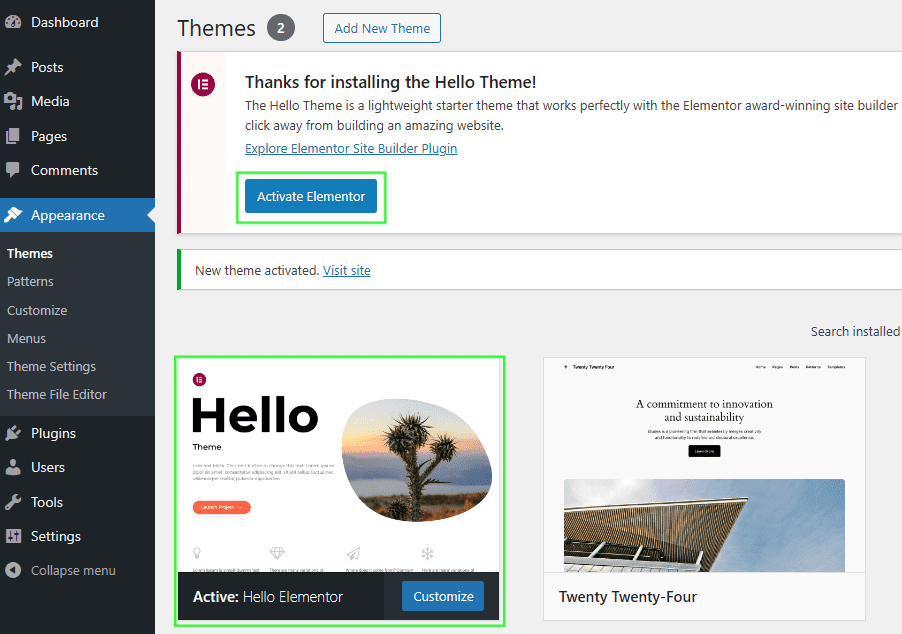
If your theme lacks page templates, consider installing a page builder plugin like Elementor or Beaver Builder. These tools offer drag-and-drop functionality and various pre-designed templates. Alternatively, switch to a theme with more template options or hire a developer to create custom templates.
Can I Add Seo To My New Page?
Yes, adding SEO to your new page is crucial for visibility. Use plugins like Yoast SEO to optimize titles, meta descriptions, and keywords. Focus on content quality and relevance. Ensure your page is mobile-friendly and loads quickly for better search engine rankings.
Conclusion
Adding a new page in WordPress is simple and quick. Follow the steps, and your site grows smoothly. First, log into your dashboard. Next, click on “Pages,” then “Add New. ” Choose a template that suits your theme. Customize the content to match your style.
Save and publish your new page. Remember to check how it looks on different devices. This ensures a good user experience. Keep exploring WordPress features. They help you make your site better. Share your updates with your audience. Engage them with fresh content regularly.
Keep learning, keep growing.


