
Struggling to perfect your WordPress theme with a custom scrollbar? You’re not alone.
A scrollbar might seem like a tiny element, but it can significantly impact your site’s usability and aesthetics. Imagine giving your visitors a seamless scrolling experience while enhancing your site’s visual appeal. Sounds great, right? In this guide, I’ll show you exactly how to add a scrollbar to your WordPress theme effortlessly.
Whether you’re aiming for a stylish touch or improved navigation, this easy-to-follow tutorial is designed with your success in mind. Stick around, and let’s unlock the full potential of your WordPress theme together.
Importance Of Scrollbars
Scrollbars help users see more content. They let users move up and down. This is key for easy navigation. Without scrollbars, users might miss important information. Scrollbars make sure all content is accessible. They are vital in websites with lots of text or images. A well-designed scrollbar keeps users engaged. It helps them find what they need quickly.
Some themes come with automatic scrollbars. Others may need custom ones. Adding a scrollbar can improve user experience. It makes browsing smoother. Scrollbars are more than just a design element. They are a tool for better accessibility. They ensure content is seen and read by all.
Credit: neuronthemes.com
Choosing The Right Plugin
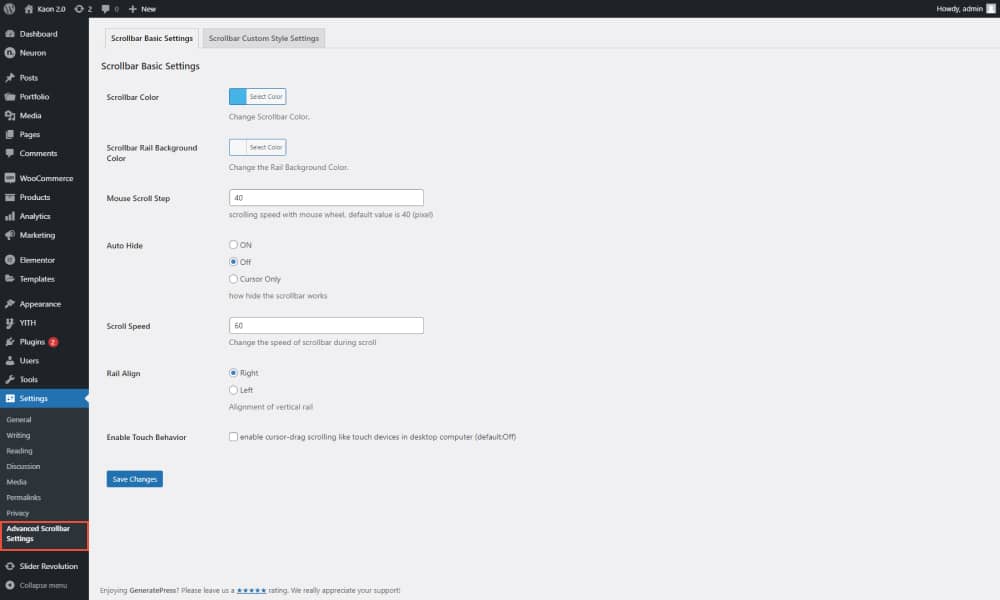
Selecting the right plugin simplifies adding a scrollbar to your WordPress theme. It enhances site navigation and user experience. Choose a plugin that is lightweight and compatible with your theme.
Popular Scrollbar Plugins
Some plugins make scrollbars easy to add. Simple Custom Scrollbar is a favorite. It lets you change the look of scrollbars. Custom Scrollbar Plugin offers many styles. It works well with most themes. Perfect Scrollbar is another choice. It is flexible and user-friendly.
Features To Consider
Compatibility is key. Ensure the plugin works with your theme. Customization options are important. Look for plugins that offer color choices and style adjustments. Ease of use matters. Pick a plugin with simple setup steps. Some plugins offer extra features. Responsive design is a helpful feature for mobile users. Check for regular updates. This keeps your site secure.
Customizing Scrollbar With Css
Use CSS to change how scrollbars look. First, find the right CSS file.
Add rules for scrollbars in that file. Start with basic CSS properties.
Use scrollbar-width for width. Add scrollbar-color for color.
This makes scrollbars match your theme.
Browsers need different codes. For Chrome and Safari, use -webkit-scrollbar.
Add styles like -webkit-scrollbar-thumb for the thumb.
Firefox needs a different approach. Use scrollbar-width and
scrollbar-color. This ensures your scrollbars work everywhere.
Using Javascript For Enhanced Scrollbars
Enhancing WordPress themes with JavaScript can create dynamic scrollbars. Customize your site’s look and feel by integrating JavaScript code. This approach improves user experience, making navigation smoother and more engaging.
Javascript Libraries
Many JavaScript libraries help create cool scrollbars. They make websites look better. One popular library is Perfect Scrollbar. It is easy to use. It adds style to boring scrollbars. Another choice is OverlayScrollbars. It offers many features. It is lightweight and fast. Both libraries make your scrollbar look amazing.
Implementing Smooth Scrolling
Smooth scrolling makes moving down a page easy. It feels like a gentle slide. JavaScript can help with this. The scroll-behavior property is useful. It tells the browser to scroll smoothly. Add it to your CSS. You can also use JavaScript code. It creates the same effect. Users will love the smooth flow.
Integrating Scrollbars In WordPress
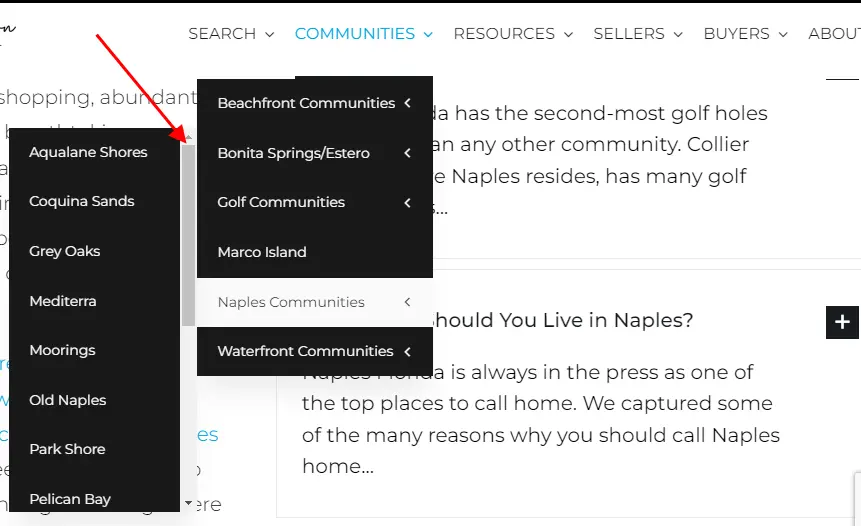
First, locate your theme’s style.css file. Open it and add the custom scrollbar styles. Use overflow-y: scroll; for vertical scrollbars. Adjust width and height for your needs. Include JavaScript for dynamic effects. Place your script in the header or footer. Test your changes to ensure the scrollbar appears. This might need trial and error.
Scrollbars look different on phones and computers. Test on both. Use emulators to check on various devices. Ensure the scrollbar is visible and easy to use. Ask friends to try it on their devices. A responsive design is key for all users. Small screens need special attention.
Credit: skfreelancers.com
Troubleshooting Common Issues
Adding a scrollbar to your WordPress theme can enhance user experience. Access the theme’s CSS file. Use “overflow: auto” for the desired element. Save changes and refresh your site to see the scrollbar.
Scrollbar Not Appearing
The scrollbar may not show up due to CSS conflicts. Check your theme’s CSS file. Look for any code that hides the scrollbar. Ensure that properties like overflow are set correctly. Sometimes, a plugin might be causing the issue. Disable plugins one by one to find the culprit. Once found, update or replace the plugin. Clear your browser cache to see changes. If problems persist, consult your theme’s support page.
Handling Overlapping Elements
Elements may overlap and cause issues with the scrollbar. Inspect the layout settings in your theme. Adjust margins and padding if needed. Use tools like Chrome DevTools to spot issues. Ensure that z-index values are correct. This will help in managing overlapping layers. Test your site on different devices. Responsive design can affect element positions. Fix any layout issues for a smoother user experience.
Ensuring Responsive Design
Adding a scrollbar in a WordPress theme enhances user navigation and responsiveness. Customize your theme by editing the style. css file. Insert custom CSS code to control scrollbar appearance and behavior.
Media Queries For Scrollbars
Scrollbars should work well on all devices. Use media queries to make them responsive. This ensures scrollbars adjust to different screen sizes. Add CSS rules to target specific device widths. For example, use @media to define styles for tablets. This way, scrollbars remain user-friendly everywhere.
Testing Responsiveness
It’s important to check if scrollbars work on all devices. Test on phones, tablets, and computers. Try different browsers too. This helps find any issues early. Make sure the design looks good on each screen. Adjust CSS if something looks odd. This keeps the website looking nice and working well for everyone.
Credit: neuronthemes.com
Maintaining Accessibility Standards
Adding a scrollbar should not disrupt keyboard navigation. Users who can’t use a mouse rely on this. Make sure they can move through content easily. Use the tab key to check navigation. Every part of your page should be reachable. This helps all users enjoy your site.
Color contrast is crucial for readability. People with poor vision need good contrast. Text should stand out from the background. Use dark text on a light background. Or light text on a dark background. Online tools can check your color contrast. This ensures your site meets accessibility standards.
Frequently Asked Questions
How To Customize Scrollbar In WordPress?
To customize the scrollbar in WordPress, you can use custom CSS. Access your WordPress dashboard, navigate to Appearance > Customize > Additional CSS, and add your custom code. Ensure your code targets the right elements and test the changes across different browsers for consistency.
Can I Add Scrollbar Without Plugins?
Yes, you can add a scrollbar without plugins using custom CSS. Insert your CSS code in the WordPress Customizer or your theme’s stylesheet. This approach gives you more control and reduces reliance on third-party plugins, ensuring better site performance and customization flexibility.
Which Plugin Adds Scrollbars To WordPress?
Plugins like “Custom Scrollbar” can add scrollbars to WordPress. These plugins offer easy-to-use interfaces for customization without needing coding skills. You can find them in the WordPress Plugin Directory, install, and configure them to match your site’s design requirements easily.
Why Is My Scrollbar Not Showing?
Your scrollbar might not show due to CSS overflow settings or theme conflicts. Check your theme’s CSS for overflow:hidden properties. Ensure your custom CSS code targets the correct elements and test across different devices and browsers to diagnose and resolve the issue.
Conclusion
Adding a scrollbar enhances your WordPress theme’s functionality. It improves navigation and user experience. Simple steps make this possible. Customize your site’s look easily. Visitors appreciate smooth scrolling. It keeps them engaged longer. Implementing a scrollbar isn’t difficult. Follow the steps mentioned above.
Your site will become user-friendly. Personalize the design to match your theme. It adds a professional touch. Don’t forget to test the changes. Ensure everything works smoothly. Enjoy the enhanced browsing experience. Your visitors will thank you. Make your WordPress site better today with a scrollbar.


