
Are you looking to make your WordPress site visually stunning and highly responsive? Adding Bootstrap 4 to your WordPress theme might just be the solution you need.
Imagine a website that not only looks professional but also adapts seamlessly to any device, providing a smooth and engaging user experience. Sounds like a dream, right? By integrating Bootstrap 4, you unlock a treasure trove of design possibilities, all while keeping your site lightweight and efficient.
In this guide, you’ll discover a step-by-step approach to adding Bootstrap 4 to your WordPress theme. Whether you’re a seasoned developer or just starting out, this process is simpler than you might think. Stick around, and see how easy it is to enhance your website’s functionality and aesthetics. Your readers and users will thank you for it!
Credit: www.inmotionhosting.com
Preparing Your WordPress Theme
Integrating Bootstrap 4 into a WordPress theme enhances design flexibility and responsiveness. Start by downloading Bootstrap files and enqueuing them in your theme’s functions. php. This setup ensures your theme is modern and mobile-friendly, improving user experience across devices.
Review Theme Files
Check your theme files. Make sure they are correct. Look for style.css and functions.php. These files are important. They help your theme work well. Understand how your theme is set up. This makes adding Bootstrap easier. Keep your files neat. This helps avoid errors.
Backup Existing Theme
Always make a backup. Save your theme files safely. Use a tool like UpdraftPlus or BackupBuddy. Backups protect your work. If something goes wrong, you can restore. Keep backups on your computer. Or use cloud storage. This way, your theme is safe.
Downloading Bootstrap 4
Integrating Bootstrap 4 into a WordPress theme enhances design flexibility and responsiveness. Download Bootstrap 4 files and add them to your theme’s directory. Link Bootstrap stylesheets and scripts in your theme’s functions. php file to ensure smooth integration.
Get The Bootstrap Package
Download Bootstrap 4 from its official website. Look for the download button. Click on it to get the files. The files come in a zip folder. You need to extract this folder. After extracting, you will see many files. These files are used to style your website. Choose the files you need for your project. Keep them in a safe place.
Explore Bootstrap Files
Bootstrap has many files. There are CSS files for styling. JavaScript files are also there. They help with interactive features. Read the file names carefully. Each file has a purpose. Some files are big. Some are small. Use the ones you need most. Explore each file to see what it does. This helps you understand Bootstrap better. Your website will look more professional.
Adding Bootstrap Css
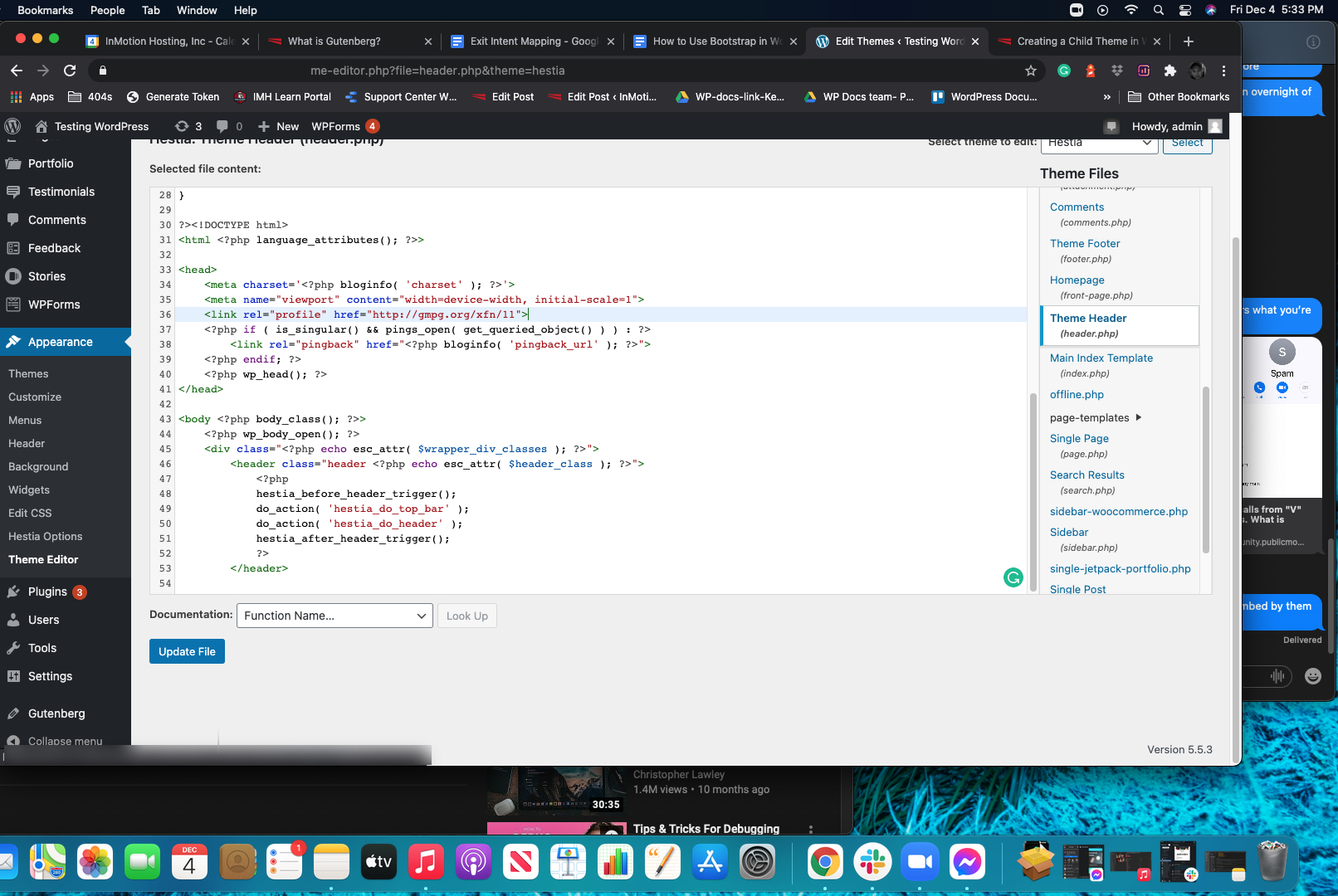
Adding Bootstrap CSS to your WordPress theme is easy. First, download the Bootstrap files. You can get them from the official Bootstrap website. Once you have the files, open your WordPress theme folder. Look for the header.php file. You need to add a link in this file. This link will connect your theme to Bootstrap. Use the following code:
Enqueueing styles is a good way to add Bootstrap in WordPress. It keeps your theme organized. Open the functions.php file in your theme folder. Add this code to the file:
function theme_enqueue_styles() {
    wp_enqueue_style('bootstrap-css', 'path/to/bootstrap.min.css');
}
add_action('wp_enqueue_scripts', 'theme_enqueue_styles');
Replace path/to/bootstrap.min.css with your file path. This will load Bootstrap CSS correctly. Your WordPress theme is now ready with Bootstrap styles.
Integrating Bootstrap Javascript
Easily enhance your WordPress theme by adding Bootstrap 4. First, download Bootstrap files. Then, enqueue Bootstrap’s CSS and JavaScript in your theme’s functions. php file. This integration provides responsive design features and modern UI components.
Include Bootstrap Scripts
Add Bootstrap scripts to your WordPress theme. First, download the Bootstrap files. You need the CSS and JS files. Next, upload them to your theme’s directory. Use a script tag for the JavaScript file. Place it before the closing body tag. This makes your site load faster. It’s important for user experience.
Enqueue Scripts In WordPress
WordPress has a function called wp_enqueue_script(). Use it to add scripts correctly. Open your theme’s functions.php file. Add a function to load Bootstrap. Use wp_enqueue_script() inside this function. Set the file path for Bootstrap. Use get_template_directory_uri() for the path. This keeps your code clean and organized. Always use this method for adding scripts. It prevents conflicts with other plugins.
Customizing Bootstrap Components
Bootstrap components look great. But sometimes, they need a personal touch. Custom styles can make a website unique. Use CSS to change colors, fonts, and sizes. This makes every element special. Keep it simple. Too many changes can be confusing.
Sometimes, Bootstrap defaults don’t match the design. Overriding these settings is easy. Use a custom CSS file. Link it after the Bootstrap file. This ensures your styles take effect. Use !important sparingly. It forces a style to apply. But it can cause problems. Be careful with it.

Credit: www.hosted.com
Testing Bootstrap Integration
Integrating Bootstrap 4 into a WordPress theme enhances design and functionality. Start by downloading Bootstrap files from the official website. Then, enqueue Bootstrap CSS and JS in your theme’s functions. php file for seamless integration. This method ensures responsive, mobile-friendly design elements on your WordPress site.
Check Responsiveness
Ensure your site looks good on all devices. Open your site on a phone. Then check it on a tablet. Compare it with how it looks on a computer. The layout should adjust to each screen. This means Bootstrap is working. If elements overlap, there is an issue. Fix these to make your site user-friendly.
Verify Component Functionality
Check if buttons, modals, and carousels work. Click a button. Does it perform an action? Test modals for opening and closing. Make sure carousels slide smoothly. If any component fails, Bootstrap may not be integrated correctly. Look into the code to find errors.
Troubleshooting Common Issues
CSS conflicts can mess up your website design. To fix these, check CSS files for any duplicates. Ensure Bootstrap styles load after other styles. This way, it won’t override custom styles. Use browser developer tools to inspect elements. It helps to see which CSS rules apply. You can find and fix issues easily. Also, consider using specific class names. Avoid generic names that Bootstrap uses. This reduces chances of conflict.
JavaScript errors can stop features from working. Check the console for error messages. They point to what went wrong. Make sure Bootstrap JavaScript files are loaded correctly. Sometimes, files are missing or loaded in the wrong order. Ensure jQuery is loaded before Bootstrap scripts. This is important because Bootstrap needs jQuery to work. Also, check for duplicate script files. Remove any duplicates to avoid errors. These steps help in fixing JavaScript issues.
Leveraging Bootstrap For Theme Development
The Bootstrap Grid System helps arrange your website’s layout. It uses rows and columns to divide the page. This system is easy and flexible. You can make your site look neat. Use this grid to keep everything aligned. No coding skills needed to learn it. Just follow simple steps. Your theme will look professional. The grid system is responsive. It works well on all devices. From small phones to big screens, your site will shine.
Bootstrap UI Elements bring style to your theme. Buttons, modals, and forms are ready to use. They save you time and effort. Just add them to your site. These elements are modern and sleek. They make your site user-friendly. Pick elements that fit your theme. Change colors and sizes as you like. Bootstrap helps with easy customization. Your WordPress theme will look great with Bootstrap UI.

Credit: www.youtube.com
Frequently Asked Questions
What Is Bootstrap 4 Used For In WordPress?
Bootstrap 4 is a popular front-end framework that helps in designing responsive and mobile-first websites. Integrating Bootstrap 4 in a WordPress theme allows developers to utilize its predefined CSS classes and components. This enhances the theme’s visual appeal and functionality while ensuring consistent performance across different devices and screen sizes.
How Do I Add Bootstrap To My Theme?
To add Bootstrap to your WordPress theme, download Bootstrap files from the official website. Next, enqueue Bootstrap CSS and JS files in your theme’s functions. php file using wp_enqueue_style() and wp_enqueue_script(). This process seamlessly integrates Bootstrap’s features into your WordPress theme for enhanced design and responsiveness.
Can I Customize Bootstrap Styles In WordPress?
Yes, you can customize Bootstrap styles in WordPress by overriding its default CSS. Create a custom stylesheet and enqueue it after Bootstrap’s styles in your theme. This approach allows you to modify Bootstrap’s appearance according to your theme’s requirements. You can also use CSS variables to make style adjustments more efficiently.
Is Bootstrap 4 Mobile-friendly In WordPress?
Bootstrap 4 is inherently mobile-friendly, designed with a mobile-first approach. Its grid system ensures responsive design across various devices. By adding Bootstrap 4 to your WordPress theme, you enhance its adaptability for mobile users. This results in a seamless browsing experience, increasing user satisfaction and engagement on different platforms.
Conclusion
You now know how to integrate Bootstrap 4 with WordPress. This process enhances your theme’s design. It improves responsiveness across devices. Start by including Bootstrap’s files in your theme. Customize styles to fit your brand. Test thoroughly to ensure everything works smoothly.
These steps make your site visually appealing. Your WordPress site benefits from modern, clean layouts. Bootstrap offers flexibility and ease of use. You can easily create a professional look. Don’t forget to check for updates. Stay current with Bootstrap’s latest features.
Happy designing! Enjoy your improved WordPress theme.


