
Are you ready to unlock the full potential of your WordPress site? Imagine transforming your site with just a few lines of code, making it more functional and tailored to your needs.
By adding new functions to your theme’s functions. php file, you can do just that. Whether you’re looking to enhance user experience, boost site performance, or simply add a personal touch, this guide will show you how to easily implement new features.
Don’t worry if you’re not a coding expert; we’ll walk you through each step in a way that’s simple and straightforward. Dive in, and discover how you can take control of your WordPress theme like never before!
Understanding WordPress Theme Functions
WordPress themes use functions to add features. These functions help your site work better. They are like little helpers in the theme. Each function has a job. Some functions change the look of your site. Others improve how it works.
Functions are written in PHP code. The functions.php file holds them. This file is in the theme folder. It is important to be careful with this file. If the code is wrong, the site may break. Always save a copy before changing it.
Adding a new function is easy. Open the functions.php file. Write your function at the end. Save the file. Your new feature is ready!
Choosing The Right Theme
Picking a theme is important. Themes change how your site looks. Some themes offer many features. Others focus on simplicity. Choose a theme that matches your needs. Think about what your site needs first. Do you need a photo gallery? Or perhaps a shopping cart? Check if the theme supports these.
Themes also affect your site speed. Fast themes keep visitors happy. Slow themes may make visitors leave. Look for themes that are optimized for speed. Many themes offer responsive designs. This means they look good on phones and computers. Make sure your theme is responsive. A responsive theme keeps all users happy.
Locating The Functions File
The functions file is like a tool box. It holds extra code for your theme. First, go to your WordPress dashboard. Find the Appearance menu on the left. Click on it. Then, choose Theme Editor.
A new page will open. Look on the right side. You will see a list of files. Find the file called functions.php. This is the file you need. Click on it. The file will open in the editor. Now, you can add new code here.
Creating A Child Theme
Creating a child theme in WordPress allows you to add new functions without modifying the original theme. Simply create a functions. php file in your child theme folder. Then, write your custom function code in this file to enhance your site’s features.
Benefits Of Using A Child Theme
A child theme is very helpful for your website. It helps you keep your main theme safe. You can make changes without fear. Updates to the main theme will not erase your work. This saves time and effort. You also learn more about coding. Making a child theme can be fun. It gives you freedom to try new things. This is good for learning new skills. Your site stays fresh and exciting.
Setting Up The Child Theme
First, create a new folder in your theme directory. Name it wisely. Use a name related to your main theme. Next, make a style.css file. Add a few lines of code. This tells WordPress about your child theme. Then, create a functions.php file. This allows you to add new functions. Remember to activate your child theme in WordPress. Now, you can start customizing your site. Enjoy the process!
Adding New Functions
To add a new function in WordPress, you need to know the basic syntax. A function starts with the function keyword. This is followed by the function name. Inside the curly braces, write your code instructions. Functions can also take parameters. These are variables inside the parentheses.
Every function must be added to the functions.php file. This file is located in your theme folder. It’s important to use unique names for functions. This avoids conflicts with other functions in WordPress.
- get_template_directory(): This returns the path to your theme directory.
- wp_enqueue_script(): This function adds scripts to your theme.
- add_action(): Used to add functions to WordPress actions.
- add_filter(): Modifies data before it is displayed.
These functions help you customize your WordPress theme. Always back up your files before editing. This ensures you can recover if something goes wrong.
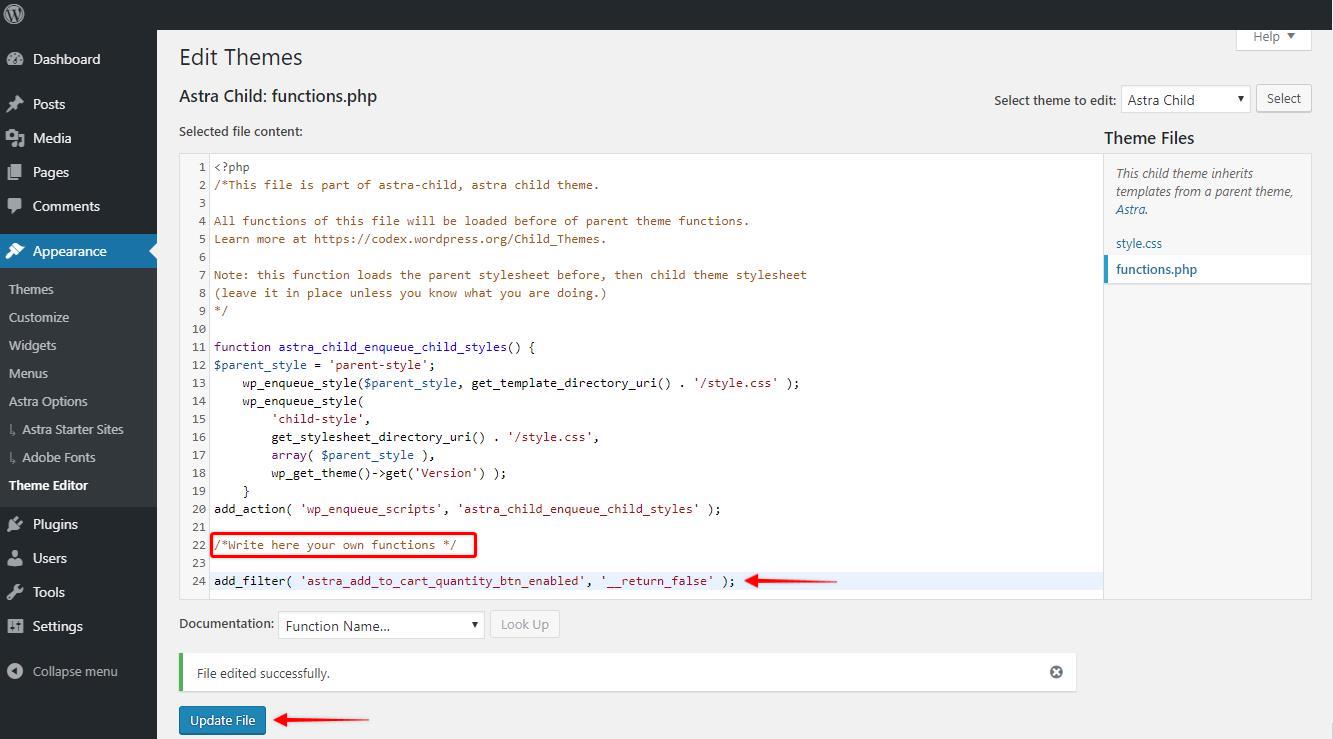
Credit: wpastra.com
Testing New Functions
Check for errors after adding the function. Errors can break your site. Look at the error log in WordPress. It shows problems with the code. Fix errors quickly. Use simple fixes first. Avoid complex changes if possible. Test the function on a local server first. This keeps your site safe.
Check if the function works with other plugins. Some functions may cause conflicts. Conflicts can make the site slow. Test with your current theme. Make sure the function does not change the look of your site. Compatibility is important for a smooth user experience. Backup your site before adding new functions. Backups save time if something goes wrong.
Troubleshooting Issues
Adding a new function in WordPress can cause errors. It’s common to see a white screen or unexpected syntax errors. These issues happen because of coding mistakes. Check for missing semicolons or brackets in your code. Review your code carefully. Make sure everything is in the right place.
Identifying Common Errors
Common errors often include function name conflicts. Two functions with the same name cause trouble. Use a unique name for your function. Avoid using names that are too simple. Also, check for errors in the code. Small mistakes can lead to big problems.
Fixing Function Conflicts
Function conflicts can break your site. To fix them, rename the conflicting function. Ensure the new name is unique. Update all references to the function. Test your website. Make sure everything works properly. Keep checking for any other issues. Fix them as you find them.
Best Practices
Writing clear comments makes your code easy to understand. Comments help others know what each part of the code does. They also help you remember your own work later. Use simple words in your comments. Keep them short and to the point. Describe what the function does, not how it does it. This keeps your code neat and easy to follow.
Good organization keeps your code clean. Group similar functions together. This makes finding them easy. Create a separate file for custom functions if needed. This helps keep the theme’s functions file tidy. Use clear names for your functions. This makes the purpose of each function obvious. Keep the code structured and clear, so anyone can read it.
Resources For Learning More
Many online guides can help with WordPress functions. Websites like WordPress.org provide detailed tutorials. YouTube has helpful video guides for beginners. Books about WordPress development are also available. Libraries or online stores may have these books. Forums are great for asking questions. Developers often share tips there.
Some popular forums include WordPress Support and Stack Overflow. These forums have experts who can help. Joining WordPress communities can be beneficial. Meetups and workshops often teach new skills. It’s a chance to learn and meet others. Blogs from developers can offer insights too. They share personal experiences and solutions.
Practice is key to learning WordPress. Try to add new functions regularly. Mistakes are part of the learning process. Don’t be afraid to experiment. Learning takes time and patience.

Credit: kinsta.com

Credit: wpmayor.com
Frequently Asked Questions
How Do I Add A Function In WordPress Theme?
To add a function, edit the `functions. php` file in your theme. Use a text editor to open the file. Insert your custom function code at the bottom. Save the changes and upload the file back to your server. Always back up your theme before making changes.
Can I Use A Child Theme For Functions?
Yes, using a child theme is recommended. It keeps your changes safe during theme updates. Create a child theme and add your custom functions in its `functions. php` file. This way, your modifications remain intact when the parent theme updates.
What Precautions Should I Take Before Editing?
Always back up your theme files and database. This ensures you can restore if something goes wrong. Test your changes on a staging site before applying them to the live site. This practice helps prevent errors that could affect your website’s functionality.
Will Theme Updates Affect My Custom Functions?
Theme updates can override your changes if not using a child theme. It’s advisable to use a child theme to ensure your custom functions remain unaffected. This way, you can update the parent theme without losing your customizations.
Conclusion
Adding new functions to your WordPress theme is straightforward. With practice, it becomes easier. Start small. Make backups before changes. This ensures safety. Always test changes on a staging site. This prevents errors on the live site. Use clear comments in your code.
This helps future edits. Follow these steps for a smooth process. Your site’s functionality improves with each tweak. Keep learning and experimenting. The WordPress community offers great resources. Explore and enhance your skills. Happy coding!


