
Are you looking to give your WordPress site a fresh, professional look without a ton of hassle? The Genesis Theme might just be your perfect match.
It’s sleek, highly customizable, and trusted by many webmasters. But where do you start? Adding a new theme can feel overwhelming, especially if you’re not a tech guru. Don’t worry, though! In this guide, we’ll walk you through each step to seamlessly add the Genesis Theme to your WordPress site.
By the end, you’ll have a stunning, functional website that stands out. Ready to transform your site and impress your visitors? Let’s dive in and make it happen!
Choosing The Right Genesis Theme
Choosing a Genesis theme is important. It affects your website’s look. First, check if the theme is mobile-friendly. Many people use phones to surf the web. A theme should load quickly. Slow sites lose visitors. Look for customization options. You want to change colors and fonts easily. Some themes are better for blogs. Others are best for shops. Think about what you need. A good theme supports plugins. Plugins help add features to your site. Always check the theme’s reviews and ratings. Happy users mean a reliable theme.
Here are some popular Genesis themes. Authority Pro is great for personal brands. It looks clean and simple. Foodie Pro is perfect for food bloggers. It has recipe features. Magazine Pro fits news websites. It showcases many articles on the homepage. Essence Pro works well for health blogs. It has a calm and fresh design. Each theme is unique. Choose the one that fits your needs best.
Purchasing The Genesis Framework
Adding the Genesis Theme to WordPress simplifies website design. First, purchase the Genesis Framework from StudioPress. Then, upload and activate it through the WordPress dashboard.
Where To Buy
The Genesis Framework is available on the official website. StudioPress is the creator. They provide reliable themes. Buying directly ensures authenticity. It also offers customer support. Other platforms may sell Genesis. Be cautious of unauthorized sellers. Always check reviews before purchasing.
Pricing Options
Genesis Framework comes with several pricing plans. You can buy it as a standalone theme. This option is cost-effective. There is also a bundle offer. It includes additional themes. The bundle is more expensive. It is suitable for developers. You can choose based on your needs. Sales and discounts happen occasionally. Always look for better deals.
Installing Genesis Framework
Start by logging into your WordPress dashboard. On the left-hand menu, click on Appearance, then select Themes. Click the Add New button. You will see an Upload Theme option at the top. Click it, then choose the Genesis zip file from your computer. After selecting the file, click the Install Now button. Wait for the installation to complete. Once done, click Activate to use the Genesis theme.
First, download the Genesis theme zip file. Extract it on your computer. Open your FTP client and connect to your WordPress site. Navigate to the wp-content/themes folder. Upload the extracted Genesis theme folder here. After uploading, go to your WordPress dashboard. Under Appearance, select Themes. You should see the Genesis theme. Click Activate to start using it.

Credit: www.youtube.com
Activating The Genesis Theme
First, go to the WordPress dashboard. Then, click on Appearance in the menu. Find the Genesis Theme in the list. Click Activate to make it active. Your theme is now live on your site. Easy and quick!
Visit your site to check the theme. Ensure the layout matches the Genesis style. Look for the new Genesis menu in your dashboard. This confirms your installation. Now, your site has a fresh look. Enjoy your new design!
Customizing The Genesis Theme
Genesis Theme makes your site look good. Use the Theme Customizer to change colors, fonts, and layout. Select your favorite style. Click on “Customize” in your dashboard. Choose the section you wish to change. Save your changes to see the new look.
Using The Theme Customizer
The Theme Customizer is easy. Find it in the dashboard. Choose “Appearance” then “Customize”. Make changes to different parts. You can change site title and tagline. Select new colors and fonts. Preview your changes before saving.
Adding Widgets And Plugins
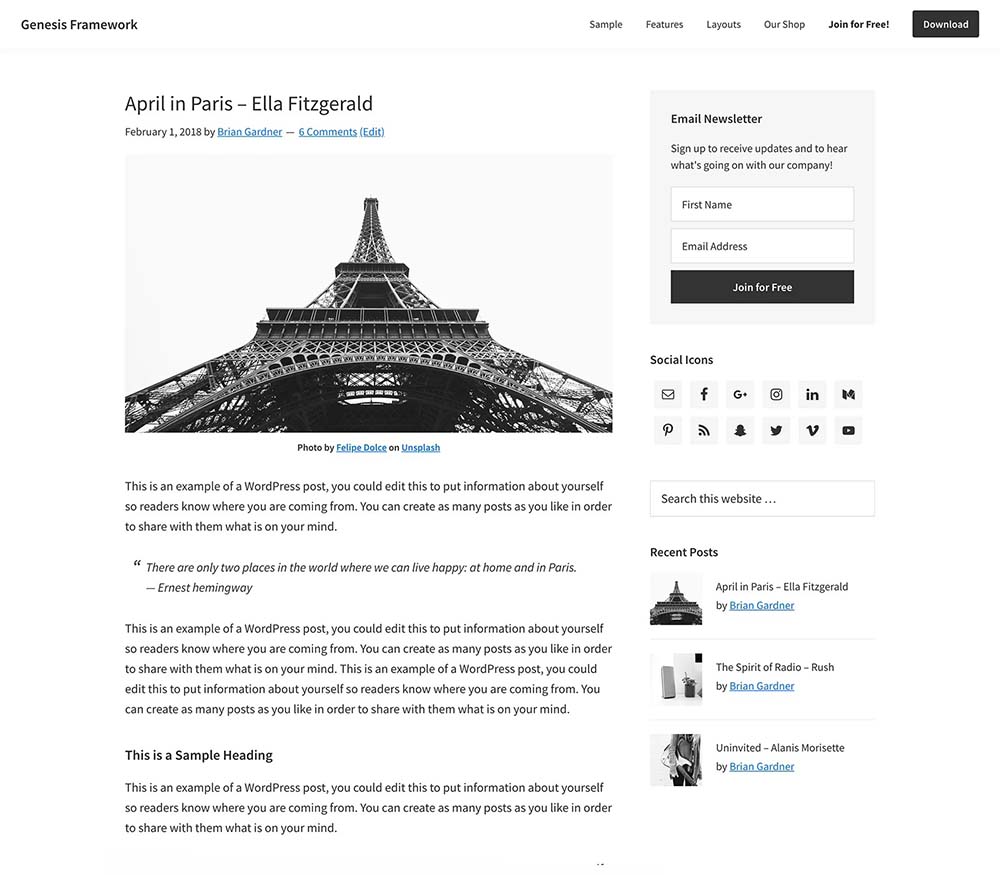
Widgets add special features to your site. Find them under “Appearance”. Click “Widgets” to add or remove them. Plugins add extra functions. Go to “Plugins” in your dashboard. Click “Add New” to find plugins. Install and activate them for use.
Credit: www.studiopress.com
Optimizing Genesis For Seo
Genesis offers basic SEO settings for your site. These settings help improve your site’s visibility. Adjust titles and meta descriptions for each page. Use focus keywords in your content. Make sure your site loads fast. Fast sites rank better on search engines. Enable breadcrumbs for better navigation. Breadcrumbs help users find their way.
Plugins boost SEO for your Genesis theme. Popular choices include Yoast SEO and All in One SEO. These plugins offer extra tools for SEO. They guide you on using keywords properly. They help in creating XML sitemaps. Plugins also check your content readability. A readable site keeps visitors longer. Longer visits improve your ranking.
Tips For Genesis Theme Maintenance
Discover how to add Genesis Theme to WordPress with ease. Start by installing the Genesis Framework, then activate your preferred child theme. Regular updates ensure optimal performance and security. Keep your website running smoothly by checking for plugin compatibility and backing up data frequently.
Regular Updates
Updating your Genesis theme is important. It keeps your site safe. New updates fix bugs. They add new features too. Always check for updates. You can find them in your WordPress dashboard. Click on ‘Updates’. Follow the steps. It’s easy and quick. Regular updates improve your site.
Backup And Security Measures
Backing up your site is smart. It protects your data. Use a plugin for backups. Plugins make it simple. Always keep a backup copy. Store it safely. Security measures are vital. Install security plugins. They help protect your site. Keep your site safe from hackers. Regular checks are good practice. They ensure everything works well.
Credit: crunchify.com
Troubleshooting Common Issues
Installing the Genesis theme in WordPress can sometimes lead to challenges. Users often face issues with incorrect theme uploads or missing plugins. Ensuring all files are properly uploaded and activating required plugins can help resolve these common problems easily.
Theme Compatibility
Not all themes work well together. Some themes may conflict and cause errors. Genesis Theme works with most plugins. But sometimes, issues arise. Check your plugins first. Update them if needed. Older plugins can cause problems. Make sure your WordPress is up to date. Latest versions fix bugs. Sometimes, themes require extra settings. Look for theme options in the dashboard. Genesis Theme has its own settings. Adjust them if needed. If problems persist, consider a theme change. Some themes just don’t fit well together. Explore other options if necessary.
Support Resources
Help is available online. Many users face similar issues. Genesis Theme has forums for help. Ask questions and share problems. Experts often reply quickly. Look for tutorials online. Videos can guide step by step. Blogs often share tips. Check your theme provider’s website. They offer guides and support. Sometimes, professional help is needed. Consider hiring a developer. Problems can be fixed with expert help. Keep learning from community resources.
Frequently Asked Questions
What Is Genesis Theme For WordPress?
Genesis Theme is a popular framework for WordPress. It offers clean design, fast performance, and SEO optimization. Developers use it to build custom, feature-rich websites efficiently. It provides a secure and flexible foundation for creating unique WordPress themes. Users enjoy its simplicity and powerful customization options.
How To Install Genesis Theme On WordPress?
To install Genesis Theme, first purchase it from StudioPress. Download the theme file to your computer. Go to your WordPress dashboard, click “Appearance,” then “Themes,” and “Add New. ” Upload the Genesis Theme file, activate it, and customize your site as needed.
Follow the prompts to configure settings.
Can I Customize Genesis Theme Easily?
Yes, customizing Genesis Theme is easy with its intuitive options. Use the WordPress Customizer to change colors, fonts, and layouts. Genesis provides hooks and filters for advanced customization. You can also add custom CSS for detailed styling. Several child themes offer additional design flexibility and functionality.
Is Genesis Theme Seo-friendly?
Genesis Theme is designed with SEO in mind. It includes clean code and fast loading times. Schema markup enhances search engine visibility. Built-in features improve site structure and readability. Users can integrate SEO plugins for further optimization. These features help boost search rankings and traffic.
Conclusion
Adding the Genesis theme to WordPress is simple. Follow the steps carefully. You can create a unique website. Genesis offers a clean, professional look. It’s perfect for personal or business sites. Easy customization ensures your site stands out. The theme is lightweight and fast.
This improves user experience. Genesis supports SEO best practices. Your site will rank better. Beginners find Genesis user-friendly. Experts appreciate its robust features. Start today and enhance your WordPress site. With Genesis, you gain a reliable theme choice. Your website will impress visitors.
Enjoy the simplicity and efficiency Genesis provides.


