
Are you struggling to figure out how to add a menu to your WordPress theme? You’re not alone.
Navigating the world of WordPress can be a bit overwhelming, especially when it comes to customizing your site to look and function exactly how you want. But don’t worry; you’re in the right place. This guide will walk you through the simple steps to add a menu to your WordPress theme, making your website more organized and user-friendly.
Imagine the satisfaction of seeing your visitors easily navigate through your content, finding what they need effortlessly. That’s the power of a well-structured menu. Read on to discover how you can create a seamless and engaging user experience on your site.
Credit: easywpguide.com
Choosing The Right Theme
Choosing a WordPress theme can be fun. But it needs care. Always check if the theme is compatible with the latest WordPress version. Older themes might not work well. Ensure that the theme supports plugins you plan to use. Some themes might limit you. It’s good to read user reviews. They can tell you if others faced issues. Always test the theme on a demo site. This helps you see how it works.
A responsive theme is vital today. It adjusts to different screen sizes. This is great for mobile users. Google also likes responsive sites. This can help your site rank better. Check if the theme looks good on tablets and phones. Use the WordPress customizer to preview. Make sure menus and images adjust well. A good theme will load fast on all devices. This keeps visitors happy.
Accessing The WordPress Dashboard
First, open your browser and enter your website’s URL. Add “/wp-admin” at the end. This takes you to the login page. Enter your username and password. Click Log In.
Once logged in, you see the WordPress Dashboard. It’s like a control center. Here, you can manage your site. Find the Appearance tab on the left side. Click it to open more options.
Within Appearance, you’ll find the Menus option. Click it to start adding menus. It’s simple and easy to navigate. The dashboard is user-friendly. Take your time to explore.
Navigating To The Menu Settings
First, open your WordPress dashboard. Look on the left side of the screen. Find the Appearance tab. This tab helps you with design changes. Click on it to see more options.
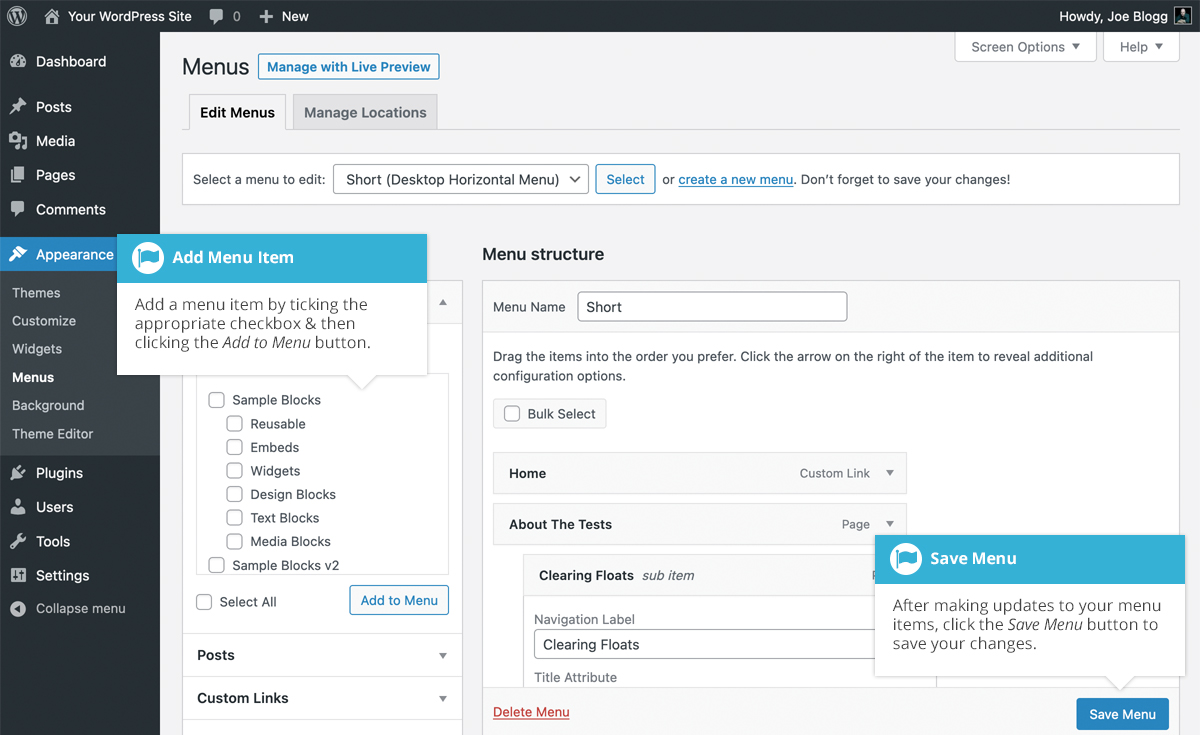
Under the Appearance tab, locate the Menus option. It’s easy to find. Click on Menus to open the menu editor. Here, you can add and arrange items. Make your menu look just right. It’s simple and fun to do!
Credit: www.wpbeginner.com
Creating A New Menu
First, go to the WordPress dashboard. Find the appearance section on the left. Click on menus. You can see a button for creating a new menu. Click it.
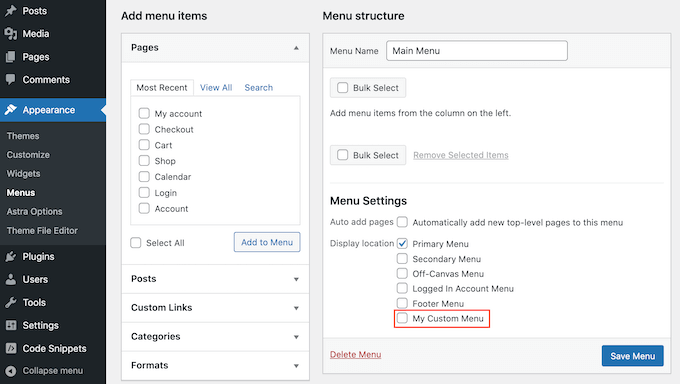
Give your menu a simple name. This helps you find it later. Use a name like main menu or footer menu. Click the create menu button after naming it. Now, you have a menu ready to use.
Each theme can have different menu locations. Common locations are header and footer. You can choose where to show your menu. Check the box for the location you want. Click on save menu to keep changes.
Adding Items To The Menu
WordPress makes it easy to add pages to your menu. Go to Appearance and click Menus. You will see a list of pages on the left. Select the pages you want in your menu. Click Add to Menu. Now your pages appear in the menu.
Adding custom links is simple. Find the Custom Links section. Enter the URL and the link text. Click Add to Menu. Your custom link will now be part of the menu. This helps if you want to link to other sites.
Adding categories can organize your posts. Go to the Categories tab. Choose the categories you want. Click Add to Menu. Now your menu will show those categories. This helps people find topics quickly.

Credit: cyberchimps.com
Organizing Menu Structure
Creating a menu on a WordPress theme enhances user navigation. Access the dashboard, select “Appearance,” then “Menus. ” Add pages or categories by checking boxes and clicking “Add to Menu. ” Organize items by dragging them into place for a structured layout.
Reordering Menu Items
To change the order of menu items, go to the WordPress dashboard. Click on Appearance then select Menus. You will see a list of your menu items. Drag items up or down to reorder. It’s as simple as moving pieces on a board. Save your changes by clicking the Save Menu button. This keeps your menu neat and tidy.
Creating Submenus
Submenus help to organize content under main menu items. Select the item you want as a submenu. Drag it slightly to the right under the main item. This creates a drop-down menu. Submenus are great for showing related pages. Make sure to save your work. Click Save Menu after making changes. This ensures everything displays correctly on your site.
Saving And Previewing The Menu
Always check your menu before saving. Click on the Preview button to see changes. Make sure everything looks correct. Check links and order of items.
Hit the Save Menu button to store changes. This action updates the website. If you miss this step, changes won’t show up.
Visit your site to see the menu live. Ensure all items appear correctly. Confirm that links work as intended.
Troubleshooting Common Issues
Struggling with adding a menu to your WordPress theme? Navigate to the dashboard, select “Appearance,” then “Menus. ” Create a new menu, add pages or links, and save. Ensure it’s assigned to a location for visibility.
Menu Not Displaying Correctly
Sometimes, the menu might not show up right. Check if your theme supports menus. Some themes have limited support. Go to the WordPress dashboard. Select Appearance, then Menus. Make sure the menu is assigned to a location. Refresh your page after saving changes. This might solve the issue.
Missing Menu Locations
Menu locations might be missing in some themes. Visit the Appearance section in the dashboard. Click on Menus. Look for a tab called Manage Locations. This tab shows all possible menu locations. If none are available, your theme might not support them. Consider using a plugin to add menu locations. This can help customize your site’s navigation better.
Enhancing The Menu With Plugins
Plugins offer a simple way to add menus to your WordPress theme. They provide customizable options, enhancing navigation. Improve user experience by easily incorporating responsive menu designs. Plugins make menu management straightforward, even for beginners.
Top Menu Plugins
Many plugins can make menus better. Some plugins add cool features. Others make menus look nice. Popular plugins are Max Mega Menu and WP Mega Menu. These plugins are easy to use. They have many options. You can create drop-down menus. You can add icons and images. These features make menus fun.
Installation And Activation
First, go to the WordPress dashboard. Find the Plugins section. Click on Add New. Use the search bar to find your plugin. Click Install Now. Wait for a few seconds. After installation, click Activate. Your plugin is now ready. You can now start using it to improve your menu. Remember, every plugin is different. Always read the instructions carefully.
Frequently Asked Questions
How To Create A Menu In WordPress?
To create a menu in WordPress, navigate to Appearance > Menus. Click “Create a New Menu. ” Name your menu and click “Create Menu. ” Add pages, posts, or custom links from the left panel. Arrange items by dragging and dropping.
Save your menu when you’re satisfied with the layout.
Can I Add A Submenu In WordPress?
Yes, you can add a submenu in WordPress. In the Menus section, drag an item below another and slightly to the right. This creates a submenu. Make sure to save your changes. Submenus help organize your navigation and improve user experience.
How Do I Set A Primary Menu?
To set a primary menu, go to Appearance > Menus. Under “Menu Settings,” check the “Primary Menu” option. Save your changes. This will display your menu in the primary location defined by your theme. Ensure your theme supports custom menus for this option.
Why Is My WordPress Menu Not Showing?
If your WordPress menu is not showing, check your theme settings. Ensure the correct menu is assigned to the desired location. Also, verify that the menu items have been added and saved properly. Sometimes, clearing your site cache can resolve display issues as well.
Conclusion
Creating menus on WordPress themes is straightforward. Just follow the steps. Start by accessing the WordPress dashboard. Select “Appearance” then “Menus. ” Customize your menu by adding items. Drag and drop to organize them. Save changes to update your site.
Menus enhance user experience. They make navigation easy for visitors. A well-organized menu boosts engagement. It guides users to important pages. Practice makes perfect. With time, menu creation will be second nature. Keep experimenting. Enjoy crafting your WordPress site.


