
Are you looking to enhance your website’s navigation with a sleek and functional drop-down button in your Divi WordPress theme? You’ve come to the right place.
Adding a drop-down button can dramatically improve your site’s user experience, making it easier for your visitors to find what they need quickly. Imagine a website where every click is intuitive and every page transition is seamless. That’s the power of a well-implemented drop-down feature.
In this guide, we’ll walk you through the simple steps to integrate this feature effortlessly. Whether you’re a seasoned developer or someone just starting out with WordPress, you’ll find our step-by-step process easy to follow. Ready to transform your website and keep your visitors engaged? Let’s dive in and explore how you can make your site more interactive and user-friendly with just a few clicks.
Divi Theme Overview
Divi is a popular WordPress theme. It helps create beautiful websites. Divi offers a drag-and-drop builder. This makes designing easy and fun. Many people love Divi for its flexibility. You can make any type of site with it. Adding elements is a breeze with Divi. The theme includes modules for different features. You can use these to add buttons, images, and more. This makes your site look professional. Divi is user-friendly for beginners. It also offers advanced options for experts. This makes it perfect for everyone.
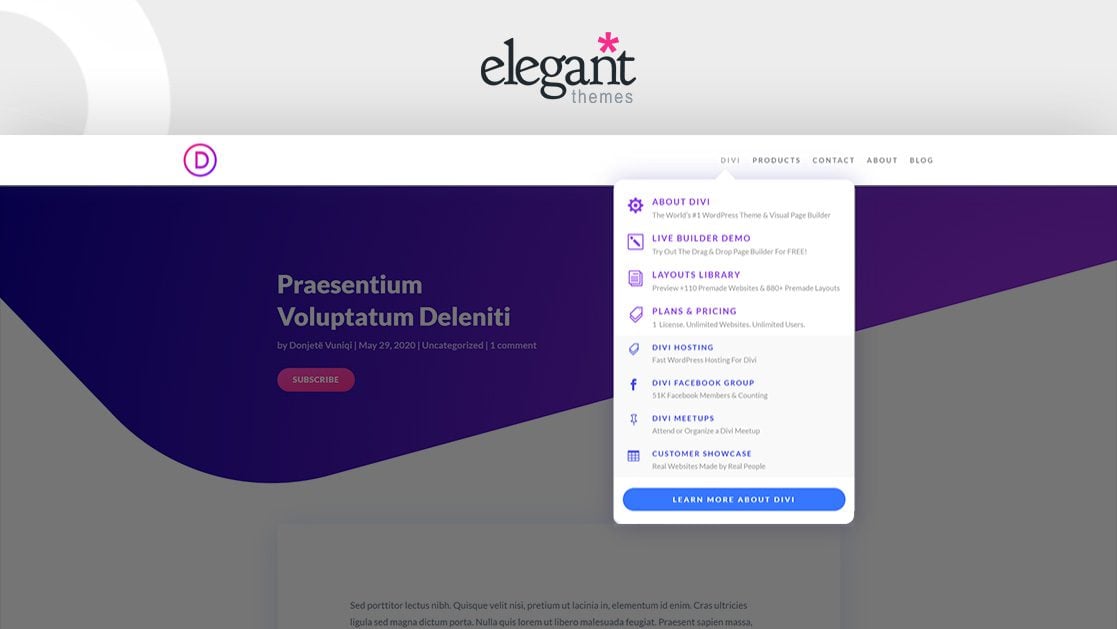
Credit: www.elegantthemes.com
Benefits Of Drop Down Buttons
Drop down buttons make a website look neat. They help users find things fast. Users can see more options without cluttering the page. This can make the website user-friendly. A clean website keeps visitors happy. Happy visitors may stay longer. This can help your site traffic grow.
Drop downs save space. They hide options until needed. This is great for mobile users. Small screens need smart designs. Drop downs can be easy to use. Clicking a button shows choices. Users like when sites are simple and clear. Easy sites can be fun to explore.
Accessing Divi Builder
To start, log in to your WordPress dashboard. Find the Pages or Posts section. Click on the page or post you want to edit. Once inside, look for the Enable Divi Builder button. Click it. The Divi Builder will load, showing different options. This tool helps you design your page easily.
You can see the modules and sections. These are building blocks. Use them to add elements to your page. It is simple to drag and drop modules. Arrange them as you like. To add a dropdown, search for the button module. Add it to the page.
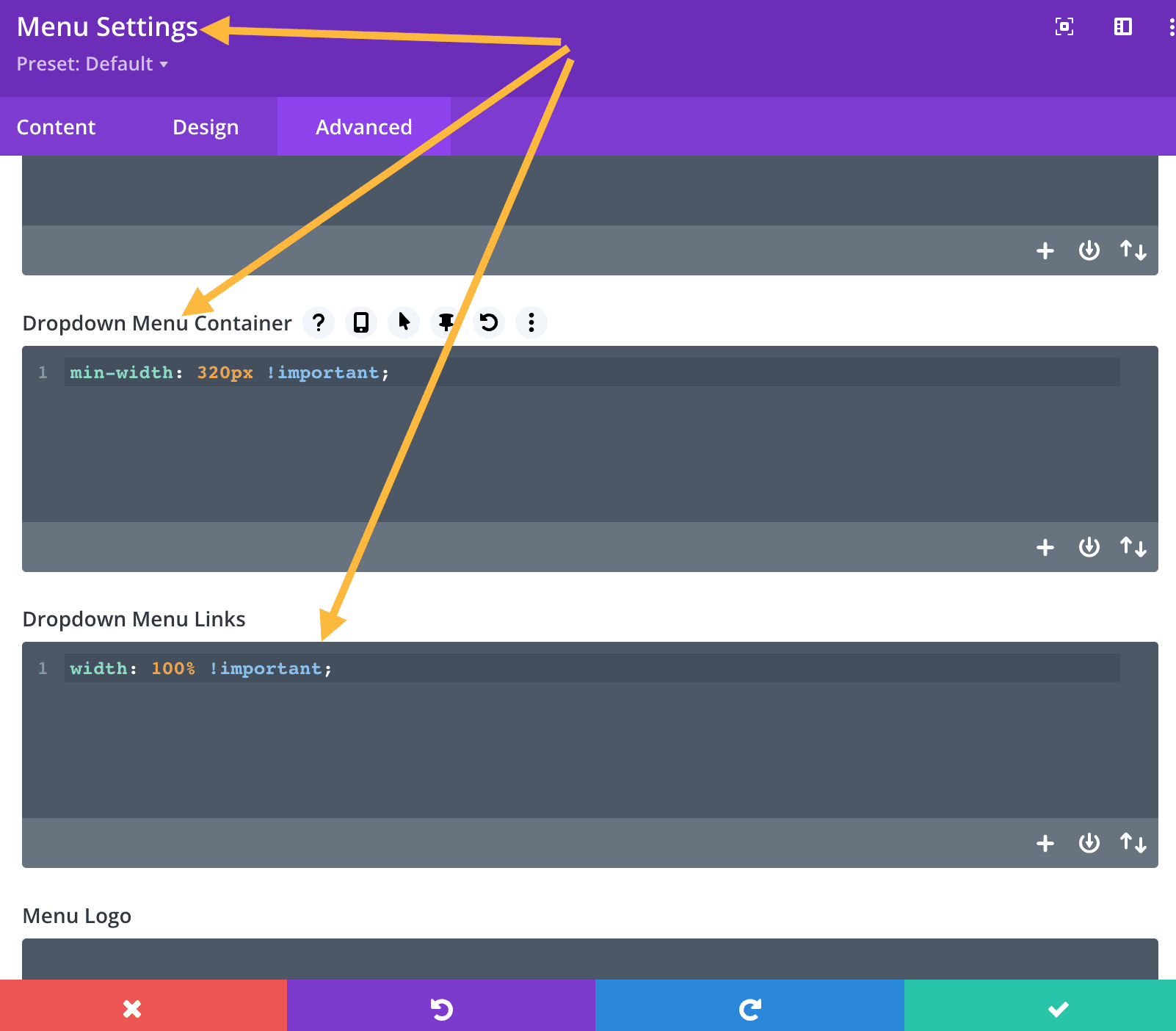
Credit: askkori.com
Creating A Button Module
First, open the Divi Builder on your page. Then, click on the plus icon to add a new module. Choose the Button Module from the list. This will add a new button to your page. Customize the button’s text and design. Use the design tab for colors and styles. You can also adjust the button size.
Next, click the Link tab. Add your URL in the URL field. This will make the button clickable. To create a dropdown, we need more steps. Add a CSS class to the button in the Advanced tab. Call it “dropdown-button”. This helps in adding the dropdown feature with custom code.
Save your changes and exit the builder. You have now created a button ready for dropdown actions.
Configuring Button Settings
Adding a dropdown button in Divi WordPress theme enhances navigation. Customize button settings by accessing the Divi Builder. Select the button module, then configure options for dropdown functionality.
Text And Link Options
First, find the button module in Divi. Click to open settings. Choose the text for your button. Make it clear. Next, add the link. This is where people go when they click. Check the link. Make sure it works.
Styling The Button
Style your button. Choose a color that stands out. Pick a font that is easy to read. Adjust the size of the button. Not too big, not too small. You can add border styles. Make it look neat and tidy.
Advanced Settings
Explore advanced settings for more options. Use animation for effects. Make your button move or change color. Set visibility rules. Decide who sees the button. Adjust spacing around your button. Keep it balanced. Use these settings to make your button unique.
Implementing Drop Down Functionality
Creating a drop down button with Custom CSS is fun. First, open the Divi theme editor. Find the Advanced CSS option. Add your CSS code there. Use classes to style the button. Classes help in making the button look nice. Change colors and sizes using CSS properties. Test the button in preview mode. Make sure it looks good. If changes are needed, edit the CSS. Keep the code simple and clean. This helps in understanding the changes.
JavaScript is useful for drop downs. Add JavaScript to make buttons interactive. Start by writing a small script. This script should show and hide content. Use event listeners for clicks. Event listeners react when buttons are pressed. JavaScript adds fun to web pages. Make sure to test the button. Check if it works correctly. Debug any errors if they appear. Keep the code organized. This helps in future edits. JavaScript makes pages lively and engaging.
Testing The Drop Down Button
After creating the drop down button, it’s time to check the changes. Open your website and see the button in action. Click the button to make sure it works. Make sure it shows all the options you added. If you see any issues, go back to the settings. Fix them before moving on. This helps make the button perfect. Testing is important for a good user experience.
Look at your website on different devices. Use a phone, tablet, and a computer. Check if the drop down button works on each one. A good button should look nice everywhere. It should be easy to click on a small screen. If it doesn’t work well, change the design. Use the Divi tools to make it better. A responsive button is important for all users.
Common Issues And Fixes
Creating a drop-down button in the Divi WordPress Theme often leads to issues like incorrect alignment or non-functioning links. Fix these by adjusting CSS settings and ensuring JavaScript is enabled.
Troubleshooting Display Problems
Drop-down buttons can sometimes disappear or appear incorrectly. Check the visibility settings. Ensure the button is not hidden by any CSS rule. Sometimes, incorrect z-index values can cause issues. Adjust the z-index to make sure the button is on top. Refresh your browser to see changes.
Resolving Mobile Compatibility
Mobile devices can misinterpret button styles. Ensure the button is responsive. Use media queries to adjust for different screen sizes. Check the button’s tap target size. It should be large enough to be tapped easily. Test the button on actual devices for best results.
Enhancing User Experience
Adding a dropdown button in the Divi WordPress theme can boost user experience. This feature organizes content neatly, making navigation simpler and more intuitive. Users find information faster, enhancing overall satisfaction.
Adding Animations
Animations make buttons fun. They catch the eye. Smooth transitions are key. Users like when things move nicely. Quick animations work best. Slow ones can be boring. Use them wisely.
Simple animations are easy to add. They make the button feel alive. Bounce effects are popular. They make buttons jump. Users love it. Fade effects are also great. They make buttons appear slowly. These effects add a touch of magic.
Customizing Hover Effects
Hover effects change buttons when touched. Color change is common. It shows users they can click. Enlarging buttons is fun too. It makes them look bigger. These effects guide users.
Border changes add style. They can be thin or thick. Adding shadows is another trick. Shadows make buttons pop. Rotating buttons is creative. It adds flair. Hover effects enhance user interaction.
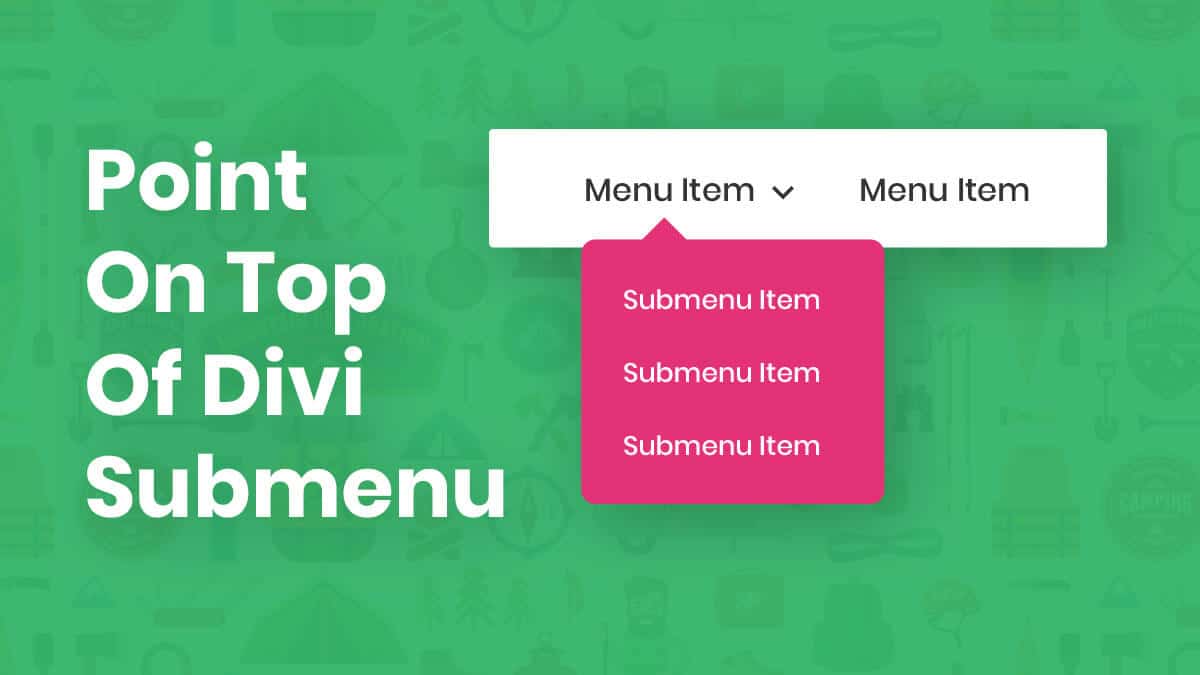
Credit: www.peeayecreative.com
Frequently Asked Questions
How Do I Create A Dropdown In Divi?
To create a dropdown in Divi, use the Divi Builder. Add a Button Module and customize it. Use the Advanced tab to add CSS for dropdown functionality. Ensure the dropdown is responsive and test it across devices. This process enhances navigation and user experience.
Can I Customize Dropdown Buttons In Divi?
Yes, you can customize dropdown buttons in Divi. Use the Divi Builder’s design settings to change colors, fonts, and sizes. The Advanced tab allows for custom CSS. Tailor the dropdown to match your website’s theme and style for a cohesive look.
Is A Plugin Needed For Divi Dropdowns?
No, a plugin is not needed for Divi dropdowns. Divi’s built-in modules and settings allow you to create functional dropdowns. Use the Button Module and customize it through CSS. However, plugins can offer additional features if required.
How To Improve Dropdown Accessibility In Divi?
To improve dropdown accessibility in Divi, use semantic HTML and ARIA roles. Ensure keyboard navigation is smooth. Test the dropdown with screen readers. Consider contrast and font size for readability. Accessibility enhances user experience for all visitors.
Conclusion
Adding a drop-down button in Divi is straightforward. It enhances site navigation. Users enjoy easier access to information. Follow the steps carefully for best results. Customize the drop-down style to fit your design. Test the button on different devices. Ensure it works smoothly everywhere.
This boosts user experience significantly. Your site becomes more interactive and engaging. Keep exploring Divi for more features. Experiment and improve your website continuously. Happy designing!


