
Are you ready to make your WordPress site more user-friendly and engaging? Adding a contact form is one of the simplest yet most effective ways to do this.
With Contact Form 7, you can easily manage multiple contact forms and customize them to suit your needs. In this guide, you’ll discover how to seamlessly integrate Contact Form 7 into your WordPress theme. Imagine the ease of receiving messages and feedback directly from your visitors, enhancing your site’s functionality and your users’ experience.
You’re about to learn how to transform your website into a communication hub effortlessly. So, are you ready to take your WordPress site to the next level? Let’s dive in!
Installing Contact Form 7 Plugin
First, log in to your WordPress Dashboard. This is where you manage your site. Look for the left sidebar. It’s full of options.
In the sidebar, find the Plugins section. Click on it. A new page will open. Here, you see all your plugins. You can add new ones too.
At the top, find the Add New button. Click it. A search bar appears. Type “Contact Form 7”. Press Enter. The plugin will appear in the list.
Click Install Now next to Contact Form 7. Wait a few seconds. After installing, click Activate. Now, the plugin is ready to use.
Creating A New Contact Form
First, open your WordPress dashboard. Find the Contact section. Click on Contact Forms. This opens the Contact Form 7 interface. You can see existing forms here. To add a new form, click Add New. This creates a blank form.
Look at the top of the form. You will see a field for Form Title. Choose a simple name for your form. This helps you find it later. Scroll down to see more settings. These settings control emails and messages. Set them how you like.
Fields are the parts users fill out. Click on the Form tab. You can add fields like name, email, and message. Use the shortcodes to add them. Customize each field. Make sure it fits your needs. You can also add checkboxes or radio buttons.
Styling Your Contact Form
Easily enhance your WordPress site by adding Contact Form 7 to your theme. Customize it to fit your style. Ensure user-friendly interaction by designing an intuitive form layout.
Using Custom Css
Make your form look good with Custom CSS. It’s easy and fun. First, find the class name of the form. You can use your browser’s inspect tool. Then, write your CSS rules. Change colors, sizes, and fonts. Try different styles. You can use padding for space. Margins are good too. Add some border styles. Make buttons look cool. Use simple colors. Not too bright. Your form will look nice. Remember to save your changes. Refresh your page to see them.
Modifying Form Appearance In The Theme
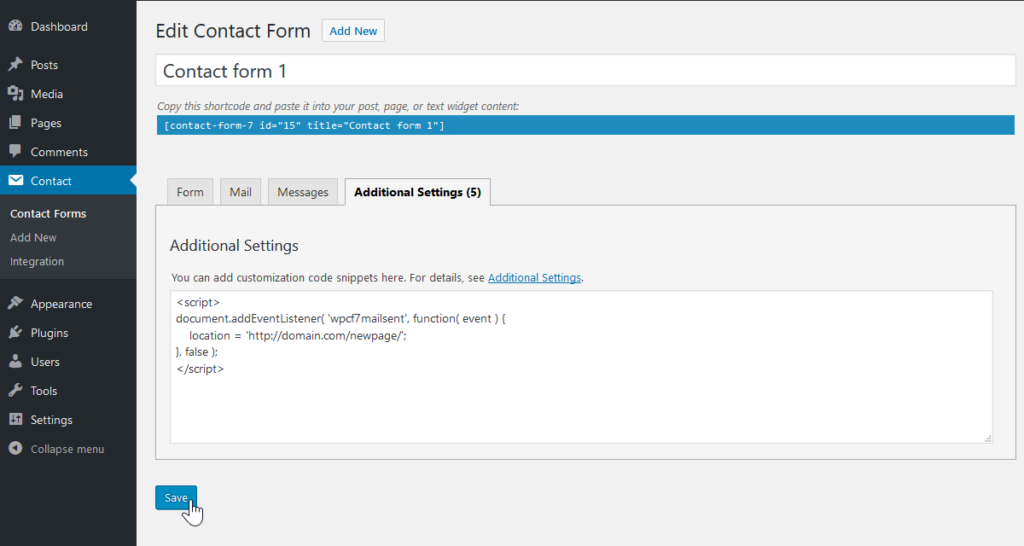
Themes have style options. Check theme settings for form styles. Some themes let you change colors. Others let you change fonts. Look for the customizer option. It helps to tweak styles. You can also add CSS in the theme settings. Use the additional CSS box. Test your changes. Make sure everything looks good. Always save before leaving. Your form should now match your theme. This makes your site look better.
Credit: www.inmotionhosting.com
Embedding Contact Form In A Page
Integrating Contact Form 7 into a WordPress theme enhances user interaction. Install the plugin, then use shortcode to embed forms easily. Customize settings to fit design needs and ensure seamless communication.
Generating The Form Shortcode
Create a new contact form in the Contact Form 7 plugin. Copy the shortcode from the form settings. This code is a small piece of text. It tells WordPress to show the form. Make sure to keep the code handy. You will need it soon.
Inserting Shortcode Into A WordPress Page
Open the page where you want the form. Click on the edit button. Paste the shortcode where you want the form to appear. Use the WordPress editor for this. Save your changes. Visit the page to see the form live. If it looks good, you did it right. If not, check the shortcode again. Make sure there are no extra spaces or wrong characters.
Adding Contact Form To A Widget Area
Easily integrate Contact Form 7 into your WordPress theme’s widget area for seamless communication. Simply drag and drop the Contact Form 7 widget into your desired sidebar. Customize the form settings for a personalized touch.
Selecting The Appropriate Widget
First, locate the widget area in your WordPress admin panel. This area is usually under the “Appearance” section. Choose a text widget from the available options. Text widgets allow you to add custom HTML and shortcodes. After selecting the text widget, drag it to the desired widget area. This could be the sidebar or footer of your website. Remember to save your changes.
Inserting The Shortcode Into The Widget
Copy the Contact Form 7 shortcode from the form settings. This shortcode is unique for every form. Paste the shortcode into the text widget you just added. Ensure the shortcode is complete and correct. Save the widget settings to make the form appear on your site. Check your website to see the contact form. It should display in the chosen widget area.

Credit: kinsta.com
Testing The Contact Form
Sending Test Submissions is crucial. Check if the form works. Enter your name and email. Add a simple message. Hit the submit button. Do you get a confirmation? This step ensures the form is active.
Ensuring Email Deliverability is vital. Sometimes emails don’t arrive. Use a reliable email address. Check your spam folder. Adjust mail settings if needed. Email must reach the inbox. Verify email notifications are timely. Test different email providers. Ensure all emails are sent.
Troubleshooting Common Issues
Facing difficulties adding Contact Form 7 to a WordPress theme? Follow simple steps to integrate it smoothly. Ensure the plugin is installed, then use shortcodes to display the form on your pages.
Form Not Sending Emails
Check if the email address is correct. Wrong emails won’t work. Ensure the email settings are correct in the plugin. Sometimes, emails go to spam. Look in the spam folder. Use a reliable email service. This helps in sending emails smoothly. Update the plugin regularly. Old versions may have bugs.
Form Display Errors
Ensure the shortcode is correct. Wrong shortcodes cause errors. Check if the theme supports Contact Form 7. Some themes may not work well. Update the theme and plugin. Old versions can have display issues. Clear the cache after changes. Old cache can show old errors. Use simple form designs. Complex forms can cause issues.
Credit: m.youtube.com
Frequently Asked Questions
How To Install Contact Form 7 Plugin?
To install Contact Form 7, go to your WordPress dashboard. Navigate to Plugins > Add New, and search for “Contact Form 7. ” Click “Install Now” and activate it. Once activated, you can create and manage forms from the “Contact” section in the dashboard.
How To Create A Contact Form In WordPress?
After installing Contact Form 7, go to the “Contact” section in your dashboard. Click “Add New” to create a form. Customize your form fields using the provided tags. Save your form and copy the shortcode. Paste the shortcode into any page or post where you want the form displayed.
How To Add Contact Form 7 To A Page?
To add Contact Form 7 to a page, first create your form. Copy the form’s shortcode from the “Contact” section. Open the page where you want to place the form. Paste the shortcode into the page editor, and update the page.
Your contact form will appear on the specified page.
How To Customize Contact Form 7 Appearance?
Contact Form 7’s appearance can be customized using CSS. Add custom styles in your theme’s stylesheet or through the WordPress Customizer. Target form elements using their classes or IDs. You can also use plugins like “Contact Form 7 Style” to easily modify the form’s design.
Conclusion
Adding Contact Form 7 to your WordPress theme is simple. It enhances user interaction and streamlines communication. Following these steps ensures you set it up correctly. Customize the form to fit your website’s needs. Troubleshoot any issues using the plugin’s support.
Regular updates keep it secure and functional. Make sure to test the form often. This improves user experience and boosts site efficiency. Now, you can easily manage inquiries from your website visitors. Enjoy a smoother communication process with Contact Form 7 on your WordPress site.


