
Unlock the full potential of your WordPress Lifestyle Theme by learning how to add a second column with ease. Imagine transforming your blog into a more dynamic, organized space where your content shines and readers are captivated by a seamless browsing experience.
If you’ve ever wondered how to make your blog layout more appealing and efficient, you’re in the right place. By the end of this guide, you’ll have the tools and confidence to enhance your site, making it both user-friendly and visually stunning.
Dive in, and let’s make your blog stand out!

Credit: athemes.com
Benefits Of A Second Column
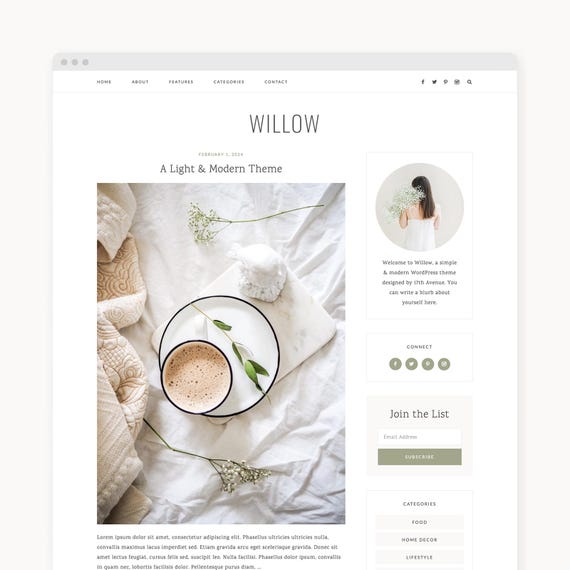
A second column makes your website look more organized. It helps in displaying more content without making the page too long. Visitors can easily find what they need.
More space allows for additional features. You can add widgets, ads, or links. This helps in engaging visitors. Your website can look more professional and appealing.
With a second column, navigation becomes easy. Readers find information quickly. This improves their experience. A better experience means they might return.
Checking Theme Compatibility
Themes come with different options. Some themes support a second column. First, check the theme settings. Look for layout options. If you see a two-column option, you are in luck. Some themes might need extra plugins. Plugins help add columns. Search the plugin directory for column plugins. Install one if needed.
Test the changes. Preview your site. Does it look right? If yes, great! If not, try another plugin. Some plugins work better with certain themes. Always check compatibility. It saves time and effort. Keep your theme updated. Updates fix bugs and improve features.
Using WordPress Customizer
First, log into your WordPress dashboard. On the left menu, find the Appearance option. Click on it. Then, select Customize. This opens the WordPress Customizer.
Inside the Customizer, look for the Layout or Design section. Click it to see more options. You might find a setting for Columns. Choose the two-column option. Save changes by clicking the Publish button. Your page will now show two columns.
Editing Theme Files
Always make a backup of your theme. Save a copy to your computer. This protects your work. If something breaks, you can go back. It is a safety net.
Open the WordPress Dashboard. Go to Appearance and then Editor. Find your CSS file. Add styles for the new column.
Next, locate the PHP file. This controls the layout. Edit it to add a second column. Be careful with changes. Always save your work. Refresh your site to see changes.
Employing Page Builders
Plugins help to add new features. Find a plugin for page building. Elementor and Beaver Builder are popular choices. They have easy-to-use options. Check reviews before choosing. Good reviews mean the plugin is reliable. Install it on your WordPress site. Activate the plugin after installing. This will help you create columns.
Open your page builder. Select a new section. Choose a two-column layout. This creates a second column. Drag elements into the columns. Add images, text, or buttons. Customize each column. Change the colors and sizes. Save your changes. Preview to see how it looks. Make sure it fits your design.
Utilizing Widgets
Easily add a second column in WordPress Lifestyle theme using widgets. Access your dashboard, navigate to Appearance, then Widgets. Drag desired widgets into the second column area to customize your layout.
Understanding Widget Areas
WordPress themes have places for widgets. These are called widget areas. Each theme has different widget areas. Lifestyle theme has sidebars. You can add extra columns using these sidebars. The main sidebar is on the right. There might be more widget areas. Check your theme settings. Find all widget areas. Use them to add new content.
Adding And Configuring Widgets
Widgets are small tools. They help to add content easily. Go to the Appearance menu. Click on Widgets. You will see a list of widgets. Drag and drop them into widget areas. Configure each widget. Choose what content it shows. Save your settings. Now you have extra columns. You can add more widgets if needed.
Testing And Troubleshooting
Checking Responsiveness is very important. First, adjust your browser size. Watch how the page changes. Your second column should fit nicely on all screens. Use online tools to test further. They mimic phones and tablets. Ensure the text is readable. Images should not overlap. Everything must stay in place.
Fixing Common Issues might be needed. Columns may break or shift. Double-check your code. A small mistake can cause issues. Use a plugin to help fix problems. Many are free and easy to use. Always back up before making changes. This keeps your work safe. If problems continue, ask for help. Online forums are full of advice. Many users share their solutions there.
Credit: inspireui.com
Resources For Further Customization
Adding a second column in the WordPress Lifestyle Theme can be fun. Online tutorials offer step-by-step guidance. These tutorials often have pictures. WordPress forums are also great. Here, users share their experiences. You can ask questions too. Many people are ready to help. Plugins can make your job easier. Some plugins add columns with just a click. They are easy to use and save time. Theme documentation is another good resource. It explains the theme’s features. You can learn about customization options. Always keep a backup before making changes. This protects your site from errors.
Credit: www.etsy.com
Frequently Asked Questions
How Do I Add A Second Column In WordPress?
To add a second column in WordPress Lifestyle theme, go to your theme settings. Look for layout options and select a two-column layout. This allows you to customize your site’s appearance, providing more space for content and widgets.
Can I Customize Column Width In Lifestyle Theme?
Yes, you can customize column width. Navigate to the theme customizer and adjust the column settings. This feature helps you balance the layout, making it visually appealing and enhancing user experience.
What Plugins Help With Adding Columns?
Plugins like WPBakery Page Builder and Elementor can help add columns. They offer drag-and-drop interfaces, making it easy to create multi-column layouts. These plugins provide flexibility and customization options for your WordPress site.
Is Coding Required To Add Columns?
No coding is required to add columns in Lifestyle theme. Use the built-in theme options or page builders like Elementor. This user-friendly approach allows anyone to create a professional layout without technical skills.
Conclusion
Adding a second column in the Lifestyle theme is simple. You can enhance your site’s layout with this quick adjustment. A two-column layout improves readability and organization. Visitors enjoy a cleaner look and easier navigation. Follow the steps shared earlier to make this change.
Your website will appear more professional and engaging. This small tweak can impact user experience positively. Remember to save your changes after editing. You are now ready to showcase your content beautifully. Enjoy the new look of your WordPress site!


