
Do you ever find yourself wishing for a more efficient way to manage your WordPress website? The admin bar is your secret weapon.
This handy tool can streamline your workflow and put essential features at your fingertips. If you’ve ever felt overwhelmed by navigating through different menus to access the core functions of your WordPress site, adding an admin bar could be a game-changer.
Imagine having the power to make quick changes, monitor site activity, and enhance your site’s performance all from one convenient location. You’ll discover how easy it is to integrate the admin bar into your WordPress theme, empowering you to manage your site with ease and confidence. Keep reading to unlock the secrets of a more efficient WordPress experience!
Understanding The Admin Bar
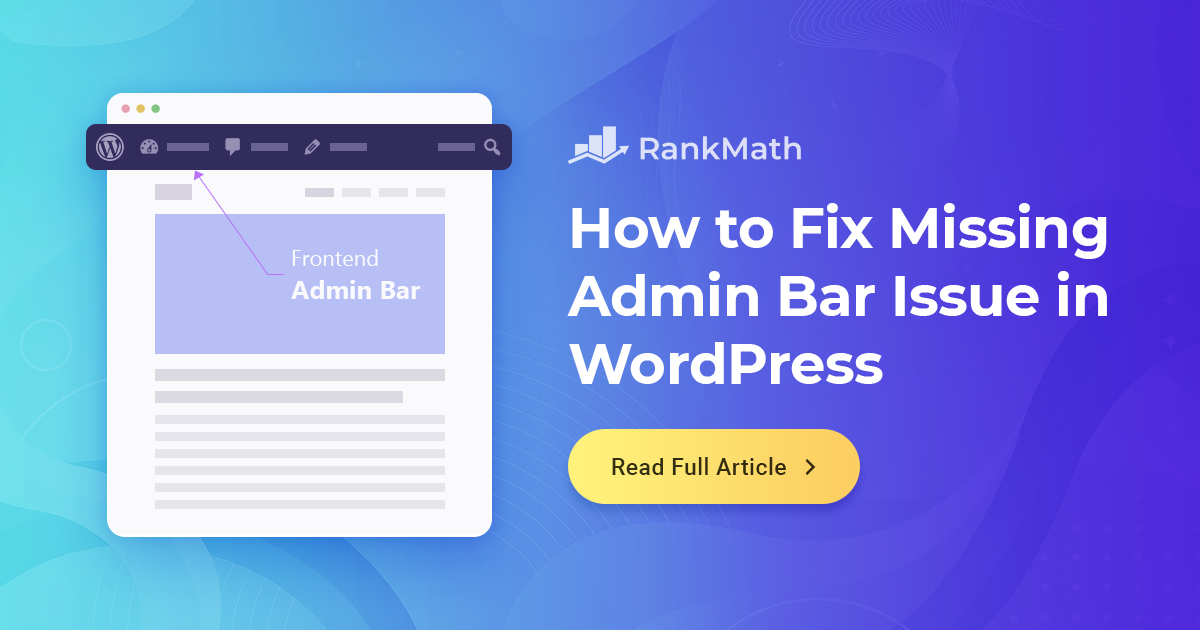
The admin bar helps you navigate your site quickly. It is always visible at the top. This bar saves time by providing quick access to important features. You can add new posts or manage comments easily. It also helps in viewing site changes instantly. The admin bar is like a shortcut tool for site admins.
| Feature | Description |
|---|---|
| Dashboard | Quick access to the main dashboard. |
| New Post | Add new posts quickly. |
| Comments | Manage and review comments easily. |
| Profile | Edit your user profile settings. |
Credit: rankmath.com
Preparing Your WordPress Environment
Check if your theme supports the admin bar. Some themes might hide it. Find the functions.php file in your theme folder. Open it using a text editor. Look for any code that disables the admin bar. Remove or comment out that code. This ensures the admin bar shows correctly. Sometimes, plugins might affect theme compatibility. Disable plugins one by one to test for conflicts. If the admin bar appears, a plugin might be the issue. Keep your theme updated for better compatibility.
Before changes, always backup your website. Use a plugin or hosting service for backups. This keeps your site safe from mistakes. Save copies of important files. Store them in a secure place. If something goes wrong, you can restore your site easily. Tell others working on the site about changes. Communication helps prevent errors. Always test changes on a staging site first. This avoids problems on the live site.
Coding The Admin Bar Into Your Theme
You can add the admin bar with a simple code. Open your theme’s functions.php file. Paste this line of code:
show_admin_bar(true); This code makes the bar show for all users.
Remember to save your changes. The admin bar will now be visible.
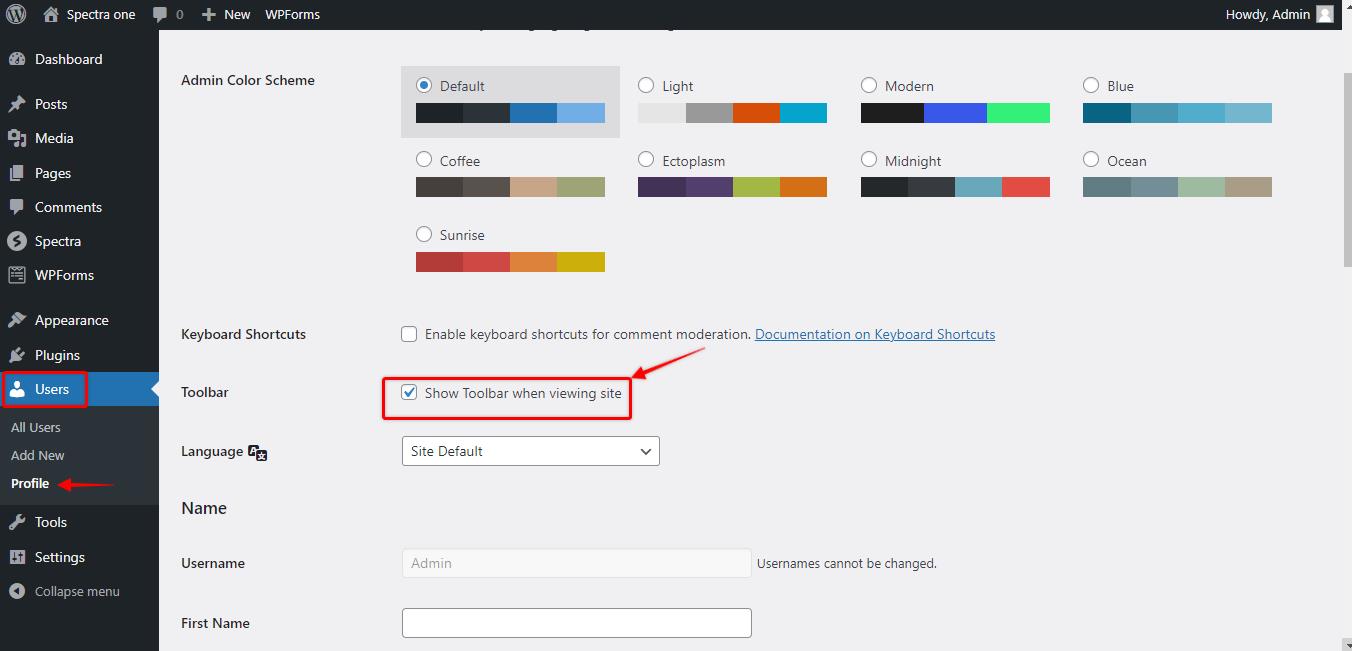
You can control who sees the admin bar. Use the function is_user_logged_in(). This checks if a user is logged in.
Customize the bar’s style with CSS. Add your CSS rules to your theme’s stylesheet.
Change the bar’s colors or fonts to match your theme.
Make sure your changes look good on all devices.
Credit: wpspectra.com
Testing The Admin Bar Integration
Check if the admin bar shows on your website. Log in to your WordPress dashboard first. Visit your site’s front end. Look for the bar at the top. It should be visible. If not, something is wrong.
Sometimes, the admin bar does not appear. This might be due to plugin conflicts. Disable all plugins one by one. Check the bar each time. Also, ensure your theme supports the admin bar.
Another issue could be incorrect user permissions. Make sure you have admin rights. If needed, contact your site admin. They can help fix permissions.
Enhancing The Admin Bar Features
Enhancing your WordPress theme by adding an admin bar improves user interaction and functionality. Easily integrate this feature by modifying your theme’s functions. php file. This addition simplifies navigation and boosts efficiency for site administrators.
Adding Custom Links
The admin bar is useful. It can have custom links. These links help you access tools quickly. You can add links to favorite pages. Links can go to settings or plugins. This makes work faster and easier. Editing the admin bar is simple. Use the functions.php file. Add code for new links. You can add many links. Make the admin bar fit your needs.
Incorporating Plugins For Extended Use
Plugins make the admin bar better. They add features and tools. Some plugins offer extra links. Others improve the look of the bar. Choose plugins that help you work better. Look for plugins with good reviews. Install them from the WordPress library. Always check plugin updates. Updates keep your site safe and fast.
Credit: torquemag.io
Frequently Asked Questions
How Can I Add An Admin Bar In WordPress?
To add an admin bar in WordPress, use the `show_admin_bar(true);` function in your theme’s `functions. php` file. This code ensures the admin bar is visible for logged-in users. Make sure you have necessary permissions to edit theme files.
Why Is The Admin Bar Not Showing?
The admin bar might not show due to theme settings or user permissions. Ensure `show_admin_bar(true);` is set in `functions. php`. Also, verify your user role has the required permissions to view the admin bar.
Can I Customize The WordPress Admin Bar?
Yes, you can customize the WordPress admin bar using hooks and filters. Use `wp_admin_bar` to modify existing items or add new ones. Plugins are also available to assist with customization without coding.
Does The Admin Bar Affect Site Speed?
The admin bar has minimal impact on site speed. It only appears for logged-in users, not affecting general visitor load times. Ensure efficient coding practices to maintain optimal performance.
Conclusion
Adding an admin bar to your WordPress theme enhances user experience. It simplifies navigation and access to important features. Just follow the steps carefully. Your site will be more efficient. Users will appreciate the smoother workflow. Remember to test changes.
Ensure everything functions properly. A seamless admin interface makes a big difference. It saves time and boosts productivity. Keep your WordPress site user-friendly. This small tweak can make managing your site easier. Enjoy the improved functionality. Happy WordPress managing!


