
Are you feeling stuck with your current WordPress theme and ready for a fresh look? Changing your site’s theme on WordPress.org can seem daunting, but it doesn’t have to be.
Imagine giving your website a makeover that not only appeals to your audience but also boosts your brand’s identity. With the right guidance, you can transform your site’s appearance in just a few simple steps. We’ll walk you through the process of selecting and changing your WordPress theme with confidence.
We’ll also share tips on how to choose the perfect theme that aligns with your vision and enhances user experience. Ready to breathe new life into your website? Let’s dive in and explore how you can make your WordPress site shine!
Credit: wordpress.org
Choosing The Right Theme
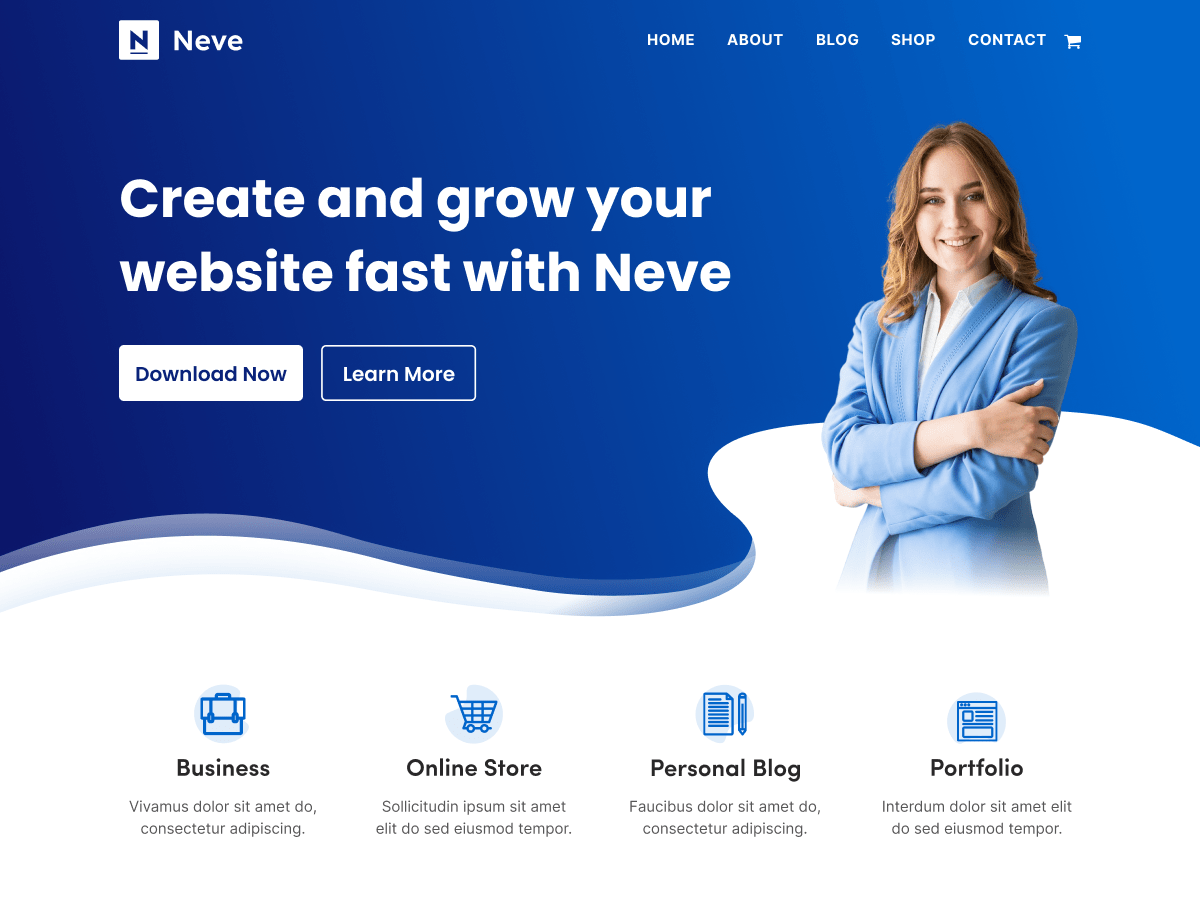
There are different theme types in WordPress. Some themes are for blogs. Others are for shops. Many themes are free. Some need money. A theme can change how a site looks. It can change how a site works too. Themes have different styles. Some look modern. Some look classic. Choose one that matches your site.
Think about the features you need. Some themes have many options. Others have few. Check if it is easy to use. Look at the rating and reviews. They help you know if people like the theme. Make sure the theme works on phones too. This is called responsive design. Your theme should load fast. No one likes a slow site.
Credit: wordpress.org
Preparing For A Theme Change
Always back up your site before changing themes. This keeps your data safe. Use a plugin to make backups simple. Important files include databases and media. Store backups in a secure location. Cloud storage is a good choice. This step protects against data loss.
Check if the new theme is compatible with your site. Install it on a test site first. Look for errors or missing features. Ensure plugins work with the theme. Compatibility testing prevents issues later. It’s important to test before making changes live.
Installing A New Theme
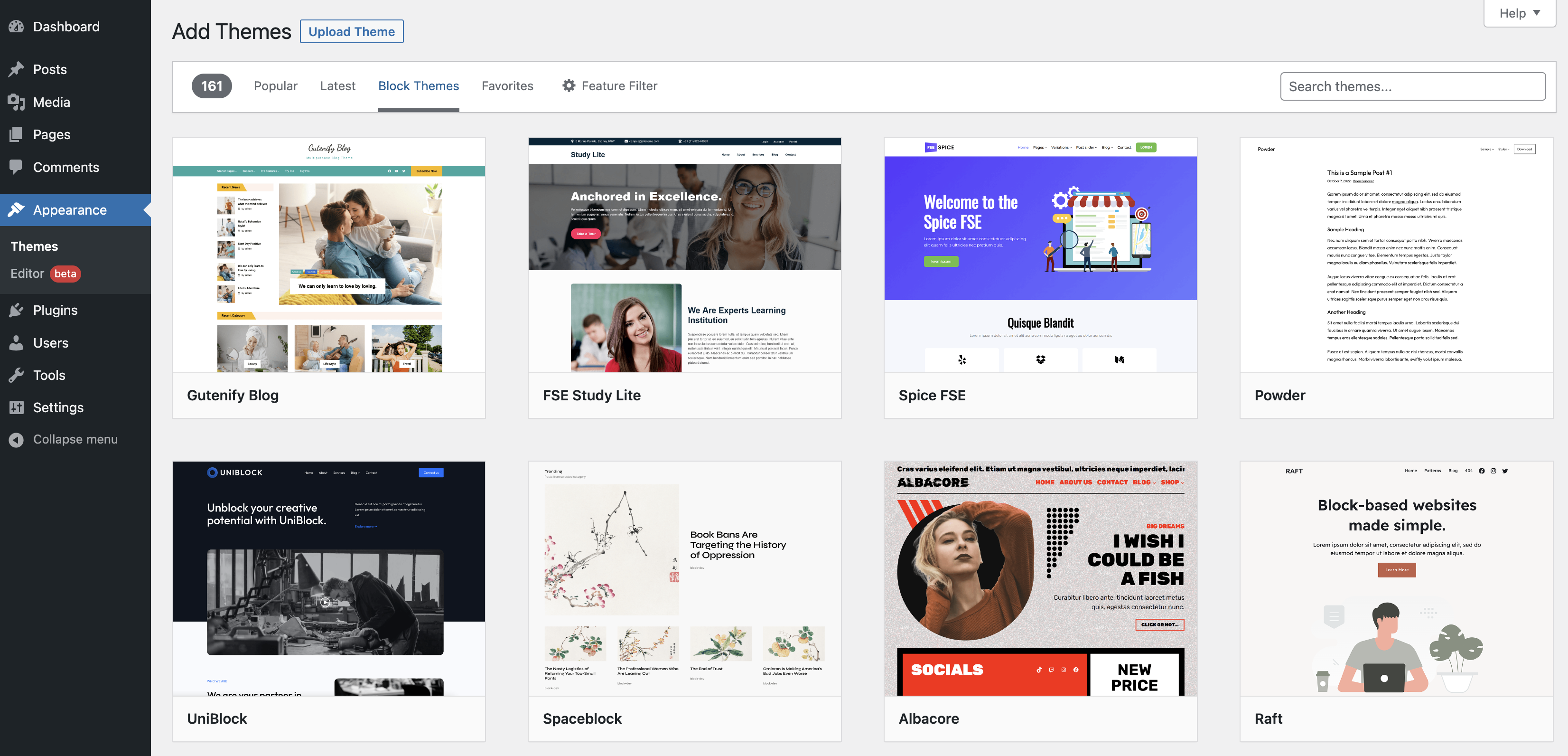
Find the WordPress Dashboard on your site. Click on Appearance. Choose Themes. The Theme Directory will open. Browse through the themes. Find one you like. Click Install. Wait for the theme to install. Click Activate to use it. Your site’s look changes.
Download your theme file. Go to WordPress Dashboard. Click Appearance. Select Themes. Click Add New. Choose Upload Theme. Click Choose File. Select your theme file. Click Install Now. Wait for upload. Click Activate to make it live.
Customizing Your Theme
The WordPress Customizer is a useful tool. It allows you to change your theme easily. Open the Customizer from your dashboard. You can see live changes. This tool lets you change colors, fonts, and more. Make your site look how you want. It’s simple and fun to use.
Widgets and menus help organize your site. Add widgets to your sidebar or footer. Drag and drop them where you want. Menus help visitors find pages. Create custom menus to guide them. Use clear labels. Keep it simple and neat. It improves user experience. Your site becomes easy to navigate.
Ensuring A Smooth Transition
Checking for Broken Links is important. Some links might break after a theme change. Broken links can confuse visitors. Use tools to find these links. Fix them quickly to keep your site friendly. Make sure all links work well. Check them often. This keeps your site strong and helpful.
Optimizing for Mobile makes your site easy to use. Many people browse on phones. Themes should look good on all screens. Check how your site looks on mobile. Adjust settings if needed. Make menus simple and text clear. A good mobile site helps users stay longer. This improves their experience.
Troubleshooting Common Issues
Plugins can cause trouble. They might not work well together. Deactivate all plugins. Check your site again. If it works, one plugin was the problem. Activate them one by one. Find the bad plugin. Replace or update it. Always keep plugins updated.
Layouts can break. Themes often cause this. Change the theme. Choose a simple theme first. Check your site. If the layout is fixed, your old theme was bad. Update the broken theme. Make sure the theme is compatible with plugins. Use a child theme for safety. This keeps changes safe. Always backup your site before big changes.
Utilizing Child Themes
Child themes are easy to customize without losing main theme updates. They help keep your site’s design safe and stable. Changes made in child themes don’t affect parent themes. This means your customizations remain intact. Child themes can be quickly updated when the parent theme updates. This ensures your site stays secure and efficient. They offer a great way to experiment with new designs. You can test different styles without altering the main theme.
To create a child theme, first make a new folder. This folder should be in the theme directory. Next, create a style.css file inside this folder. Add details like theme name and version. Then, make a functions.php file. Use this file to enqueue the parent theme’s stylesheet. The child theme now inherits styles from the parent. Finally, activate the child theme via WordPress dashboard. Your site will now run with the child theme’s modifications.
Leveraging Theme Support And Resources
WordPress themes come with helpful documentation. This guide explains theme features. Find step-by-step instructions for setup. It is a useful tool for beginners. Documentation helps solve common issues. Check the theme’s website for updates. This ensures you have the latest info.
User forums are great for theme help. Many users share tips there. Ask questions and get answers fast. Forums offer real-world advice. Learn from others’ experiences. Engage with the community. This way, you gain more knowledge. Forums often have dedicated sections. These are for specific themes. Explore these for useful solutions.

Credit: wordpress.org
Frequently Asked Questions
How To Change WordPress Theme Easily?
Changing a WordPress theme is simple. First, log into your WordPress dashboard. Navigate to ‘Appearance’, then ‘Themes’. Browse available themes and click ‘Activate’ on your chosen theme. Ensure compatibility and backup your site before making changes to avoid data loss.
Can I Switch WordPress Themes Without Losing Content?
Yes, switching themes usually retains content. WordPress stores content separately from themes. However, certain theme-specific features may not transfer. Always backup your site and check compatibility to ensure a smooth transition. Review widgets and custom settings after changing themes to maintain your site’s functionality.
What Happens To Plugins When Changing Themes?
Plugins typically remain unaffected when changing themes. They operate independently from themes. However, some theme-specific plugins may need reconfiguration. Always check plugin compatibility with your new theme to ensure seamless functionality. Remember to backup your site before making any major changes.
How To Preview A WordPress Theme Before Switching?
You can preview a theme by using the ‘Live Preview’ feature in the WordPress dashboard. Navigate to ‘Appearance’, then ‘Themes’. Click ‘Live Preview’ on your desired theme to see how it looks on your site. This helps ensure compatibility and aesthetic appeal before activation.
Conclusion
Changing your WordPress theme is simple and rewarding. It refreshes your site’s look. Choose a theme that matches your brand. Follow easy steps to switch themes smoothly. Backup your site before making changes. This prevents data loss. Test the new theme on different devices.
Ensure it looks good everywhere. Keep your audience in mind. A user-friendly design attracts visitors. Regular updates keep your theme current. Stay updated with WordPress trends. Explore different themes to find the best fit. With these tips, improve your site’s appearance effortlessly.
Happy blogging!



