
Are you struggling to find out which version of PHP your WordPress site is running? You’re not alone.
Many website owners overlook this crucial detail, yet it can significantly impact your site’s performance, security, and compatibility with plugins and themes. Knowing your PHP version is not just a technicality—it’s a step towards optimizing your website’s efficiency and ensuring a smoother user experience.
In this guide, we’ll show you exactly how to check your PHP version in WordPress, making it easy for you to take charge of your site’s technical health. Stay with us, and unlock the potential to enhance your WordPress site by understanding this fundamental aspect.
Importance Of Php Version In WordPress
Choosing the right PHP version is crucial for WordPress. Newer PHP versions enhance performance significantly. Websites load faster and handle more visitors. Security is another benefit. Updated PHP versions fix security gaps. Hackers find it harder to break in. Using old PHP versions can expose sites to risks. Keeping your PHP updated ensures safer websites.
WordPress themes and plugins need specific PHP versions. Some newer themes require updated PHP. Old PHP versions may cause errors with plugins. The site might not work correctly. Checking compatibility is vital when choosing themes. Plugins may stop working if PHP is outdated. Always ensure your PHP version matches theme needs. Regular updates prevent conflicts.
Credit: kinsta.com
How To Check Php Version In WordPress
Go to your WordPress dashboard. Click on Tools in the menu. Then, select Site Health. Click on the Info tab at the top. Scroll down to the Server section. Here, you will see the PHP version. It’s easy and quick!
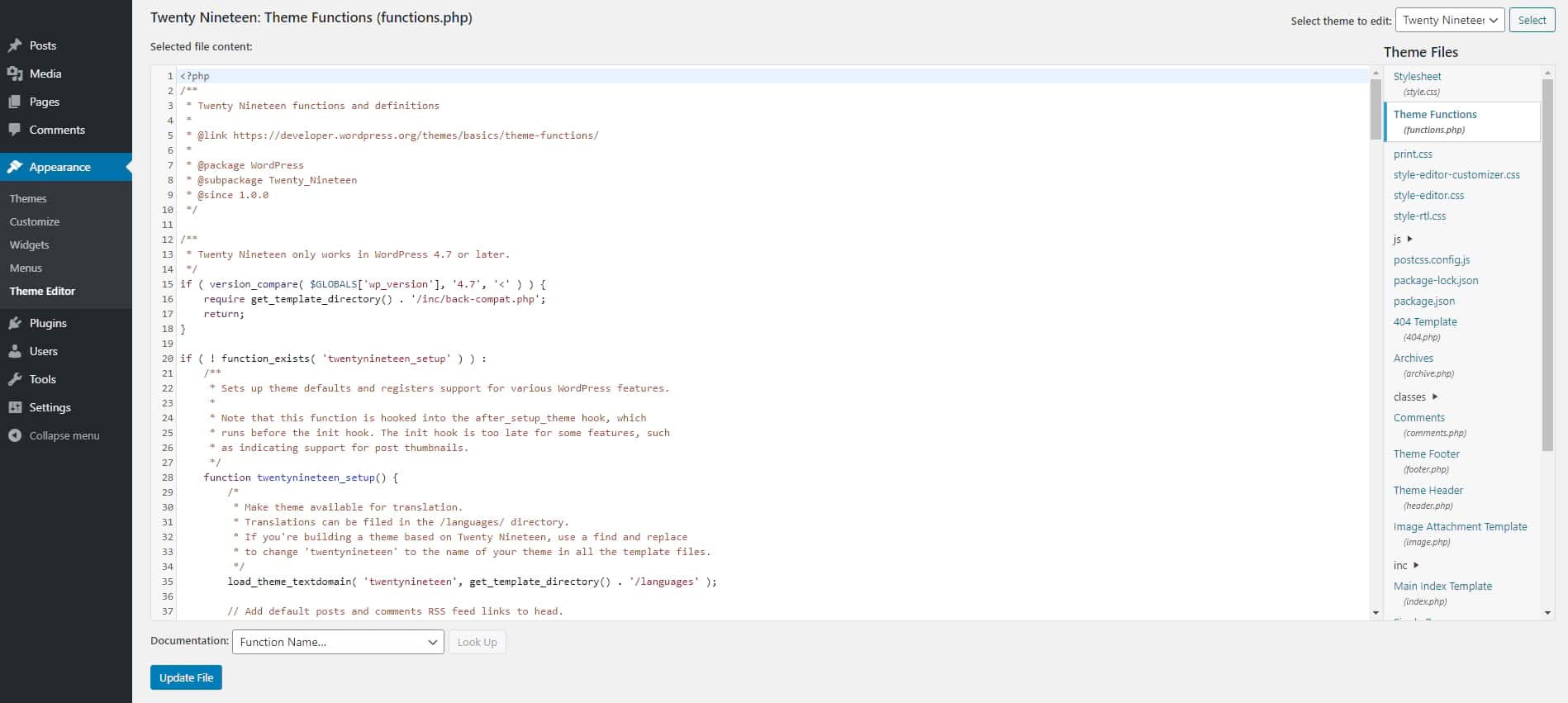
Create a new file. Name it phpinfo.php. Add this line of code: php phpinfo(); ?. Upload the file to your website’s root folder. Open your web browser. Type your website URL with /phpinfo.php. Your PHP version will show up on the screen.
Log in to your hosting account. Find the Control Panel. Look for the PHP Version section. You might find it under server settings. Click to view your current PHP version. If needed, you can update it there too.
Tools To Verify Php Version
The WordPress Site Health Tool is very useful. It helps you check the PHP version. Access it by going to your WordPress dashboard. Click on “Tools” and then “Site Health.” Look for the “Info” tab. Here, you can find details about your server. The PHP version is listed there. This tool is easy to use. No technical knowledge is needed. It is built into WordPress. You don’t need to install anything.
Using third-party plugins is another option. These plugins can show the PHP version. Search for plugins like “Display PHP Version” in your WordPress dashboard. Install and activate the plugin. Once activated, go to the plugin settings. Here, you will see the PHP version. These plugins are user-friendly. They make it easy to get the information you need. Always choose plugins with good reviews.

Credit: jetpack.com
Updating Php Version Safely
Always create a full backup of your website. This means copying all files, databases, and settings. A backup ensures you can restore your site if something goes wrong. Use a reliable plugin or hosting service for backups. Store the backup in a safe location. Make sure it is easy to access. Double-check that the backup is complete.
Check if your site works with the new PHP version. Use a staging site for testing. A staging site is a copy of your website. Update the PHP version on the staging site first. Look for any errors or problems. Plugins and themes may need updates. Ensure everything functions correctly. If issues arise, fix them before updating the live site. This ensures a smooth transition.
Common Issues With Php Updates
PHP updates can cause conflicts with plugins and themes. Some plugins might not work well with new versions. Themes can also break. Developers need time to update them. This can be frustrating. Your site might look different or not work right.
Errors can happen after updating PHP. It can be scary. Sometimes the site stops working. You might see error messages. You need to troubleshoot these errors. Check your plugins and themes. Make sure they are up-to-date. Look for help online or contact support. Fixing errors takes time. Be patient and careful.

Credit: wpbuffs.com
Best Practices For Php Management
PHP must stay updated. New versions fix bugs. They improve security. Updates help speed too. Old versions can be risky. Hackers target them. Always check for updates. Use tools to help. Keep plugins updated. Themes too.
Good performance is key. Slow sites lose visitors. Monitor site speed often. Use tools for this. Check server logs regularly. Watch for errors. Fix them quickly. Errors can slow sites. Use caching plugins. They help with speed. Optimize images. They affect loading times.
Frequently Asked Questions
How To Check Php Version In WordPress?
To check your PHP version in WordPress, log into your WordPress dashboard. Navigate to “Tools” and select “Site Health. ” Under the “Info” tab, look for the “Server” section. Here, you’ll find the PHP version your site is currently using.
Why Is Php Version Important For WordPress?
The PHP version is crucial for WordPress because it affects site performance and security. Newer PHP versions offer improved speed and enhanced security features. Using an outdated version can lead to vulnerabilities and slower site performance, impacting user experience and search engine rankings.
How Can I Update My WordPress Php Version?
To update your PHP version, access your hosting control panel. Look for the “PHP Version” or “Software” section. From there, select the desired PHP version and apply changes. Before updating, ensure your themes and plugins are compatible with the new version.
What Php Version Does WordPress Recommend?
WordPress recommends using PHP version 7. 4 or higher for optimal performance and security. This version ensures compatibility with the latest WordPress updates, themes, and plugins. Keeping your PHP version updated helps maintain site speed and protect against potential security threats.
Conclusion
Understanding your WordPress PHP version is crucial. It ensures compatibility and security. Regular updates keep your site running smoothly. Outdated PHP may cause errors or slow performance. Checking the version is simple and quick. Use your WordPress dashboard or hosting panel.
Stay informed and proactive. It helps maintain your website’s health. Don’t ignore PHP updates. They protect your site and improve functionality. Regular checks can save time and effort. Keep your WordPress site efficient and secure. Always prioritize your website’s performance.
Happy blogging!



