
Have you ever wondered which of your WordPress pages have sidebars and which don’t? As a website owner, understanding the layout of your pages can significantly impact your site’s user experience and functionality.
Imagine effortlessly navigating your WordPress dashboard, knowing exactly which pages are enhanced with sidebars. This knowledge can help you optimize your site for better engagement and conversion rates. Stick around as we reveal the simple steps to identify these pages, unlocking the full potential of your WordPress site and ensuring you offer your visitors the best experience possible.
Dive in, and let’s make your website work smarter for you!

Credit: wordpress.com
Understanding WordPress Sidebars
WordPress sidebars are useful features for any website. They hold widgets and other elements. These can be ads, links, or menus. Sidebars make navigation easy. They help visitors find information fast. Not all pages have sidebars. Some pages have a full-width layout. Others might have sidebars only on certain pages. You can check which pages have sidebars in WordPress.
The dashboard shows page details. You can see the layout used. It’s easy to find sidebars on pages. Just look at the page settings. Sometimes themes control sidebar visibility. You might need to change theme settings. Customizing sidebars is simple. Widgets can be added or removed. Make sure sidebars match your site design. They should be useful and not cluttered.
Credit: www.greengeeks.com
Importance Of Sidebars In Website Design
Sidebars make websites better. They help users find things quickly. Sidebars show extra information. This makes the main content less crowded.
Users can navigate easily with sidebars. Links to important pages are often there. Sidebars can have ads, too. This helps websites earn money.
Many websites use sidebars to show popular posts. This keeps users on the site longer. Sidebars can also have a search bar. This helps users find what they need fast.
Identifying Pages With Sidebars
Start by logging into your WordPress dashboard. Look for Appearance in the menu. Click on it. Then select Widgets. Here, you can see which pages use sidebars. It shows a list of widgets and their locations. This helps in identifying sidebar usage.
Access the Theme Customizer from the Appearance menu. Some themes allow you to manage sidebars here. Check the settings for sidebars. It usually shows which pages have them. Not all themes have this feature. But many popular themes do.
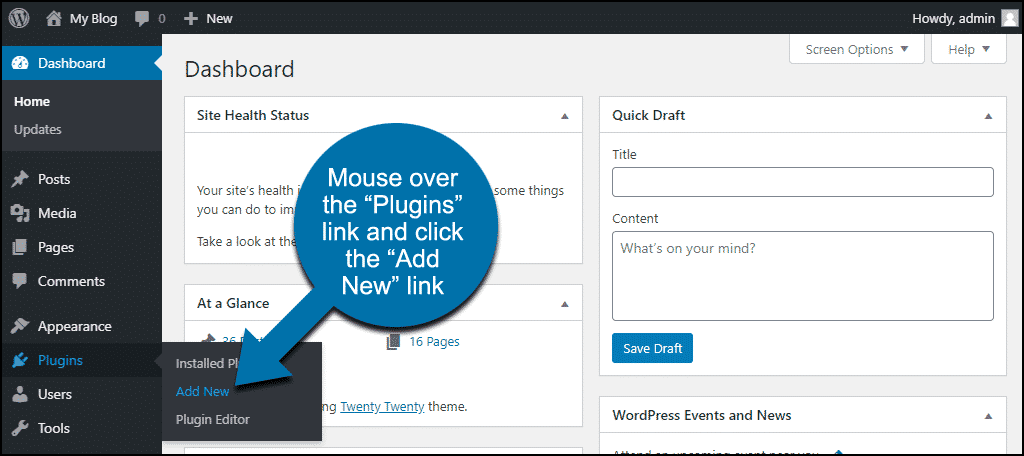
Plugins like Widget Logic help manage sidebars. Install the plugin from the plugin directory. After installation, you can set conditions for each widget. This way, you see which pages have sidebars. It’s an easy way to organize your sidebar usage.
Credit: www.greengeeks.com
Popular Plugins For Sidebar Management
Widget Logic helps you control which pages display your widgets. You can choose specific pages. The tool uses simple codes. These codes are easy to learn.
You will only need a few lines. It can make your site cleaner. The plugin is perfect for beginners. No need for advanced skills.
Content Aware Sidebars lets you create dynamic sidebars. This means different pages can have different sidebars. You can set up new rules. Rules are easy to set.
Just pick your pages. This tool gives you lots of options. Your site can feel more personal. Visitors see what matters most.
Custom Sidebars gives you full control over your sidebars. You can change layouts easily. Want a new look? Just drag and drop.
You can make every page unique. The tool is very user-friendly. Just a few clicks and you are done.
Customizing Sidebars For Different Pages
Discovering which pages have sidebars in WordPress enhances customization options. Adjust sidebars to match specific page needs. Personalize content display effectively.
Static Pages
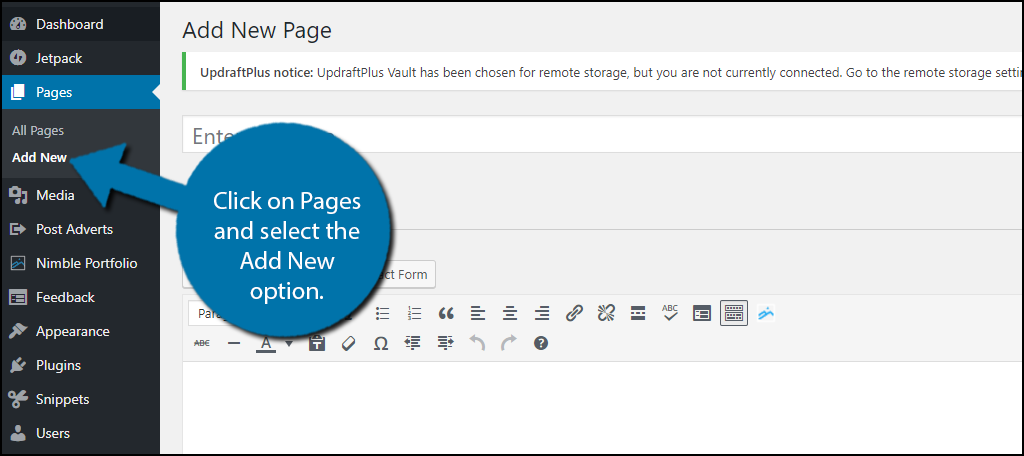
Static pages like “About Us” or “Contact” have special sidebars. These pages don’t change often. Sidebars on these pages can show important information. You might see a map or contact details there. Sometimes, these sidebars have links to other parts of the website. It’s easy to add a sidebar to a static page in WordPress. You can use a widget or a plugin. This helps keep everything neat and organized.
Blog Posts
Blog posts often have sidebars too. They show recent posts or popular tags. Sidebars on blog posts help readers find more content. You can customize these sidebars to show what you want. Maybe you want to show your social media links. Or you want to show a list of categories. WordPress makes it easy to change sidebars for blog posts. You can make each post have a different sidebar. This way, each post is unique and fun.
Category Archives
Category archives show posts about similar topics. Sidebars here often show a list of categories or tags. This helps readers find related posts easily. You might want to show an archive calendar. Or maybe a search box. WordPress lets you change sidebars for category archives. You can make the sidebar match the category’s theme. This way, each category page looks professional and organized.
Common Issues With Sidebars
Sidebars often disappear due to plugin conflicts. Sometimes, themes don’t support sidebars properly. Pages may load without sidebars after updates. It’s crucial to check theme settings and widget areas. Missing sidebars can confuse visitors. Always ensure themes are up-to-date and compatible.
Errors occur when widgets fail to load correctly. Sidebars may show blank spaces. Improper coding can cause display errors. Sometimes, sidebar content overlaps with main content. Regularly update and test your site’s code. Ensure all plugins work well together. These errors can disrupt site navigation.
Themes can cause sidebar issues if not compatible. Some themes don’t support sidebars in certain layouts. New themes may alter existing sidebar settings. Compatibility checks are vital before theme changes. Always read theme documentation carefully. Users should verify themes with sidebar support.
Best Practices For Sidebar Usage
A sidebar should be easy to see. Too many items can confuse users. Important links should be at the top. Ads can distract users if placed poorly. Keep it clean and simple. Users should find what they need quickly.
Content should be the main focus. Ads can help but must not overwhelm. Use ads sparingly. Too many ads can slow down the page. Balance is key. Users should not feel bombarded. Ads should not cover important content.
Sidebars should work on all devices. Mobile users need a smooth experience. Make sure sidebars adjust to screen size. Test on different devices. Avoid sidebars that disappear on small screens. Users like easy navigation. Keep it user-friendly.
Frequently Asked Questions
How To Identify Pages With Sidebars In WordPress?
To identify pages with sidebars, access your WordPress admin dashboard. Navigate to “Pages” and review each page’s template setting. Look for templates like “Sidebar” or “Default Template. ” Alternatively, use a plugin like Widget Context to quickly view sidebar usage across your website.
Can I Remove Sidebars From Specific Pages?
Yes, you can remove sidebars from specific pages in WordPress. Edit the desired page and select a “Full Width” or “No Sidebar” template. If your theme doesn’t offer this option, consider using a custom CSS or page builder plugin to achieve a similar layout.
Which Plugins Help Manage WordPress Sidebars?
Several plugins can help manage WordPress sidebars. Popular choices include Widget Context, Custom Sidebars, and Content Aware Sidebars. These plugins allow you to control sidebar visibility and customize widgets based on specific pages, posts, or user roles.
Do All WordPress Themes Have Sidebars?
Not all WordPress themes have sidebars. Some themes are designed with a full-width layout, while others offer sidebar options. When selecting a theme, check its features and demo layouts to ensure it supports sidebars if they are essential for your website’s design.
Conclusion
Finding which WordPress pages have sidebars is simple. Use the right tools and techniques. This enhances your site’s user experience. It helps you maintain a consistent design. Knowing your page structure aids in effective site management. It ensures better content presentation.
Also, it improves navigation for your visitors. Regularly review your site’s layout. Keep your content organized and accessible. This boosts engagement and satisfaction. Remember, a well-structured site attracts more visitors. It encourages longer stays. Stay proactive in monitoring your WordPress pages.
Your readers will appreciate the effort.



