
Are you curious about which version of WordPress your website is running? Knowing your WordPress version is crucial for maintaining your site’s security and functionality.
Imagine if you could pinpoint this information quickly and easily, ensuring your site remains up-to-date with the latest features and security patches. You’ll discover simple steps to identify your WordPress version effortlessly. Don’t let outdated software hold your site back.
Dive into our guide to protect your digital presence and enhance your website’s performance. Your journey to a better, more secure WordPress site starts here!
Locating The Admin Dashboard
Finding the WordPress version is easy. First, go to your website’s admin dashboard. This is the control center for your site. You need to log in with your username and password.
After logging in, look at the top left corner. There you will see the WordPress logo. Click on it. A menu will drop down. At the bottom of this menu, the version number shows. This number tells you the version you are using.
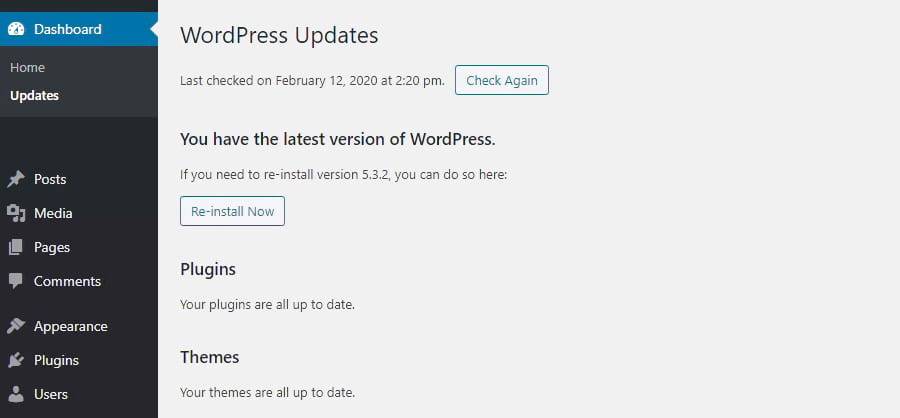
Another way is to check the dashboard’s updates section. Here, WordPress shows if updates are available. It also lists your current version. These steps help you know what version is running.
Credit: kinsta.com
Checking The Footer
The website footer can give clues. Scroll to the bottom of the page. Sometimes, the WordPress version is written there.
Not all websites show this. But it is a good first step. If the version is there, you will see it easily.
Remember, not all themes display the version. If you don’t see it, try other ways.
Inspecting The Page Source
Finding your WordPress version is simple. Open your website in a browser. Right-click anywhere on the page. Choose “View Page Source” from the menu. A new tab opens with code. Use “Ctrl + F” to search. Type “generator” in the search box. Look for a line with “meta name”. This line tells your WordPress version. It might look like “generator: WordPress 5.8”. The number shows your version. Always check this source code for updates.
Credit: kinsta.com
Using The Readme File
The readme file helps find your WordPress version. This file is inside the WordPress directory. Open the readme.html file. Locate the header part of the file. You will see version details there. This method is quick and easy. It works on most WordPress sites.
Sometimes, this file is deleted. If missing, try another method. Using the readme file is safe. It does not change any settings. Always check for this file first. It’s a good start.
Exploring The Version.php File
The version.php file holds the WordPress version number. You can find it in the wp-includes folder. Accessing it is simple. Use a file manager from your hosting panel. Or use an FTP client like FileZilla. After opening the file, look for the line with $wp_version. This line shows the current WordPress version.
Checking this file is important. It helps keep your site secure and updated. Outdated versions can have bugs or security issues. Regularly check to ensure you have the latest version. This practice helps in maintaining your site’s performance and security.
Utilizing Plugins
Find your WordPress version easily by checking the dashboard footer or using plugins. Plugins offer a quick way to access version details without hassle. Stay informed on updates to ensure your site runs smoothly.
Recommended Plugins
Plugins help check your WordPress version easily. Some plugins are simple and user-friendly. They show your version on the dashboard. This saves time and effort. You don’t need to search manually.
Installation And Usage
First, go to the WordPress dashboard. Find the plugins tab. Click on “Add New”. Type in the plugin name. Click “Install Now”. Wait for installation. Activate the plugin. Check the version on your dashboard.
Some plugins offer extra features. These features may include version history. They can also alert you for updates. Always keep your plugins updated. Updated plugins improve security and performance.
Checking With Hosting Provider
Finding your WordPress version can be simple. Contact your hosting provider for help. They usually know your website details. Most providers offer support chat or phone calls. Ask them about your WordPress version. They will guide you. You might need to provide your account info. This helps them assist you faster.
Some hosting providers have dashboards. Check if yours has one. Log in to the dashboard. Look for WordPress details there. They might show your current version. This is very helpful. If you can’t find it, contact support. They will help you find the version. Remember, hosting providers are there to support you. Don’t hesitate to reach out for help.
Credit: www.hostinger.com
Understanding Version Importance
WordPress versions matter for safety. New versions fix problems. Old versions can be unsafe. Hackers like old versions. They find holes and attack. Keep your site safe. Update your WordPress often. This helps protect your information.
Each WordPress update brings new features. Old versions might miss important tools. New tools make websites better. They help with speed and design. Always check your WordPress version. Make sure you have the latest features. This keeps your site fresh and useful.
Frequently Asked Questions
How Do I Check My WordPress Version?
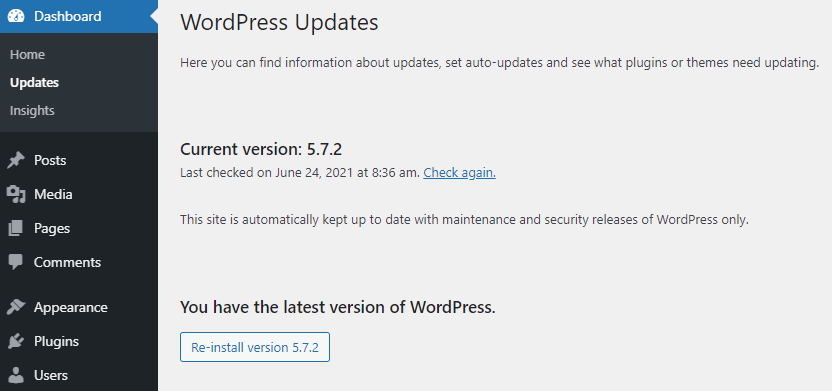
To check your WordPress version, log in to your dashboard. Look at the bottom right corner. Alternatively, navigate to “Updates” under the Dashboard menu. Your current version will be displayed there.
Can I Update WordPress Without Knowing My Version?
Yes, you can update WordPress directly from the dashboard. Go to the “Updates” section. Follow the prompts to install the latest version. It’s always recommended to back up your site before updating.
Is It Important To Know My WordPress Version?
Yes, knowing your WordPress version is crucial for security and compatibility reasons. Older versions may have vulnerabilities. Staying updated ensures you have the latest features and security patches.
How Often Should I Check My WordPress Version?
Check your WordPress version regularly, at least once a month. This ensures you are aware of any updates or necessary security patches. Regular checks help maintain your website’s security and functionality.
Conclusion
Knowing your WordPress version helps keep your website secure. Regular updates protect against potential threats. Checking your version is simple and quick. Just log into your WordPress dashboard. Alternatively, you can check through the source code or files. Always ensure you have the latest version installed.
This practice enhances performance and security. Stay informed and proactive with your WordPress site. Your website’s health depends on it. Keep it up-to-date for peace of mind. A little maintenance goes a long way. Happy blogging!



