
Are you tired of seeing the same old theme name every time you log into your WordPress dashboard? Maybe you’re looking to personalize your site a bit more, or perhaps you want to hide the theme’s original identity for branding purposes.
Whatever your reason, renaming your WordPress theme is easier than you might think. Imagine the satisfaction of making your site feel truly yours, with every detail perfectly aligned with your vision. In this guide, you’ll discover simple steps to rename your WordPress theme without a hitch.
Ready to take control and add that extra touch of customization to your website? Let’s dive in and make your WordPress site uniquely yours!
Credit: whitewp.com
Why Rename A WordPress Theme
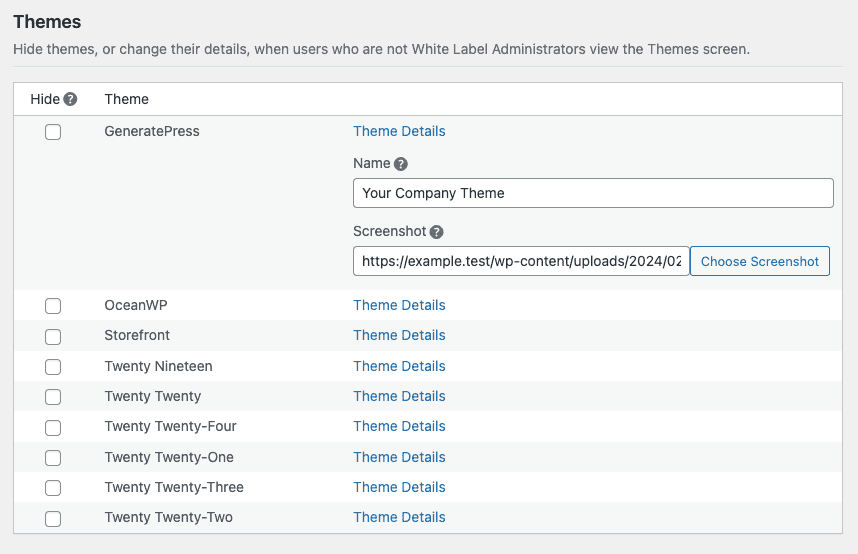
Changing a theme’s name can be very helpful. It makes your site look unique. Many people use the same themes. You can stand out by renaming yours. It’s like giving your site a new dress. A new name adds a personal touch. It also helps in organizing. You know which theme you are using quickly. This is important if you have many themes. A new name can also hide your theme from others. This keeps your site safe. No one can easily copy your theme. It’s your secret.

Credit: stackoverflow.com
Preparation Steps
Always backup your website before making changes. Use plugins for this. Popular ones are UpdraftPlus and BackupBuddy. Save the backup file safely. This protects your data. If anything goes wrong, you can restore your site. It’s like a safety net for your website.
A child theme keeps your changes safe. It does not break the main theme. First, create a new folder. Name it anything you like. Add a style.css file inside it. Also, add a functions.php file. Copy the main theme’s code. Put it inside these files. This is the base for your child theme. Easy and safe way to edit!
Renaming Via WordPress Dashboard
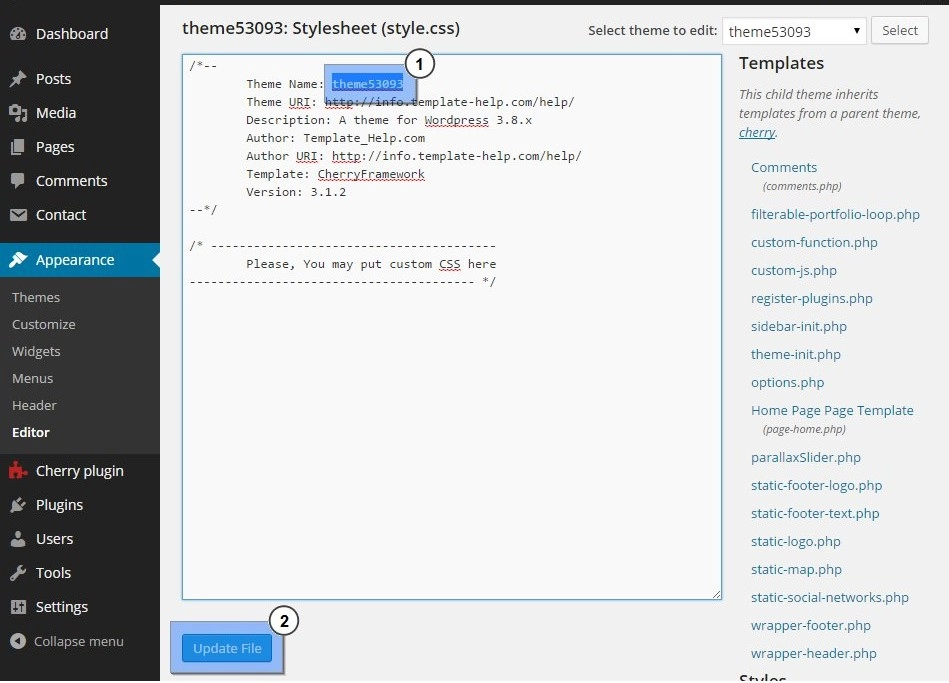
First, log into your WordPress Dashboard. On the left, find the Appearance menu. Click on it, then choose Theme Editor. You will see a list of theme files. On the right, look for the file named style.css. This file holds important theme information.
Open the style.css file. Look for the line that says Theme Name. Change this to your new theme name. Make sure to save the changes. This will update your theme name in WordPress. Always be careful while editing files. Wrong changes can break your theme.
Credit: www.nexgi.com
Renaming Via Ftp
Use an FTP client to connect to your server. Enter your login details. Look for the public_html folder. This is where your site files are.
Open the wp-content folder. Inside, find the themes folder. This holds all your theme files. Locate the folder of the theme you want to rename. Make sure you have the right one.
Open the theme folder. Find the style.css file. Edit it with a text editor. Change the Theme Name at the top. Save your changes. Ensure the new name is unique. This avoids confusion.
Database Adjustments
Renaming a theme can be tricky. The database stores the theme’s name. This name must change. Use SQL queries for this task. First, access your database. You need a tool like phpMyAdmin. Locate the table named wp_options. This table holds important data.
Find the row named template. Also, find the row named stylesheet. Both rows need updating. Here, enter the new theme name. Run the SQL query to update these rows. Always back up your database first. This prevents data loss.
After changing, check your site. Look for errors. Fix any issues promptly. This ensures smooth operation. Renaming a theme in the database is essential. Do it carefully.
Testing The Changes
Ensure all parts of your theme work well. Click on each page. Look for missing elements or broken links. Try using different browsers. Check if the theme looks the same. Make sure all buttons and menus work. Test the theme on a phone. Does it look good? Can you read everything? Fix any problems you find.
Open your WordPress dashboard. Go to the “Appearance” section. Click on “Customize”. Check the settings for your theme. Make sure your logo is right. Check your site title and tagline. Look at the color and font settings. Ensure everything matches your brand. Save any changes you make. Double-check everything once more. This keeps your site looking great.
Common Issues And Troubleshooting
Broken links can be a problem when renaming a theme. They confuse visitors. They make sites look unprofessional. Check all links after renaming. Ensure they point to the right places. Use tools that find broken links. Fix them quickly. This keeps your site running well. Visitors will be happy.
Styling errors can mess up your site. They might change how it looks. They can occur after renaming a theme. Check your CSS files. Make sure paths are correct. Test your site on different browsers. Fix any styling issues found. Keep your site neat and tidy. Good styling helps users enjoy your site. It makes your site look professional.
Frequently Asked Questions
How Do I Rename A WordPress Theme?
Renaming a WordPress theme involves editing the theme’s folder name and updating the style. css file. Change the theme name in the style. css header. This ensures the theme name appears correctly in the WordPress admin area. It’s essential to back up your site before making changes.
Will Renaming Affect My Site’s Performance?
No, renaming a theme doesn’t affect site performance. It only changes the theme’s display name in the admin panel. Ensure no active customizations rely on the old theme name. Check all theme-related settings to avoid any discrepancies.
Can I Rename A Theme Without Coding Skills?
Yes, renaming a theme requires basic file management skills. Use an FTP client or your hosting’s file manager. Navigate to the wp-content/themes directory. Rename the theme folder and update the style. css file. Follow step-by-step guides for a smooth process.
Why Should I Rename My WordPress Theme?
Renaming helps differentiate between similar themes and avoids confusion. It’s useful for branding or development purposes. Customizing the theme name enhances organization and simplifies theme management. It’s particularly beneficial for developers managing multiple projects.
Conclusion
Renaming your WordPress theme improves organization and personalizes your site. It’s a simple task that can make your website feel more unique. Follow the steps carefully to avoid errors. Remember to back up your site before starting. This protects your data and ensures safety.
After renaming, check the site’s functionality. Make sure everything works correctly. A well-renamed theme reflects your brand and style. Enjoy a more personalized web experience. Keep exploring WordPress features for better customization. Your site deserves to stand out with a distinct name.



