
Imagine waking up to a seemingly ordinary day, ready to dive into your regular WordPress tasks, only to be greeted by a message that your database password has been changed. Panic sets in as you wonder how this happened and what you should do next.
You’re not alone in this. Many WordPress users have faced this unexpected challenge and found themselves scrambling for answers. But fear not, you’re in the right place. This guide is designed to walk you through every step of regaining control and ensuring your website’s safety.
By the end of this article, you’ll not only resolve the issue but also feel empowered to handle similar situations with ease in the future. So, stay with us, and let’s unravel this mystery together.
Immediate Steps To Take
WordPress often sends important updates via email. Look for emails from your hosting provider. They may contain details about the password change. This helps you understand the reason for the change. Confirm if the change was planned or unexpected. If you find any suspicious email, contact support immediately. Keep your email safe and secure.
Log into your hosting account. Check the database settings. Ensure everything matches the email details. Look for the new password in the database settings. Update your WordPress config file with this password. This ensures your site connects properly. If unsure, contact your hosting support for help. They can guide you step by step. Keep your account login details safe.
Credit: getshieldsecurity.com
Restoring Database Access
Find your new database credentials. These are important. You need them to access your database. Check your hosting provider’s dashboard. They usually store these credentials there. Look for the database section. Your username and password should be listed. Write them down or save them. You will need them soon.
Open your website files. Find the wp-config.php file. This file connects your site to the database. You will change it now. Open the file in a text editor. Look for the lines with DB_USER and DB_PASSWORD. Replace the old username and password. Use the new ones you found. Save the file. Check your website. It should work now.
Troubleshooting Connection Issues
Check your hostname and make sure it’s correct. It should match the database server. Double-check the port number. It is usually 3306 for MySQL. But it might be different. Ask your hosting provider if unsure.
Verify user permissions in your database settings. Ensure the username has the right access. It must have read and write permissions. Check if the username and password are correct. Mistyped credentials cause connection issues. If permission is wrong, you can update it through the control panel. If needed, contact support for help.
Credit: help.one.com
Preventing Future Password Changes
WordPress changing your database password can disrupt access. Quickly update your database connection settings in wp-config. php. Regularly monitor your website’s functionality to prevent future issues.
Understand Auto-update Settings
WordPress can change your database password. This happens during updates. It’s important to know why. Auto-update settings can be tricky. Check settings regularly to avoid surprises. Some updates might change settings. Control updates to manage your passwords. Read update notes carefully.
Disable Automatic Changes
Automatic changes can affect your database. Disabling automatic changes keeps your password safe. Go to your WordPress dashboard. Look for update settings. Turn off auto-update for database changes. This prevents unexpected password changes. Make sure you save your settings. Check if changes are saved correctly. Review settings often to stay safe.
Enhancing Security Measures
Backing up your database is essential. It keeps your data safe. Imagine losing important content. That would be frustrating. Regular backups prevent this. Use reliable backup tools. Schedule backups frequently. Store them in secure places. You can use cloud services. Backup files should be encrypted. This keeps them safe from hackers. Test your backups. Ensure they work correctly.
Passwords protect your database. They must be strong. Avoid common words or simple sequences. Use a mix of letters, numbers, and symbols. Passwords should be long. Change them regularly. Never share passwords. Keep them private. Use password managers. They help you store passwords safely. Always update passwords if needed. A strong password is your first defense. Make sure it’s effective.
Seeking Professional Assistance
Contacting your hosting provider is a smart choice. They can help with database issues. Hosting providers have tools to reset passwords. They fix problems quickly. Explain the issue clearly when you contact them. Provide any error messages you see. This helps them solve the problem faster. Hosting providers are experts in these situations. They can guide you step by step. Don’t hesitate to reach out for help. It’s better to ask than to struggle alone.
Hiring a WordPress developer is another option. Developers have a deep understanding of WordPress. They can fix database issues efficiently. Find a developer with good reviews. Check their experience and skills. A skilled developer can save time and stress. Developers can set up a secure password for your database. They ensure your site is safe and running smoothly. Hiring a professional might be the best choice.
Credit: help.one.com
Frequently Asked Questions
How Do I Reset My WordPress Database Password?
To reset your WordPress database password, access your hosting control panel. Navigate to the database section and select your database. Look for the user settings and update the password. Update the `wp-config. php` file with the new password to ensure WordPress connects properly.
What Causes WordPress To Change Database Passwords?
WordPress itself doesn’t typically change database passwords. This can occur due to hosting provider security updates, or if there’s a hacking attempt. It’s crucial to regularly update security settings and monitor account activity to prevent unauthorized changes.
How Can I Access My WordPress Site After Password Change?
To access your WordPress site after a database password change, update the password in the `wp-config. php` file. Ensure the new password matches the one set in your database. This will restore the connection between WordPress and your database, allowing site access.
Can I Recover My Old Database Password?
Recovering an old database password isn’t possible if it’s lost or changed. It’s crucial to update your `wp-config. php` with the new password. Use password managers to securely store your credentials and avoid losing them in the future.
Conclusion
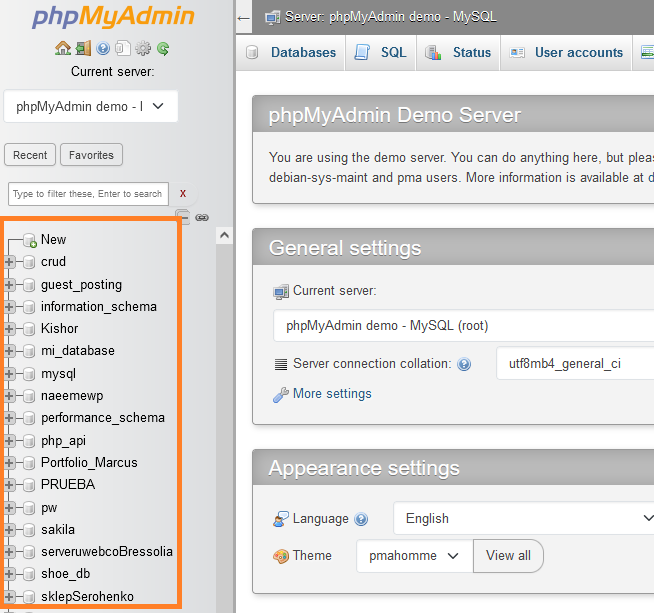
Dealing with a changed WordPress database password can feel daunting. But understanding the steps can simplify the process. Always keep your new password secure. Regularly update it to enhance security. Use easy tools like phpMyAdmin to manage changes. Stay calm and methodical in your approach.
This helps avoid potential issues. Remember, practice makes perfect. The more you familiarize yourself with WordPress, the easier it becomes. Eventually, password changes won’t feel overwhelming. Embrace the learning curve. It’s part of managing a successful website. Keep exploring WordPress features.
They offer endless opportunities for improvement.


