
Have you ever found yourself scratching your head over the term “WordPress Admin Email”? If so, you’re not alone.
This seemingly simple yet crucial element of your WordPress website can sometimes be overlooked, yet it holds the key to your site’s functionality and security. Imagine having the power to streamline your communications, maintain the safety of your site, and enhance your overall WordPress experience—all through understanding and managing your admin email effectively.
You’ll discover exactly what the WordPress admin email is, why it matters to your website, and how you can optimize it for your needs. By the end, you’ll not only have clarity on this topic but also practical steps to implement changes that could vastly improve your site’s performance and your peace of mind. So, let’s dive in and unlock the potential of your WordPress admin email!
Purpose Of Admin Email
The admin email in WordPress is crucial. It is the main contact for your website. Important alerts go to this email. This includes update notifications and password resets. It ensures you stay informed. You must keep this email updated. If you change it, adjust settings promptly. This prevents missed alerts. Security messages also go here. It’s vital for site safety. If there’s a breach, you’ll know. The admin email keeps you connected. It links you to your site. Regular checks of this email are wise. Always use an active and secure email. It’s a key tool for managing your site.
Setting Up Admin Email
Choose a strong admin email for your WordPress site. This email gets important messages. Security alerts and password resets go to this address. Log in to your WordPress dashboard. Go to the Settings menu. Select General from the list. You will see a box for the admin email. Enter your chosen email there. Double-check for spelling mistakes. Click the Save Changes button at the bottom. This saves your new admin email.
Never share your admin email with others. This keeps your website safe. Always use a secure email account. Use a different email from your personal one. This helps in managing alerts better. An updated admin email keeps your site secure and efficient.
Changing Admin Email
Changing the admin email in WordPress is simple. Start by logging into your WordPress dashboard. Go to Settings and click on General. You will see the Admin Email field. Enter your new email there. Remember to click Save Changes to update it.
An email will be sent to the new address. This email will ask for confirmation. Make sure to check your inbox. Confirm the change to complete the process. The admin email is important for site notifications. Always keep it updated.
Security Considerations
The admin email in WordPress is very important. It receives alerts and notifications. Keeping this email secure is vital. Use a strong password for your email. Change it often. This helps keep hackers away.
Enable two-factor authentication. This adds an extra layer of security. You need your phone or another device to log in. Always keep your WordPress updated. Updates fix bugs and improve security.
Phishing attacks try to trick you. They look like real emails. Check the email address carefully. Do not click on strange links. Always log in through the official WordPress site. Be careful with email attachments. They can contain viruses.
Notifications And Alerts
The WordPress admin email keeps you informed. It sends you alerts about your site. This includes comments needing approval. You also get password reset requests. The email alerts you of new user registrations. It helps you stay updated. Missing these alerts can cause issues. You might miss a comment or user query. Ensure the email is active. Always check your spam folder. Important emails might be there.
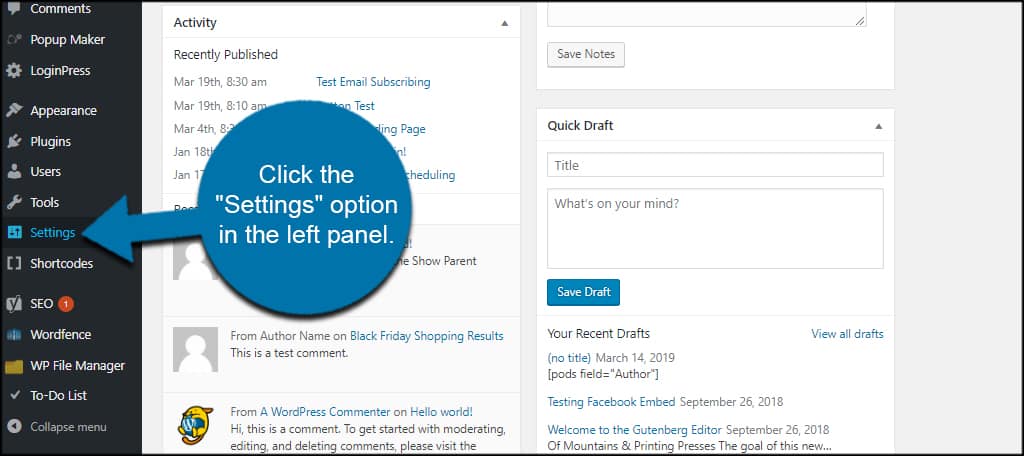
Updating the admin email is easy. Go to Settings in WordPress. Click on General. Find the Email Address field. Enter the new email. Save the changes. Now, you will get all alerts. This helps you manage your site better. You won’t miss any updates. Keeping your email updated is crucial. It ensures you get all notifications.
Credit: www.greengeeks.com
Troubleshooting Common Issues
Many users face issues with the WordPress admin email. Sometimes, emails don’t arrive. Check the spam folder first. If not there, verify the email address. An incorrect address can cause problems. Next, check server settings. The server must support email sending. Use plugins to test email functions. Some plugins are free.
Another common issue is email delays. Email queues can cause this. Check server load. High load can slow emails. Reduce load for faster delivery. Verify the SMTP settings. Incorrect settings lead to delays. Use a reliable SMTP server. It’s important for timely emails.
WordPress updates can affect emails. Always update plugins and themes. Outdated software may cause email issues. Backup before updates. It ensures you don’t lose data. Regular updates keep your site healthy. They improve performance and security.
Best Practices For Admin Email
Use a strong password. Avoid common words and phrases. Combine letters, numbers, and symbols. Change your password often. Enable two-factor authentication for extra security. This keeps your account safe from hackers.
Create folders for different topics. This helps you find emails faster. Delete emails you don’t need. This keeps your inbox clean. Use filters to sort emails automatically. This saves time.
Reply within 24 hours. This shows you care. If you need more time, send a quick note. Say you will reply soon. This keeps people happy.

Credit: make.wordpress.org

Credit: kb.pebblerei.com
Frequently Asked Questions
What Is A WordPress Admin Email?
A WordPress admin email is the primary contact email for your WordPress site. It’s used for notifications, password resets, and updates. Keeping this email accurate ensures you receive important site information promptly. It can be changed from the WordPress dashboard under “Settings” then “General.
“
How To Change WordPress Admin Email?
To change the admin email, log into your WordPress dashboard. Go to “Settings,” then “General. ” Update the email field with your new address. Save changes to apply. You may need to confirm the change through a verification email sent to the new address.
Why Update WordPress Admin Email Regularly?
Updating the admin email ensures you receive all important notifications. An outdated email may lead to missed alerts about site issues or updates. Regular updates keep your WordPress site secure by ensuring you promptly receive security alerts and password reset links.
Can Multiple Emails Be Used For Admin Alerts?
Yes, plugins like WP Mail SMTP allow you to configure multiple email addresses for admin notifications. This can help distribute alerts among team members. It ensures that critical notifications are not missed, especially in collaborative environments with multiple administrators.
Conclusion
Understanding the WordPress admin email is crucial. It helps manage site security. Keep your email updated to avoid missing important alerts. Use a strong password for added protection. Regularly check your email for updates or notifications. This ensures your WordPress site runs smoothly.
If issues arise, address them promptly. Consistent monitoring is key. Don’t ignore admin emails. They often contain critical information. With these practices, your site stays secure and efficient. Always prioritize email management in your WordPress setup. Happy blogging!



