
Are you feeling overwhelmed trying to figure out how to set your homepage in WordPress? You’re not alone.
Navigating the WordPress dashboard can sometimes feel like a maze, especially when you’re aiming to make a great first impression with your website. But worry not, because the solution is simpler than you might think. You’ll discover exactly where to select what is home page in WordPress, transforming your website’s entrance into a welcoming gateway for visitors.
Imagine having the power to guide your audience right where you want them to go, boosting engagement and driving results. Ready to take control and make your homepage work for you? Let’s dive in and unveil the secrets of setting your WordPress homepage effortlessly.
Credit: memberpress.com
Accessing WordPress Dashboard
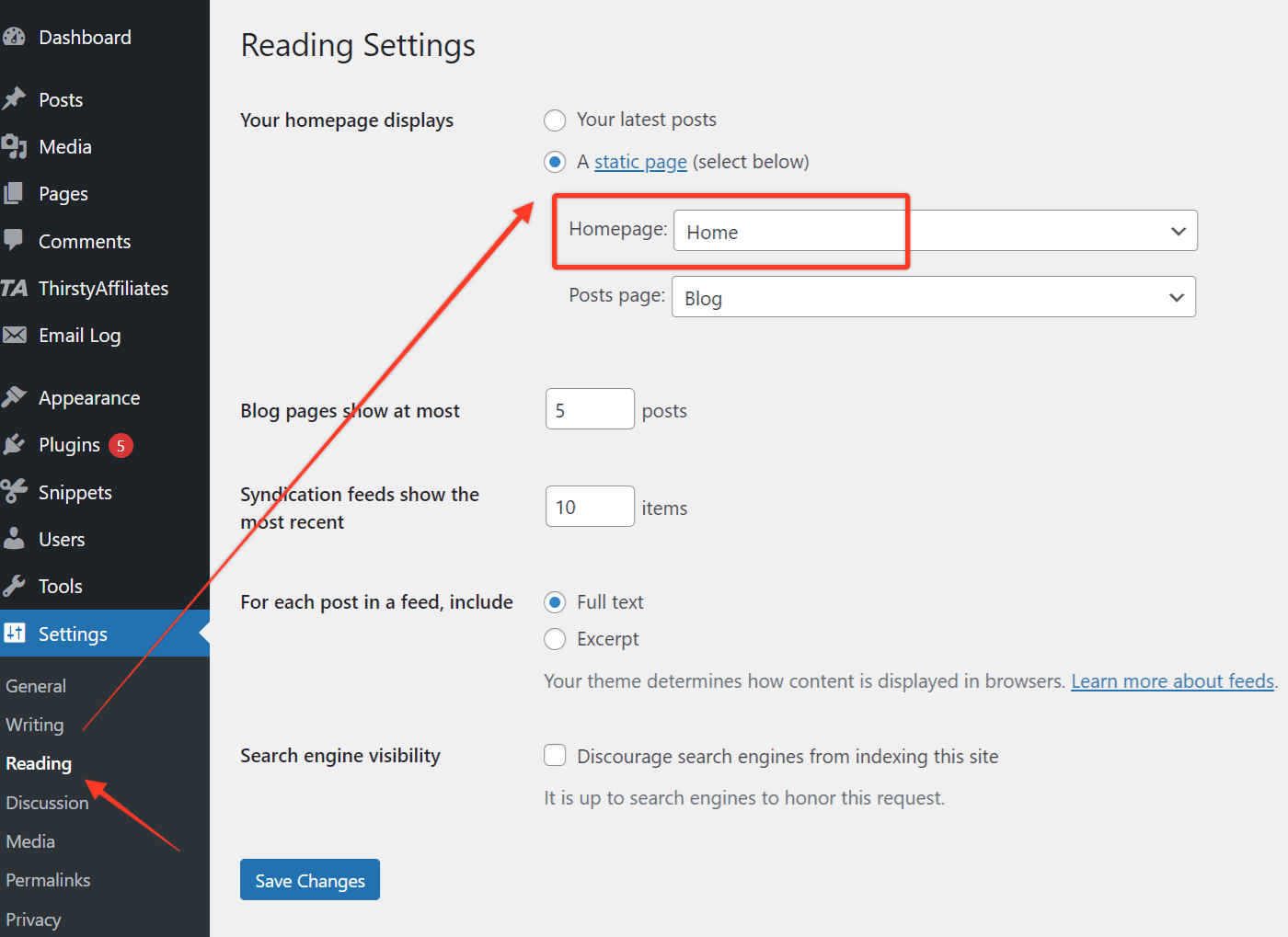
To access the WordPress Dashboard, first log in to your site. Use your username and password. Once logged in, look for the Dashboard on the left side. This is where you manage your site. Find the Settings tab. Click on it. Then, see the Reading option.
Under Reading, find the section for homepage. You can choose your home page here. Pick a static page or show your latest posts. Static page means it does not change. Latest posts show your new content. Remember to save changes when done. Saving changes makes sure your settings stay. Now, your home page is set!
Navigating To Settings
First, log in to your WordPress dashboard. This is where you control everything. Look on the left side. You will see a menu. Find the option that says “Settings.” It is near the bottom.
Click on “Settings” to open it. You will see more choices. One of these is “Reading.” This is where you can choose the homepage. Click on “Reading” to set the homepage.
Choosing a homepage is important. It is the first page people see. Make sure you select the right page. Save your changes before you leave. This ensures your settings are kept.
Choosing Reading Settings
To pick a home page in WordPress, go to the dashboard. Look for Settings on the left menu. Click on it, then find Reading. This section lets you choose how your site looks to visitors. Pick “Your latest posts” to show recent blog entries. Select “A static page” to pick a specific page as the home. For many, this is a good choice. It lets you control first impressions. Make sure to save changes. This step is key. Without it, changes won’t appear. Remember, you can always change this later. It’s flexible and easy.
Static Page Vs. Latest Posts
A static page gives a fixed look to your website. Visitors see the same page every time. This can be good for businesses. It helps in showing important information. Static pages are great for showing contact info or company details. They make websites look professional. It is easier for users to find key details. You can focus on what you want to show. Static pages are more stable. They do not change often, which can be helpful.
The latest posts keep your website fresh. Visitors see new content regularly. This is exciting for blogs. New posts can attract more readers. They keep visitors coming back. With latest posts, you can share news and updates. This is good for sites with changing information. Latest posts make your site dynamic. They show your audience you are active. This can help increase engagement.
Selecting A Static Home Page
First, go to your WordPress dashboard. Find the “Pages” option on the left. Click on “Add New”. A new page will open. Name your new page. You can name it anything you like. Save your new page by clicking the “Publish” button. Now, your page is ready. It is time to make it your home page.
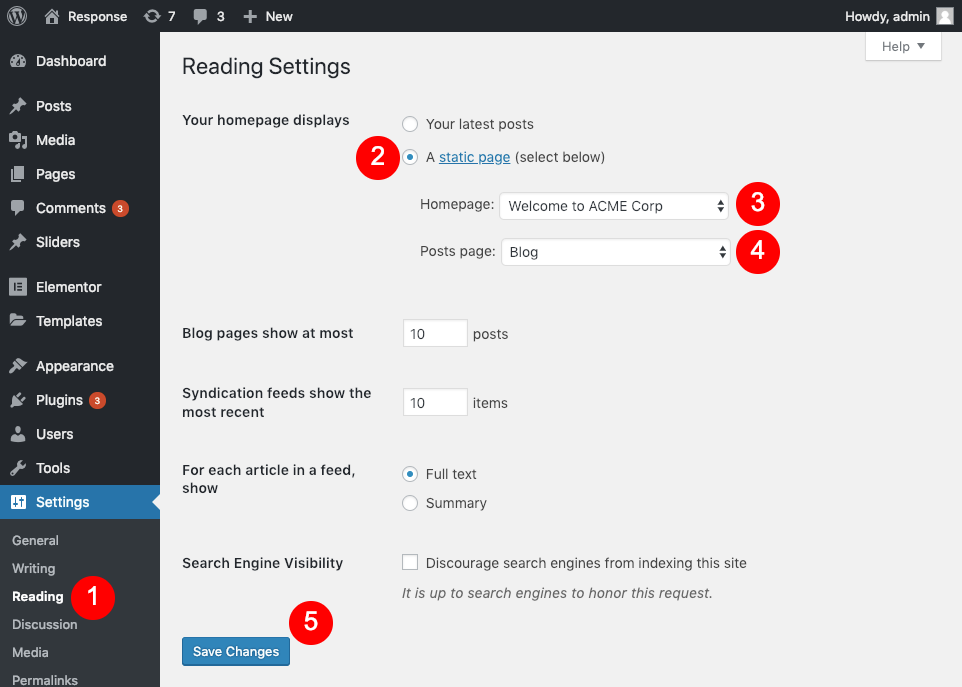
Navigate to “Settings” in your dashboard. Look for “Reading”. Click on it. You will see an option for “Your homepage displays”. Select “A static page” from the list. Then, choose the new page you created. This page will now be your home page. Remember to save changes. Your static home page is now set.
Choosing Latest Posts As Home
Want your latest blog posts on the home page? It’s possible in WordPress. Go to the dashboard first. Find Settings and click on Reading. There, choose Your latest posts. Your blog posts will be on the front page. Easy, right?
This method is simple. It makes your site feel fresh. Visitors will see new content each time. It keeps them coming back. You don’t need any special skills. Just follow the steps. Your site will look great. People will love it!
Remember, this choice is best for active bloggers. If you post often, choose this option. Your site will show new stories. It keeps people interested. Try it and see the difference!
Customizing Home Page Layout
Page builders make creating a home page easy. They offer drag-and-drop tools. You can add text, pictures, and videos. It helps to design without code. Many builders provide pre-designed templates. Choose one that fits your style. These tools save time and effort. They are great for beginners and experts.
Widgets add special features to your home page. Use them to show latest posts or social media feeds. You can add a search bar or contact form too. Widgets make your site more interactive. They are easy to manage. Just drag them to the desired spot. Adjust settings to fit your needs. They bring life to your WordPress site.
Saving Changes
Click the Save button to keep the settings. This step is crucial. Without saving, settings won’t apply. Always check if you clicked save. Double-check the screen for confirmation. A message will show if saved.
Sometimes, settings may not work. Refresh the page to see changes. If still not working, try again. Ensure internet connection is stable. Without it, settings might fail.
Remember, changes affect your site’s look. Choose wisely and save often. Saving keeps your site updated. Regular updates help your site run smoothly. Avoid forgetting to save settings.
Previewing Your Home Page
The home page is like the face of your website. It tells visitors what your site is about. You can see a preview before setting it. This helps you make sure it looks right. You want your home page to be clear. It should be easy to read. It should have important information. You can add pictures and colors. These make it nice to look at. Use simple words on your home page. This helps everyone understand. Make sure links work. Visitors should be able to click and go to other pages. Preview your home page often. This keeps it fresh and updated. If you like the preview, you can set it as your home page. If not, make changes. Your home page should welcome visitors.

Credit: learn.wordpress.org
Credit: cyberchimps.com
Frequently Asked Questions
How Do I Set A Static Homepage In WordPress?
To set a static homepage in WordPress, navigate to ‘Settings’ > ‘Reading’. Select ‘A static page’ under ‘Your homepage displays’, then choose your desired page from the dropdown list. Save your changes to make it effective. This will set your chosen page as the homepage.
Can I Choose A Blog Page As My Homepage?
Yes, you can set your blog page as your homepage. Go to ‘Settings’ > ‘Reading’, select ‘Your latest posts’ under ‘Your homepage displays’. This option will display your recent blog posts on the homepage, making it your blog page.
Where To Find Homepage Settings In WordPress?
Homepage settings are located in the WordPress dashboard. Go to ‘Settings’ > ‘Reading’. Here, you can choose between a static page or your latest posts for the homepage. Adjust according to your preference and save changes.
How To Customize WordPress Homepage Layout?
To customize your WordPress homepage layout, go to ‘Appearance’ > ‘Customize’. Use the available options to modify layouts, add widgets, and adjust sections. Changes are previewed live, allowing you to see the impact immediately before saving.
Conclusion
Selecting the right home page in WordPress is crucial. It sets your site’s tone and guides visitors. A clear home page improves user experience. It helps visitors find what they need quickly. Always consider your audience’s needs. Choose a layout that matches your content.
Keep it simple and easy to navigate. Regularly update your home page for freshness. This maintains engagement. Test different layouts to find the best fit. Your home page is your online front door. Make it welcoming and effective. A well-chosen home page enhances your website’s overall impact.



