
Ever found yourself wondering, “What version is my WordPress?” Maybe you’re troubleshooting a glitch, eager to explore new features, or simply ensuring your site is secure.
Knowing your WordPress version is crucial for various reasons, and the process to find it is simpler than you might think. This information can be the key to unlocking smoother updates, enhanced security, and overall better performance for your website.
Imagine having the ability to effortlessly navigate updates and troubleshoot issues with confidence. Understanding your WordPress version empowers you to do just that. It’s like having a backstage pass to the inner workings of your site. You’ll discover quick and easy methods to identify your WordPress version. Stick around and transform your site management experience!
Identifying Your WordPress Version
Log in to your WordPress admin dashboard. Look at the bottom of the screen. The version number is usually shown there. If not, go to the dashboard home page. Check for updates. The version number may be listed there.
Open your website in a browser. Right-click and select “View Page Source”. Press Ctrl+F to search. Type “generator”. Look for the version number near this word. It shows the current WordPress version.
Connect to your site with an FTP client. Open the folder named “wp-includes”. Find the file called “version.php”. Open it in a text editor. The version number is in this file. It’s easy to find. Just read the first few lines.

Credit: www.interserver.net
Importance Of Knowing Your WordPress Version
Security is vital for your WordPress site. Hackers target outdated versions. They find and exploit old bugs. Keeping your version updated helps protect your site. New versions fix these bugs. They add fresh security features too. Always check your version regularly.
Themes and plugins need a certain WordPress version. Some won’t work with old versions. New versions bring new features. They improve theme and plugin performance. Check your version before adding new themes. Update WordPress to enjoy new tools. This ensures everything works well together.
Steps To Update Your WordPress
First, make sure to backup your website. This keeps your data safe. Use plugins like UpdraftPlus or BackWPup. They are easy to use. Always save your backup in a safe place.
WordPress can update itself. This is called automatic updates. Go to your dashboard. Check if updates are on. If not, turn them on. This keeps your site secure.
Sometimes, updates need to be done by hand. First, download the new WordPress version. Then, replace the old files with new ones. Be careful not to delete your wp-content folder. This folder holds important files.
Troubleshooting Update Issues
Update errors can be frustrating. Sometimes, the site goes down. Other times, the theme breaks. Plugin conflicts are common too. Always make sure your plugins are updated. Sometimes, incompatible plugins cause issues. Check the WordPress error logs. They can help you find the problem. If the error is unknown, disable all plugins. Then activate one by one. This helps in finding the troublesome one. Theme issues can be fixed by switching to a default theme. If nothing works, seek expert help.
Backups are a lifesaver. Always keep a recent backup. It helps if something goes wrong. You can use backup plugins like UpdraftPlus. They make the process easy. Manual backups are also an option. Save your database and files. If an update breaks your site, restore the backup. This brings back your site to the previous state. Regular backups are important. They keep your site safe.
Benefits Of Keeping WordPress Updated
Keeping WordPress updated ensures better security. Hackers find ways to attack old versions. Updates fix these security holes. This keeps your site safe. Protect your data and users.
Updates can make your site run faster. They improve the software’s efficiency. This means pages load quickly. Visitors stay longer when sites load fast. Happy users mean a better experience.
New updates offer exciting features. These features improve how your site works. Adding new tools is fun. Enjoy fresh designs and functions. Stay ahead with the latest trends.
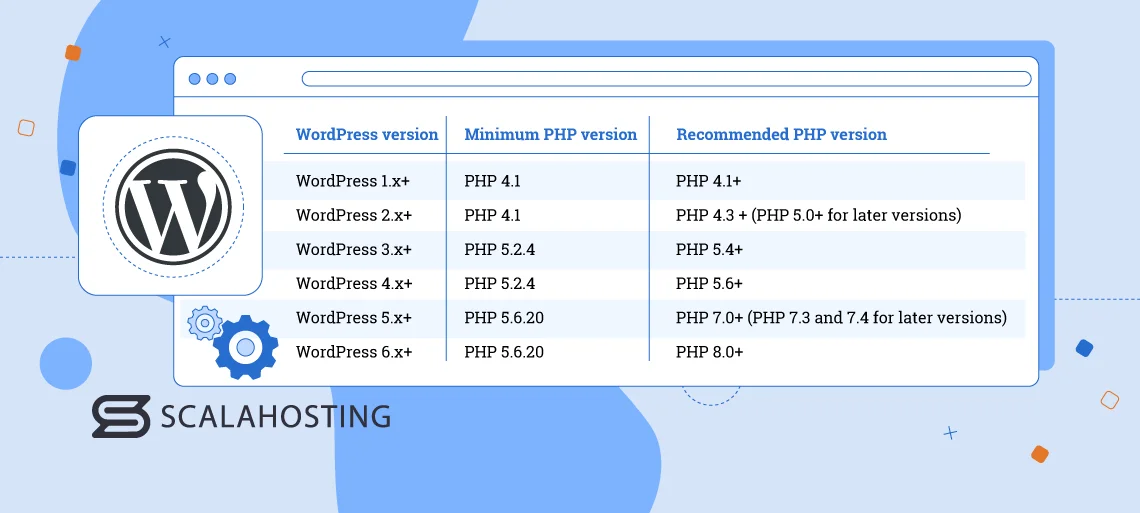
Credit: www.scalahosting.com
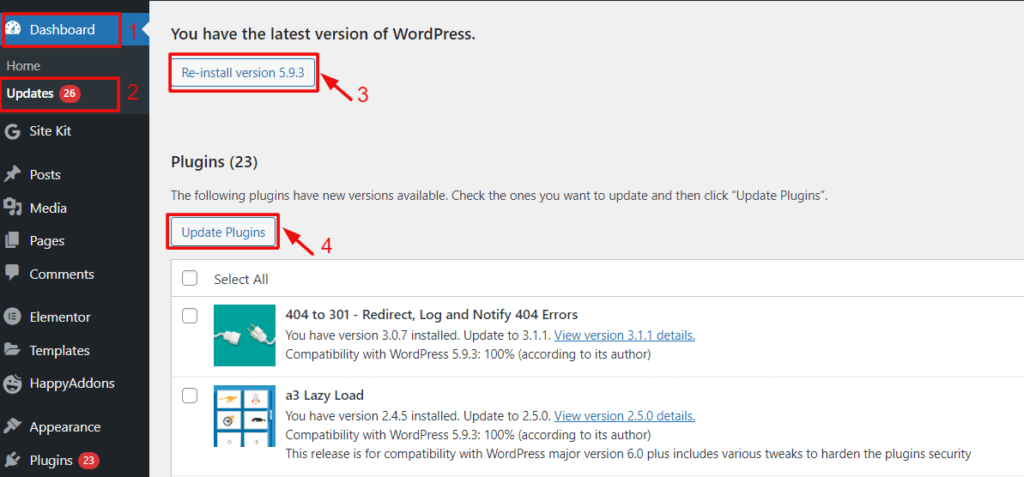
Credit: wedevs.com
Frequently Asked Questions
How Do I Find My WordPress Version?
You can find your WordPress version by logging into your dashboard. Go to the “At a Glance” section on the homepage. Your WordPress version number is displayed there. Alternatively, check the “readme. html” file in your WordPress directory for version information.
Why Is Knowing My WordPress Version Important?
Knowing your WordPress version is crucial for security and compatibility reasons. It helps ensure your plugins and themes are up-to-date. This information also assists in troubleshooting issues and enhances the overall functionality and security of your site.
Can I Update My WordPress Version Manually?
Yes, you can update WordPress manually. Download the latest version from WordPress. org. Extract the files and upload them via FTP to your server. Replace the existing files, excluding the “wp-content” folder, to retain your themes and plugins.
Is There A Plugin To Check My WordPress Version?
Yes, several plugins can help you check your WordPress version. Plugins like “WP Health Check” and “Site Health” provide detailed information about your WordPress setup. These plugins simplify monitoring and maintaining your WordPress site’s health and version.
Conclusion
Finding your WordPress version is simple and important. It helps ensure your site runs smoothly. Always keep your version updated for security. Regular updates bring new features and improvements. Check your version by logging into your dashboard. Look at the bottom right corner.
Or check the “Updates” section under “Dashboard. ” Knowing your version helps troubleshoot issues. It also aids in compatibility with plugins and themes. Stay informed and keep your WordPress site efficient. Happy blogging!



