Picture this: You’re ready to update your WordPress site, filled with fresh ideas and eager to make changes. But as you sit down to log in, you realize you’ve forgotten your admin credentials.
Panic sets in, and your mind races as you wonder what to do next. Don’t worry, you’re not alone. Many WordPress users find themselves in this exact situation. The good news? There are straightforward steps to recover your access and get back to managing your site.
In this guide, we’ll walk you through each step, ensuring you regain control quickly and with minimal stress. So, let’s dive in and solve this together. Your website is waiting!
Reset Password Via Email
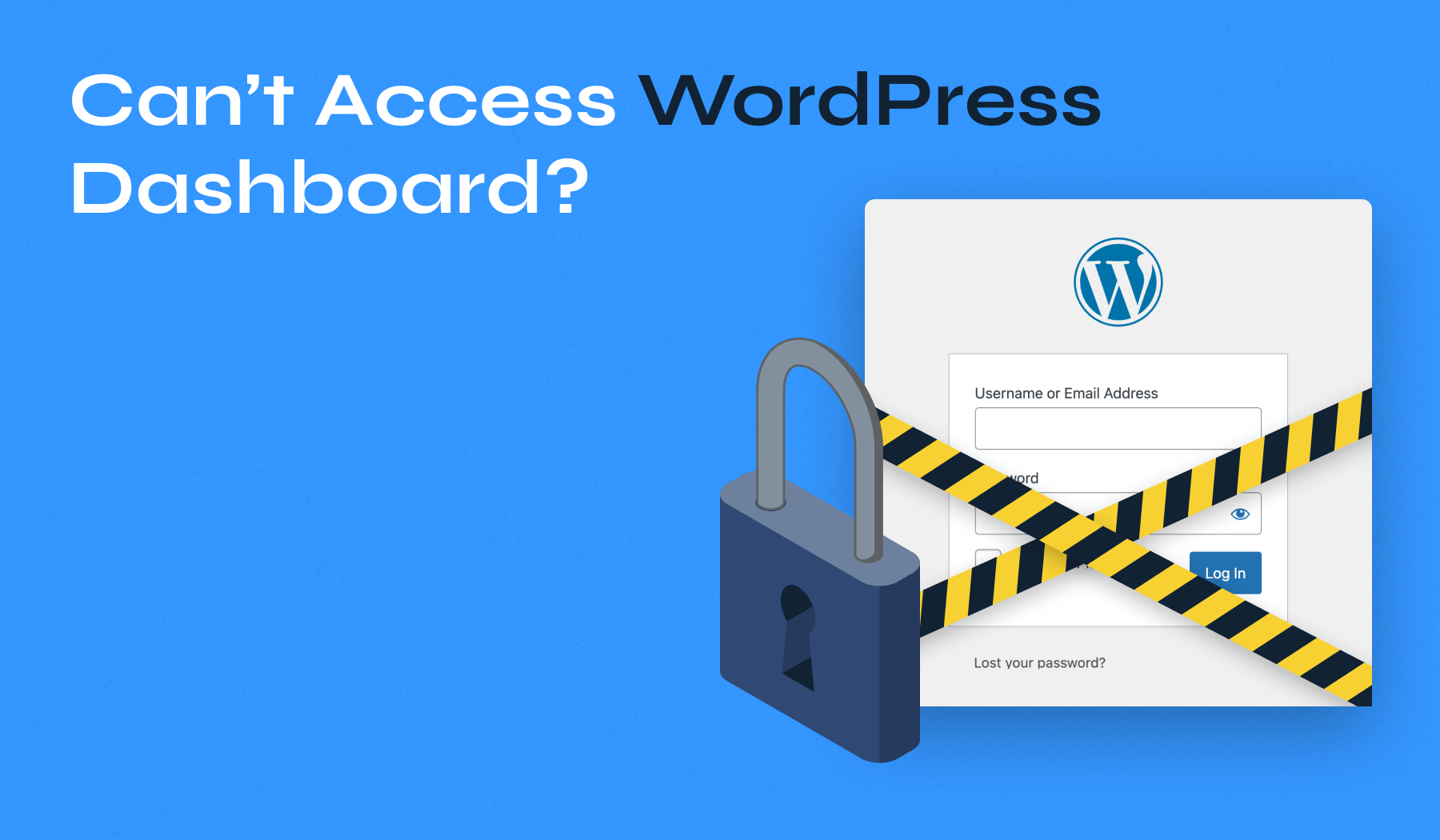
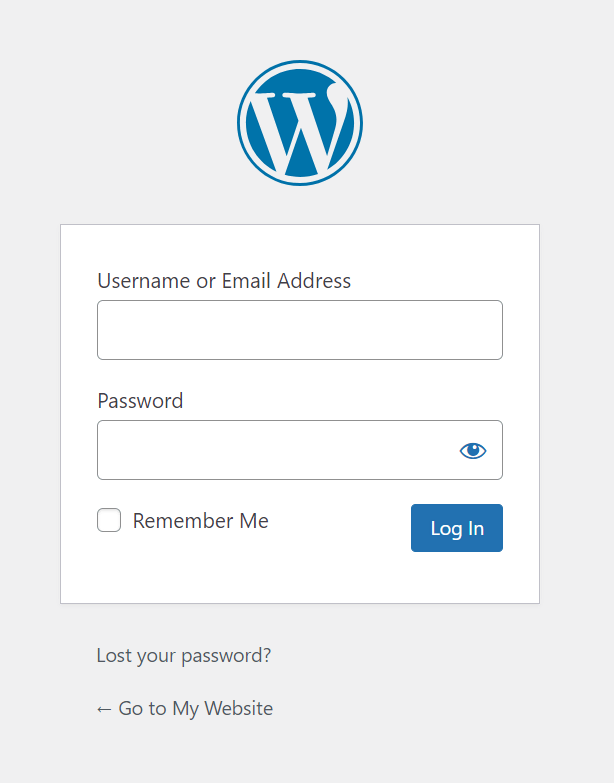
If you forget your WordPress password, don’t worry. You can reset it easily. Just go to the login page. Click on “Lost your password?” link. Enter your email address. Wait for the email with instructions. Follow the steps to set a new password. Make sure to choose a strong one. This will keep your account safe. It’s important to remember your new password. Write it down if needed. But keep it in a safe place.
Credit: www.wpzoom.com
Use Recovery Feature
Forgetting your WordPress admin log-ins can be stressful. Don’t worry, there’s a recovery feature to help you. Go to the login page. Look for the “Lost your password?” link. Click it. Enter your email address. You will get an email with instructions. Follow the steps in the email carefully. Make sure you have access to your email. This is important for recovery. Sometimes emails go to spam folders. Check there if you don’t see it. This feature is safe and easy to use. You can get back into your site quickly. No need to panic if passwords are forgotten. WordPress has tools to help you.
Access Database Via Hosting
To find your database, open your hosting control panel. Search for the database section. It might be named MySQL or Database Manager. Click on it. A list of databases will appear. Look for the one linked to your WordPress site. The name often starts with “wp_”.
Once located, click on the database name. This will take you to a new page. Here, you can see many tables. These tables hold different parts of your site. You need the user table.
Look for the table labeled “wp_users”. This is where user details are kept. Click on it to edit. Find your username in the list. Here, you can update your password. Make sure to save the changes.

Credit: www.ipage.com
Utilize Ftp To Reset
First, open your FTP client. Enter your host and username. Enter your password too. Click connect. Wait for the connection to establish. You will see your server files.
Find the wp-content folder. Open the themes folder. Choose your active theme folder. Look for the functions.php file. Right-click and select edit. Add this line at the end: wp_set_password('newpassword', 1);. Replace ‘newpassword’ with a new password. Save the file. Close and upload it back to the server. This will reset your password. Log in with the new password. Remove the line from the functions file after logging in.
Use Command Line Tools
Command line tools offer a solution for forgotten WordPress admin log-ins. They allow access to reset passwords directly. Use these tools to regain control of your WordPress site efficiently.
Wp-cli Commands
Command line tools help solve login problems fast. WP-CLI is one of these tools. It’s easy to use. First, open your computer terminal. Then, go to your WordPress folder.
Type wp user list. This command shows all users. Find your username. Next, type wp user update USERNAME –user_pass=NEWPASSWORD. Replace USERNAME with your name. Change NEWPASSWORD to your new password. Press enter.
Your password is now updated. You can log in again. Always remember your new password. Write it down in a safe place. WP-CLI makes this process quick and simple.
Contact Hosting Support
If you can’t remember your WordPress admin log-ins, contact hosting support. They can help reset your password. They have tools to fix login issues. Provide your account details. Make sure to verify your identity.
Explain the problem clearly. Support can quickly find solutions. They might ask for extra information. Be ready to answer questions. This makes the process faster.
Sometimes, support can guide you step by step. They can help over the phone or chat. Following their instructions is important. You will regain access to your site soon.
Implement Security Measures
Use a mix of letters, numbers, and symbols. Avoid common words or sequences. Change passwords every few months. This keeps accounts safe. Write passwords down if needed. Keep them in a secure place. Passwords should be at least eight characters long. Longer passwords are even better.
Two-factor authentication adds an extra layer of security. After entering a password, a second step is required. This can be a code sent to a phone. It can also be an email alert. Two-factor makes hacking harder. Even if someone knows your password, they cannot log in without the second step.
Credit: www.hostinger.com
Frequently Asked Questions
How Can I Reset My WordPress Password?
You can reset your WordPress password by accessing the “Lost your password? ” Link on the login page. Enter your email address or username, and follow the instructions sent to your email. This process will help you create a new password and regain access to your WordPress admin panel.
What If I Don’t Receive The Reset Email?
If you don’t receive the reset email, check your spam or junk folder. Ensure your email address is correctly linked to your WordPress account. If issues persist, contact your hosting provider for assistance or manually reset the password via the database using phpMyAdmin.
Can I Recover My Login Using Ftp?
Yes, you can recover your login using FTP by accessing your WordPress files. Modify the functions. php file to add a temporary password or create a new admin account. After logging in, revert changes to maintain website security and prevent unauthorized access.
How Can I Avoid Forgetting My Password Again?
To avoid forgetting your password, use a password manager to securely store your credentials. Regularly update your password and use a combination of letters, numbers, and symbols. Ensure your email recovery options are current and accessible for quick password recovery.
Conclusion
Losing WordPress admin log-ins can be stressful. But it’s fixable. Follow these steps to regain access. Start with password reset via email. No email access? Try accessing through hosting account. Check database for username and password. Still stuck? Contact your hosting provider.
They can help. Regularly update passwords to avoid future hassles. Use strong, unique passwords. Store them securely. Consider password managers for safe storage. Stay proactive to prevent future issues. Regaining control is easier than it seems. Just follow the right steps.
Your WordPress site will soon be back in your hands.