
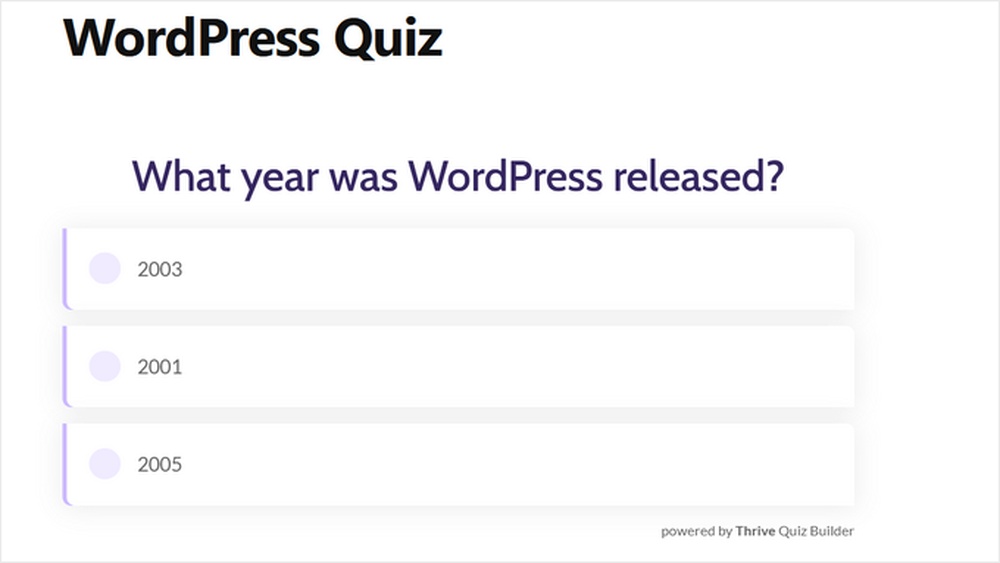
Are you looking to make your WordPress site more interactive and engaging? Adding a quiz is one of the best ways to grab your visitors’ attention and keep them coming back.
Imagine turning simple content into a fun challenge that your audience can’t resist. You’ll discover easy, step-by-step methods to add quizzes to your WordPress site—no complicated coding needed. By the end, you’ll have a powerful tool to boost user engagement and make your website stand out.
Ready to transform your site? Let’s dive in!
Choosing The Right Quiz Plugin
Choosing the right quiz plugin for WordPress is important. It affects how easy it is to create quizzes. It also impacts user experience and site performance. The right plugin makes quiz creation fast and simple. It fits your specific needs and budget. Consider several factors before making a choice.
Popular Quiz Plugins For WordPress
Many quiz plugins work well with WordPress. Some popular options include Quiz Maker, Quiz and Survey Master, and WP Quiz. These plugins have strong user bases and positive reviews. They offer various quiz types like multiple choice, true or false, and personality quizzes. Check their update frequency and compatibility with your WordPress version.
Features To Look For
Look for easy quiz creation tools. Drag-and-drop builders help build quizzes fast. Responsive design ensures quizzes work on all devices. Customizable results pages improve user engagement. Integration with email services helps gather leads. Analytics features allow tracking quiz performance. Security and speed are also important. Avoid plugins that slow down your site.
Free Vs Premium Options
Free quiz plugins offer basic features. They are good for simple quizzes and beginners. Premium plugins provide advanced features. These include more question types, better analytics, and support. Premium options often come with regular updates. They also offer customer support for troubleshooting. Choose based on your budget and quiz needs.
Credit: formidableforms.com
Installing And Activating A Quiz Plugin
Installing and activating a quiz plugin is the first step to create interactive quizzes on your WordPress site. A quiz plugin helps you add quizzes easily without coding. It offers tools to design questions, set answers, and view results.
Choosing the right plugin from the WordPress repository ensures compatibility and security. The installation process is simple and quick. After activating the plugin, you can start building quizzes immediately.
Finding Plugins In The WordPress Repository
Log in to your WordPress dashboard. Go to the “Plugins” menu and click “Add New.” Use the search bar to type “quiz.” The repository shows many quiz plugins. Look at ratings and reviews to pick a popular one. Check the last update date for recent support. Choose a plugin that fits your needs and has good feedback.
Step-by-step Installation Guide
Click the “Install Now” button next to your chosen plugin. WordPress downloads and installs the plugin files automatically. Wait a few seconds for the process to finish. Once installed, the “Install Now” button changes to “Activate.” Do not close the page before installation completes. The plugin is ready for activation after installation.
Activating And Setting Up
Click the “Activate” button to enable the plugin on your site. Activation adds new options to your dashboard menu. Find the plugin’s settings page to configure options. Set basic preferences like quiz type and styles. Save changes to apply your settings. The plugin is now ready for creating quizzes.
Creating Your First Quiz
Creating your first quiz in WordPress is simple and fun. Quizzes can engage your visitors and boost your site’s interaction. Follow these steps to build a quiz that fits your content perfectly.
Selecting Quiz Types
Start by choosing the quiz type that matches your goal. WordPress quiz plugins often offer multiple options like multiple choice, true/false, or fill-in-the-blank. Pick the style that suits your topic and audience best.
Adding Questions And Answers
Next, add clear and simple questions. Use short sentences to keep readers focused. Provide answer choices that are easy to understand. Make sure answers are correct and relevant to your topic.
Customizing Quiz Settings
Adjust settings to control how the quiz works. Set time limits or allow users to see their scores immediately. Choose whether to show correct answers after submission. Customize the look to match your website’s style.
Credit: fluentforms.com
Embedding The Quiz On Your Site
Embedding a quiz on your WordPress site makes it interactive and fun. Visitors can engage directly with your content. This section explains simple ways to place quizzes on your website.
Using Shortcodes
Shortcodes are small pieces of code that add quizzes easily. Most quiz plugins generate a shortcode after quiz creation. Copy this shortcode and paste it into any page or post.
Shortcodes work like shortcuts. They tell WordPress where to show the quiz. No need for coding skills. Just copy, paste, and publish.
Adding Quizzes To Pages And Posts
Navigate to the page or post where the quiz should appear. Use the WordPress editor to insert the quiz shortcode. Place it exactly where you want the quiz to show.
After adding, preview the page to check the quiz display. Adjust position if needed. Save or update the page to make the quiz live.
Placing Quizzes In Widgets
Widgets let you add quizzes in sidebars or footers. Go to Appearance > Widgets in your WordPress dashboard. Add a Text or Custom HTML widget.
Paste the quiz shortcode inside the widget content area. Save the widget. Now your quiz appears in the widget area on your site.
Enhancing Quiz Engagement
Enhancing quiz engagement helps keep visitors interested and active on your site. Engaged users spend more time and enjoy the experience. This leads to better learning and more interaction. Simple techniques can boost quiz appeal and participation.
Using Visuals And Media
Images, videos, and audio make quizzes more attractive. Visuals explain questions clearly and break text monotony. Media creates a lively, interactive feel that holds attention. Use relevant pictures or short clips to support questions. This makes quizzes easier and more fun to complete.
Setting Time Limits And Attempts
Time limits add excitement and challenge to quizzes. Users feel motivated to think quickly and answer carefully. Limiting attempts encourages focus and reduces guessing. It also makes the quiz more fair and balanced. Adjust time and attempts to suit your audience’s skill level.
Offering Rewards And Feedback
Rewards encourage users to finish quizzes and try again. Certificates, badges, or points give a sense of achievement. Immediate feedback helps users learn from mistakes. Positive comments boost confidence and keep users engaged. Clear feedback improves quiz value and user satisfaction.

Credit: formidableforms.com
Analyzing Quiz Results
Analyzing quiz results helps you understand how users perform. It shows which questions are easy or hard. This insight lets you improve your quizzes and content. Let’s explore key ways to analyze quiz data effectively.
Tracking User Responses
Track each user’s answers to see patterns. Identify common wrong answers to find confusing questions. Use your quiz plugin’s dashboard to view detailed reports. This helps you know which topics need more focus.
Exporting Data
Export quiz results as CSV or Excel files. This makes it easy to study data outside WordPress. Share results with your team or keep records for future use. Many quiz plugins offer simple export options in their settings.
Improving Content Based On Insights
Use quiz data to improve your website content. Fix unclear questions or add explanations for tough topics. Create new posts based on user interests and mistakes. Regular updates keep your quizzes useful and engaging.
Troubleshooting Common Issues
Troubleshooting quiz issues in WordPress can save time and reduce frustration. Many common problems have simple fixes. Understanding these helps keep your quizzes running smoothly. Below are key areas to check when facing issues.
Plugin Conflicts
Conflicts between plugins often cause quiz errors. Disable other plugins one by one to identify the culprit. Clear cache and test the quiz after each change. Update all plugins regularly to avoid compatibility problems. Choose well-reviewed quiz plugins with good support.
Display Problems
Quiz content may not show correctly on some themes. Switch to a default WordPress theme temporarily. Check if the quiz appears as expected. Adjust shortcode placement or use page builders that support quizzes. Make sure your theme supports JavaScript and CSS used by the quiz plugin.
Performance Optimization
Slow quizzes hurt user experience and site speed. Optimize images and keep quiz content light. Use caching plugins to speed up page loads. Limit the number of active plugins on your site. Regularly update WordPress, themes, and plugins for best performance.
Frequently Asked Questions
How Do I Add A Quiz To WordPress Easily?
You can add a quiz using WordPress quiz plugins like Quiz Maker or WP Quiz. Install, activate, and create quizzes directly in your dashboard. These tools offer drag-and-drop features for easy quiz building without coding.
Which WordPress Quiz Plugin Is Best For Beginners?
WP Quiz and Quiz Maker are beginner-friendly plugins. They provide simple interfaces, customizable templates, and useful tutorials. Both plugins support multiple question types and offer integration with email marketing tools.
Can I Customize Quiz Results In WordPress?
Yes, most quiz plugins allow you to customize results pages. You can show personalized messages, scores, or recommendations based on user answers. This enhances engagement and provides tailored feedback.
Is It Possible To Track Quiz Results In WordPress?
Many quiz plugins include built-in analytics to track user results. You can view scores, completion rates, and user responses. This helps measure quiz effectiveness and user engagement.
Conclusion
Adding a quiz to your WordPress site can boost user interaction. Choose a simple quiz plugin that fits your needs. Set up questions clearly and check your quiz’s settings. Test the quiz to make sure it works well. Quizzes help visitors learn and stay longer on your site.
Keep quizzes short and fun to keep users interested. Regular updates keep your quizzes fresh and error-free. Start adding quizzes today to engage your audience better.



