
Have you ever tried adding an image to your WordPress site and wondered how to properly link it? If you’re nodding in agreement, you’re not alone.
Understanding how to link images correctly is crucial for optimizing your site’s performance and enhancing user experience. Imagine effortlessly guiding your visitors to more content by simply clicking on an image. Sounds enticing, right? This is not just about aesthetics; it’s about making your website more functional and engaging.
Dive in to discover how you can effectively use image links in WordPress and transform your site into a dynamic, interactive space. With this knowledge, you’ll be able to captivate your audience and keep them coming back for more. Let’s unravel the mystery behind WordPress image links and boost your website’s appeal together.
WordPress Image Urls
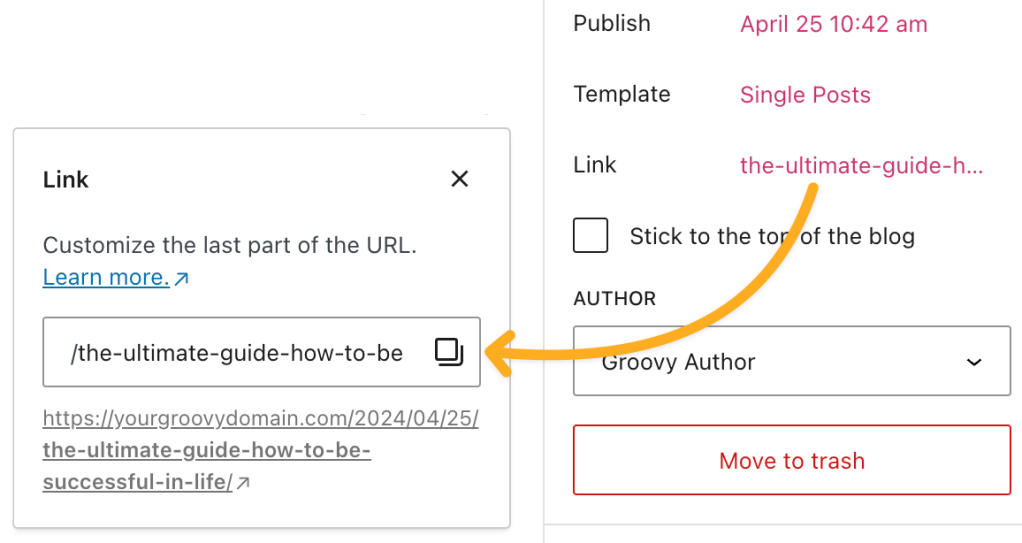
Each image in WordPress has a unique URL. This URL helps you find the image on your website. You use this URL to share images. Images are stored in the WordPress media library. The URL is created when you upload an image. It includes your website address and the image name.
To get the URL, go to your media library. Click on the image. You will see the URL on the right side. Copy the URL to use it elsewhere. This URL helps in linking images in posts or pages. It can also be used for sharing images outside WordPress.
Credit: wordpress.com
Uploading Images To WordPress
WordPress makes adding pictures easy. First, click on the Media button. This is in your dashboard. Next, select Add New. Choose your image from your computer. Uploading starts.
After upload, you see your image in the library. Click on the picture. On the right, find the URL. This is your image link. Use this link to share or insert the image.
Remember, the link helps you use images elsewhere. Always check image size. Big images slow websites. Small images are fast and clear. Keep file names simple. Use words like “beach.jpg” instead of “image123.jpg”. It helps find images quickly.
Accessing The Media Library
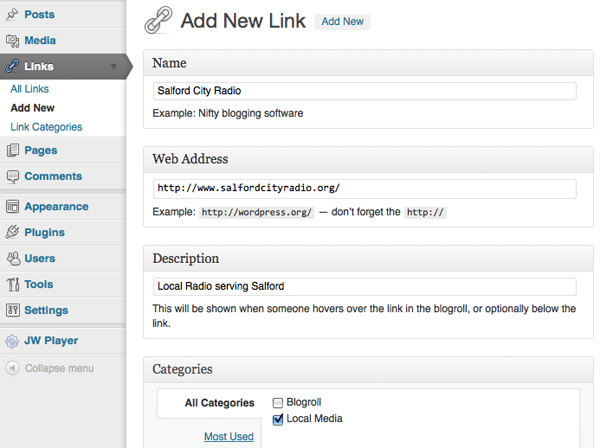
The Media Library is where images live in WordPress. You find it in the dashboard. Click on Media. It shows all pictures and files. Images are stored here. To use an image, you must get its link. Click on an image to see details. You will find the image URL there. It’s a direct link to the image. Copy the URL to share or use it. Remember, URLs help you access images quickly. They are unique links. Each image has its own URL. This makes it easy to find the right image.
Credit: codex.wordpress.org
Finding Image Links
Images on WordPress are stored in the Media Library. First, open your WordPress dashboard. Go to the Media section. There, you will find all images used on your site. Click on an image to see its details.
Once you click an image, you will see the image preview. Below the preview, find the URL field. This field shows the image link. Copy this link to use it elsewhere. The URL is crucial for sharing or embedding images.
Direct Image Links Vs. Attachment Pages
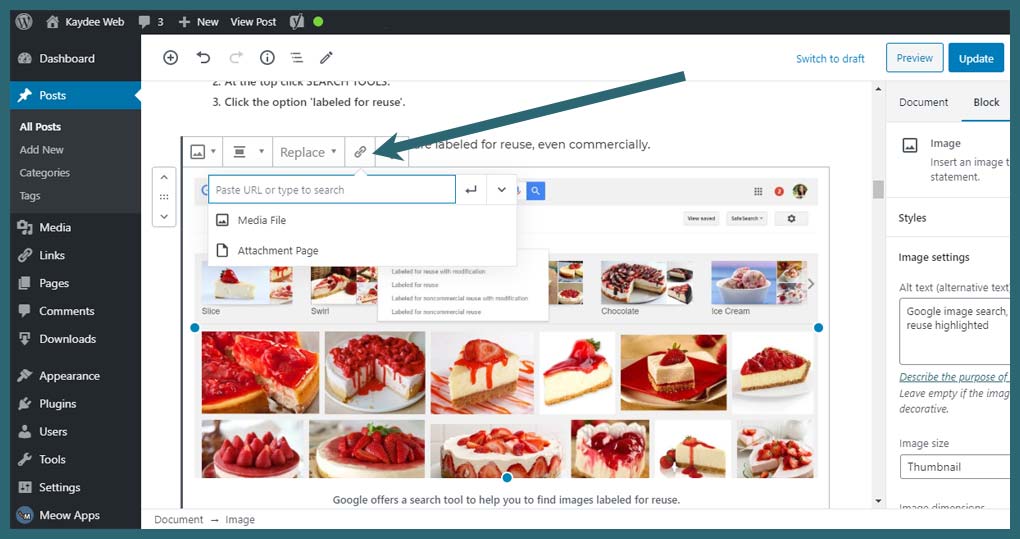
WordPress offers two ways to link images. Direct image links take users straight to the image file. These links are simple and easy to use. They are perfect for sharing or embedding images. On the other hand, attachment pages display the image on a separate webpage. This page often includes extra information about the image. Attachment pages may include comments or descriptions. These pages are useful for interaction and context. Direct links are fast. Attachment pages are more detailed. Both have their uses depending on your need.
Credit: kaydee.net
Using Image Links In Posts
Direct links are easy to use. They show images in posts. WordPress gives these links quickly. Copy the URL from the media library. Paste it in your post. This shows the image to readers. It’s fast and simple. No extra steps needed. Just copy and paste.
Attachment pages offer more details. They show image captions. Also, they show image sizes. Visitors learn more about each photo. This is helpful for galleries. It makes posts more interesting. Readers get more information. Images have more context.
Seo Considerations For Image Links
Using image links in WordPress needs care. Alt text is very important. It tells what the image is about. This helps search engines understand the image. Alt text should be clear and short. It should describe the image well.
File names matter too. A good file name tells what the image shows. Use simple words. Separate words with hyphens. This helps with search engine ranking.
Image size affects page load time. Large images can slow down a site. Slow sites are bad for SEO. Use a plugin to compress images. This keeps the site fast.
Troubleshooting Image Links
Images may not show due to broken links. Check if the link is correct. Sometimes, links get changed or deleted. Fix the link and the image will show again. Look for typos in the link. Correct them if you find any. Broken links can make your site look bad. They confuse visitors and can hurt your site’s trust.
Sometimes, images won’t load due to permission issues. Make sure the image file has the right permissions. Check the settings in WordPress. Files need permission to be seen online. If permissions are wrong, images stay hidden. Adjust permissions so everyone can see the images. This fixes many loading problems.
Frequently Asked Questions
How To Find The Link To An Image In WordPress?
To find an image link in WordPress, go to your media library. Click on the desired image. A new window will open showing image details. The URL is displayed on the right side. This URL is the direct link to your image.
Can I Change An Image Url In WordPress?
Yes, you can change an image URL in WordPress. Simply upload the image again with a new filename. This creates a new URL. Make sure to update any references to the old URL in your content.
Why Is My WordPress Image Link Broken?
A broken WordPress image link may be due to a deleted file. Ensure the image exists in your media library. Check for typos in the URL. If recently moved, update the URL in your content.
How Do I Use An Image Url In WordPress?
To use an image URL in WordPress, simply copy the URL from the media library. Paste it into your post or page editor. Use the ‘Insert from URL’ option to embed the image. Ensure the URL is accessible.
Conclusion
Understanding image links in WordPress is crucial for site optimization. They help improve user experience and boost SEO. Correct usage ensures images display properly and load quickly. This enhances website performance and user satisfaction. Familiarize yourself with the process. Practice adding and editing image links.
This skill benefits your WordPress journey. It empowers you to create visually appealing content. Keep exploring and learning. It’s essential for growing your digital presence. With time, navigating WordPress becomes easier. Your confidence in managing image links will grow. Embrace the learning curve.
Your website will thank you for it.



