
Imagine landing on a website where everything flows seamlessly. You easily find what you’re looking for, and navigating through pages feels intuitive.
This isn’t just a coincidence; it’s the magic of well-organized menus and widgets in WordPress. If you’re aiming to create an engaging and user-friendly site, understanding how to order widgets and menus is crucial. You don’t need to be a tech wizard to do this; with a few simple tweaks, you can transform your site into a smooth, interactive experience that keeps visitors coming back for more.
In this guide, you’ll discover the ins and outs of ordering widgets and menus in WordPress, helping you elevate your site’s functionality and appeal. Stay with us, and learn how to captivate your audience effortlessly.
WordPress Menus Overview
Menus in WordPress help users find what they need. They are like a map for your site. WordPress menus are easy to use. You can add pages, links, and categories. This helps organize your site. Menus can be at the top or side of your page. You can change them easily. Just drag and drop items. This makes it simple to update your menu. You can also create sub-menus. These are menus within menus. They help organize lots of links. Remember, a good menu makes a site easy to use. It’s important for people visiting your site. Always think about what your visitors need.
Role Of Widgets In WordPress
Widgets help in adding special features to a WordPress site. They make websites more interactive and user-friendly. With widgets, users can add a search bar, recent posts, or a calendar. It is easy to place them on the site using the drag-and-drop feature. This makes designing a site fun and simple. Widgets are found in the sidebar or footer areas. They help visitors find information quickly. Many themes come with their own widgets. These are ready-made and can be used right away. This saves time for users. So, widgets play a big role in making a website look good and work well.
Navigating The Appearance Menu
The Appearance Menu helps you design your site. It includes widgets, menus, and themes. Widgets are small tools. They show on your site in sidebars. Menus organize your pages and links. Easy for visitors to find what they need. Themes change the look of your site. Click Appearance in the WordPress dashboard. Choose Widgets, Menus, or Themes. Each option opens new settings. Customize these to fit your site. Drag and drop widgets where you want. Arrange menu items in order. Preview changes live. Save when you’re happy. Your site will reflect these updates instantly.
Creating Custom Menus
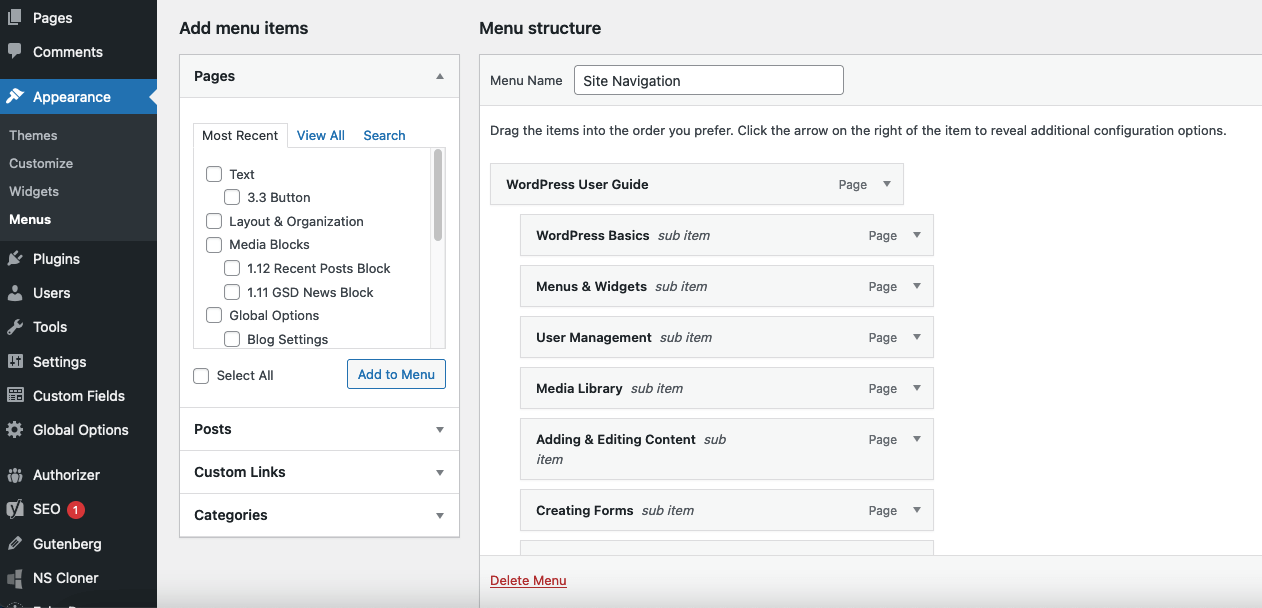
Begin by going to the WordPress dashboard. Click on Appearance, then Menus. Here, you can add items to your menu. Choose from pages, posts, or custom links. Select the items you want and click Add to Menu. Your chosen items now appear in the menu list.
Drag the items to organize the menu. Place them in the order you want. Create a submenu by dragging an item under and slightly to the right of another item. This forms a dropdown menu. Click Save Menu to keep the changes. Check your site to see the new menu structure.
Managing Widgets In WordPress
Widgets are small blocks in WordPress. They help add features to your site. Sidebars hold these widgets. Drag and drop is the way to add them. It’s very easy! Just pick a widget and place it in the sidebar. You can add many widgets. They make your site look good and work well. Some widgets show recent posts. Others show a search box or calendar. Choose the widgets you like best.
Each widget has its own settings. Click on a widget to open its settings. You can change its title. Some widgets let you add text or choose colors. Always click save when you finish. This keeps your changes. Settings make widgets look and work how you want. Try different settings for the best results. Remember, you can always change them back.
Credit: sites.gsd.harvard.edu
Integrating Menus And Widgets
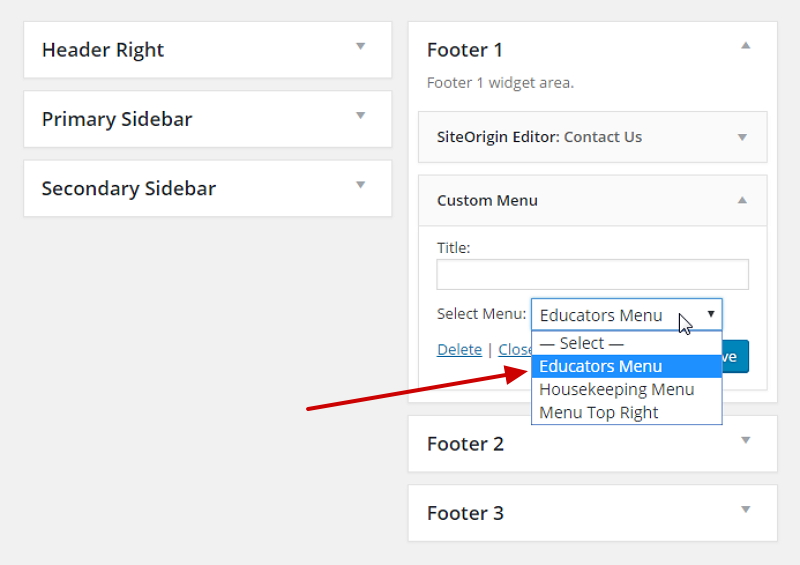
Menus help visitors find things on your site. Widgets add special features. Linking them makes your site better. Easy navigation is important. Visitors stay longer. Widgets can show menus, make them work better. It’s simple. Connect them in the WordPress dashboard. Use the customize tool. Choose a widget area. Add a menu widget. Pick a menu you want. Save changes. Done!
Widgets can hold menus. This makes the site easy to use. Sidebars are good for this. Add a menu widget there. Widgets can show recent posts. Or social media links. This helps users find things fast. Menus guide users. Widgets make menus better. Together, they enhance user experience.
User experience is key. Good sites are easy to use. Menus and widgets work together. They make navigation smooth. Users find content quickly. This keeps them happy. Happy users visit again. They explore more pages. Sites grow with good user experience. Menus and widgets are important for this. Make sure they are set up well.
Best Practices For Menu Order
Make sure your important pages are easy to find. Put them at the top of the menu. This helps users find what they need fast. Home, About, and Contact should be clear. These pages guide visitors. Use short words for menu items. This makes it simple to read. Too many items can confuse. Keep it clean and easy.
People use phones a lot. Menus must fit small screens. Use a hamburger icon for menus. It’s the three-line icon. This saves space. Ensure buttons are big enough. Easy to tap. Test your menu on different devices. Make sure it looks good everywhere. Speed is key. Slow menus can frustrate users. Keep it simple and fast.
Credit: seehowsupport.com
Troubleshooting Common Issues
Menus might not show correctly. First, check menu settings. Make sure the menu location is set. Sometimes themes hide menus. Adjust the theme settings if needed. Plugins can also cause issues. Deactivate plugins one by one. This might solve the problem. Clear the cache after changes. This helps refresh the display.
Widgets need to work with the theme. Some widgets may not fit. Check for theme updates. Updates might improve widget support. Use widgets that are compatible. Read reviews before adding new widgets. Test widgets on different pages. This ensures they function well. If a widget breaks, try another one.

Credit: wordpress.org
Frequently Asked Questions
What Are WordPress Widget Menus?
WordPress widget menus are tools for customizing your site’s sidebar, footer, and other widget-ready areas. They allow users to add content and features such as navigation links, search bars, and recent posts. This enhances user experience by making the site more interactive and easier to navigate.
How To Order Widgets In WordPress?
To order widgets in WordPress, go to your WordPress dashboard, then navigate to Appearance > Widgets. Drag and drop widgets in your desired order within the widget area. This simple process allows you to customize your site’s layout and functionality to suit your needs.
Can I Create Custom Menus In WordPress?
Yes, you can create custom menus in WordPress. Navigate to Appearance > Menus in your dashboard. From there, you can create new menus, add pages, categories, and custom links, and arrange them in any order. This feature provides flexibility to design a unique navigation structure.
Why Organize WordPress Menus?
Organizing WordPress menus improves user experience by providing clear navigation paths. It helps visitors find content quickly, enhancing site usability and engagement. Well-structured menus also contribute to better SEO as they guide search engines through your site’s hierarchy effectively.
Conclusion
Understanding the order of widgets and menus is vital in WordPress. It helps improve website navigation and user experience. Widgets add functionality, while menus guide visitors. Arrange them thoughtfully for a user-friendly site. Regular updates keep your site fresh and relevant.
Experiment with different layouts to find the best fit. A well-organized site attracts more visitors and keeps them engaged. Remember, simplicity often wins in design. Use these tips to enhance your WordPress site’s effectiveness. Keep learning and adapting to new trends for continued success.
Happy blogging!



