
Are you struggling to upload your WebM video files to your WordPress site? You’re not alone.
Many website owners find themselves puzzled by the limitations of file sizes, especially when it comes to videos. It’s frustrating when your creative content is just too big to share. Understanding the maximum WebM file size for WordPress is crucial to ensure seamless uploads and optimal performance for your website.
You’ll discover how to overcome these challenges and unlock the full potential of your video content. Stick around to learn simple solutions that can transform your WordPress experience.
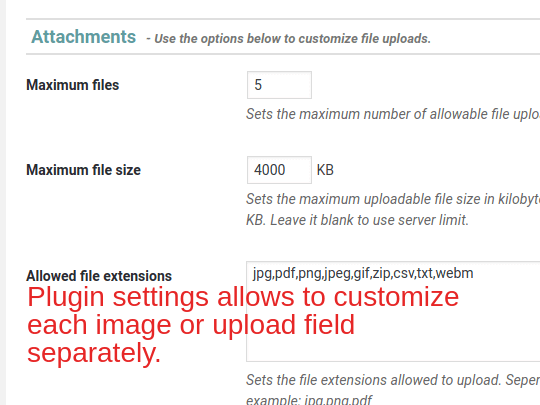
WordPress Media Upload Limit
WordPress has a default limit for file uploads. This limit is usually 2 MB or 5 MB. It depends on your hosting provider. This means you can’t upload big files. The limit keeps your site fast. It also helps with security. Always check the limit before uploading.
Many things can change the upload limit. Your hosting provider is one. They set the limits based on server settings. Some plugins might also affect it. The PHP configuration on your server is another factor. It’s important to know these limits. This helps you plan your uploads better.
Credit: support.emdplugins.com
Webm File Format
Webm is a popular video file format. It is widely used on the web. This format is known for its small size and high quality. Webm is perfect for streaming and sharing videos online. It uses VP8 or VP9 video codecs and Vorbis or Opus audio codecs. These codecs help in maintaining good quality while keeping the file size low. It is an open-source format. This means anyone can use it without paying fees. It is supported by most modern web browsers. This makes it easy to use on many websites.
Webm files are lightweight. They load faster than many other formats. This ensures a smooth viewing experience. This is crucial for keeping visitors engaged. Webm also supports high-definition videos. Videos look sharp and clear. It is a future-proof format. It is maintained by a community dedicated to web standards. Using Webm can help improve your site’s SEO. Google favors fast-loading pages. This can lead to better rankings.
- Online video streaming platforms.
- Video ads for websites.
- Embedding video content on blogs.
- Sharing short clips on social media.
- Tutorial videos on educational sites.
Increasing Upload Limits
The .htaccess file controls many settings. It can increase upload limits. Find this file in your website folder. Open it carefully. Add the following code: php_value upload_max_filesize 64M. Save changes. This increases file size limit. Be careful not to change other settings.
The php.ini file is important. It sets limits for uploads. Locate the file on your server. Open it with a text editor. Find the line: upload_max_filesize. Change the value to 64M. Save the file. This allows bigger files.
Plugins are helpful for beginners. They make tasks easy. Many plugins increase upload limits. Search for them in the plugin directory. Install one that fits your needs. Follow plugin instructions. Plugins simplify processes without coding skills.
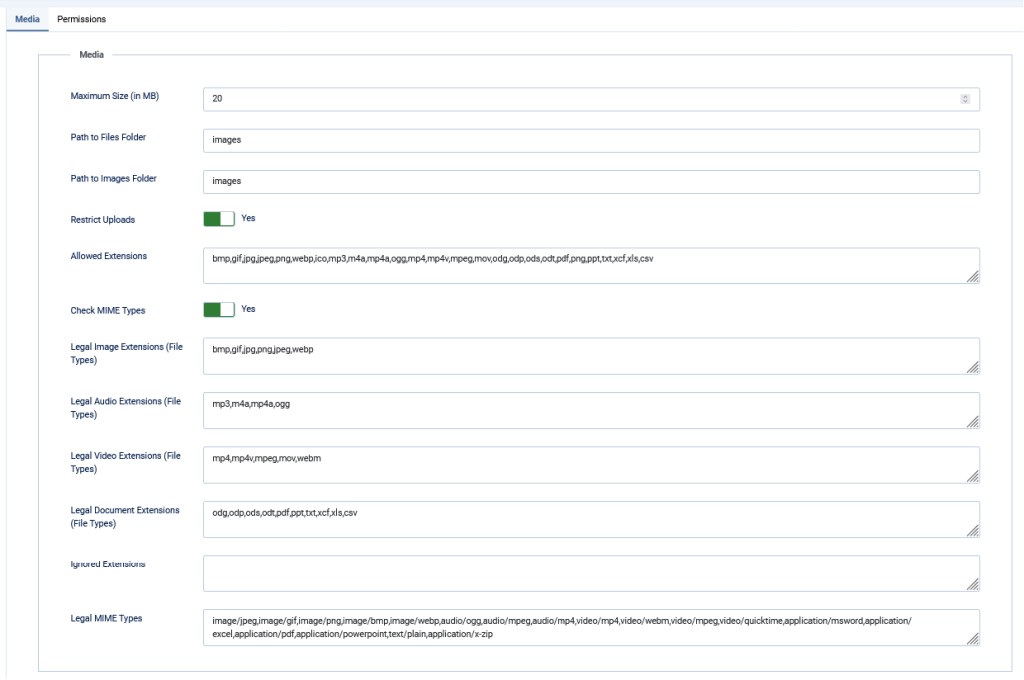
Credit: www.infyways.com
Server-side Considerations
Hosting Provider Restrictions can affect your Webm file size. Some providers limit file uploads. These limits help to save resources. Check your hosting plan. You might need an upgrade for larger files. Always read the terms. Some providers have strict rules. Violating them can lead to penalties.
Server Performance Impact happens with big files. Large Webm files need more processing power. Slow servers struggle with this. Users may face delays. Choose a provider with fast servers. They handle big files better. Keep your files small. This helps with speed. Fast loading keeps users happy.
Alternatives For Large Files
WordPress supports uploading WebM files up to 256 MB. Consider alternative methods for larger files. Try file compression tools or external hosting services. Simplifies uploading and ensures faster loading times.
Using External Hosting Platforms
External hosting can help manage large files. Platforms like Vimeo and YouTube store your videos. They save space on your WordPress site. These platforms are often fast and reliable. They also offer tools for video management. Embed codes make it easy to share videos on your site. Viewers can watch without using your site’s bandwidth. This keeps your website running smoothly. Your site stays quick, even with many visitors.
Optimizing Video Files
Video files can be large and slow to load. Use tools to compress these files. Compression makes files smaller without losing quality. Try using formats like WebM or MP4. They are efficient for web use. Adjust the resolution to fit your needs. Smaller resolutions load faster. Use video editing software to trim unnecessary parts. This reduces the file size further. Keeping files small helps your website load quickly.
Troubleshooting Upload Issues
Uploading Webm files to WordPress can be tricky. Often, users see error messages. These include “File exceeds the maximum upload size” or “HTTP error”. Such messages mean the file is too big or there is a server issue. Understanding these messages helps solve problems quickly. Adjusting file size or server settings might be necessary.
- Check the maximum upload size setting in WordPress.
- Reduce the file size if it is too large.
- Contact your hosting provider for server issues.
- Use a plugin to increase upload limits.
- Adjust PHP settings for better handling.
These steps often fix upload problems. Always ensure your file meets the requirements. This makes uploads smoother and faster.

Credit: help.cusrev.com
Frequently Asked Questions
What Is The Default Webm File Size Limit In WordPress?
WordPress sets a default file upload limit of 2MB for WebM files. This can vary based on your hosting provider. To upload larger WebM files, you may need to adjust settings in your hosting environment or use a plugin.
How Can I Increase Webm File Upload Size?
To increase WebM file upload size, access your hosting settings. You can modify the `php. ini` file or use a WordPress plugin like “Increase Maximum Upload File Size” to adjust the limits. Check with your hosting provider for specific instructions.
Does WordPress Support Webm Files Natively?
Yes, WordPress supports WebM files natively. You can upload and use WebM videos without additional plugins. Ensure your theme and browser support WebM format for smooth playback on your WordPress site.
Are There Plugins To Manage Webm File Sizes?
Yes, there are plugins available to manage WebM file sizes. “Increase Maximum Upload File Size” and “WP Add Mime Types” are popular choices. These plugins allow you to adjust upload limits and ensure compatibility with different media types.
Conclusion
Understanding the maximum WebM file size for WordPress is crucial. It ensures smooth uploads and faster loading times. Keep your file sizes within WordPress limits. This helps maintain site speed and performance. Compressing files can be a good solution. It reduces size without losing quality.
Always check your hosting plan for any specific restrictions. Regularly updating your WordPress knowledge is beneficial. It keeps your site running efficiently. Remember, a well-optimized site attracts more visitors. Happy blogging!



