
Imagine you’ve captured an incredible video that perfectly complements your latest blog post. You’re excited to share it with your audience on WordPress, but there’s one nagging question: what is the maximum size for a video on WordPress?
This is a crucial detail that could make or break the seamless integration of multimedia into your content. Understanding the limits and possibilities will empower you to maximize engagement without running into frustrating obstacles. You deserve to know how to make your video content shine without compromising on quality or accessibility.
Dive in to discover the essentials, and ensure your videos are always a perfect fit for your WordPress site.
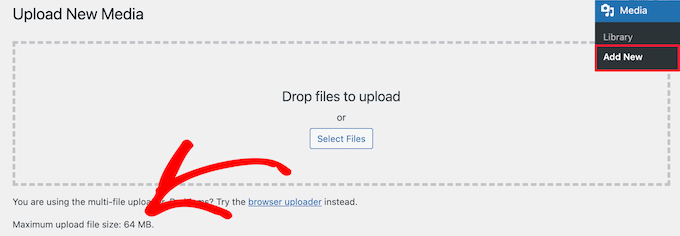
Credit: www.wpbeginner.com
Video Upload Limits
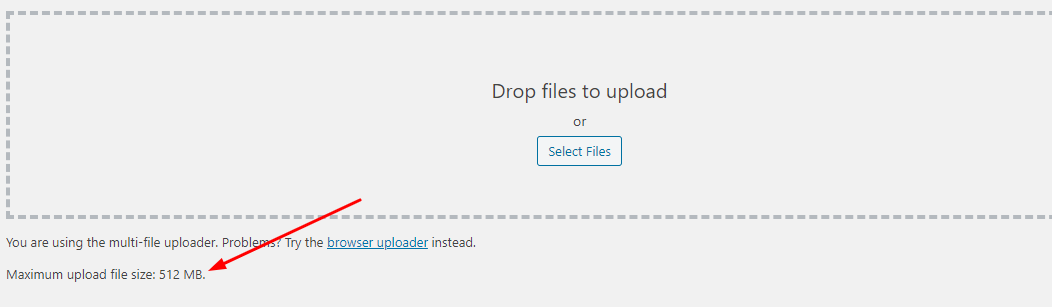
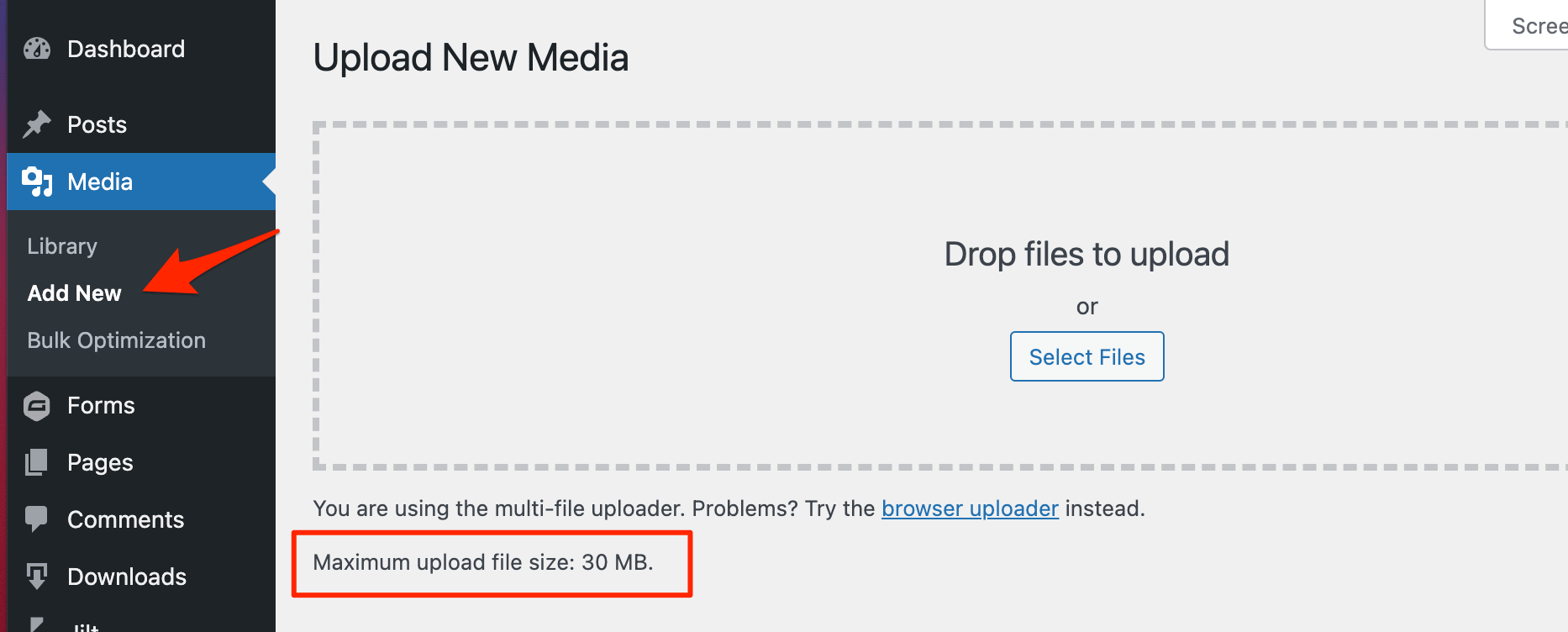
WordPress has a video upload limit. This limit is often 64MB by default. Some servers may allow larger files. The actual limit depends on your hosting plan. It’s a good idea to check this with your host. You can upload larger videos with a few tricks. One way is to adjust the php.ini file. Another way is to use a plugin. These methods help increase the upload size. Always remember, large videos may slow your site. It’s smart to compress videos before uploading.
Factors Influencing Size
Different hosting plans have size limits for videos. Shared hosting may have stricter limits. VPS or dedicated servers often allow larger sizes. Always check your plan’s details. Some hosts offer unlimited storage. But, they might have fair usage policies. These policies affect video size.
Not all file types are the same. MP4 is a popular choice. It has good quality and small size. AVI and MOV files are larger. They might need more space. Consider converting big files to MP4. This helps in saving space.
High resolution means better quality. But, it also means a larger file. 1080p is common for good quality. 4K is even better but much larger. Lower resolution like 720p takes less space. Choose based on your needs and storage limits.
Adjusting Upload Settings
.htaccess file helps control settings on your web server. To change video upload size, find this file in your site’s root folder. Add a few lines to increase limits. For example: php_value upload_max_filesize 64M. This line sets maximum size to 64 megabytes. Also, add php_value post_max_size 64M. Always back up your file before changing it. Errors can make your site not work.
php.ini file controls PHP settings. It might be on your server. Look for lines like upload_max_filesize and post_max_size. Change them to your desired video size. Example: upload_max_filesize = 64M. This sets size to 64 megabytes. After editing, restart your server. Changes take effect then. Sometimes, hosting providers may restrict access to php.ini.
WordPress allows settings adjustment via functions.php file. This file is in your theme folder. Add code to modify upload limits. Example: ini_set('upload_max_size', '64M');. This sets upload size to 64 megabytes. Use this method if you can’t change .htaccess or php.ini. Be careful with edits. Mistakes can cause errors. Always backup before changes.
Alternatives To Hosting On WordPress
Exploring alternatives to hosting on WordPress helps avoid limits like video size restrictions. WordPress supports videos up to 256 MB, but other platforms might offer more flexibility. Consider options like Wix or Squarespace for different media needs.
Third-party Video Platforms
Third-party video platforms are a great option. You can use websites like YouTube or Vimeo. These sites host videos for free. They help in saving your website space. Upload your video there. Then, copy the link. Paste it into your WordPress post. It’s easy!
Embedding From Youtube Or Vimeo
Embedding is simple. Open your video on YouTube or Vimeo. Look for the share button. Click it. Select the embed option. Copy the code. Paste this code into your WordPress editor. Your video now shows on your post. It doesn’t take website space.
Using Content Delivery Networks
Content Delivery Networks (CDNs) make video loading fast. They store your video close to the viewer. This speeds up video playback. CDNs are reliable. They handle big traffic easily. Popular CDNs include Cloudflare and Akamai. They improve user experience.
Best Practices For Video Uploads
Keep video files small for quick uploads. Large files can slow websites. Aim for a file size under 1 GB. Compress videos to save space. Use tools to reduce file size. Quality should stay good after compression. Smaller files load faster and save bandwidth.
Select the right video format. MP4 is a good choice. It works on most devices. MP4 keeps quality high and file size small. Other formats may not work everywhere. Stick with MP4 for best results.
Quality is important, but size matters too. High-quality videos can be large. Find a balance between quality and size. Lower the resolution if needed. 720p is often enough. Keep videos clear but not too big.
Credit: lifterlms.com
Credit: www.wpzoom.com
Frequently Asked Questions
What Is The Maximum Video Size For WordPress?
WordPress allows a maximum upload size determined by your hosting provider. Typically, it ranges from 2 MB to 150 MB. You can check and increase this limit via your hosting control panel or by modifying the `php. ini` file, `.
htaccess` file, or `wp-config. php` file on your server.
How Can I Increase The Upload Size Limit?
To increase the upload size limit, you can edit the `php. ini` file, the `. htaccess` file, or the `wp-config. php` file. Alternatively, contact your hosting provider for assistance. Each method involves adjusting the `upload_max_filesize`, `post_max_size`, and `memory_limit` settings to accommodate larger files.
Does WordPress Support Large Video Files?
WordPress supports large video files, but the upload size is limited by your server settings. If your video exceeds the limit, consider compressing it or using a third-party video hosting service like YouTube or Vimeo. Embedding videos from these platforms can also improve site performance and loading times.
Can I Embed Videos From External Platforms?
Yes, you can embed videos from platforms like YouTube, Vimeo, and DailyMotion. Embedding is simple: paste the video URL into the WordPress editor. This method is recommended for better site performance, as it reduces server load and maintains video quality without impacting your site’s speed.
Conclusion
Understanding video size limits on WordPress is crucial. It helps optimize your site. A streamlined site loads faster and engages users. Keep videos within recommended limits. This ensures smooth playback. Large files may slow down your website. This frustrates visitors.
Use plugins to manage video size. Compress files for better performance. Always check hosting plan limits. They vary across providers. Remember, a well-maintained site improves user experience. Follow these guidelines to make your WordPress site efficient. Happy blogging and keep your audience engaged with seamless videos!



