
Have you ever logged into your WordPress site and wondered what exactly goes on behind the scenes? You’re not alone.
As a WordPress user, understanding the difference between WP Admin and other parts of WordPress can feel like unraveling a mystery. WP Admin is your site’s command center, where every setting, post, and page comes to life. It’s where you control the appearance, functionality, and content of your website.
But, what sets WP Admin apart from other features and interfaces in WordPress? Knowing this can transform your site management experience from confusing to empowering. Stick around as we dive deep into the unique characteristics of WP Admin, and discover how mastering this tool can elevate your WordPress game. You’ll find insights that could change the way you manage your site forever!
Credit: wptavern.com
Wp Admin Basics
Wp Admin is the control panel for a WordPress site. It is where you manage the site’s content. You can add or edit posts and pages. It helps you customize the site’s appearance. You can also install plugins and themes. It’s like a dashboard for your website.
Wp Admin is very important. It lets you change how your site works. Through it, you control who can see your site. You can also manage users and their roles. It helps keep the site safe. Without Wp Admin, managing WordPress is hard. It makes site management easy and fun.
Accessing Wp Admin
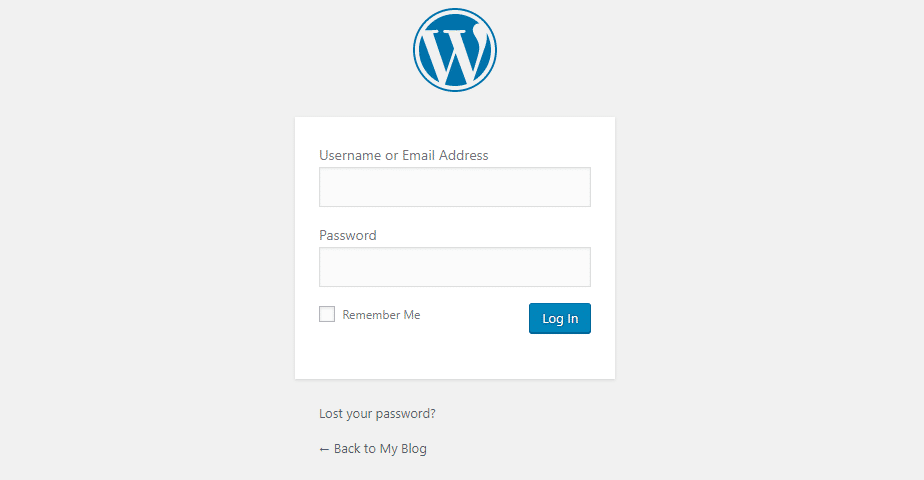
Enter the website URL followed by /wp-admin to access the login page. You will see a screen asking for your username and password. These details are set during the WordPress installation. After entering them, click the Login button. You will then reach the dashboard.
Sometimes, users forget their password. In such cases, click Lost your password? link. Follow the steps to reset it. Another issue is incorrect URL entry. Always check the URL carefully. Some users face browser issues too. Try clearing cache or using a different browser.
Wp Admin Dashboard
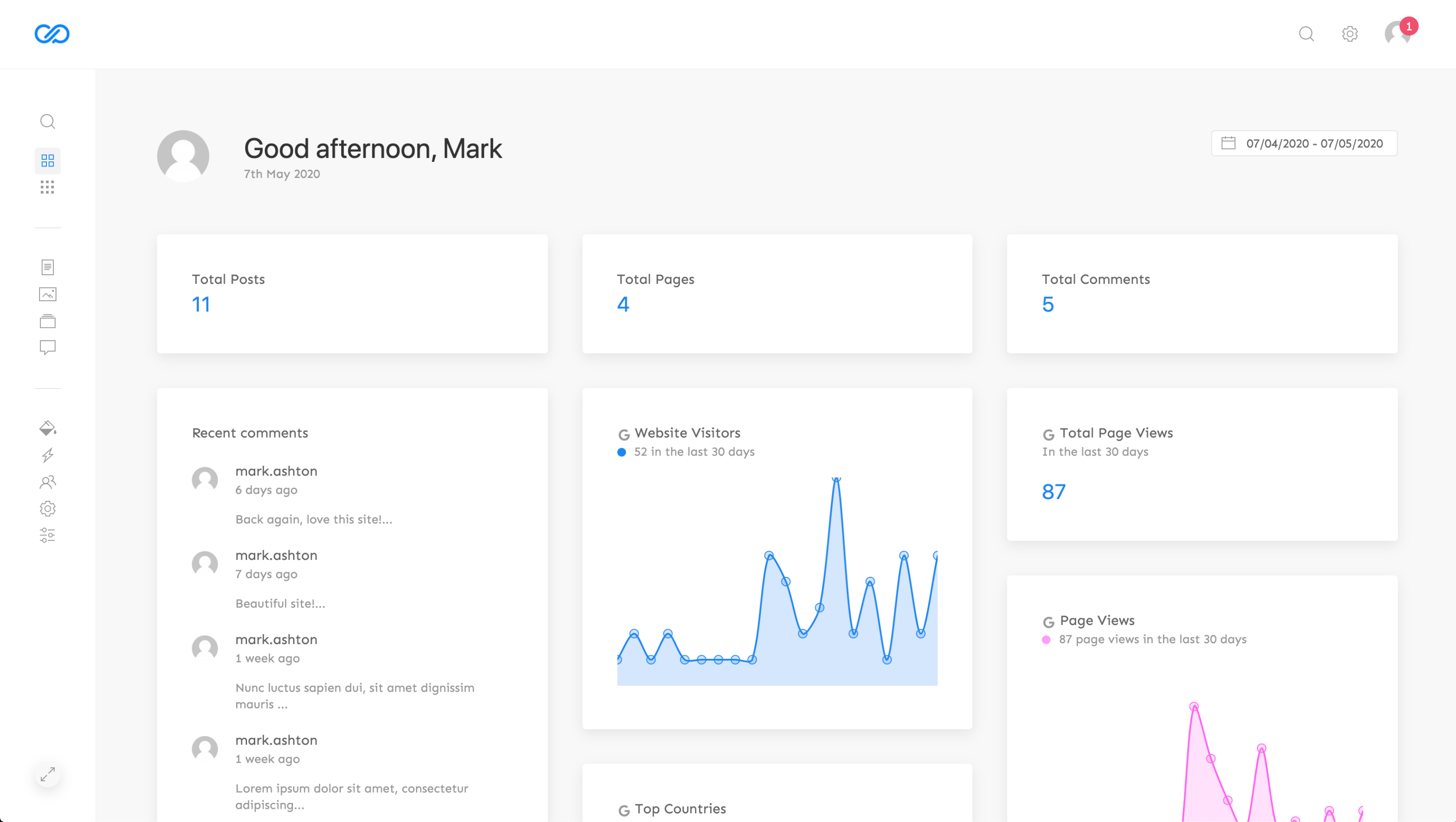
The Wp Admin Dashboard is the heart of a WordPress site. It helps users manage their site with ease. The dashboard has many parts. Each part has a special job.
First, there is the Posts section. This is where you write and edit blog posts. Next, the Media library stores all your photos and videos. Pages let you create new website pages. Comments allow you to see what visitors say about your posts.
Another part is the Appearance section. Here, you can change the look of your site. Plugins add new features to your site. Finally, the Settings area is where you control how your site works.
Customization makes your site unique. You can choose different themes. Themes change how your site looks. There are free and paid options. Each has its own style.
Widgets add extra features to your site. Like a calendar or search bar. You can add them to different parts of your site. Menus help visitors navigate your site. You can create custom menus. Choose what pages to show.
Managing Content
Posts are like news articles. They appear in order of time. Most recent ones show first. They are great for sharing updates. On the other hand, pages are for timeless information. Like “About Us” or “Contact”. They do not change often. Posts are part of a blog. Pages are not. Use posts for regular updates. Use pages for important information.
The Media Library stores all your pictures and files. You can upload images, videos, and PDFs. It’s like a big box for your media. You can add media to posts and pages. Click the “Add Media” button to upload. It keeps things organized. You can reuse files anytime. It’s easy and helpful for website building.
User Management
Roles help decide what users can do. Admins have full control. Editors can change content. Authors can write posts. Subscribers can only read. Permissions are rules. They decide user actions. Each role has different permissions. Admins can change everything. Editors can edit posts. Authors can write, but not edit others’ posts. Subscribers can read posts.
Adding users is easy. Click “Add New” in admin panel. Fill in details. Choose a role. Users get an email. Removing users is simple. Find the user in the list. Click “Delete”. Confirm the action. Removed users lose access. Admins manage users. They ensure safety. They control access. They protect the site.
Plugins And Themes
Plugins and themes are important for a website. Installing them is easy. Go to the dashboard in WordPress. Click on Plugins or Themes. Then, click Add New. Find the one you like. Press Install. After that, press Activate. Now, your new plugin or theme is ready to use.
Installation And Activation
Follow these steps to install and activate. First, search for the plugin or theme. Click Install. Wait a few seconds. Then, click Activate. Now, it is ready. Easy and fast.
Updates And Compatibility
Keeping plugins and themes updated is important. Updates fix bugs. They add new features. Sometimes, they make things faster. Check compatibility before updating. Some updates may not work well together. Always back up before changes. This keeps your site safe.
Site Settings
Exploring ‘Site Settings’ in WordPress reveals the contrast between wp-admin and site customization. Wp-admin offers tools for managing posts, pages, and plugins, while site settings focus on appearance and functionality adjustments. This distinction helps users navigate and optimize their WordPress experience efficiently.
General Settings
The General Settings in WordPress are very important. They help set up your site. You can change the site title and tagline. These give your site a unique name. You can also set the URL for your site. The URL is the address people use to find your site. Another setting is the email address. This is important for getting updates. You can also set the time zone. This helps with posts and events. These settings make your site work well.
Security Configurations
Keeping your site safe is important. Security Configurations protect your site from hackers. You can set strong passwords. Strong passwords keep your site safe. Updating plugins and themes is key. Updates fix security holes. You can also use security plugins. These plugins add extra safety to your site. Backing up your site is also important. Backups save your data if something goes wrong. Security keeps your site safe and secure.

Credit: www.ecenica.com
Troubleshooting Wp Admin
Wp Admin can show errors. Sometimes, the login page does not load. Or, users face a white screen. These are common problems.
Clearing the cache can fix the white screen. Try disabling plugins one by one. This helps find the broken plugin. Check themes if the admin does not load. A new theme can cause trouble. Keep WordPress updated. Updates fix many problems. Check PHP version. An old PHP version can cause errors. Increase memory limit. More memory helps with loading.
Credit: kinsta.com
Frequently Asked Questions
What Is Wp Admin In WordPress?
WP Admin is the backend interface of a WordPress website. It allows administrators to manage site settings, content, and user roles. Accessible via “yourwebsite. com/wp-admin,” it provides tools for customizing themes, plugins, and more. Understanding WP Admin is crucial for effective site management and customization.
How Do I Access Wp Admin?
To access WP Admin, visit your website’s URL followed by “/wp-admin. ” Log in using your administrator credentials. Once logged in, you can manage site content, plugins, themes, and settings. Ensure you have admin rights to access and modify WP Admin features efficiently.
Why Is Wp Admin Important?
WP Admin is crucial for managing your WordPress site. It provides tools for content management, theme customization, and plugin installation. With WP Admin, you can control site settings, user roles, and security. Mastering WP Admin enhances your ability to create a seamless user experience.
Can I Customize Wp Admin?
Yes, WP Admin is highly customizable. You can modify its appearance and functionality using plugins and themes. Admin themes can change the dashboard’s look, while plugins add features. Customizing WP Admin helps tailor it to your specific needs for better site management.
Conclusion
Understanding the difference in WordPress admin is crucial. It helps manage your website efficiently. With WP Admin, you control site settings and content. This knowledge empowers better site management. Users can customize themes and plugins easily. It supports optimal site performance and security.
Knowing the roles and tools in WP Admin is vital. It simplifies navigation and task execution. Proper use of WP Admin enhances your site experience. Always explore new features and updates. This ensures your site stays relevant and functional. Keep learning to make the most of WordPress.



