
Are you struggling with blurry images or slow-loading pages on your WordPress site? The pixel size of your images could be the culprit.
Understanding the correct pixel size for images in WordPress is crucial for enhancing your site’s performance and aesthetics. Imagine browsing your favorite site only to find that the images are pixelated or take forever to load. Frustrating, right? You don’t want your visitors to feel the same way when they land on your site.
In this post, you’ll discover the ideal image sizes that will keep your website looking sharp and running smoothly. Stick around to learn how optimizing your images can lead to happier visitors and better rankings on search engines.
Importance Of Correct Pixel Size
Correct pixel size is vital for clear images. Images that are too big can slow down your site. This can make users leave your page. Small images may look blurry. This is not good for your website’s appearance.
WordPress needs images to fit well. They must load fast. Fast-loading images help keep visitors on your site. They also help your site rank better on search engines. Using the right pixel size helps save storage space. It also makes backups quicker.
Aim for pixel sizes that match your theme. This keeps your pages looking neat. Always check image size settings in WordPress. This ensures your site is at its best.
Credit: pressidium.com
Common Image Sizes In WordPress
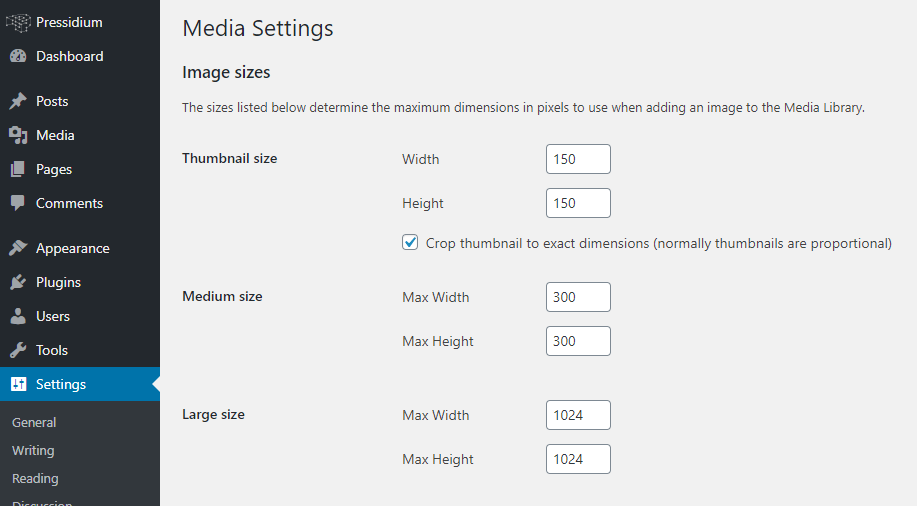
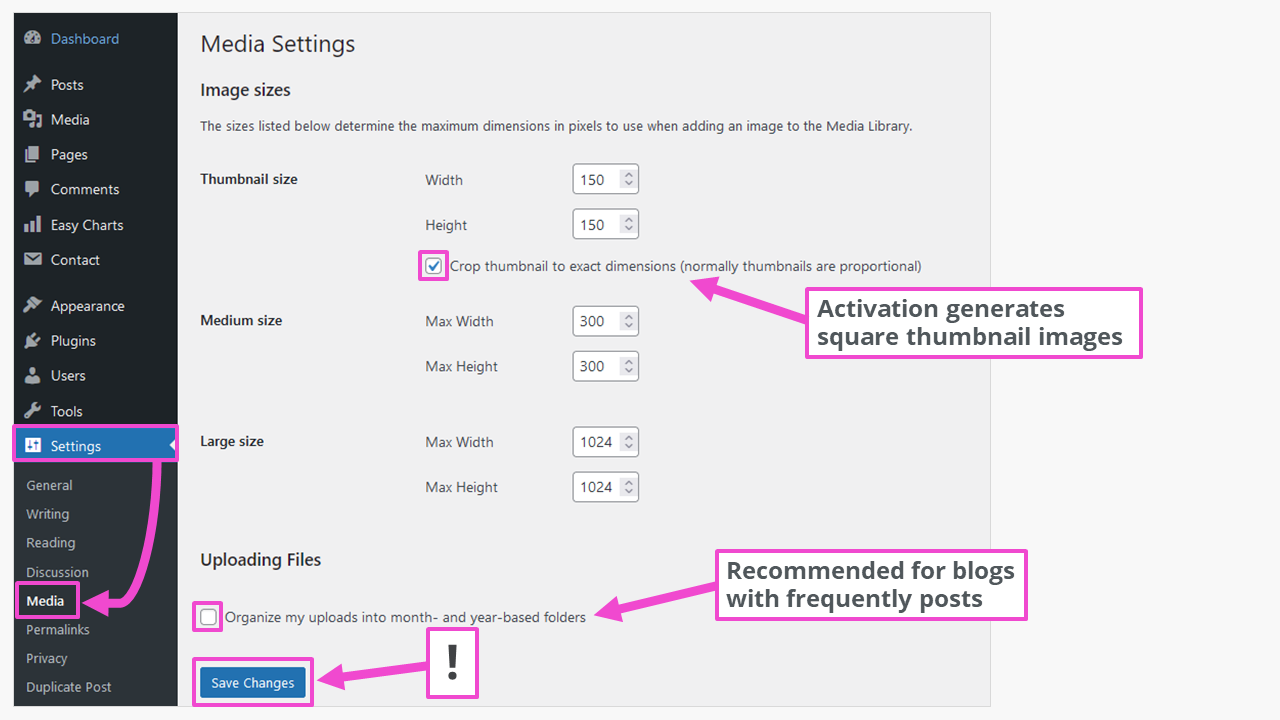
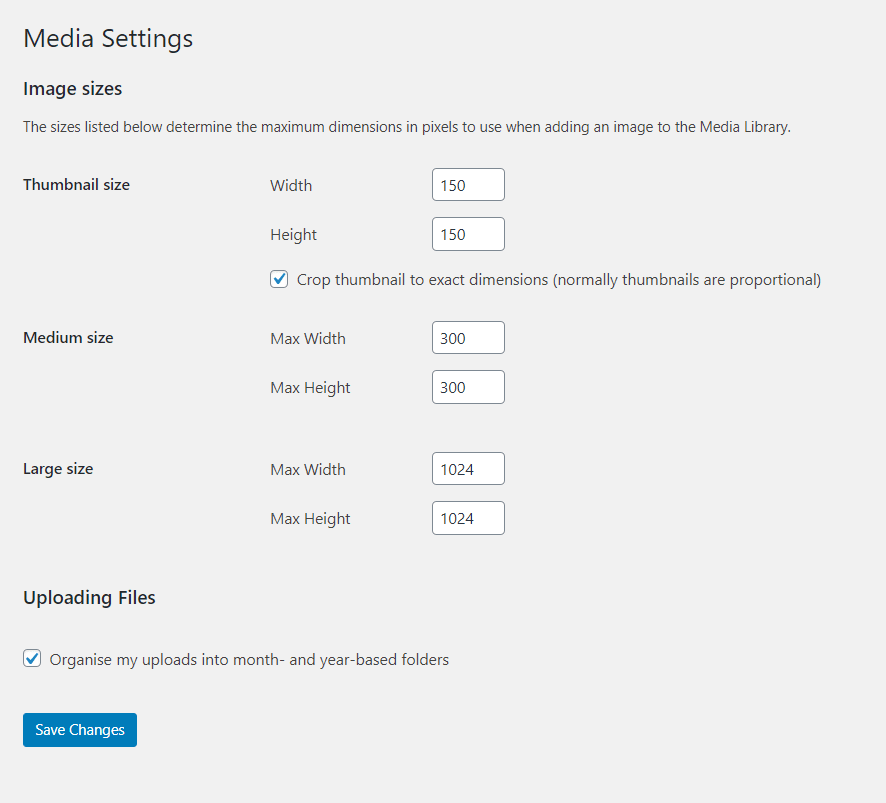
Thumbnails are small images. They are usually 150×150 pixels. These images load fast. They are often used in galleries.
Medium images are larger. They are about 300×300 pixels. Use them in blog posts. They show more detail than thumbnails.
Large images are even bigger. Typically, they are 1024×1024 pixels. Use them for high-quality photos. They take longer to load. Choose them for featured images.
Full size images are original size. They can be very big. Use them when quality matters. Be careful, they slow down pages. Optimize them for best results.
Default WordPress Image Sizes
Thumbnail size is the smallest. It’s usually 150×150 pixels. Thumbnails are great for galleries. They load fast. They save space.
Medium size is bigger. It is often 300×300 pixels. Medium images are good for blogs. They show more detail. They balance speed and clarity.
Large size is even bigger. It can be 1024×1024 pixels. Large images are for featured posts. They grab attention. They look impressive.
Full Size is the biggest. It’s the original size of the image. Full-size images are very detailed. They are perfect for product pages. They show every detail.
Choosing The Right Image Size
Different images need different sizes. Blog images need smaller sizes. Galleries need larger images. Thumbnails should be very small. A good choice is 150×150 pixels. Featured images can be bigger, like 1200×628 pixels. Always check the content type before choosing.
Big images can slow your site. Smaller images load faster. Faster load means happy users. Users like fast websites. Compress images to save space. Use tools to help compress. Smaller images save bandwidth. This helps your website perform better.
Tools For Resizing Images
Choosing the right pixel size for images on WordPress is crucial for good website performance. Tools for resizing images help maintain image quality while improving load times. Ideal sizes vary, but commonly used dimensions are 1200×628 pixels for featured images.
Online Image Resizers
Many websites offer free online image resizers. These tools are easy to use. Just upload your image. Choose the size you need. Then download the resized image. Some popular tools include Canva and Pixlr. They help keep images clear and sharp. These tools work on any device. No need to install anything. Great for quick tasks. Perfect for beginners.
WordPress Plugins
WordPress plugins make resizing images simple. Install them to your site. They work directly on your WordPress dashboard. Some popular plugins are Smush and EWWW Image Optimizer. These plugins automatically adjust image sizes. They help your site load faster. A fast site is good for visitors. Choose plugins with good reviews. They make your work easier.
Best Practices For Image Optimization
Large images can slow down your website. Use tools to compress images. Smaller files load faster. Faster pages keep visitors happy. Many tools are free. Some tools are online. Others are apps. Choose what works for you. Keep quality high. File size should be small. Happy visitors mean better SEO.
Different file formats serve different needs. JPEG is good for photos. It keeps file size low. PNG is great for graphics. It shows clear lines. GIF works for animations. It supports moving images. Choosing the right format is key. It helps your site run smooth. Use the right format for the right image.
Responsive Images In WordPress
Images need to fit on all screen sizes. The ‘srcset’ attribute helps with this. It lets browsers choose the best image for each screen. This makes images load faster and look better. Mobile users get a great view without waiting.
Using The ‘srcset’ Attribute
Browsers select images using ‘srcset’. It lists different image sizes. Each size has a width descriptor. The browser picks the right one. This saves data. It helps images look clear on all devices. Use ‘srcset’ for a better mobile experience.
Ensuring Mobile Compatibility
Images must fit small screens well. Use ‘srcset’ for this. It ensures images are optimized for mobile. Mobile users will see images clearly. They won’t have to wait long. This makes their experience better.
Credit: www.ionos.com
Credit: enginescout.com.au
Frequently Asked Questions
What Is The Ideal Image Size For WordPress?
The ideal image size for WordPress varies by theme. Generally, images should be 1200×628 pixels for full-width. For thumbnails, aim for 150×150 pixels. Always optimize images for faster loading times. Use a plugin to ensure automatic resizing to suit different screen sizes.
This enhances the user experience.
How Do I Resize Images In WordPress?
Resizing images in WordPress is simple. Use the built-in media library editor. Select an image, click “Edit Image,” and input new dimensions. Alternatively, use plugins like Smush or ShortPixel for bulk resizing. These tools ensure your images fit perfectly and load quickly, enhancing site performance.
Why Is Image Size Important For WordPress?
Image size affects your site’s loading speed and SEO. Large images can slow down your site, negatively impacting user experience and rankings. Optimized image sizes improve load times and enhance mobile responsiveness. This results in better engagement and search engine visibility, essential for a successful WordPress site.
Can WordPress Automatically Resize Images?
Yes, WordPress can automatically resize images. The platform creates multiple sizes when you upload an image. You can customize these sizes in the media settings. Plugins like Regenerate Thumbnails help update image sizes across your site. This ensures images display correctly on all devices.
Conclusion
Choosing the right image size matters for your WordPress site. It affects loading speed and user experience. Start by considering your theme’s requirements. Try standard sizes like 1200×628 pixels for featured images. For thumbnails, 150×150 pixels works well. Keep image quality high while reducing file size.
Use online tools to compress images without losing clarity. Balance is key. Maintain a good mix of aesthetics and performance. Check your site’s speed regularly. Make adjustments as needed. A faster site keeps visitors happy. Always aim for clarity and speed.
Your site will thank you!



