
Are you looking to enhance your WordPress site’s functionality without diving into complex code? Enter the Text Widget—a powerful yet often overlooked tool that can add a personal touch and boost user engagement on your website.
Whether you’re a WordPress beginner or a seasoned pro, understanding how to effectively use Text Widgets can open up a world of customization possibilities. Imagine easily adding personalized messages, custom codes, or even advertisements to your site with just a few clicks.
Intrigued? Let’s dive deeper into what a Text Widget is and how it can transform your WordPress experience.

Credit: wordpress.org
Text Widget Basics
Text Widgets are small tools in WordPress. They help add content to your site. These widgets can show text, links, or even images. They are simple but very helpful. You find them in the widget area of your WordPress dashboard. It is easy to use. Just drag and drop to where you want.
A Text Widget is like a small box. You can write anything in it. Use it for announcements or important messages. It makes your site look better. You can make it match your site’s style. It is a great way to share information.
Text Widgets play a key role in design. They help fill empty spaces on your site. Add widgets to sidebars or footers. They can make your website look organized and neat. They are easy to update. Change the text anytime you want.
Adding A Text Widget
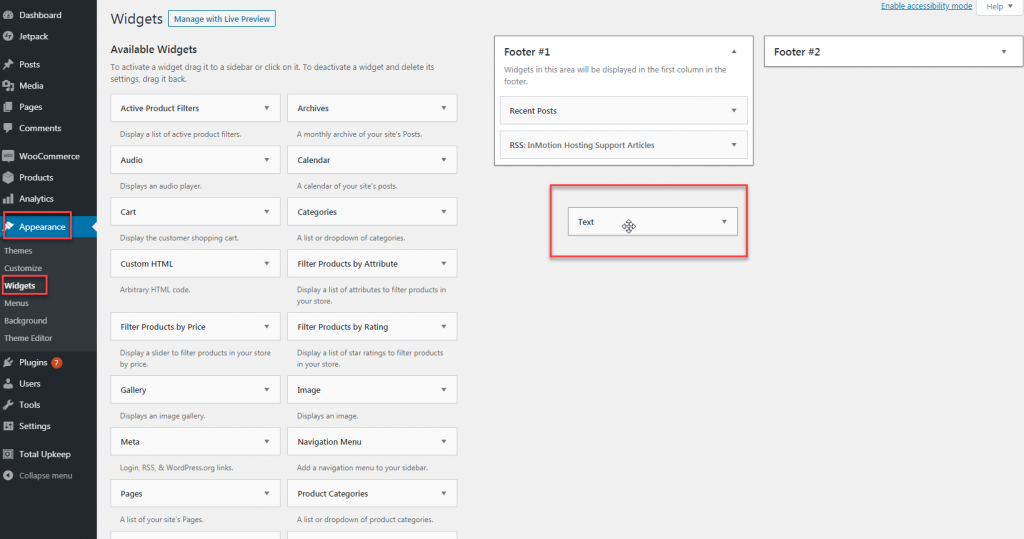
Finding the widget area is easy. Go to your WordPress dashboard. Click on “Appearance”. Then choose “Widgets”. You will see the widget area. It is where you can add new widgets. This area shows different sections. You can have widgets in the sidebar. Or in the footer. It depends on your theme.
Adding a text widget is simple. First, choose “Text Widget” from the available widgets. Drag it to the desired widget area. You can write anything inside. You can use text and links. Press “Save” to keep your changes. Now, check your site. You will see the new text widget. It helps in sharing information easily.
Customization Options
The text widget in WordPress is a simple tool. It allows you to add custom text to your site. You can choose the font size. You can also select the font color. Bold or italicize words for emphasis. Change the alignment of your text. Make it left, center, or right. All these options help make your text unique.
Text widgets can include more than just words. You can add images to spice things up. Use videos to engage visitors. Include links to other pages or sites. Adding these elements makes your page look dynamic. It keeps visitors interested. Media elements help tell your story better. They also make your site look professional.

Credit: make.wordpress.org
Advanced Text Widget Uses
Text widgets can use HTML and Shortcodes to make your website better. You can add bold text, italic text, or even links using HTML. Shortcodes are special codes that add features. They make your site more fun. For example, you can add a gallery or a contact form using shortcodes. This makes it easy to improve your site without coding skills.
You can add videos, maps, and more with the text widget. It’s simple. Just copy and paste the embed code from sites like YouTube or Google Maps. This helps your visitors stay longer on your site. They will enjoy the extra content. Your site becomes more useful and engaging.
Common Issues And Fixes
Text Widgets in WordPress can sometimes display incorrectly. Issues often arise from incompatible themes or plugins. Fix by updating or deactivating conflicting plugins and themes to ensure smooth functionality.
Troubleshooting Display Problems
Text widgets might not show properly on websites. This happens if the theme is not updated. Always check for theme updates. Another reason could be incorrect settings. Ensure widget settings are correct. Adjust widget visibility settings if needed. Check if the widget is active. Sometimes, inactive widgets cause issues. Refresh the page after making changes. This helps to see updates. Use the preview feature to see changes.
Resolving Compatibility Issues
Compatibility issues occur with plugins. Some plugins conflict with text widgets. Disable plugins one by one to find the culprit. Update all plugins regularly. This prevents compatibility issues. Check if plugins support your theme. Read plugin reviews for compatibility notes. Choose plugins wisely. Use plugins that many people trust. Update WordPress to the latest version. This resolves many compatibility problems. Always backup your site before changes. This keeps your data safe.
Best Practices
Text widgets in WordPress are very useful. They help to add custom content easily. Always keep your text clear and simple. This ensures better readability for visitors. Use short sentences. They are easier to read.
Choose fonts wisely. Larger fonts can improve readability. Break long texts into smaller parts. This makes it easier for readers to follow. Use headings to organize content. Headings guide readers through the text.
Ensuring Readability
Use bullet points for lists. They make information clear. Highlight key points for emphasis. This draws attention to important details. Avoid clutter in your widget. Too much text can confuse readers.
Optimizing For Seo
Add keywords naturally into the text. Keywords help search engines find your content. Use them wisely. Focus on what your audience wants. This improves your site’s visibility. Always update your content. Fresh content attracts more visitors.
Link to related posts. This keeps readers engaged. Use alt text for images. Alt text helps search engines understand your content. Keep your widget simple. Simplicity aids in better SEO.
Credit: www.inmotionhosting.com
Frequently Asked Questions
How Do I Add A Text Widget In WordPress?
To add a text widget in WordPress, navigate to Appearance > Widgets. Drag the Text Widget to your desired widget area. Then, enter your content and click save. This allows you to add custom text, HTML, or media to your site’s sidebar or footer.
Can I Use Html In WordPress Text Widget?
Yes, you can use HTML in a WordPress text widget. Simply enter your HTML code directly into the widget’s content area. This is useful for adding links, styling text, or embedding media. Ensure your code is clean to avoid display issues or errors on your site.
What Are The Benefits Of Using Text Widgets?
Text widgets offer flexibility in customizing your site. They allow you to display text, images, and HTML. This enhances your site’s appearance and functionality. You can personalize your sidebar or footer without altering core theme files, ensuring easy updates and modifications.
Can Text Widgets Impact My Site’s Seo?
Yes, text widgets can impact your site’s SEO. They allow you to add keywords and relevant content to your site. Properly using text widgets can improve keyword visibility and user engagement. Optimize content for SEO to enhance search engine rankings and drive traffic.
Conclusion
Text Widgets in WordPress offer a simple way to customize your site. They help you add text, links, and images to your sidebar or footer. Easy to use. Perfect for beginners. They enhance your site’s appearance without coding skills. With Text Widgets, you can tailor your site’s content to fit your needs.
A great tool for personalizing your WordPress site. Explore different uses. Experiment with styles. Keep your audience engaged with fresh content. Text Widgets are a valuable feature in WordPress, making your site flexible and unique. Start using them today for better user experience.



