
Imagine browsing through a search engine and stumbling upon a snippet of your website that you wish had remained hidden. You might wonder how this happened and what you can do to prevent it.
Welcome to the world of “Noarchive” in WordPress—a simple yet powerful tool to control how your site’s content is displayed in search engine results. By understanding and utilizing “Noarchive,” you gain the power to ensure your website’s information is shared exactly how you intend.
This article is your guide to mastering “Noarchive” in WordPress, providing you with the insights to protect your content and maintain your site’s integrity. Keep reading to discover how this small tweak can make a big difference in your online presence.
Noarchive Tag Basics
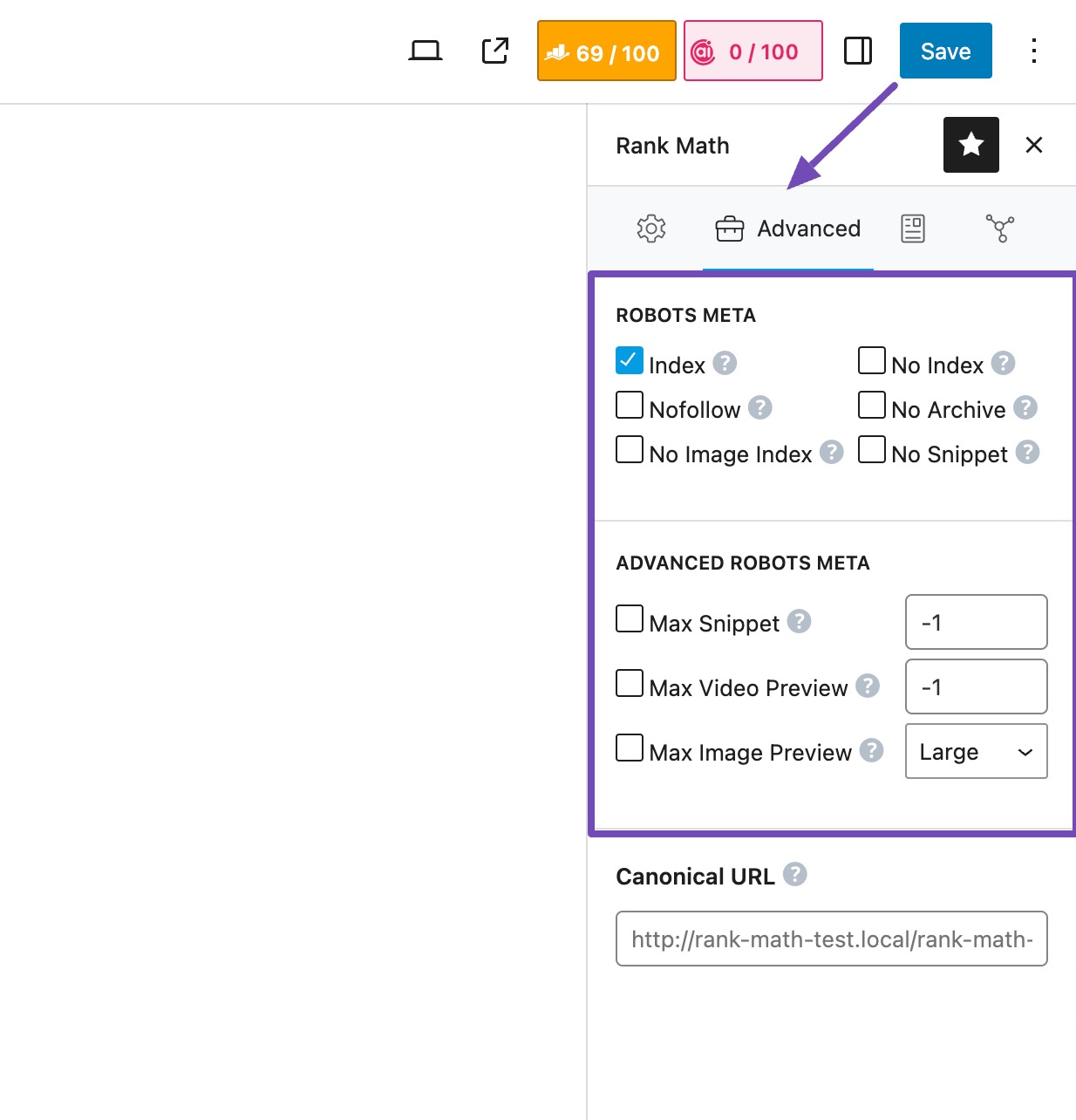
The noarchive tag is important for website privacy. It tells search engines not to save a page copy. This means users cannot see cached versions. Using this tag can help protect your site’s content. It is useful for pages with sensitive or time-sensitive information. Adding the noarchive tag is simple. You include it in the page’s HTML code. This small step can make a big difference. It helps in controlling what users can see online. The tag is especially helpful for WordPress users. It keeps the content fresh and up-to-date. No old versions available means better control over the content.
Credit: rankmath.com
Role In WordPress
Noarchive is a special tag in WordPress. It tells search engines not to save copies of your webpage. This means your page won’t be stored in their cache.
People can’t see old versions of your page. This helps in protecting sensitive information. It also ensures users always see the latest content.
Adding noarchive is easy. Many plugins can help. You can set it for specific pages or all pages.
Search engines will still list your page. But they won’t show cached versions. This can improve privacy.
Benefits For Website Owners
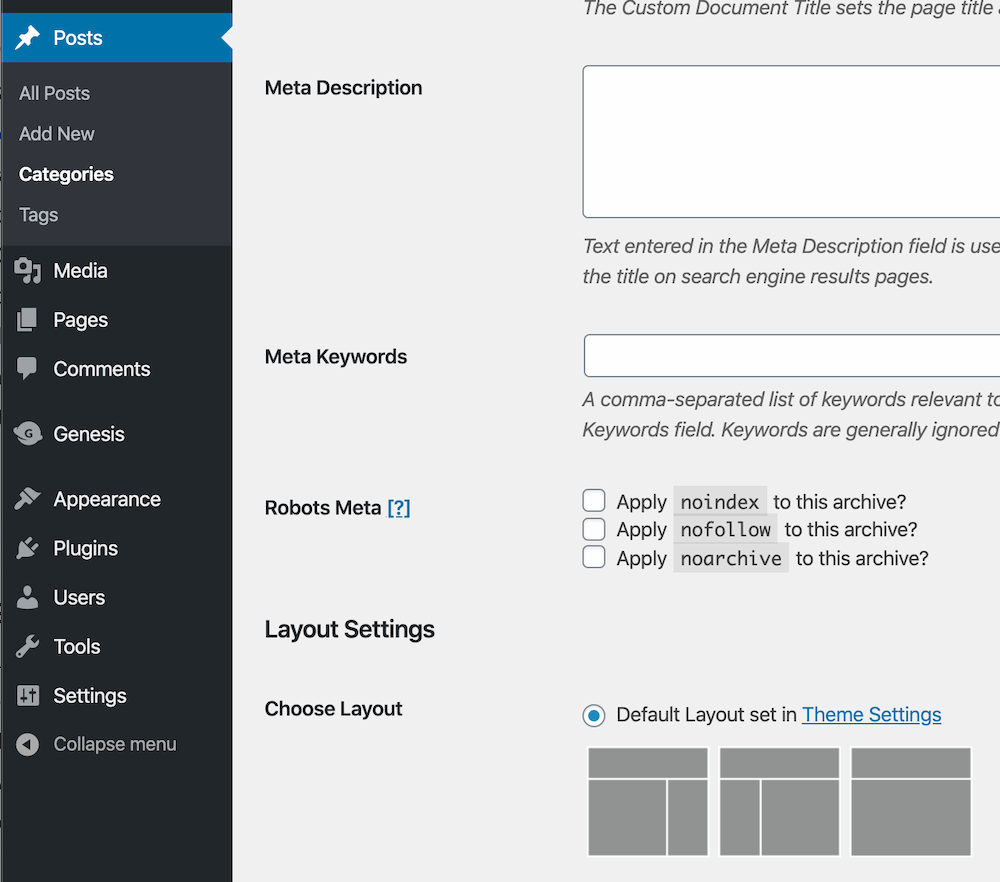
Using Noarchive helps keep your site’s data private. It stops search engines from storing a copy of your page. This means your content stays fresh and current. Visitors see the latest version.
With Noarchive, you gain control over your content. You decide what users see in search results. This is useful for content changes or updates. Your audience always gets the most recent information.
Credit: studiopress.github.io
Potential Drawbacks
Noarchive in WordPress prevents search engines from storing cached versions of pages. This can limit visibility in search results, potentially reducing traffic. It may also hinder users who rely on cached pages for quick access.
Impact On Seo
Using the noarchive tag can affect your website’s visibility. Search engines won’t show cached versions of your pages. This means users will not see older versions. This might reduce your site’s traffic. Cached pages can help in boosting your search engine rankings. Without them, your site might rank lower.
Access Issues For Users
When users face slow internet, they often rely on cached pages. Noarchive prevents them from accessing these pages. Users may get frustrated if they can’t load pages quickly. This might lead to a poor user experience. Some users might leave your site. They could go to a competitor’s site instead. This can hurt your site’s reputation.
Implementing Noarchive In WordPress
Plugins make tasks easy in WordPress. To use noarchive, install a plugin. Many plugins help add meta tags. Choose one that suits your needs. Once installed, access plugin settings. Find the meta tag section. Add the noarchive tag. Save your changes. Plugins update automatically. This keeps your site optimized. Always check plugin compatibility. Ensure it works with your version of WordPress. Plugins are user-friendly. No coding skills needed. They save time and effort.
Inserting code manually is another way. Open your WordPress theme editor. Locate the header file. Find the area for meta tags. Add the noarchive tag here. Save the changes. This method requires care. Mistakes can break your site. Always back up files before changes. If unsure, seek help. Manual insertion gives control. You decide what code to add. This method suits advanced users.
Testing And Verification
Checking search engine results is important. Use Google to see if “Noarchive” is working. Type the site URL in the search bar. Check the search results. Look for the cache link. If it’s missing, “Noarchive” is working. This shows Google is not storing a copy. Bing works similarly. Repeat the search on Bing. Ensure no cache link appears there too. This confirms “Noarchive” settings.
Tools For Verification
Online tools help verify settings. Google Search Console checks if “Noarchive” is active. Sign in to the console. Look at the indexing tab. Check site settings. It shows if caching is disabled. Bing Webmaster Tools offer similar checks. Log in and review site options. These tools ensure search engines respect “Noarchive.” They help track changes quickly. Monitoring is easy with these tools.
Best Practices
Noarchive is used to stop search engines from storing web page copies. This helps in keeping content private. Use it for pages with sensitive data. It can prevent old versions from appearing in search results. Protect your site’s content this way.
Noarchive can work with other tags like noindex and nofollow. Noindex stops pages from appearing in search results. Nofollow prevents passing link value to other sites. Use these tags together for better control. They help in managing how your site appears online.

Credit: www.youtube.com
Common Misconceptions
Many think Noarchive stops search engines from showing their site. It does not hide your site. It only stops search engines from showing a cached copy. Some fear Noarchive will hurt their site’s rank. It does not affect ranking directly. It only affects the cache view. Others believe Noarchive makes their site more secure. This is not true. It does not improve security. Some say Noarchive is hard to set up. In WordPress, it is easy to add the Noarchive tag. Many think Noarchive will make their site faster. Noarchive does not improve speed. It only affects the cache.
Frequently Asked Questions
What Does Noarchive Mean In WordPress?
Noarchive is a meta tag directive used in WordPress to prevent search engines from storing cached copies of your website’s pages. Implementing it can help protect sensitive content, improve privacy, and ensure users always see the latest version of your site.
It’s particularly useful for sites with rapidly changing content.
How Do I Enable Noarchive In WordPress?
To enable Noarchive, you need to add a meta tag to your site’s HTML header. This can be done manually or using SEO plugins like Yoast SEO. Navigate to your theme’s header.php file or configure plugin settings to include “ for desired pages.
Why Should I Use Noarchive Tag?
Using the Noarchive tag helps control your site’s visibility and privacy. It prevents search engines from showing cached versions, ensuring users access current content. This can be crucial for sites with sensitive information, frequent updates, or content that requires freshness and accuracy.
Can Noarchive Affect Seo Rankings?
Implementing Noarchive does not directly affect SEO rankings. However, it can impact user experience by ensuring they see up-to-date content. While search engines won’t show cached pages, your site’s current visibility depends on other SEO factors like quality content and backlinks.
Conclusion
Understanding the noarchive tag in WordPress helps manage content visibility. It prevents search engines from storing cached versions of your pages. This can protect sensitive information from being stored online. It also ensures users see the latest content. Implementing noarchive is simple and effective for privacy control.
Remember, each site has unique needs. Consider your goals before adding this tag. Balancing visibility and privacy is essential for online success. Keep exploring WordPress features to optimize your site’s performance.



