
Have you ever found yourself wondering, “What is my WordPress site link?” Maybe you’re new to WordPress, or perhaps you’ve had your site for a while but can’t quite remember the exact URL.
It’s a common question, and understanding your site link is crucial for sharing your content, boosting your online presence, and ensuring that your audience can find you easily. You’ll discover how to locate and verify your WordPress site link with ease.
By the end, you’ll have the confidence to share your site with the world, knowing you’re pointing them in the right direction. Ready to unlock the potential of your WordPress site? Let’s dive in and explore!
Finding Your WordPress Site Link
Your WordPress site link is the address people use to find your website. This link is also called a URL. You can see it in the address bar at the top of your browser. It starts with http:// or https://. After that, it includes your domain name. For example, in https://mywebsite.com, the site link is the entire address.
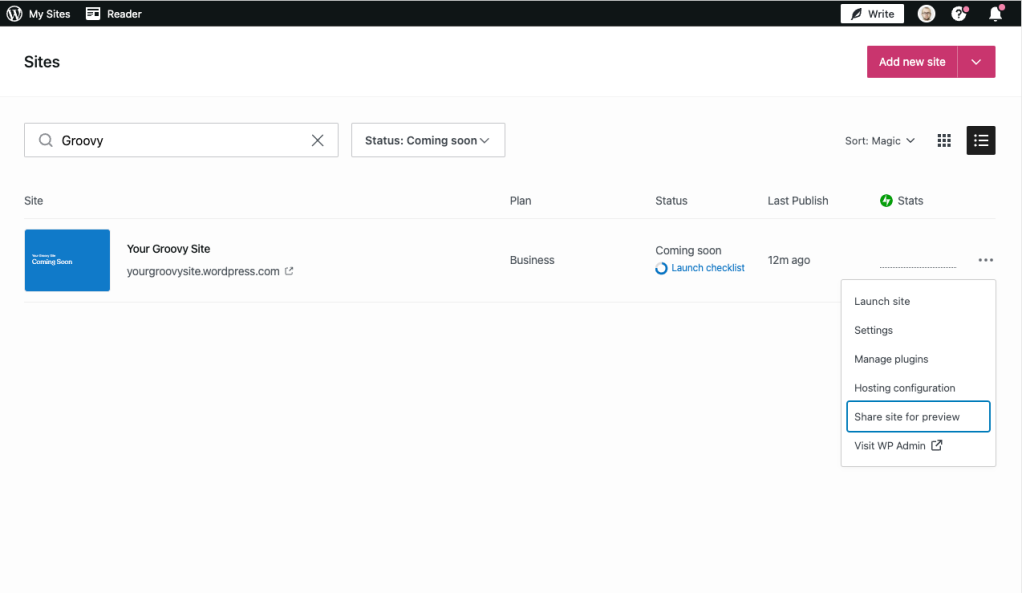
To find your WordPress site link, you can also check your hosting account. Look for the dashboard or settings page. Your site link might be there. If you have trouble, ask your hosting provider for help. They can guide you to your site link.
Credit: wordpress.com
WordPress Dashboard Access
To access your WordPress dashboard, you need the site link. This link is usually your website URL with /wp-admin at the end. Type it in the browser address bar. Press enter. You will see the login page.
You need a username and password to login. These are set when you install WordPress. Keep them safe and private. If forgotten, you can reset them. Use the “Lost your password?” link. Enter your email to get a reset link.
Using Hosting Provider
Accessing the control panel helps find your WordPress link. Log in using the credentials given by your hosting provider. You will see many tools there. Look for one named “Domains” or “Website”. This section holds your site link. If you can’t find it, try looking for a section named “File Manager”. This might also show your website link.
Your domain name is your website’s identity. It is usually something like “www.yourwebsite.com”. You can find it in your hosting control panel. Check under the “Domains” section. If you see multiple domains, choose the one linked to your WordPress site. If unsure, ask your hosting provider for help. They can guide you.
Domain Name Insights
A custom domain makes your site look professional. For example, “www.yoursite.com”. It helps people remember your site. A default domain looks like “yoursite.wordpress.com”. It is free but less personal. Many people use a custom domain. It builds trust with visitors. Custom domains are easy to get. Many companies sell them online. Costs are usually low. A custom name is a good investment.
First, think of a few name ideas. Use short and easy words. Next, check if the name is free. Many websites help you check. Some popular ones are GoDaddy and Namecheap. Type your idea in the search box. The site will tell if it’s free. If taken, try another name. Keep trying until you find a free one.
Common Issues
Many face confusion when finding their WordPress site link. Often, it’s due to incorrect URL entry or settings. This is a common issue.
Forgotten Login Details
Many people forget their WordPress login details. It’s common to lose track of a username or password. Keeping a record is helpful. Use a password manager if needed. To reset a password, click “Forgot Password?” on the login page. An email will guide you. Follow the steps to create a new password. Make sure it is strong and memorable. Use a mix of letters, numbers, and symbols. Avoid using common words.
Domain Configuration Errors
Wrong settings can cause domain errors. Double-check the DNS settings. Ensure they point to the correct server. Incorrect settings can make your site unreachable. Use your hosting provider’s help section. It often has guides for setting up domains. Check if the domain is expired. Renew it if needed. Keep your domain details updated. This helps prevent future issues.

Credit: wordpress.stackexchange.com
Resources For Help
WordPress Support Forums are places to ask questions. Experts and users help here. You can find answers to many common issues. It’s a community of helpful people. Search for answers or ask your own questions. Quick responses are often given. Use simple words to explain your problem. Be patient. Others may have the same issue. Check older posts for solutions. Forums have lots of useful information. Keep coming back for new tips.
Hosting providers also offer help. They have support teams ready to assist. Contact them for issues related to hosting. They can fix server problems. Some have live chat support. Email support is available too. Providers often have knowledge bases. Check these for articles and guides. Reliable support is important. Choose a provider with good customer service. Help is often just a call away. Hosting teams solve issues fast. They make sure your site runs smoothly.
Credit: support.pipdig.co
Frequently Asked Questions
How Can I Find My WordPress Site Link?
To find your WordPress site link, log into your WordPress dashboard. Check the ‘Settings’ section for your site URL. Alternatively, visit the homepage and copy the URL from the browser’s address bar. Ensure it matches the domain you registered.
Why Is My WordPress Site Link Important?
Your WordPress site link is crucial for accessibility and branding. It helps users find your site easily online. Ensure your link is memorable and represents your brand effectively. A consistent, easy-to-share link boosts your site’s visibility and reach.
How To Customize My WordPress Site Link?
You can customize your WordPress site link by updating the domain name. Access your domain registrar to make changes. Ensure the new link reflects your brand identity. Verify the link works correctly after changes to maintain accessibility.
Can I Change My WordPress Site Link?
Yes, you can change your WordPress site link by updating your domain name. Make changes through your domain registrar. Ensure your new link aligns with your branding goals. Test the new link to ensure it redirects correctly.
Conclusion
Finding your WordPress site link is straightforward. It helps share your website easily. Access your WordPress dashboard, check the site settings. Copy the URL from the address bar. Your site link is your digital identity. Make sure it is memorable and easy to type.
Share it with your audience to grow your website presence. Remember, a simple link can drive traffic. Use it in emails, social media, and promotions. Keep it handy for quick access. Your site link connects people to your content. Embrace its power to reach wider audiences.
Share your story effectively online.



