
Have you ever visited a website and clicked on an image or video, only to have it beautifully expand over the rest of the content, capturing your full attention? That’s the magic of a lightbox.
If you’re using WordPress and want to create this mesmerizing effect, you’re in the right place. Understanding what a lightbox is in WordPress can enhance your website’s visual appeal and user experience. Imagine turning your ordinary images or videos into captivating displays that keep your visitors engaged and on your page longer.
Sounds intriguing, right? Dive in to discover how you can effortlessly integrate this dynamic feature into your WordPress site, making your content truly stand out.

Credit: wordpress.org
Lightbox Basics
Lightbox in WordPress enhances user experience by displaying images or videos in an overlay window. It keeps visitors focused by dimming the background. This tool is ideal for showcasing media without redirecting to another page.
Definition And Purpose
A lightbox is a tool in WordPress. It shows images or videos. It opens them in a special way. The screen gets darker. The image pops up. Users can focus better. They see the media clearly.
Lightboxes help websites look nice. They make pages more interactive. They are easy to use. Many plugins add them to sites. Users enjoy using them. Sites become more engaging.
Common Uses
Lightboxes are often used for galleries. They show lots of pictures. Users click to see each one. They are also used for videos. They show them without leaving the page.
Websites use lightboxes for advertisements. They catch attention quickly. They also show forms. Users can fill them easily. This makes actions simple.
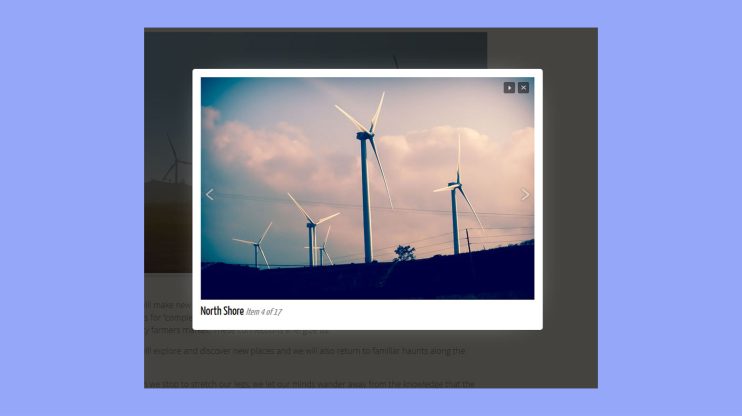
Credit: 10web.io
How Lightbox Enhances User Experience
Lightbox in WordPress creates a visually appealing experience by displaying images and videos in a pop-up overlay. It enhances user engagement by keeping content within the same page, reducing distractions. This feature allows visitors to view media in full size without leaving the website, improving navigation and interaction.
Visual Appeal
A Lightbox makes images look bigger and brighter. It helps users see photos clearly. Photos open in a special window. This window blocks distractions. Users focus on images easily. Bright colors catch their eyes. It’s a nice way to show pictures.
User Engagement
Users stay on the site longer with a lightbox. They click more images. Curious minds explore the gallery. It encourages interaction. They enjoy looking at pictures. This increases user interest. Happy users return often.
Seamless Navigation
Navigation becomes smooth with a lightbox. Users switch between images easily. Clicking is simple. No page reloads needed. Users get what they want quickly. Browsing is fast and fun. They feel comfortable on the site.
Popular Lightbox Plugins
Lightbox in WordPress allows users to display images and videos in a pop-up overlay. Several plugins enhance this feature, offering customization options and responsive design. These tools improve user engagement by making content visually appealing and easy to interact with.
Top Free Options
Many free plugins offer great features for WordPress lightbox. Responsive Lightbox is popular for its easy setup. WP Lightbox 2 is another favorite. It works well with images and videos. Simple Lightbox is easy to use and lightweight. Lightbox Gallery displays images beautifully. These plugins enhance user experience without cost.
Premium Choices
Envira Gallery is a top premium plugin. It offers advanced features and support. FooBox provides responsive lightbox and social sharing options. NextGEN Pro integrates well with galleries. It offers unique display options. Premium plugins often provide better customization. They ensure compatibility and updates. Investing in a premium plugin can be beneficial for serious users.
Credit: elementor.com
Installing Lightbox In WordPress
First, log into your WordPress dashboard. Go to the Plugins section. Click on Add New. In the search bar, type Lightbox. Find a plugin that suits your needs. Click on Install Now. After installing, click Activate. Your Lightbox plugin is now ready. You can adjust settings as needed. Enjoy your new feature!
Download the Lightbox files from a reliable source. Use FTP software to access your website files. Upload the Lightbox files to the wp-content/plugins directory. Go back to your WordPress dashboard. Navigate to the Plugins section. Find the Lightbox plugin. Click Activate. Customize settings for a better user experience.
Customizing Lightbox Features
Lightbox offers many styling options for your images. You can change the border color. You can adjust the shadow. You can even choose different animations. This makes your website look unique. Pick colors that match your theme. This will make your site look better. Try different styles to see what you like best. This can make the user experience more enjoyable.
Lightbox has cool advanced settings. You can enable or disable image captions. Choose the speed of the animations. Decide if users can zoom into images. These settings give you more control. They allow you to create a more interactive experience. Test these settings to see what works best. Make sure everything looks good on different devices. Your site should be easy to use for everyone.
Troubleshooting Common Issues
Discover the charm of Lightbox in WordPress. It enhances user experience by displaying images and videos beautifully. Troubleshooting common Lightbox issues ensures smooth website functionality.
Compatibility Problems
Lightbox plugins might not work with all themes. Check theme compatibility first. Update your theme to the latest version. Some plugins may conflict. Disable other plugins to test compatibility. Try a different Lightbox plugin if issues persist. Use WordPress forums for help. Check your PHP version. Older versions might cause problems. Keep WordPress and plugins updated.
Performance Concerns
Lightbox plugins can slow your site. Large images affect load times. Optimize images before uploading. Use image compression tools. Minimize plugin usage. Too many plugins can affect speed. Monitor your website’s performance regularly. Use caching plugins to improve speed. Check the hosting provider’s performance. Upgrade your plan if needed. Test your site speed with tools like GTmetrix.
Best Practices For Using Lightbox
Lightbox in WordPress displays images and videos in a pop-up window, enhancing user experience. Follow best practices by optimizing image sizes for faster loading and ensuring mobile responsiveness. Integrate social sharing options for engaging interactions and improve accessibility with clear navigation controls.
Optimizing For Speed
Lightbox can slow down your site. It’s important to optimize for speed. Use smaller image sizes. Compress images to reduce load times. Choose lightweight plugins. Avoid heavy scripts. This keeps your site fast. Fast websites improve user experience. They also help with SEO rankings. A quick site keeps visitors happy.
Ensuring Mobile Responsiveness
Most users browse on phones. Lightbox must be mobile responsive. Check how it looks on different screens. Use plugins that adapt to mobile devices. Test images on various phones. Make sure buttons are easy to click. Ensure text is readable. This enhances the mobile experience. Responsive design attracts more visitors.
Frequently Asked Questions
What Is A Lightbox In WordPress?
A lightbox in WordPress is a feature that displays images or videos in a pop-up overlay. It enhances the user experience by focusing attention on the media. Lightboxes often dim the background, helping users view content without distractions. They are commonly used in galleries and portfolios.
How Do I Add A Lightbox To My Site?
To add a lightbox, install a WordPress plugin like Simple Lightbox or WP Lightbox 2. Activate the plugin and configure settings. Many plugins offer customization options for appearance and behavior. Some themes may have built-in lightbox features, simplifying the process further.
Are Lightboxes Mobile-friendly?
Yes, most modern lightbox plugins are mobile-friendly. They automatically adjust to screen sizes, ensuring optimal viewing on any device. Responsive design is crucial for a positive user experience. Always test your lightbox on various devices to ensure compatibility and smooth functionality.
Can Lightboxes Slow Down My Website?
Lightboxes can affect performance if not optimized. Choose lightweight plugins and optimize images for faster loading. Avoid excessive animations and scripts that may burden your site. Regularly monitor site speed and make necessary adjustments to maintain performance.
Conclusion
Exploring Lightbox in WordPress enhances your site’s visual appeal. It creates a seamless and engaging user experience. This tool displays images and videos beautifully. Visitors appreciate the interactive element it brings. No complex coding needed. Just a few clicks and it’s set up.
Lightbox plugins offer customization options too. Tailor them to fit your site’s theme. They are compatible with most WordPress sites. Easy to install and use. Boosts user engagement naturally. Consider adding a Lightbox for a more dynamic website. Your audience will likely enjoy the enhanced browsing experience.



