
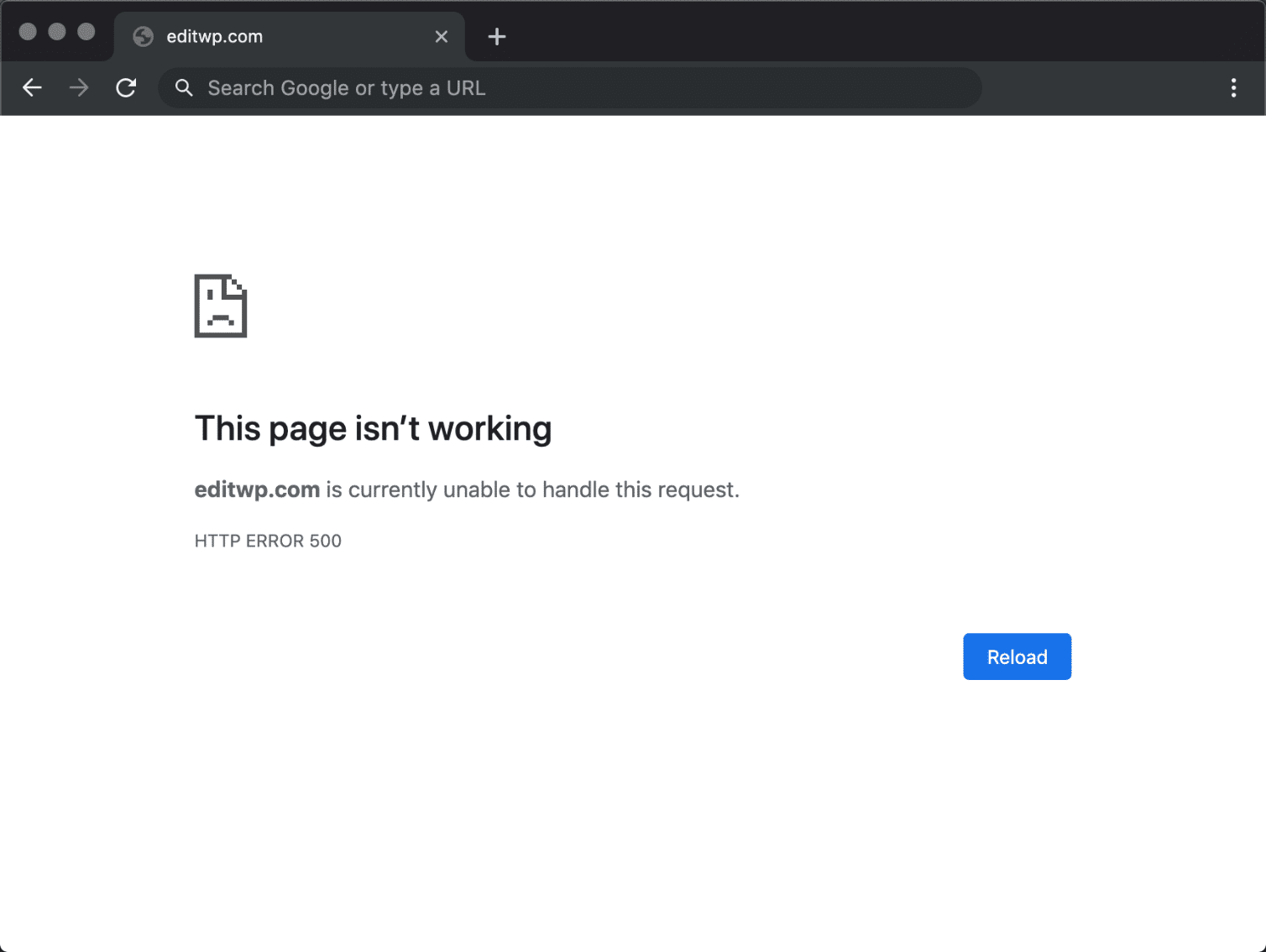
Imagine you’re about to publish a new blog post on your WordPress site. You click the button, expecting your fresh content to go live, but instead, you’re greeted with a cryptic message: “Internal Server Error.”
Frustration sets in as you wonder what went wrong. You’re not alone. This mysterious error is a common headache for many WordPress users, and understanding it is crucial to keeping your website running smoothly. So, what exactly is an Internal Server Error in WordPress, and more importantly, how can you fix it?
We’ll demystify this error and guide you through simple, actionable steps to troubleshoot and resolve it. You’ll gain the confidence to tackle this issue head-on, ensuring your site remains accessible to your audience. Stick with us, and by the end of this read, you’ll have the know-how to turn this problem into a thing of the past.
Credit: kinsta.com
Causes Of Internal Server Error
A corrupted .htaccess file can cause a server error. This file controls important settings. If it breaks, your site might not work. Renaming the file can fix the error. WordPress will create a new one. Always make a backup before changes.
PHP memory limit can cause problems if it is too low. The server needs enough memory to run. If it runs out, errors happen. Increasing the memory limit in the wp-config.php file can help. Ask your host if you need help.
Plugins add features but can cause conflicts. If two plugins do not work well together, errors can happen. Deactivate all plugins to find the problem. Activate them one by one. This shows which plugin is causing trouble.
Themes change how your site looks. But a bad theme can break your site. Switch to a default theme to test. If the error goes away, the theme is the problem. Update or replace it to fix the error.
Sometimes the server settings are not right. This can cause errors. Check with your hosting provider. They can help fix these settings. Proper configuration is key to a healthy site.
Identifying The Error
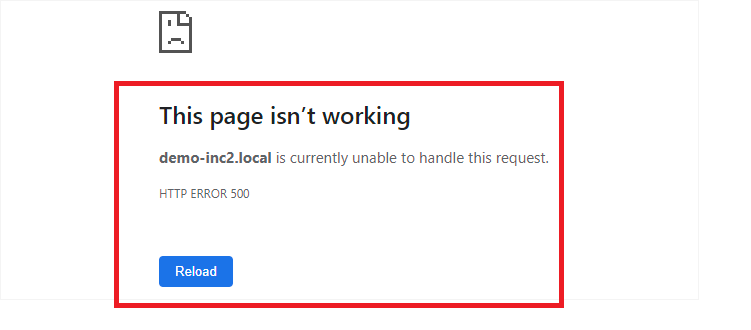
Many see the 500 Internal Server Error message. Others might notice “HTTP Error 500” or “Server Error“. These messages tell of a server problem. They don’t give clear reasons. Users often feel puzzled.
Server logs help find error details. They store important data. Check them for error codes or specific messages. This information shows what went wrong. It helps in fixing the issue.
Debugging tools find problems fast. They show code errors and misconfigurations. Tools like WP_Debug give valuable info. They help in understanding server issues better. Fixing becomes easier.
Fixing The .htaccess File
Experiencing an Internal Server Error in WordPress can be frustrating. It often results from issues with the. htaccess file. Fixing this file can resolve the error, restoring your website’s functionality and accessibility.
Locating The .htaccess File
Finding the .htaccess file is simple. It’s usually in your site’s root folder. Use FTP or cPanel to access it. Sometimes, it’s hidden. Look for options to show hidden files. This file controls important server settings. Wrong settings can cause errors. Check your file for mistakes. If you’re unsure, ask an expert. Keep a backup before changes. Always be careful with edits.
Renaming Or Recreating The File
Renaming the .htaccess file can solve issues. Give it a new name like .htaccess_old. This stops the server from using it. Sometimes, the file is missing. Create a new one if needed. Use Notepad or any text editor. Copy default code from WordPress site. Save it as .htaccess. Upload it to your root folder. Check if the error is gone. This step often fixes server issues.
Increasing Php Memory Limit
Increase the PHP memory limit. This can fix server errors. Open the wp-config.php file. It is in your main WordPress folder. Add this line: define('WP_MEMORY_LIMIT', '64M'); Save the file. This gives more memory to WordPress. If the error persists, contact your host.
Sometimes, server errors need expert help. Reach out to your hosting provider. They can check server settings. They can also increase the PHP memory limit. Explain the problem to them clearly. Provide any error codes. They will guide you on the next steps. Hosting providers often solve these issues quickly.
Resolving Plugin Conflicts
Plugins can cause conflicts. Deactivate all plugins. This helps find the error source. Go to your dashboard. Click on ‘Plugins’. Choose ‘Deactivate All’. This step is simple. It stops all plugin activities. The site may start working. If it does, a plugin caused the issue.
After deactivating, reactivate plugins. Do it one by one. Start with the first plugin. Check the site after each activation. If the error returns, the last activated plugin caused it. Note the plugin name. Remove or update it. This fixes many server errors.
Credit: www.cloudways.com
Addressing Theme Issues
Switching to the default theme can help find errors. If the error disappears, the original theme caused it. To change, go to the WordPress dashboard. Click “Appearance” then “Themes.” Activate the default theme, like Twenty Twenty-One. Check if the error persists. If fixed, the theme needs checking or fixing.
Updating the theme might solve the error. Developers often fix bugs in updates. Visit the theme’s page in the WordPress dashboard. Check for available updates. Click “Update” to install. Reinstalling the theme can also help. Delete the theme first. Then, install it again from the WordPress library. Ensure you have a backup before deleting.
Server Configuration Adjustments
File permissions can cause internal server errors. If files have wrong permissions, they won’t work. Permissions should allow files to be read and written. Check if files have 644 permissions. Check if folders have 755 permissions. Always keep these numbers correct. This helps the server read files easily.
Hosting support can fix server issues. They know the best solutions. Contact them when you see errors. They will check server logs. They will find the problem quickly. Hosting experts can make adjustments. This makes the website run smoothly again.
Credit: www.cloudways.com
Preventing Future Errors
Experiencing an Internal Server Error in WordPress can be frustrating, disrupting your website’s functionality. This error often arises due to plugin conflicts, theme issues, or corrupted. htaccess files. Regular updates and backups can help prevent these errors in the future, ensuring a smoother website operation.
Regular Backups
Regular backups keep your data safe. If something breaks, you can restore it. Use plugins to schedule backups. Store them in different places. This keeps your site protected.
Keeping Software Updated
Always update your WordPress. Updates fix bugs and improve security. Check for updates often. Update themes and plugins too. This keeps your site running smoothly.
Monitoring Server Performance
Watch your server’s performance. Slow servers cause errors. Use tools to check speed. Fix issues quickly. Good performance keeps visitors happy. It also prevents future problems.
Frequently Asked Questions
What Causes Internal Server Error In WordPress?
An Internal Server Error in WordPress is usually caused by a corrupted. htaccess file or memory limit issues. It can also result from plugin conflicts or incorrect server configurations. Identifying the root cause often involves checking error logs and troubleshooting these common areas.
How Do I Fix An Internal Server Error?
To fix an Internal Server Error, start by renaming the. htaccess file and refreshing your site. Increase PHP memory limit if necessary. Deactivating plugins and switching themes can help identify conflicts. Consult your hosting provider for server-related issues.
Can Plugins Cause Internal Server Errors?
Yes, plugins can cause Internal Server Errors if they’re incompatible with your WordPress version or other plugins. Conflicts or corrupted plugin files can lead to errors. Deactivating all plugins and reactivating them one by one can help identify the problematic plugin.
Is .htaccess File Related To Internal Server Error?
Yes, the. htaccess file is often related to Internal Server Errors. A corrupted. htaccess file can disrupt server configurations. Renaming it forces WordPress to generate a new file, potentially resolving the issue. Always back up your. htaccess file before making changes.
Conclusion
Fixing an internal server error in WordPress can be simple. Start by checking your plugins. Deactivate them one by one. See if the error disappears. Next, examine your theme. Switch to a default theme temporarily. Observe any changes. File permissions might be incorrect.
Set them to 644 for files and 755 for folders. Still facing issues? Contact your hosting provider. They can offer support. Regular backups are crucial. Avoid future headaches. Keep your WordPress site healthy and error-free. Remember, patience and step-by-step actions are key.
Troubleshooting takes time, but solutions are within reach.



