
Ever noticed those tiny icons that appear next to website names on your browser tab? That’s a favicon.
If you’ve ever wondered what a WordPress favicon is and why it matters, you’re in the right place. Think of it as your website’s little ambassador, a small yet powerful tool that enhances your brand’s recognition and professionalism. Imagine browsing through several tabs and instantly spotting your website among others—doesn’t that sound appealing?
With a WordPress favicon, you can make that happen. It’s more than just a pretty picture; it’s an essential part of your site’s identity. By the end of this article, you’ll understand how this small icon can make a big difference in your website’s branding and user experience. Plus, you’ll learn how to create your own in just a few simple steps. Ready to give your website a professional edge? Let’s dive in!
Credit: www.ionos.com
Definition Of A Favicon
A favicon is a small picture. It shows next to the website name. You see it in the browser tab. It helps people recognize your site. This picture is tiny. It is usually 16×16 pixels.
Favicons can be logos or simple icons. They make your site look professional. People remember your site better with a favicon. It is like a brand symbol. Websites often use their logo for favicons. They can be colorful or black and white.
Adding a favicon is easy. WordPress has tools for this. It is important for every site. It helps with user experience. People find your site faster. Favicons make a big difference!
Credit: www.flaticon.com
Importance Of Favicons
Favicons help in brand recognition. They are tiny icons next to your site’s name. They make your site stand out among many tabs. People remember the icon and your brand. It is like a logo but smaller. Very important for your business identity.
Favicons improve user experience. Users find your site easily with the icon. This tiny image is easy to spot among many tabs. It makes navigation simple. Users feel more comfortable. They enjoy a smoother browsing experience.
Favicons have SEO benefits too. Search engines notice them. A site with a favicon looks more professional. This can help in search rankings. It tells search engines your site is trustworthy. A small icon with big advantages.
Creating A Favicon
A favicon is a small icon. It represents your site. Keep it simple. Use clear shapes and colors. Avoid too much detail. Recognizable designs work best. Think of famous logos. They are easy to spot. Your favicon should be unique. It should stand out.
The best format for favicons is ICO. This format works in all browsers. PNG is also good. It supports transparency. Use JPEG for photos. SVG is great for vector images. Choose the right format. Your favicon will look better.
Favicons are small. 16×16 pixels is common. 32×32 pixels is better. It is clearer. Use 48×48 pixels for high resolution. Test it in different sizes. It should look good everywhere.
Credit: www.greengeeks.com
Adding A Favicon In WordPress
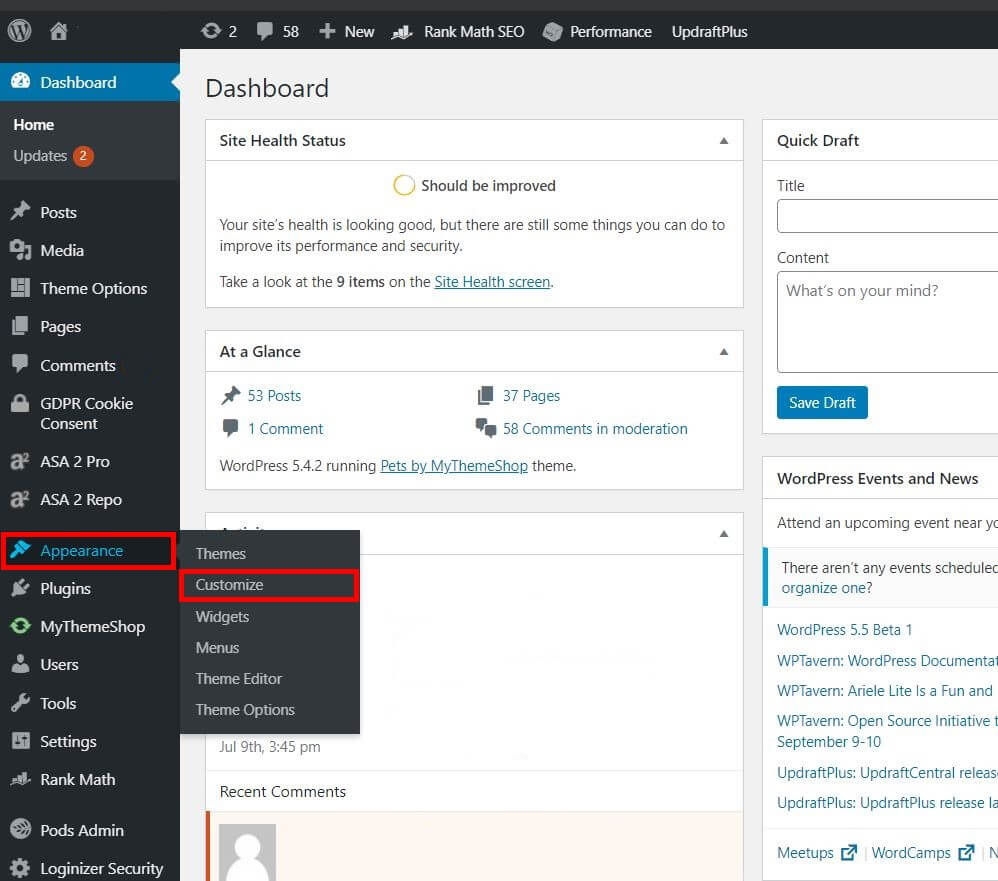
The WordPress Customizer is a simple tool. It helps you add a favicon easily. First, go to the Appearance menu. Then, click on Customize. Next, find the Site Identity option. You will see the Site Icon section there. Click on Select Image. Upload your desired icon. Remember, the icon should be square. A size of 512×512 pixels is ideal. After uploading, click Publish. Now your favicon is live.
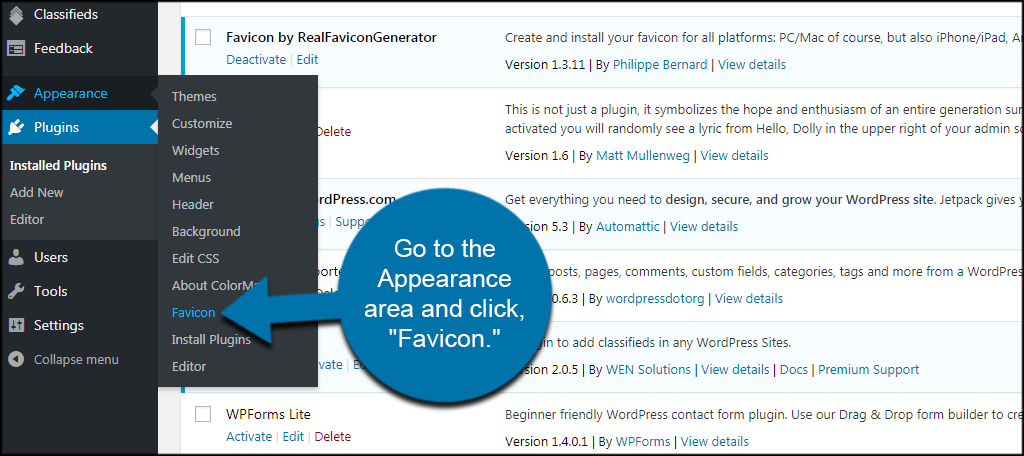
Plugins make tasks easier. Some plugins can upload favicons. Install a plugin like Favicon by RealFaviconGenerator. After installation, activate the plugin. Go to its settings. Upload your favicon image. The plugin will guide you. It ensures the favicon works on all devices. This method is quick and reliable.
Manual upload needs a bit more work. First, create a favicon image. Use a tool like Favicon Generator. Save the image as favicon.ico. Next, access your site’s root directory. Use a tool like FTP or cPanel. Upload the favicon to the root directory. This method gives you more control. But be careful while uploading.
Troubleshooting Common Issues
A WordPress favicon is a small icon displayed in browser tabs, bookmarks, and address bars. It helps users quickly identify and access your website. Common issues include incorrect sizing and caching problems, which can prevent the favicon from displaying properly.
Favicon Not Displaying
Favicon problems can be frustrating. Sometimes, browser caching causes issues. Browsers often save old favicon images. This cache prevents the new icon from showing. Clearing the browser cache can help. Try refreshing the page after clearing cache.
Another issue might be file format errors. Favicon files should be in .ico format. Sometimes, .png or .jpg files don’t display properly. Ensure the favicon is in the correct format. Check that the file size is small. Large files may cause loading issues.
Updating And Changing Favicons
Favicons are small images on web browser tabs. They are important for website identity. Updating them keeps your site fresh. It also helps users recognize your brand. Consider updating when you rebrand or change your logo. This keeps everything consistent.
When To Update
Update your favicon if your logo changes. Also, update if you change your brand colors. Keep your site’s look fresh and modern. This helps users remember your site better.
Steps For Updating
- Choose a new favicon design.
- Go to your WordPress dashboard.
- Select “Appearance” then “Customize”.
- Click on “Site Identity”.
- Upload your new favicon.
- Save changes and refresh your site.
Impact On Brand Identity
Your favicon is part of your brand. It helps users find your site easily. A strong favicon boosts brand recognition. It should match your logo and colors. This makes your brand look united. A good favicon supports a strong brand image.
Frequently Asked Questions
How Do I Add A Favicon In WordPress?
To add a favicon, navigate to WordPress Dashboard > Appearance > Customize > Site Identity. Upload your desired image under the ‘Site Icon’ section. Ensure it’s a square image, ideally 512×512 pixels. Save changes to make your favicon visible on the browser tab and bookmarks.
Why Is A Favicon Important For WordPress Sites?
A favicon enhances brand recognition and improves user experience by making your site easily identifiable. It appears on browser tabs, bookmarks, and search history, helping users quickly find your site. A well-designed favicon contributes to a professional and cohesive online presence.
What Size Should A WordPress Favicon Be?
The recommended size for a WordPress favicon is 512×512 pixels. This ensures your favicon appears crisp across different devices and browsers. Maintaining this size keeps the image clear when displayed as a small icon on browser tabs or bookmarks.
Can I Change My WordPress Favicon Later?
Yes, you can change your WordPress favicon anytime. Simply go to WordPress Dashboard > Appearance > Customize > Site Identity. Upload a new image under the ‘Site Icon’ section. Save changes and your new favicon will replace the old one instantly.
Conclusion
A WordPress favicon helps your site stand out. It creates a memorable visual. Users recognize your site quickly. This tiny icon enhances your brand image. It also improves user experience. Setting up a favicon is simple. It requires just a few clicks.
Your site feels more professional. Visitors notice the attention to detail. A favicon is small but mighty. It plays a key role in branding. It helps build trust with visitors. Make sure yours aligns with your brand. Consider updating it for a fresh look.
A favicon is a small investment. Yet, it yields big returns in recognition.



