
Have you ever wondered how you can make your text stand out in WordPress? Whether you’re crafting a blog post or designing a webpage, understanding the span tag can be a game-changer.
This little piece of HTML code allows you to apply unique styles to specific parts of your text, making your content visually appealing and engaging. Imagine having the ability to highlight important information, change fonts, or add colors effortlessly. By the end of this article, you’ll not only know what a span tag is but also how to use it effectively to captivate your audience.
Dive in to discover how you can transform your WordPress site and keep your readers hooked from start to finish!
Credit: wptrainingmanual.com
Span Tag Basics
The span tag is a small part of HTML. It helps with styling. You can use it to change text color or size. It wraps around text. This makes the text different from other text. It does not create a new line. It is used inside paragraphs.
In WordPress, span tags are handy. They work with CSS. You can make words bold or colorful. Designers love using span tags. They help make content look nice. Span tags do not affect layout. They only change appearance.
| Feature | Description |
|---|---|
| Style | Changes text color and size |
| Usage | Wraps text without new line |
| Effect | Changes appearance, not layout |
Purpose In Web Design
The span tag is a tiny tool in web design. It helps with inline styling. This means you can change just a part of a text. Imagine coloring only one word in a sentence. This tag makes it easy.
Designers use it for text highlighting. It draws attention to important words. This makes reading easier. And more fun. The span tag keeps the layout neat. It doesn’t break lines or paragraphs. It’s invisible but powerful.
You can find it in WordPress themes. It helps with quick changes. No need to alter the whole text. Just the part you want. This saves time and effort.
How To Use In WordPress
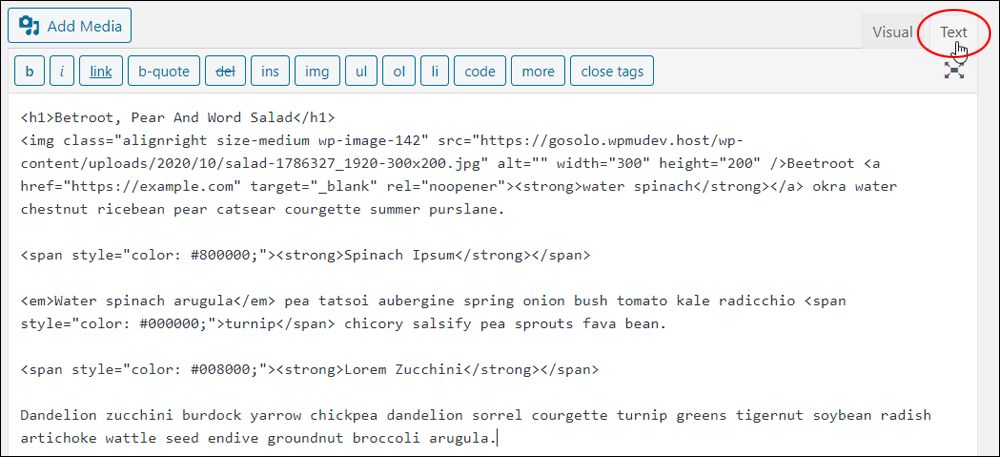
Span tags help make text stand out. They are like little markers. You can use them in WordPress posts. First, go to your post editor. Write some text. Then, switch to the HTML view. Find the part you want to change. Wrap that part with your text. Now, your text is special. You can change its color or size. Use simple CSS for this. It is like dressing your text. Make sure to save your changes. Now, your post looks better.
Customizing themes with span tags is fun. First, access your theme editor. Look for the style.css file. You can add styles here. Use a class or ID with your span tag. Example: important text. Then, in CSS, write .highlight { color: red; }. Now, your important text is red. This makes your theme more colorful. It is a simple way to make your site unique.

Credit: icdaniels.wordpress.com
Benefits For Seo
The span tag helps you highlight important words. This is good for SEO. Search engines notice bold words. They think these words are important. So, your site can rank better. This helps your site get more visitors.
A span tag makes content clear. It helps readers understand. They find the main points fast. This keeps them on your site longer. A happy reader means a happy site. Search engines like this. They think your site is helpful. So, they rank it higher. This is great for your site’s success.
Common Mistakes
Span tags are useful for styling text. But using them too much can be bad. Too many span tags can slow down your website. This makes it hard to read. Your site’s speed matters. Keep it fast for users. Use span tags only when you need them.
Nesting tags correctly is important. Improper nesting of span tags can break your site layout. It may cause confusion in your code. Always close your tags. Check your nesting order. This keeps your site neat. Make sure span tags are placed right.
Best Practices
The tag helps in keeping text styling consistent. This tag is used to apply styles to small parts of text. Using it ensures that text looks the same everywhere. It is good to use the same styles for all tags. This makes your website look clean and neat. Uniform styles make reading easier. Everyone can enjoy your content more.
Making websites easy for everyone is important. The tag does not affect screen readers. It is safe for accessibility. But, always check your styles. Bright colors can be hard to see. Use colors that are easy on the eyes. Bold text can help in some places. But, do not use it everywhere. This keeps your content friendly for all readers.

Credit: community.gravityforms.com
Frequently Asked Questions
What Is The Purpose Of A Span Tag?
The span tag is used for styling specific parts of text within a WordPress post. It allows you to apply CSS styles or JavaScript functions to particular text segments, enhancing customization and design flexibility. It’s especially useful for highlighting or differentiating text without altering the HTML structure.
How To Add A Span Tag In WordPress?
To add a span tag, switch to the HTML view in the WordPress editor. Select the text you want to style, then wrap it with `` and `` tags. You can then apply custom CSS styles to the span tag through the WordPress Customizer or stylesheet.
Can Span Tags Affect Seo?
Span tags themselves do not impact SEO directly. However, they can improve user experience by enhancing text readability and styling. Properly styled content can increase engagement, which indirectly benefits SEO. Ensure span usage doesn’t hinder accessibility or content clarity for optimal SEO performance.
Are Span Tags Mobile-friendly?
Span tags are inherently mobile-friendly, but their styling may affect mobile responsiveness. Use CSS media queries to adjust styles for different screen sizes. Ensure text within span tags remains readable and accessible on all devices for a seamless user experience.
Conclusion
The span tag in WordPress is simple yet powerful. It helps in styling specific text parts without affecting others. This makes your content more visually appealing. You can easily highlight or change text colors. It’s perfect for those small tweaks that make a big difference.
Even beginners can use it with ease. Remember, a little styling goes a long way. Now, you have a new tool in your WordPress toolkit. Happy blogging!



