
Have you ever noticed the small image next to a website’s name in your browser tab? That tiny graphic is more important than you might think.
If you’re using WordPress, understanding what a site icon is and why it matters can be a game-changer for your website’s branding and user experience. A site icon, also known as a favicon, is a crucial element that helps distinguish your site from countless others.
It’s not just a minor detail; it’s a powerful tool to make your site memorable and instantly recognizable. When you set a site icon for your WordPress site, you’re not only enhancing your brand’s visibility but also improving how users interact with your content. Curious about how a simple image can make such a significant impact? Stick around to discover why your WordPress site needs a well-crafted site icon and how it can elevate your online presence.

Credit: www.youtube.com
Site Icon Definition
A site icon is a small picture. It shows on the browser tab. It helps people know your site quickly. This icon is also called a favicon. Many websites use it. It makes your site easy to spot. The site icon also shows in bookmarks. It is part of your site’s brand identity.
Making a site icon is simple. Use a picture that represents your site. The picture must be clear. It should be at least 512×512 pixels. Upload it to your WordPress site. WordPress will then resize it for different uses. Now your site has its own icon!
Importance Of Site Icons
Site icons help people recognize your website. They appear in browser tabs. Also, they show in bookmarks and on mobile devices. A site icon is like a logo. It is a small picture that represents your site. People remember your site better with a unique icon. This boosts your site’s identity.
Site icons must be clear and easy to see. They should be simple. A good icon uses bright colors. It should also match your brand. Having a site icon can make your site look professional. It shows that you care about your site’s look. This can make people trust your site more.
Design Considerations
Site icons should be clear and easy to see. The best size is usually 512×512 pixels. It looks good on screens. Small icons can appear blurry. Large ones may not fit well. Using the right size makes them look sharp.
Icons must be square-shaped. If not, they may look stretched. Proper dimensions help keep the design intact. Always check how it appears on different devices.
Colors should be bold and contrast well. High contrast makes icons stand out. Simple designs work best. Complicated icons are hard to recognize. Choose a design that matches your brand. It should be unique and memorable.
Avoid too much text in icons. Words can be hard to read. Symbols work better. They are simple and direct. Visual appeal helps users remember your site easily. Good design attracts more visitors.
Creating A Site Icon
Design tools help make site icons. Tools like Photoshop and Canva are popular. Many people use them. They can create unique designs. They have lots of features. You can choose colors and shapes. Simple designs are best. They are easy to see. Good tools make work easier. Practice helps improve skills.
Site icons show your brand. Colors should match your brand. Shapes should fit your style. Brands have unique looks. Icons should be simple. People remember simple things. Consistency is key. Icons should look the same everywhere. This helps people know your brand. Creativity makes icons stand out. But stay true to your brand.
Uploading In WordPress
A Site Icon in WordPress is a small image representing your website. It appears in browser tabs and bookmarks. Upload it in the WordPress dashboard under the “Site Identity” section.
Accessing The Customizer
Begin by logging into your WordPress dashboard. Find the “Appearance” tab on the left side. Click on it to open the menu. Select “Customize” to access the Customizer. This tool helps you change site settings.
Step-by-step Guide
First, look for the “Site Identity” option. Click on it to reveal more settings. You will see the site icon section. Click “Select Image” to upload your icon. Choose an image from your computer. Make sure it’s square and at least 512×512 pixels. Upload the icon and crop if needed. Click “Save & Publish” to finish.
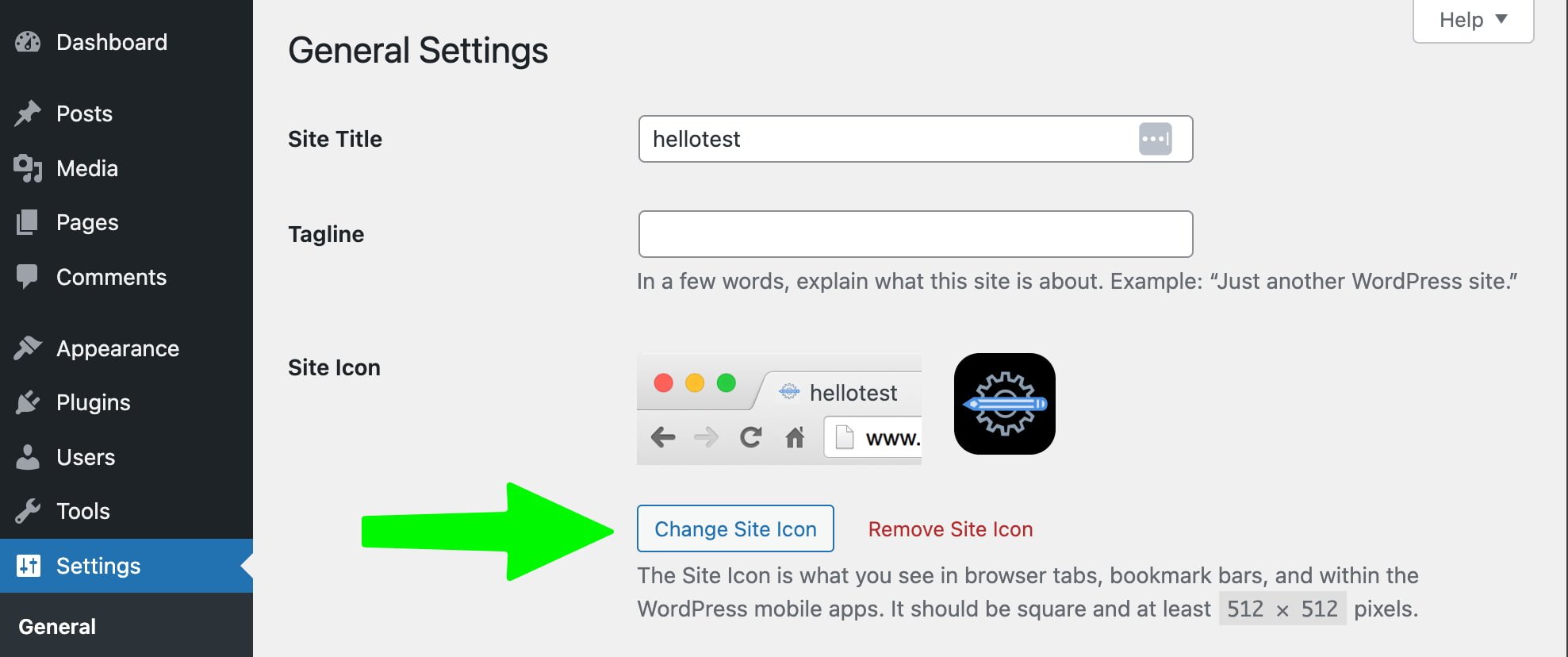
Credit: yoast.com
Common Issues
A site icon might look blurry or pixelated. This happens if the image is too small. Always use an image that is 512×512 pixels. This size gives the best clarity. Choose a simple design. Complex images may not display well. Check if the image is in a supported format. JPEG and PNG work best.
Sometimes, changes to the site icon do not show. This might be due to caching. Clear the browser cache to see the new icon. Use the browser settings to do this. Sometimes, plugin caches also cause problems. Disable caching plugins temporarily. Refresh the page to check if the icon updates.
Best Practices
A site icon should match your brand. This helps people know your site. Use your logo or a simple image. The icon should be clear and easy to see. Keep the colors and style like your brand. This makes everything look the same. It’s important for your brand’s look.
Check your site icon on phones, tablets, and computers. It should look good everywhere. Make sure it’s not blurry. Check that it fits well in small spaces. Use different browsers to test it. This helps you know it works for everyone. A good icon helps users find your site fast.
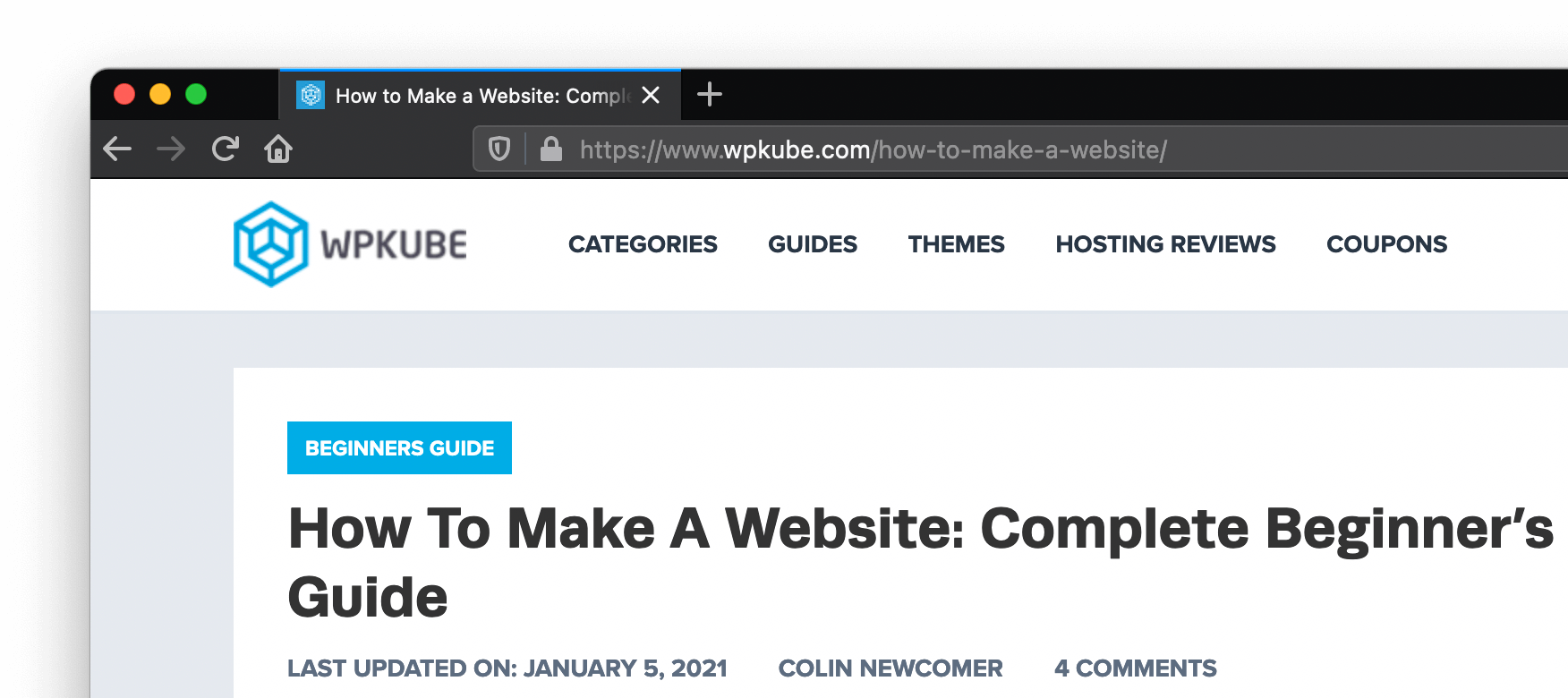
Credit: www.wpkube.com
Frequently Asked Questions
What Is The Purpose Of A Site Icon In WordPress?
A site icon in WordPress serves as a visual representation of your website. It appears on browser tabs, bookmark bars, and mobile home screens. This icon helps users identify and differentiate your site from others. A unique and recognizable site icon enhances brand visibility and user experience.
How Do I Set A Site Icon On WordPress?
To set a site icon, go to your WordPress dashboard and select “Appearance” then “Customize. ” Click on “Site Identity” and upload your desired icon. Ensure the icon is square and at least 512×512 pixels. After uploading, save your changes.
Your site icon will now appear in browser tabs.
Can A Site Icon Improve Seo?
While a site icon doesn’t directly impact SEO, it enhances user experience and brand recognition. A recognizable icon can increase user engagement and return visits. Positive user interactions can indirectly benefit your SEO rankings. Therefore, having a unique and memorable site icon is advisable for better site visibility.
What Size Should A WordPress Site Icon Be?
A WordPress site icon should be at least 512×512 pixels. This size ensures clarity and visibility across different devices and browsers. A larger icon maintains quality when scaled down. Make sure your icon is square to avoid distortion. Proper sizing ensures your icon looks professional and appealing.
Conclusion
A site icon on WordPress is important for branding. It represents your website visually. It appears in browser tabs and bookmarks. This small image makes your site memorable. Visitors recognize it easily. You can customize it to match your theme.
Upload it through the WordPress dashboard. The process is straightforward. Using a unique site icon boosts your website’s identity. Enhance your brand’s visibility and trust. Readers connect better with your site. Remember, a distinct icon can make a big difference.
Keep it simple and relevant. It helps in building a strong online presence.



