
Imagine you’re in the middle of crafting your dream website on WordPress. Everything seems perfect until your site starts slowing down.
You’re frustrated, and maybe even a little confused. You wonder if there’s something wrong with your server’s memory limit. After all, your website’s speed and performance hinge on it. But what exactly is a good WordPress server memory limit? By the end of this article, you’ll know exactly how to optimize your server’s memory limit to ensure your website runs smoothly and efficiently.
We’ll break it down into simple steps, so even if you’re not tech-savvy, you’ll have the confidence to make the right adjustments. Ready to unlock the secrets behind a fast and reliable WordPress site? Let’s dive in!
Importance Of Memory Limit
Memory limit affects how your WordPress site performs. Higher memory limits let your site handle more tasks. More tasks mean faster loading and better user experience. Low memory limits can slow your site. Slow sites make users leave.
Most hosts set a default memory limit. 64MB or 128MB is common. For larger sites, this might not be enough. Increasing the memory limit can help. It helps with big plugins or themes. Make sure your host allows this change. Some hosts have restrictions.
Factors Affecting Memory Limit
High traffic can slow down your site. More visitors use more memory. Busy sites need higher memory limits. This helps them run smoothly. Less traffic means less memory is needed. Adjust memory based on your traffic.
Plugins can use a lot of memory. Heavy plugins need more memory to work well. Some plugins are light and use less memory. Using many plugins? You may need a bigger memory limit. Choose plugins wisely to manage memory better.
Complex themes use more memory. Simple themes need less memory. Themes with lots of features can slow down your site. Keep theme complexity in mind when setting memory limits. Balance features and performance for a better experience.
Recommended Memory Limits
Basic websites do not need much memory. A 32MB limit is often enough. This keeps the site running smoothly. Basic sites have fewer plugins and features. They load faster with less memory. Keeping memory low saves resources. It’s important for smaller sites.
E-commerce sites handle more data. They need more memory than basic sites. 64MB to 128MB is a good range. This helps in managing products and transactions. More plugins and security tools are used here. These sites need smooth user experiences. Enough memory is vital for that.
High-traffic blogs serve many visitors. 256MB of memory is a safe choice. This ensures fast page loads. Visitors stay longer on quick sites. High-traffic sites often use advanced features. These features need more memory. Keeping memory high avoids site crashes.
Checking Current Memory Limit
Open your WordPress dashboard. Go to Tools and select Site Health. Click on the Info tab. Look for the Server section. Here, you can find the memory limit information. The memory limit is important for site performance. If your site is slow, it may need more memory. This method is quick and easy.
Create a file named phpinfo.php. Write php phpinfo(); ? inside the file. Save it and upload to your server’s root directory. Visit the file in your browser. You will see detailed PHP information. Look for memory_limit under the Core section. This shows your server’s memory capacity. Check and compare with the dashboard limit. This helps to understand server settings better.
How To Increase Memory Limit
Open the wp-config.php file. This file is in the root folder of your site. Add this line: define('WP_MEMORY_LIMIT', '256M');. The ‘256M’ sets the memory limit. You can adjust it to a higher number if needed. Save the file. Check your site to see the changes.
Locate the php.ini file on your server. This file controls PHP settings. Look for the line that says memory_limit =. Change the number to 256M or more if needed. If the line is missing, add it yourself. Save the changes. Restart your server to apply them.
Find the .htaccess file in your site’s root. Add this line: php_value memory_limit 256M. This tells the server to use more memory. Save the file after editing. Check your site to ensure everything works well. Problems? Revert the changes and try another method.

Credit: wpmet.com
Common Issues With Memory Limits
WordPress websites often struggle with memory limit issues. Setting a server memory limit of at least 256MB helps ensure smoother performance. This adjustment reduces crashes and enhances the user experience.
Memory Exhaustion Errors
Memory exhaustion errors can cause big problems. These errors happen when there’s not enough memory. Your website may stop working. Visitors see error messages instead of content. This is bad for business. Fixing these errors quickly is important. Increasing server memory can help. It allows more data to be processed. This reduces errors. Regular checks can prevent future issues. Monitoring memory usage is key.
Slow Website Performance
Monitoring And Maintenance
A good WordPress server memory limit ensures optimal performance and stability. Typically, 256MB is recommended for smooth operation. Regular monitoring helps prevent crashes and slowdowns, keeping your site running efficiently.
Regular Performance Checks
A WordPress site needs regular checks. Check the server memory often. This helps keep the site fast and smooth. Look for slowdowns or errors. If something seems wrong, fix it quickly. Use tools to see how much memory your site uses. These tools help find problems early. Regular checks can stop bigger issues later.
Updating Plugins And Themes
Always update your plugins and themes. New versions fix bugs and improve performance. Updates can make the site safer. Old plugins can break and cause issues. Check for updates often. Before updating, back up your site. This keeps your data safe if something goes wrong. Updating is key to a healthy site.

Credit: www.cloudpanel.io
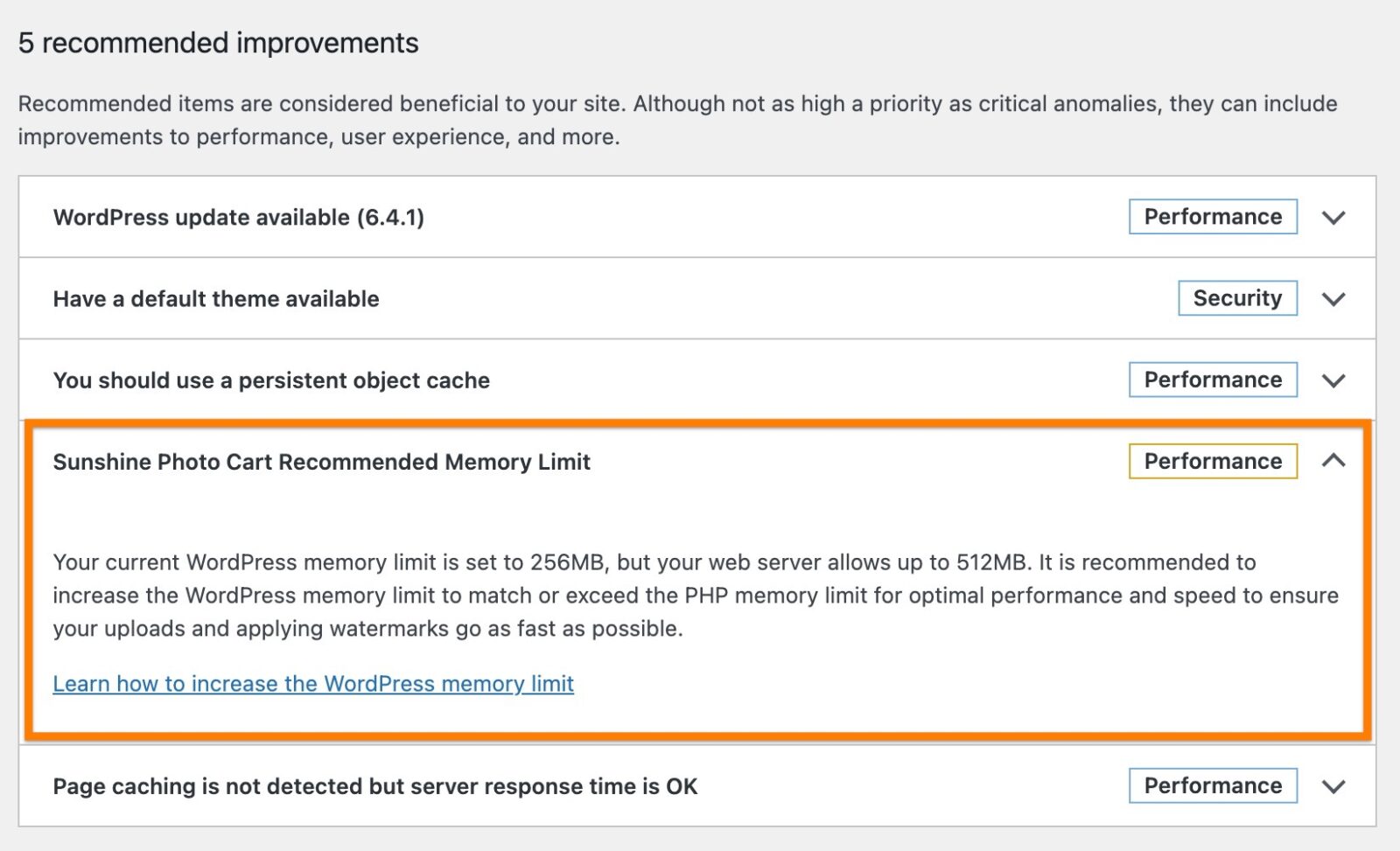
Credit: www.sunshinephotocart.com
Frequently Asked Questions
What Is The Ideal Memory Limit For WordPress?
The ideal memory limit for WordPress is generally between 128MB to 256MB. This range ensures smooth operation and accommodates plugins and themes. Increasing memory can enhance performance and prevent errors, especially on larger sites. Always monitor usage and adjust based on your site’s specific needs.
How Does Memory Limit Affect WordPress Performance?
Memory limit directly impacts WordPress performance by determining how much data your server can process. Insufficient memory can lead to slow loading times and errors. Increasing memory allows more efficient operations, especially with resource-intensive plugins. Balancing memory and server capacity ensures optimal website functionality.
Can Increasing Memory Limit Prevent Crashes?
Yes, increasing the memory limit can help prevent crashes. Sites with heavy plugins or media may experience crashes due to insufficient memory. Boosting the memory limit allows WordPress to handle more data, reducing the risk of crashes and improving overall site stability and user experience.
How To Check Current WordPress Memory Limit?
You can check your WordPress memory limit through the wp-config. php file. Look for the line define(‘WP_MEMORY_LIMIT’, ‘XMB’). Alternatively, plugins like Query Monitor can display memory usage. Ensuring your site operates within the set limit is crucial for smooth performance.
Conclusion
Choosing the right server memory limit is crucial for WordPress. It ensures smooth performance and keeps your site running efficiently. A balanced memory limit prevents errors and enhances user experience. Make sure to monitor your site’s needs regularly. Adjust memory settings as your site grows.
This proactive approach helps avoid potential downtime. Always consult your hosting provider if unsure. They can offer guidance tailored to your website’s requirements. Remember, a well-optimized site attracts more visitors. Keep your WordPress site efficient and responsive. Happy blogging!



