
Are you struggling to locate your website’s folder in WordPress? You’re not alone.
Understanding where your website lives within the WordPress structure can feel like a mystery, especially if you’re not a tech expert. But don’t worry, you’re about to discover the secrets that many successful website owners already know. Imagine the power and control you’ll have when you can navigate your WordPress files with ease.
This knowledge can save you time, reduce frustration, and give you more freedom to customize your site. Keep reading, and you’ll unlock the path to finding exactly where your website is stored in WordPress.
WordPress Directory Structure
The WordPress directory holds many important files. These files make your website work. The main folder is called public_html. It contains your website’s core files. Inside, you will find wp-content, wp-admin, and wp-includes.
wp-content folder stores themes, plugins, and uploads. You can change themes here. wp-admin folder is for the dashboard. It lets you manage your site. wp-includes folder stores important files. These files help WordPress run smoothly.
Each folder has its role. They work together to keep your site running. Knowing these folders helps you manage your site better. You can easily find and change files. This makes your website more personal.
Credit: www.joomunited.com
Core WordPress Files
WordPress keeps its important files in the root directory. This directory is often named “public_html” or “www”. Inside, you will find many files and folders. The wp-content folder holds your themes and plugins. Another folder, wp-admin, helps you manage your site. The wp-includes folder contains code libraries.
Several files like wp-config.php and .htaccess are also here. These files are very important. They help WordPress run smoothly. Protect these files to keep your site safe. Always back up your site before changes. This keeps your website safe.
Themes And Plugins Location
WordPress stores themes and plugins in specific folders. Themes live in the wp-content/themes folder. Each theme has its own folder inside. Themes control the design and layout of a website. Plugins are kept in the wp-content/plugins folder. Plugins add features to a website. Each plugin has its own folder too. These folders are crucial for the website’s functionality.
To find these folders, use an FTP client. Connect to your website’s server. Navigate to the wp-content folder. Inside, you will see themes and plugins folders. It’s important to know this location for customization. Themes and plugins can be edited here. Always back up before making changes. This ensures your website stays safe.
Uploads And Media Files
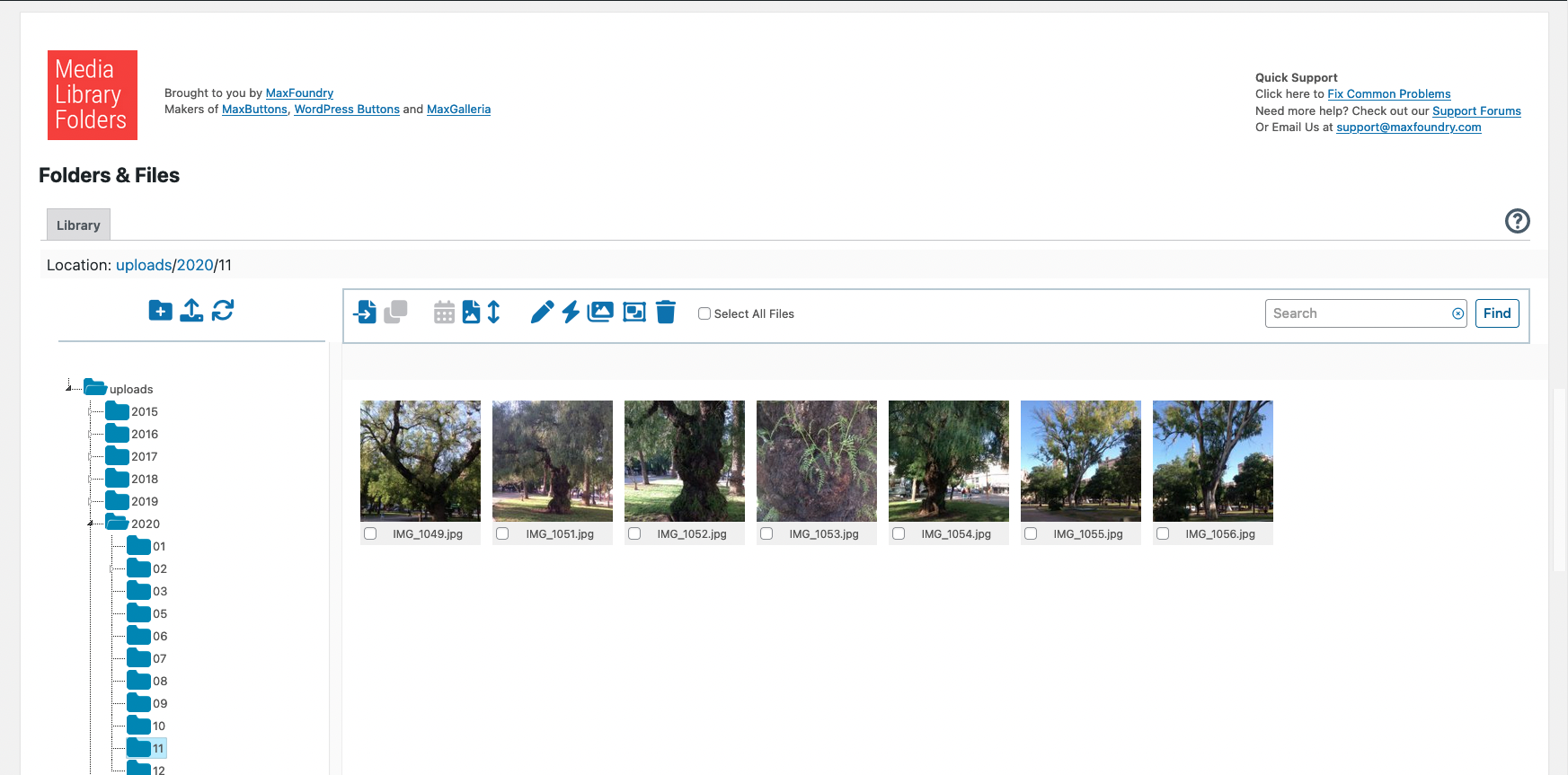
WordPress stores media files in a special folder. This folder is named uploads. You can find it in the wp-content directory. All images, videos, and documents go here. Each year and month has its own folder. This helps keep files organized.
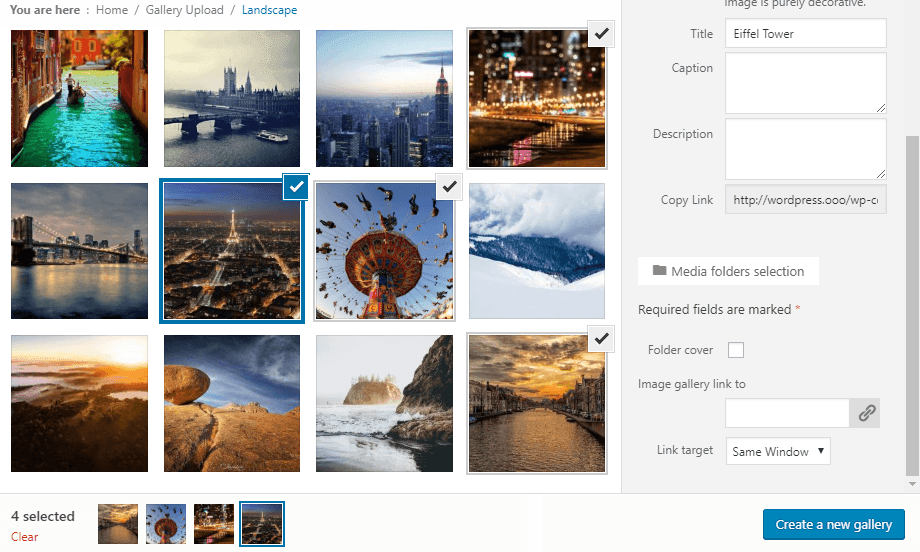
You can view these files from your dashboard. Go to the Media Library. Here, you see all uploaded files. You can add new files too. Just click the Add New button. Upload your files easily. No need for special skills.
Configuration Files
The WordPress configuration files are very important. They help your website run properly. The main file is called wp-config.php. This file is in the root folder. It tells your website how to connect to the database. It also has other important settings. Changes here can affect your site a lot.
Another important file is .htaccess. It controls how your server behaves. This file helps with redirects. It also helps to keep your site secure. Both of these files are crucial. Handle them with care.
Always make a backup before editing. This keeps your website safe. If something goes wrong, you can restore it. Backups are your safety net.
Credit: www.joomunited.com
Custom Content Folders
WordPress keeps its files in special folders. Themes are in the wp-content/themes folder. Plugins live in the wp-content/plugins folder. These folders hold important files. Each theme has its own folder inside themes. Plugins have their own space too. This setup helps keep things organized. Users can make custom folders for their content. It is easy to add new themes or plugins this way. No need to worry about mixing files. Keep everything in its place for safety.
Custom folders are for specific needs. They help in managing content. Users can name these folders as they like. It’s a simple way to have better control. This method also makes it easy to find files later. Organization is key to smooth website management. Keeping files neat helps avoid problems. Custom folders are a handy tool for all WordPress users.
Accessing The Wp-content Folder
The wp-content folder is very important in WordPress. It holds themes, plugins, and uploads. To find it, log in to your hosting account. Then, open the File Manager. Look for the public_html directory. Inside, you will see the wp-content folder. It contains three main folders: themes, plugins, and uploads.
Be careful when changing files here. Wrong changes can break your site. Always make backups first. This keeps your site safe. If unsure, ask for help. It’s better to be safe than sorry.
Credit: fr.wordpress.org
Security Considerations
Changing the default folder name is crucial. Hackers often know the default name. It is usually wp-content or wp-admin. Rename these folders for better security. Use unique names that are hard to guess.
File permissions matter a lot. Set them correctly to protect your files. Make sure your files are not open to everyone. Only trusted users should access them.
Back up your site regularly. If something goes wrong, you can restore it. Use plugins to make backups easy. Keep these backups safe and secure.
Update your WordPress and plugins often. New updates fix security holes. They keep hackers away from your site. Check for updates every week.
Frequently Asked Questions
Where Is The WordPress Website Folder Located?
The WordPress website folder is typically located in the public_html directory on your server. This folder contains all files necessary for your website to function. You can access it via FTP or your hosting provider’s file manager. It’s essential for managing and updating your site’s content and structure.
How Do I Find My WordPress Folder?
To find your WordPress folder, access your server via FTP or your hosting provider’s file manager. Navigate to the public_html directory, where you’ll see the WordPress installation files. Look for folders named wp-content, wp-admin, and wp-includes, which are part of the WordPress core.
Can I Change My WordPress Folder Location?
Yes, you can change your WordPress folder location, but it requires technical adjustments. Moving your folder involves updating the site’s URL settings and modifying the wp-config. php file. It’s recommended to back up your site before making changes to avoid potential issues.
Why Is The WordPress Folder Important?
The WordPress folder is vital as it contains all the files needed for your website to operate. It houses themes, plugins, and core files essential for site functionality. Proper management of this folder ensures site security, updates, and smooth operations.
Conclusion
Understanding where WordPress stores your website files is crucial. It helps in troubleshooting and managing your site efficiently. The main folder is usually named “public_html” or “www”. Inside, you find key directories like “wp-content”, “wp-admin”, and “wp-includes”. Each has its specific function.
Keep backups of these important files. Regular updates ensure your site remains secure and functional. With these insights, managing your WordPress site becomes simpler. Remember, knowing your file structure aids in better site control and customization. Happy WordPress managing!



