
Have you ever found yourself scratching your head, wondering where WordPress stores your images? You’re not alone.
Navigating WordPress’s storage system can feel like searching for a needle in a haystack. But here’s the good news: unlocking this mystery is simpler than you might think. Imagine having the power to quickly locate, manage, and optimize your images, making your website run smoother and faster.
This isn’t just about finding files; it’s about taking control of your website’s efficiency and aesthetics. Stick with us, and you’ll discover the secrets that can transform your WordPress experience. Are you ready to dive in and uncover the hidden pathway to your images? Let’s get started!

Credit: stackoverflow.com
WordPress Media Library Basics
WordPress stores images in a special folder. This folder is called wp-content/uploads. Images are organized by year and month. You can find them easily. This helps keep your media files tidy.
The Media Library shows all your images. You can view and edit them there. It’s a simple way to manage your files. You can also add new images from your computer.
Uploading is quick and easy. Just click the upload button. Drag your image into the library. Your image is now ready to use. You can add it to posts or pages. It’s a great way to make your site look nice.
Credit: devowl.io
Default Image Storage Path
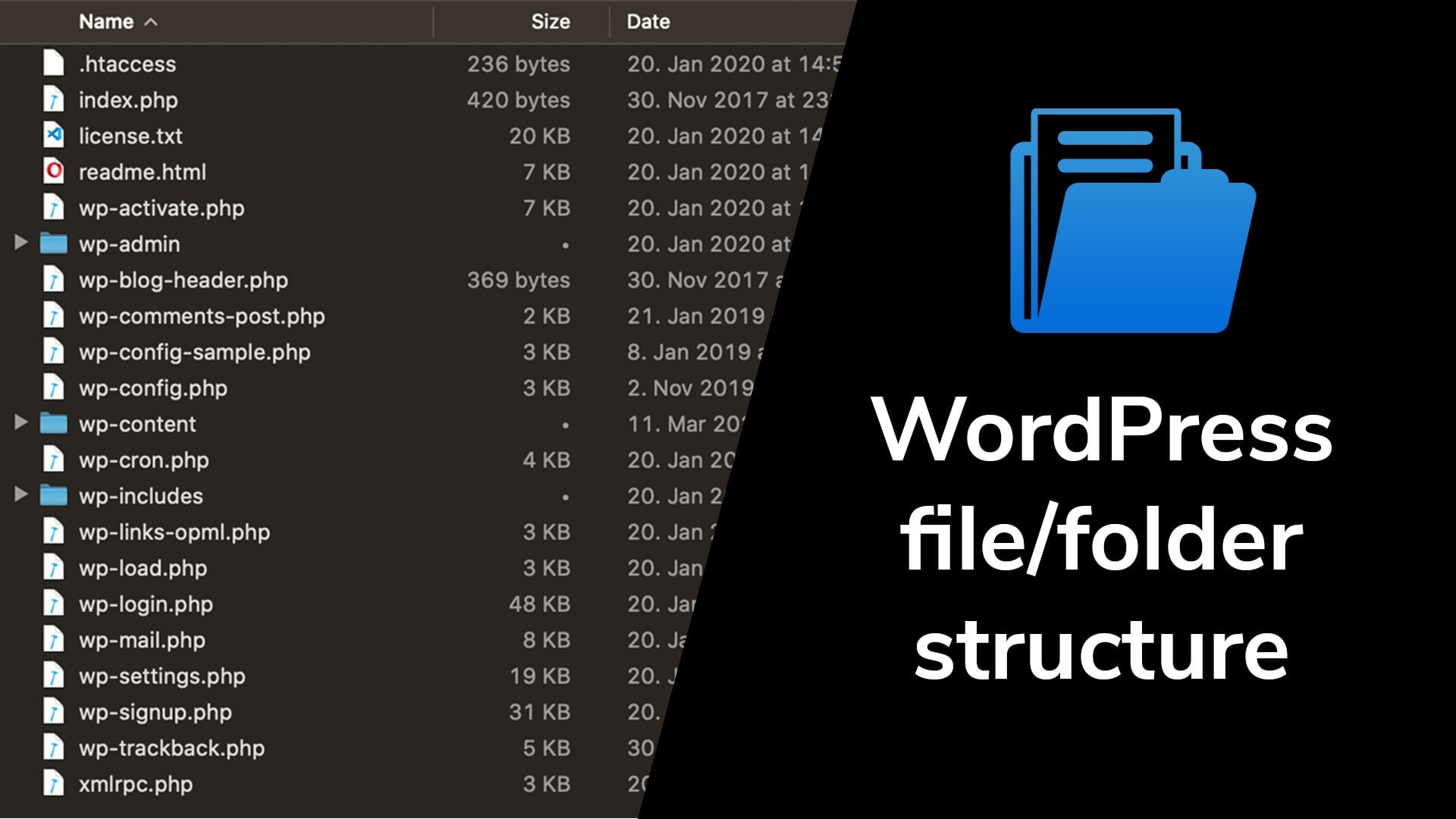
WordPress saves images in the uploads folder. This folder is inside the wp-content directory. Each year, a new folder is made for images. Inside this yearly folder, there are monthly folders. This helps keep images organized.
The path looks like /wp-content/uploads/year/month/. For example, images uploaded in January 2023 will be in /wp-content/uploads/2023/01/. It’s easy to find images this way. Users can change the location if needed. But most keep the default path.
Understanding Wp-content Directory
The wp-content directory holds important files. This is where your images live. Inside, there’s a folder called uploads. All your pictures go there. Themes and plugins also store data here. You should not mess with this folder. It is key to your site’s look. Keep it safe.
If you delete it, your site breaks. The uploads folder is organized by year and month. This helps in finding files. It’s like a big filing cabinet. Each year has its drawer. Inside are monthly folders. Simple and neat. This way, you can always find what you need.

Credit: wordpress.stackexchange.com
Role Of Uploads Folder
The uploads folder is vital in WordPress. It stores all images and media files. Every time an image is added, it’s saved here. This keeps files organized and easy to find. It’s part of the wp-content directory.
Images are saved in subdirectories by year and month. This helps in sorting files by date. It makes finding specific files simple. This structure is automatic and keeps files neat.
Users can change how files are stored. WordPress allows customizing upload settings. You can alter the folder structure to your liking. This flexibility helps in managing media files better.
Accessing Images Via Ftp
WordPress keeps images in a special folder. This folder is called uploads. You can find it inside the wp-content folder. All your images are here. Each year and month has its own folder. This helps keep things neat. Use a FTP client to see these files. It helps you connect to your website server.
You can change where WordPress stores images. Update the settings to choose a new folder. Be careful when changing this. It can affect how images show up. Always save a backup before making changes. This keeps your images safe.
Impact Of Themes And Plugins
Themes and plugins can affect image storage in WordPress. Images usually reside in the ‘wp-content/uploads’ folder. Proper management ensures optimal site performance and organization.
Theme-specific Image Storage
Different themes store images in varied ways. Some themes create special folders. These folders hold theme-specific images. Other themes keep all images in the main folder. This can make it hard to find specific images. Always check your theme’s settings. They can tell you where images are stored.
Plugin Influence On Media Storage
Plugins can change how images are stored. Some plugins organize images neatly. They help keep things tidy. Other plugins might create new folders. This can confuse users. Always read plugin instructions. They help you understand image storage changes.
Optimizing Image Storage
Compressing images makes them smaller in size. This helps websites load faster. Fast loading is good for users. It also helps in keeping visitors happy. Tools like TinyPNG or JPEGmini are useful. These tools shrink images without losing quality. Smaller images save storage space. They also use less bandwidth.
Keep media files organized. Use folders with clear names. This makes finding images easy. For example, use folders for each year or month. You can also sort by type, like photos or graphics. A neat library saves time. It helps in editing and updating the website. This way, everything stays in order.
Security Considerations
WordPress stores images in the “wp-content/uploads” folder. This location is crucial for website security. Keeping this folder protected helps prevent unauthorized access and potential data breaches.
Protecting Image Files
WordPress stores images in the uploads folder. This folder is inside the wp-content directory. Protecting this folder is important. Use a plugin to secure it. Plugins can add extra layers of security. Hackers might want to attack your site. Secure image files to keep your website safe.
Handling Permissions
Permissions determine who can see or change files. Set permissions carefully. Limit access to the uploads folder. Only allow trusted users. Use numbers like 644 for files. Use 755 for folders. These numbers control who can read or write files. Check permissions often. This keeps your site more secure.
Backup And Recovery
Images in WordPress are stored in the “wp-content/uploads” folder. This directory organizes files by year and month. Efficient backup ensures easy recovery in case of data loss.
Regular Backup Strategies
Backing up your WordPress images is important. You should do this often. Use plugins for easy backups. Some plugins are free. Others need money. Choose what fits your needs. Always keep a backup in a safe place. It could be on a cloud or a hard drive. This keeps your images safe from loss.
Set a schedule for backups. This keeps everything up-to-date. Regular backups make recovery easy. You won’t worry about losing files. Make sure backups are complete. Check them regularly.
Restoring Lost Images
Lost images can be a problem. But don’t worry. Use your backup to restore them. Go to your backup folder. Find the lost images there. Follow the steps of your plugin. Restore them back to WordPress.
Check your images after restoring. Make sure they look okay. If not, try restoring again. Double-check your backup files. This helps keep your site looking good.
Frequently Asked Questions
Where Are WordPress Images Stored?
WordPress images are stored in the “uploads” folder within the “wp-content” directory. This folder organizes files by year and month for easy management and retrieval. You can access and manage these images via the WordPress dashboard in the Media Library section.
How To Find WordPress Media Files?
To find media files in WordPress, navigate to the “wp-content/uploads” folder using an FTP client or file manager. Alternatively, access them through the WordPress dashboard by clicking on “Media” to view all uploaded files organized by date.
Can I Change Image Storage Location?
Yes, you can change the image storage location in WordPress by modifying the upload path in the settings. However, this requires technical knowledge and may affect site functionality. It’s recommended to consult a developer for assistance when changing default paths.
How To Organize WordPress Images?
Organize WordPress images by using folders and categories within the Media Library. Plugins like Media Library Assistant can help. This allows for better management and retrieval of images, making it easier to find specific files when needed.
Conclusion
Finding image storage in WordPress is simpler than it seems. Images reside in the ‘uploads’ folder within ‘wp-content’. This location keeps your media organized. Knowing where images are stored aids in website management. It ensures easy access to files. You can maintain site speed by managing images well.
Proper organization enhances user experience. Keep your images tidy for seamless navigation. This boosts efficiency and helps troubleshoot issues quickly. Understanding WordPress structure empowers you. Makes managing your site less daunting. With this knowledge, you’ll streamline your WordPress journey effortlessly.
Happy organizing!



