
Have you ever wondered where WordPress plugins actually reside once you click the install button? As a WordPress user, understanding the inner workings of your favorite plugins can empower you to manage your site more effectively.
Imagine having the knowledge to troubleshoot issues or customize your plugin features without any guesswork. You’ll uncover the mystery of which file WordPress plugins get installed into, offering you a clearer picture of your website’s architecture. Keep reading to gain insights that could transform the way you handle your WordPress site, making it more efficient and tailored to your needs.
WordPress Plugin Installation Basics
WordPress plugins are like magic tools. They help your site do cool things. Each plugin is a special file. This file is a ZIP file. You upload it to WordPress. WordPress takes care of the rest. It puts the plugin in the right place. The folder for plugins is called wp-content/plugins. This is where all plugins live.
After uploading, you need to activate the plugin. This makes it work on your site. Activating is easy. Just click the activate button. Once activated, the plugin starts working. Some plugins need extra settings. Check the plugin instructions for details.
Plugin Directory Structure
Every plugin has a main file. This file tells WordPress about the plugin. It uses a special comment at the top. This comment includes the plugin name and description. It also has the version and author information. The file is usually in the root of the plugin folder. It serves as the entry point for the plugin’s code. This file is very important for the plugin to work.
Plugins often have many supporting files. These can be PHP files, images, and stylesheets. They help the plugin do its job. There are often folders for organization. Common folders are includes, assets, and languages. The includes folder holds extra PHP code. The assets folder has images and CSS files. The languages folder stores translation files. Each part helps the plugin run smoothly.
Wp-content Directory
The wp-content directory is key for WordPress. This is where plugins live. Plugins are like extra tools for your site. They help add features and make your site better. When you install a plugin, it goes into this folder. It’s important to keep this folder safe and tidy.
During installation, plugins are placed in wp-content/plugins. Here, they stay ready to work. Each plugin gets its own folder. This keeps things neat. If you want to remove a plugin, just delete its folder. Always check for updates. Updates keep plugins working well.
Keeping plugins secure is important. Only download plugins from trusted sources. This helps avoid bad software. Always update plugins to their latest versions. Updates fix bugs and improve security. Regular checks keep your site safe. Be careful with unknown plugins. They can harm your site.
Credit: rankmath.com
Wp-content/plugins Folder
The wp-content/plugins folder is where all WordPress plugins live. Each plugin gets its own folder inside. This keeps them neat and organized. You can find all the plugin files here. They might have many files or just a few. It depends on the plugin.
Plugins in WordPress are like tools. They help your site do more. Each plugin has its own folder. This makes finding them easy. You can see all plugins in the plugins folder. Some plugins need extra files. These are also in their folder.
File permissions are rules. They say who can see or change files. It’s important to set these right. Wrong settings can break your site. Always check file permissions. This keeps your site safe.
Common Files In Plugins
Most WordPress plugins use PHP files. These files contain the main code. They help the plugin work. PHP is like a command language. It tells WordPress what to do. Sometimes, plugins have more than one PHP file. Each file does a different job. This makes the plugin work better.
Plugins often use JavaScript to add actions. JavaScript makes things move or change on a page. It makes the site interactive. CSS files are also common. CSS makes the site look good. It changes colors, fonts, and layouts. Both files work together. They make the site both pretty and fun to use.
Many plugins have language files. These files help translate words. So, users can see text in their own language. This is helpful for people from different places. Language files make plugins user-friendly. They help everyone understand the site better.
Role Of The Main Plugin File
The main plugin file plays a crucial role in WordPress plugins. It serves as the entry point, defining the plugin’s structure and functionality. This file ensures proper integration and execution within WordPress, making it essential for any plugin installation.
Activation And Deactivation
The main plugin file plays a key role in WordPress. It controls plugin activation and deactivation. This file holds the core functions of the plugin. When you activate a plugin, WordPress reads this file first. It starts the plugin’s functions.
Deactivation is the opposite process. It stops the functions. The main file is like a switch. It turns the plugin on and off. This makes it very important for your site.
Metadata And Information
The main plugin file contains metadata. Metadata includes the plugin’s name, version, and author. This information shows in the WordPress dashboard. It helps users know about the plugin. The file also lists the plugin’s features. This helps users understand what the plugin does.
Best Practices For Plugin Files
Use clear names for your plugin files. This helps others understand them. Pick names that show the file’s purpose. Avoid using numbers or confusing terms. Keep names short and meaningful. Use lowercase letters and hyphens to separate words. This makes files easy to read. A good name example is “plugin-settings.php”. Bad names confuse users. Like “file1.php”. So, choose wisely.
Protect plugin files to keep them safe. Use secure coding practices. Check for vulnerabilities often. This prevents attacks. Keep your code updated. Old code can be risky. Use proper permissions for files. Only allow trusted users access. Use strong passwords for accounts. Avoid sharing passwords. Back up your files regularly. This helps in emergencies. Security keeps your plugin safe.

Credit: www.youtube.com
Troubleshooting Plugin File Issues
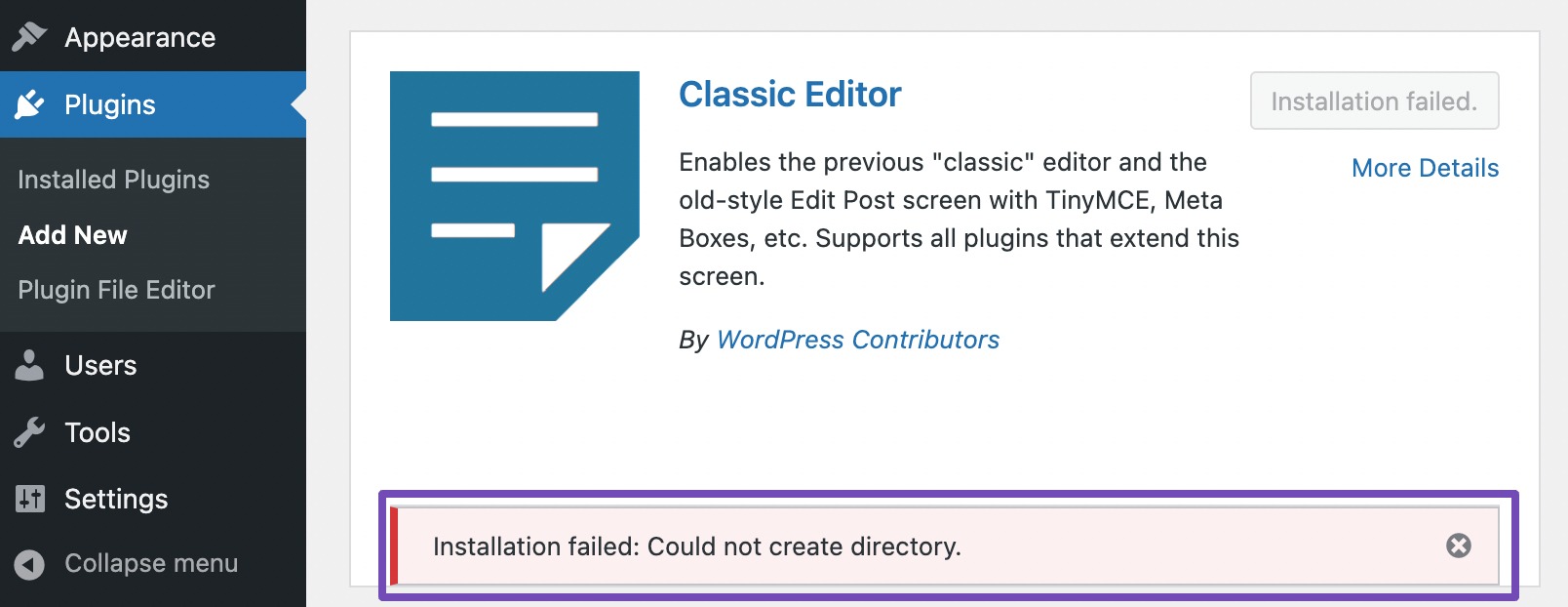
Many users face issues with WordPress plugins. The plugin might not install correctly. Sometimes, it does not appear on the dashboard. This can be confusing. File permissions can cause problems too. If files are locked, plugins won’t work. Check the file permissions. Ensure they are set correctly. Another common error is plugin conflicts. Two plugins might not work together. This can break your site. Disable one plugin to test it. Always back up your site first.
Start by checking your error logs. They show what went wrong. Logs help find plugin issues. Next, deactivate all plugins. Then, reactivate them one by one. This finds the problem plugin. Another tip is to update plugins. Outdated plugins might not work. They can cause errors. Keep plugins updated. Always download plugins from trusted sources. Avoid third-party sites. They might offer bad files.
Credit: www.wonderplugin.com
Frequently Asked Questions
Where Are WordPress Plugins Stored?
WordPress plugins are stored in the `wp-content/plugins` directory. This folder contains all installed plugins. Each plugin typically has its own subfolder within this directory. You can access these files via FTP or your hosting file manager. Proper file management ensures your plugins function correctly.
How Do Plugins Install On WordPress?
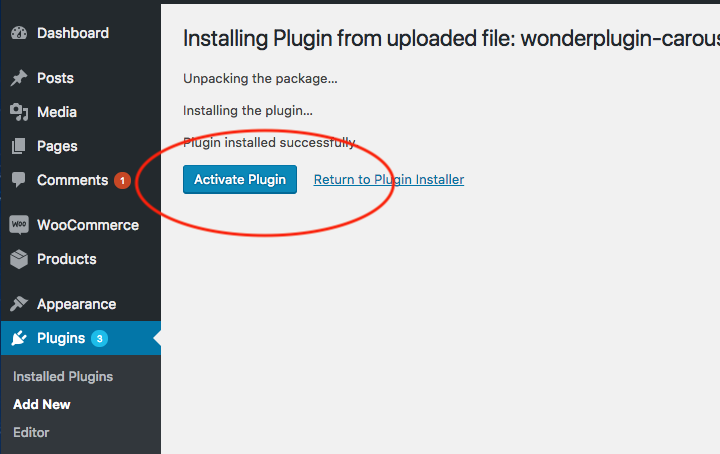
Plugins install through the WordPress admin dashboard. Navigate to ‘Plugins’ and click ‘Add New’. From there, search for plugins or upload a. zip file. After installation, activate the plugin to use its features. This simple process enhances your site’s functionality.
Can You Manually Install WordPress Plugins?
Yes, you can manually install WordPress plugins. Download the plugin’s. zip file first. Then, upload it via the ‘Add New’ feature in the admin dashboard. Alternatively, use FTP to upload directly to `wp-content/plugins`. Manual installation is useful for custom or premium plugins.
What Happens When A Plugin Installs?
When a plugin installs, files are copied to `wp-content/plugins`. The plugin’s code integrates with your WordPress site. Activation allows the plugin to function and interact with your site’s components. Proper installation ensures compatibility and enhances site functionality.
Conclusion
Understanding where WordPress plugins install is vital. It helps manage your site better. Plugins usually reside in the “wp-content/plugins” folder. This knowledge ensures smooth website operation. It also aids in troubleshooting issues. Always ensure plugins are updated. They improve functionality and security.
Regular checks prevent conflicts. Your website runs efficiently this way. Keep learning about WordPress. It enhances your web management skills. A well-managed site attracts more visitors. It boosts your online presence. Stay informed. Your website will thank you for it.



