
Are you planning to move your WordPress site from one host to another, or perhaps you want to create a backup to secure your precious content? If so, you’re probably wondering, “What file do I need to export WordPress from cPanel?”
Navigating the intricate world of web hosting can be daunting, especially when you’re faced with technical tasks that seem to speak a different language. But don’t worry—you’re not alone. This article is crafted just for you, breaking down the process into simple, actionable steps.
By the end of this read, you’ll gain the confidence to export your WordPress files without a hitch. Stick around, as we unravel the mystery and make this crucial task a breeze. Your WordPress journey is about to get a lot smoother!
Credit: www.hivelocity.net
Exporting WordPress From Cpanel
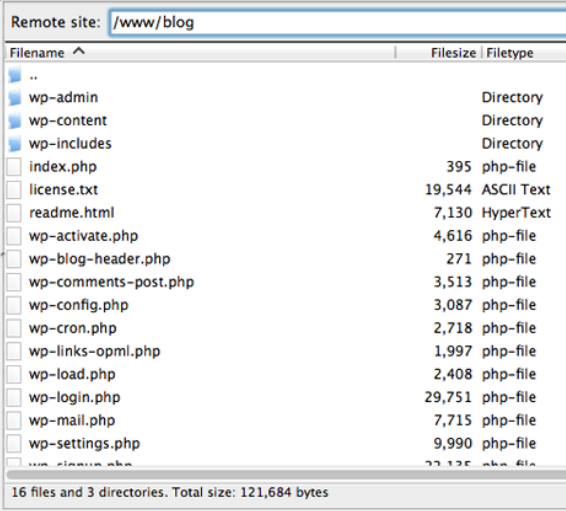
Exporting WordPress requires careful steps. Files and database are important. These are the core elements. Without them, WordPress won’t work.
First, the wp-content folder is needed. It holds themes, plugins, and uploads. This folder is unique for each site. It’s the heart of your design and functionality.
Next, the wp-config.php file is crucial. It contains database settings. Without this, your site won’t connect to the database. Always include this file in your export.
The database stores posts, pages, and user data. Use phpMyAdmin to export it. Choose the SQL format for the backup. This format keeps all data safe.
Remember to check the export settings. Each table must be included. Missing tables lead to broken sites. Double-check before finalizing the backup.
Credit: www.cpanel.net
File Manager Navigation
Log in to your cPanel account. Find the File Manager icon. Click it to open. A new window will show your files. This is where you manage your site’s files. It’s very important to know this. File Manager helps you find what you need. Always be careful with files here. Mistakes can break your site. Follow the steps closely.
Look for the public_html folder. This is where WordPress files live. Inside, find the wp-content folder. This holds your themes and plugins. Next is the wp-config.php file. This file is very important. It has your database details. Also, check the wp-includes folder. It has many core files. Make sure you know these folders well. They are key to your site.
Exporting Website Files
The Public_html directory is very important. It holds all your website files. These files make your website work. To export them, you must access this directory. It is located in your cPanel.
First, open the file manager in cPanel. Then, find the public_html directory. Select all the files inside it. Click the “Compress” option to zip them. This makes it easy to download. After compressing, click “Download”. Save the zip file to your computer. Now you have all your website files safe.
Credit: jetpack.com
Exporting Database
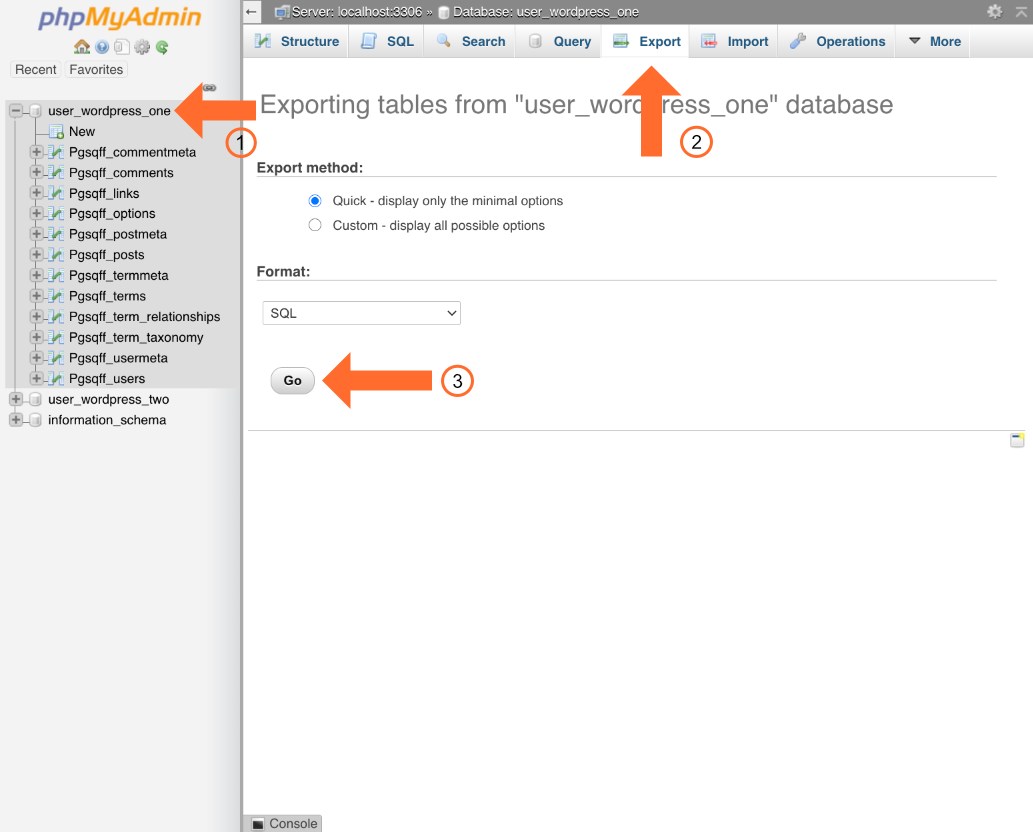
Access cPanel. Find and open phpMyAdmin. It’s used for database management. Choose the database you need. Click on the name. Now, look for the Export tab. It’s usually at the top. Click it to start exporting.
Exporting Sql File
Choose the Quick export method. It’s simpler for beginners. Keep the format as SQL. Press the Go button to download. Your browser will ask where to save it. Save it on your computer. Now, you have the database as an SQL file. Keep this file safe. It’s important for restoring the website later.
Verifying Exported Files
Checking File Integrity is very important. Always ensure all files are downloaded. Sometimes, downloads break. This makes files incomplete. Check file sizes against the original. Use file comparisons tools. They help identify errors. Files must be exact copies. Even small changes can cause problems.
Ensuring Database Completeness is essential for WordPress sites. Databases store important data. They hold posts, comments, and settings. Export the database using phpMyAdmin in cPanel. Make sure every table is exported. Missing tables lead to data loss. Check the SQL file size. Compare it with previous backups. Large differences may signal issues. Always double-check your exports for peace of mind.
Common Issues And Solutions
Sometimes, file permissions can cause problems. Files might not open or save. This can stop your work. Check if the file has the right permissions. Use cPanel to change them. Make sure files have read and write access. This lets you open and change files. Fixing permissions can solve many issues.
Exporting databases can fail. This happens if the database is too big. Try exporting smaller parts. Use phpMyAdmin for this task. Check your internet connection. A poor connection can cause failures. Make sure you follow the steps correctly. A small mistake can stop the export. Fixing these issues helps in successful exports.
Frequently Asked Questions
What File Format Is Needed To Export WordPress?
To export WordPress from cPanel, you’ll need a. sql file for the database and a. zip file for the WordPress files. Use phpMyAdmin to export the database and cPanel’s File Manager to compress and download the WordPress directory. These files are essential for a complete backup or migration.
How Do I Export WordPress Database From Cpanel?
Log into cPanel and open phpMyAdmin. Select your WordPress database and click “Export. ” Choose the “Quick” export method and the “SQL” format. Click “Go” to download your database file. This file is crucial for restoring your WordPress site or migrating it to another server.
Can I Export WordPress Files Without Cpanel?
Yes, you can use an FTP client like FileZilla. Connect to your server and download the entire WordPress directory. This will include all themes, plugins, and uploads. However, you’ll still need to use phpMyAdmin or a plugin to export the database separately for a complete backup.
What Is The Easiest Way To Export WordPress?
The easiest way is using a plugin like All-in-One WP Migration. It allows you to export your entire site, including the database, themes, plugins, and uploads. This method simplifies the process and minimizes errors. It’s ideal for beginners or those unfamiliar with cPanel.
Conclusion
Exporting WordPress from Cpanel requires the right file. Use the database file for content. The database holds posts, pages, and settings. Don’t forget the wp-content folder. It contains themes and plugins. These files ensure a complete backup. Keep them safe for future use.
Regular backups prevent data loss. It’s simple and secures your site. Follow these steps carefully. Your WordPress site will be safe and sound. Backup is important. Protect your hard work. Exporting files is easy with these tips. Save time and stress.
Happy blogging!



