
Have you ever been in the middle of updating your WordPress site, only to be stopped by the dreaded “Update Failed” message? It’s frustrating, isn’t it?
You’re not alone. This common issue can leave you feeling stuck and unsure of what to do next. But don’t worry, we’re here to help. Understanding why this happens is the first step to fixing it. We’ll dive into what that pesky message really means for your site.
We’ll break down the technical jargon into simple terms and guide you through practical solutions. Stick around to discover how you can keep your WordPress site running smoothly without the stress. Your peace of mind is just a few scrolls away.
Common Reasons For Update Failures
Update failures on WordPress can mean plugin conflicts, server issues, or connection problems. These errors often stop automatic updates. Users might experience broken features or security vulnerabilities.
Server settings can affect updates. Sometimes, servers have outdated software. This can block updates. Some servers have strict security settings. These settings might stop updates. It’s important to check server requirements. Make sure they match WordPress needs.
Plugins or themes can cause trouble. If a plugin is not compatible, it may stop updates. Old themes can also create conflicts. Updating plugins and themes can help. Always check for compatibility. This avoids problems with updates.
File permissions are crucial. Wrong settings can block updates. Files need correct permissions to change. Without them, updates fail. Checking and adjusting permissions can solve this issue. This ensures updates go through smoothly.
Memory is vital for updates. Low memory can block updates. WordPress needs enough memory to work. Increasing memory can help. Check memory settings in WordPress. Make sure it meets requirements for updates.
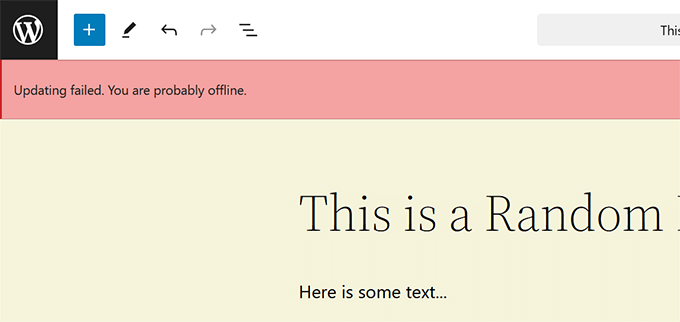
Credit: www.wpbeginner.com
Server Configuration Issues
WordPress needs a certain PHP version to work well. Older PHP versions may not support new WordPress updates. This can cause the update to fail. Always check if your PHP version meets WordPress requirements. Updating to the latest PHP version helps solve this issue. Your hosting provider can assist with this update.
A database connection error can stop WordPress updates. This happens when WordPress cannot talk to the database. The database holds all your site’s data. When this link breaks, updates fail. Check your database credentials. They need to match the ones in your WordPress config file. Fixing these details can solve update failures. Contact your host for more help if needed.
Plugin Or Theme Conflicts
Plugins can sometimes cause issues. Conflicting plugins lead to update failures. Check your plugins one by one. Deactivate each plugin and try updating. This helps find the troublemaker. Update your plugins regularly. Outdated plugins often cause problems. Read plugin reviews. They may mention conflicts. Use trusted plugins only.
Themes can also cause problems. Switch to a default theme like Twenty Twenty-One. See if updates work. Check theme settings and customizations. Revert changes if needed. Contact theme support for help. Update your theme often. Outdated themes can break your site. Theme issues need quick fixing. It keeps your site healthy.
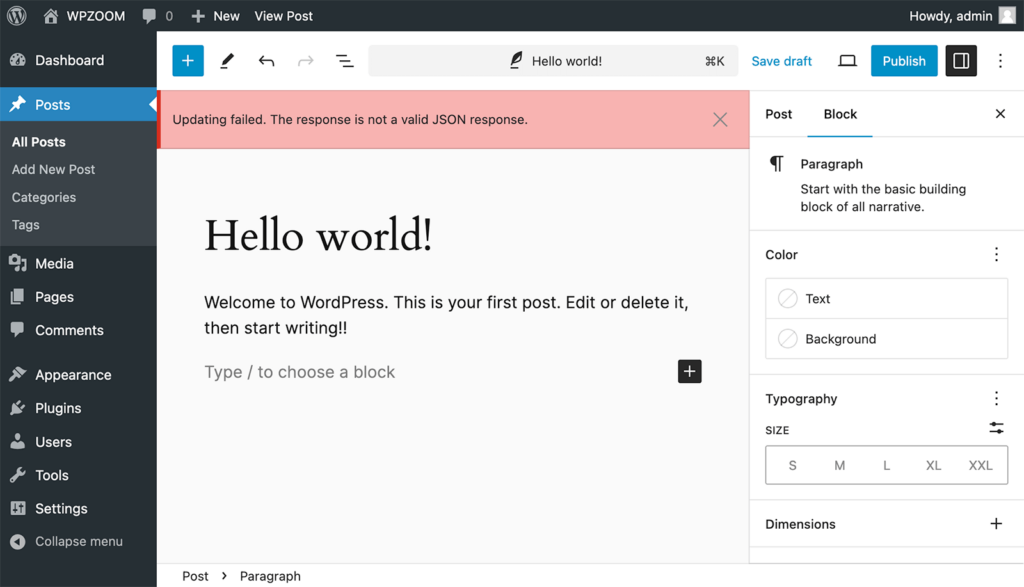
Credit: www.wpzoom.com
File Permission Problems
File permissions control who can read, write, or execute files. Wrong settings can cause errors. WordPress may fail to update. Files need proper permissions to work. Check if permissions are right.
Access your server using FTP or cPanel. Locate the WordPress folder. Right-click to see permissions. Files should have 644 permission. Folders need 755 permission. Incorrect settings can block updates.
Adjust the permissions if they are wrong. For files, set permission to 644. For folders, set permission to 755. This change can fix update issues. Always save your changes.
Memory Limitations
WordPress updates sometimes fail due to memory limits. Each site needs enough PHP memory to run tasks. Without it, updates struggle. To fix this, increase the PHP memory limit. It gives WordPress more space to work. This is done in the wp-config.php file. Users add a line of code to increase memory. For example, `define(‘WP_MEMORY_LIMIT’, ‘256M’);`. This line boosts memory to 256MB. It helps WordPress run smoothly and complete updates.
Efficient use of resources keeps WordPress healthy. Unused plugins and themes eat memory. They slow down the site. Removing them frees up space. Regular updates also help. They ensure WordPress uses resources well. Large images can be a problem too. They take up too much memory. Compressing them saves space. Cache plugins store data for quick access. They reduce memory load. These practices make WordPress updates easier.
Troubleshooting Steps
Activating debug mode can help find the problem. It shows errors on the screen. This makes it easier to fix them. To turn on debug mode, edit the wp-config.php file. Change the line that says define('WP_DEBUG', false); to define('WP_DEBUG', true);. Save the file and refresh your page. Watch for messages that tell what’s wrong.
Error logs store information about site problems. They help identify issues. Locate logs in the wp-content folder. Look for a file named debug.log. Open it to read errors. These details guide you in fixing them. Make sure to check logs often for new errors.
If problems persist, restore your site from a backup. This can bring back the last working version. Backups can save time and effort. Use plugins like UpdraftPlus or BackupBuddy for easy backups. Always keep multiple backups for safety. This way, your site can return to normal quickly.
Preventing Future Update Issues
Regular Site Maintenance is key to a smooth-running site. Check your website often. Fix any errors you find. Backup your data frequently. This way, you won’t lose important files. A clean site is a happy site.
Test updates in a Staging Environment first. This is a safe place to try changes. It won’t affect your live site. If something breaks, you can fix it here. It’s like having a practice run.
Always keep your Themes and Plugins Updated. Old versions can cause problems. They might not work with new software. Update them to keep your site safe. New versions fix bugs and add features.
Credit: themeisle.com
Seeking Professional Help
Website not working well? Could be a WordPress update issue. If errors keep happening, it might be time to get help. An expert can find problems quickly. They know what to do. Hiring a professional saves time and effort. It also prevents bigger issues. Don’t let small problems grow. Acting fast is important.
Pick a service that has a good name. Read their reviews online. See what others say about them. A good service listens to your needs. They explain things in simple words. Ask questions if you have doubts. Check their experience in solving WordPress issues. More experience often means better service. Remember, you want someone who cares about your website.
Frequently Asked Questions
Why Does WordPress Update Fail?
WordPress update failure can happen due to server issues, plugin conflicts, or insufficient permissions. Ensure your server meets WordPress requirements and check for plugin conflicts. Verify file permissions and try updating again. Regular backups can help prevent data loss during updates.
How Can I Fix WordPress Update Errors?
To fix update errors, clear your browser cache and deactivate plugins. Check your theme compatibility and review server settings. Ensure your WordPress version is compatible with your hosting environment. Update manually if automatic updates fail.
Is My Website Safe With Update Errors?
Update errors can expose security vulnerabilities. Regular updates are crucial for security patches and improvements. Always backup your site before updates. Consider using maintenance mode during updates to protect user experience.
Can Plugins Cause Update Failures?
Yes, plugins can cause update failures. Conflicting plugins may disrupt the update process. Disable all plugins and try updating again. Reactivate them one by one to identify the problematic plugin. Regularly update plugins to ensure compatibility.
Conclusion
Understanding “Update Failed” on WordPress helps solve common issues. First, check your internet connection. Sometimes, a weak signal causes problems. Also, review your plugin compatibility. Updates may conflict with outdated plugins. Lastly, ensure enough server space for updates. Clearing unnecessary files can free space.
By addressing these areas, you can avoid update failures. Keep your WordPress running smoothly. Regular maintenance prevents future errors. Stay proactive, and enjoy seamless updates. WordPress works best with attention to detail. Explore solutions and keep your site efficient and user-friendly.



