
Are you experiencing sluggish performance on your WordPress site? Or perhaps you’ve noticed that the latest updates to your content aren’t appearing as they should?
You’re not alone. These issues are common, and the solution might be simpler than you think: purging your cache. But what does purging a cache on a WordPress site actually mean, and why is it crucial for your website’s performance?
Imagine having the power to instantly refresh your site, ensuring that every visitor experiences the most up-to-date and seamless browsing experience. By the end of this article, you’ll understand how purging your cache can improve your website’s speed and reliability, enhance your SEO, and ultimately keep your audience engaged and satisfied. Let’s dive in and unlock the secrets to a faster, more efficient WordPress site!
Cache Basics
A cache is a place to store data. It keeps data for quick access. Your computer uses cache to speed up processes. Websites use cache to load faster. It’s like a shortcut. Without cache, everything takes longer.
Cache makes websites load faster. It saves copies of pages. Users see saved pages quickly. This reduces loading time. Faster websites give better experiences. People like quick sites. They stay longer. They visit more pages.
WordPress Caching
Caching makes websites faster. It saves data for quick use. Browser cache stores files locally. Page cache saves HTML files. Database cache stores database queries. Object cache keeps repeated data. Opcode cache saves compiled PHP code. Each type helps speed up the site.
Plugins help with caching. They are easy to install. W3 Total Cache is popular. It boosts site performance. WP Super Cache is simple. It creates static files for speed. WP Rocket offers quick setup. It optimizes many things. LiteSpeed Cache works with LiteSpeed servers. It has advanced features.
Purpose Of Purging Cache
Purging the cache can make a website faster. Old data slows down loading times. Clearing the cache removes this data. The site loads new data quickly. Visitors get a smooth experience. Pages open faster. Users do not wait long.
Purging cache shows the latest content. Old cache can show outdated information. Clearing cache updates the site. Fresh content appears to users. New articles and posts are visible. Visitors see the current data. This keeps the site relevant.
Credit: wp-rocket.me
When To Purge Cache
Purging cache is key after site updates. New content might not show until cache clears. Visitors may see old pages. This confuses them. Clear cache to refresh changes. This ensures users see the latest. Site performance improves too.
Cache problems can mess with the display. Images might not load right. Text formatting could be off. Purging cache fixes these issues. It helps pages load correctly. Clearing cache is an easy solution. This keeps your site looking good.
Methods To Purge Cache
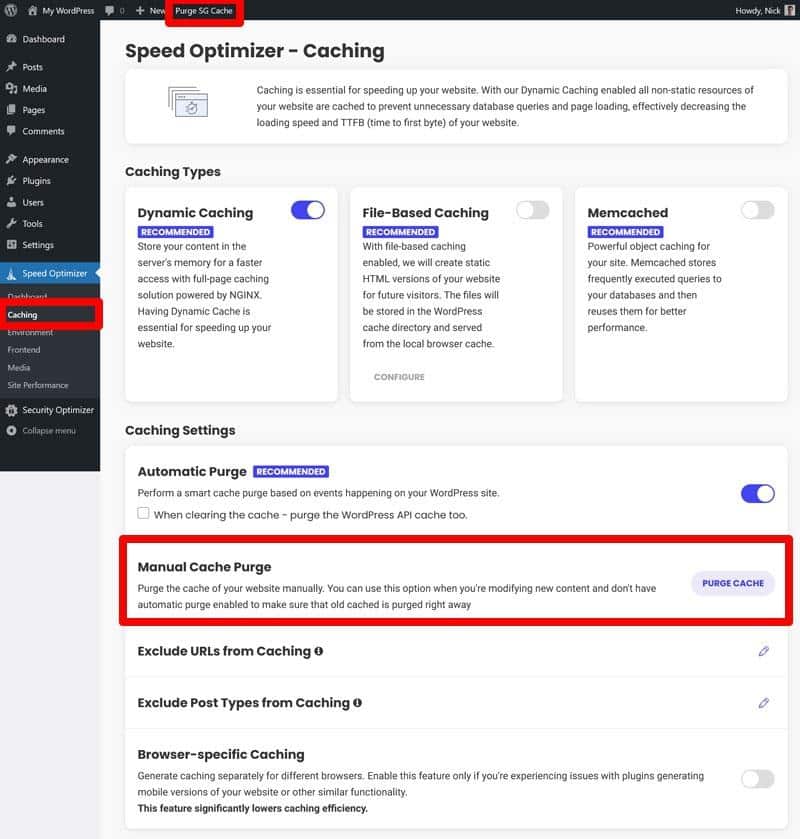
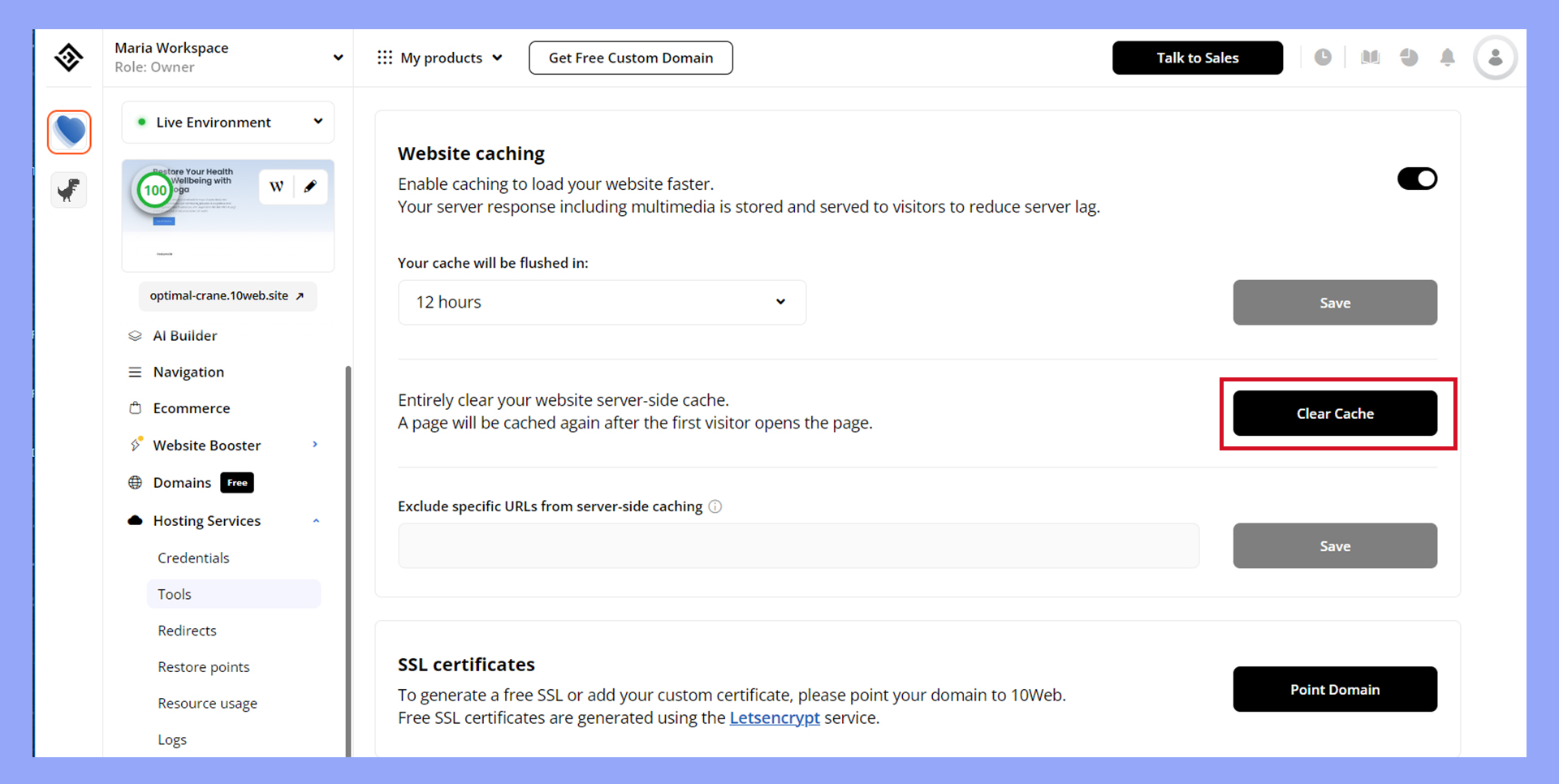
Purging a cache on a WordPress site clears stored data. This helps show the latest changes. Methods include plugins or manual server settings adjustments. Regular cache purges ensure users see updated content.
Using Plugins
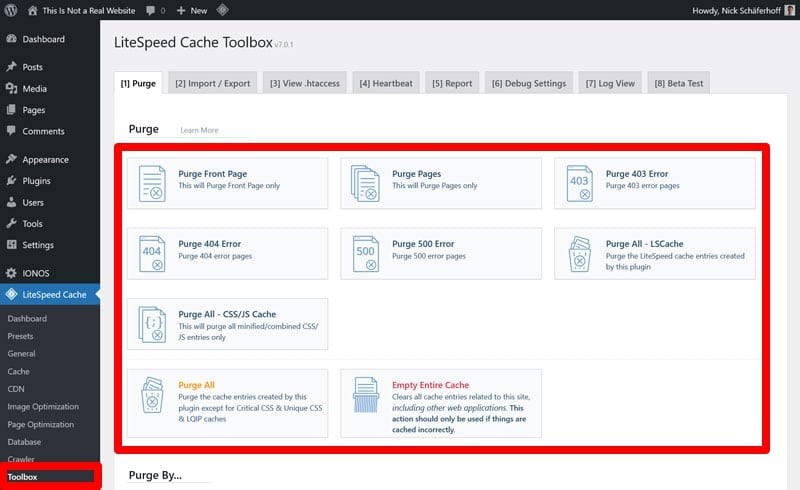
Plugins help clear cache easily. They offer user-friendly tools. Popular plugins include WP Super Cache and W3 Total Cache. Install the plugin. Activate it. Click the purge cache button. Wait for it to finish. Updates happen automatically. It’s simple and quick. Always check settings. Plugins may have extra features. Use them wisely.
Manual Purging
Manual purging needs access to server files. Log in to your server. Find the cache folder. Delete cache files. Careful not to remove other files. Manual purging takes more time. Backup before you start. Mistakes can cause issues. Regular purging keeps your site fast. It’s a good practice.
Credit: wp-rocket.me
Impact On Website
Purging a cache on a WordPress site refreshes stored data, boosting website speed. This action improves user experience by ensuring visitors see the latest content. It can also resolve issues related to outdated elements, enhancing overall performance.
Performance Benefits
Purging a cache can make a site load faster. Old data is removed. Fresh data replaces it. Users see updated pages quickly. This helps with site speed. Faster sites keep visitors happy. They stay longer. Search engines like fast sites. This may boost search rankings.
Potential Drawbacks
Cache purging may cause temporary slowdowns. The server may work harder. It rebuilds the cache. This can use more resources. If done too often, it may strain the server. Some plugins may not work well. This can lead to errors. Site owners need to be careful. They should have a backup plan.
Common Mistakes
Purging a cache on a WordPress site often gets overlooked. Many forget that cached data can display outdated content. Regularly clearing the cache ensures visitors see the latest updates, improving the site’s performance and user experience.
Over-purging
Clearing the cache too often can slow your site. Users think it fixes problems. But it can do harm. Content might load slower. This makes visitors unhappy. They leave your site fast. Traffic drops. Be careful not to over-purge. Do it only when needed.
Ignoring Cache Issues
Some ignore cache problems. Old files stay on the site. This makes the site look broken. Visitors get confused. They see outdated content. Fixing cache issues is important. Check your site for errors often. Make sure everything is up to date. This keeps your site healthy.
Best Practices
Purging a cache on a WordPress site means clearing stored data to show updated content. This helps improve website performance and ensures visitors see the latest changes. Regular cache purging can prevent outdated content from displaying to users.
Scheduled Purging
Setting up a regular schedule for cache purging is smart. It keeps your site running smooth. You won’t face slowdowns or errors. Weekly purging works well for most sites. Some sites may need daily purging. Always consider your site’s traffic and size. Large sites may need more frequent purging. A plugin can help automate this task. This saves you time and effort. Automation ensures purging happens on time. Consistency is key to effective cache management.
Monitoring Cache Performance
Regular checks on cache performance are crucial. Look for speed changes on your site. A slow site can lose visitors. Use tools to measure load times. Compare them before and after purging. Keep track of any errors or warnings. Logs can provide useful insights. Fix issues quickly to avoid problems. Efficient cache management boosts user experience. Happy visitors stay longer on your site.
Credit: 10web.io
Frequently Asked Questions
What Is Cache Purging In WordPress?
Cache purging in WordPress refers to clearing stored data for quicker loading. It removes outdated or corrupt cache files, ensuring visitors see the latest version of your site. Regular purging enhances performance, resolves display issues, and ensures content accuracy.
How Does Cache Affect WordPress Performance?
Cache significantly boosts WordPress performance by storing static files. This reduces server load and speeds up page loading times. When cache is outdated, it can cause display errors. Regular purging ensures that users receive the most up-to-date content.
Why Should You Purge Cache Regularly?
Regular cache purging ensures your WordPress site displays fresh content. It prevents errors caused by outdated cache files. Moreover, it improves site speed and user experience. Regular purging is essential for maintaining optimal site performance and content accuracy.
How Do You Purge Cache On WordPress?
To purge cache on WordPress, use a caching plugin like W3 Total Cache or WP Super Cache. Navigate to the plugin settings and select the option to clear or purge cache. This process is typically quick, ensuring your site displays the most recent content.
Conclusion
Purging a cache on a WordPress site keeps it running smoothly. It helps improve load times by clearing outdated files. Regular cache purges ensure fresh content displays to visitors. This practice enhances user experience and boosts site performance. Remember, a faster site keeps visitors happy and engaged.
Check your caching plugin settings for easy management. Set up automatic purges if possible. This saves time and effort. Keep your website efficient and up-to-date. Purge your cache often and enjoy a seamless online presence. Your audience will thank you with their continued visits.



