
Have you ever wondered what it means to attach an image in WordPress? You’re not alone.
As you build your website, images play a crucial role in engaging your audience and elevating your content. But are you using them effectively? Attaching an image in WordPress can seem like a simple task, but it has the potential to transform your site’s aesthetics and functionality.
Understanding this process is not just about knowing how to upload a picture; it’s about creating a visual impact that resonates with your visitors. Imagine your posts capturing attention and your pages standing out. Are you ready to unlock the secrets behind attaching images in WordPress and enhance your site’s appeal? Dive into this article to discover how you can leverage images to boost your website’s performance and captivate your audience.
Basics Of Image Attachment
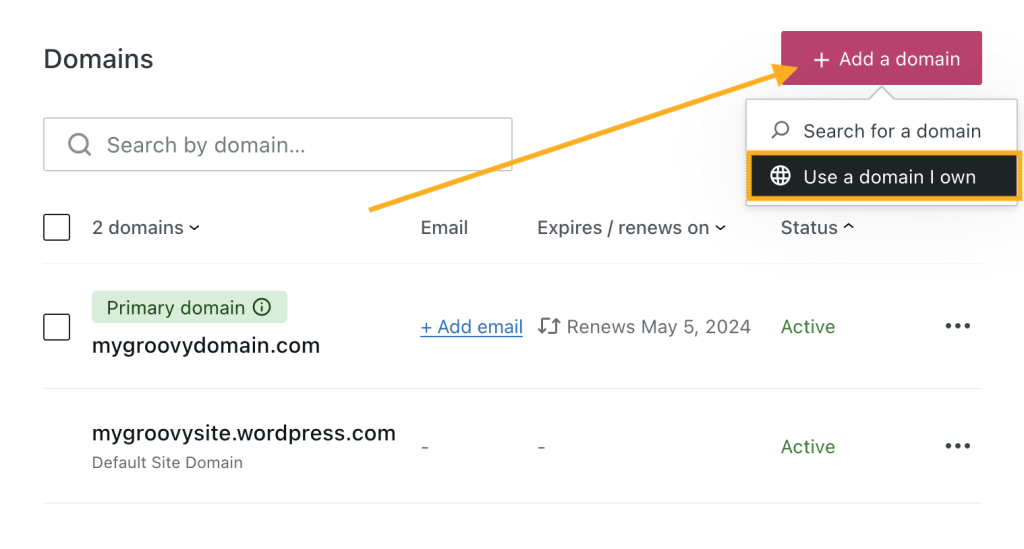
Attaching images in WordPress is simple. Images can make your post look better. They help show ideas clearly. To add an image, go to the media section. Upload your picture there. It’s quick and easy. You can choose where the image goes. Place it at the top or middle. You can add a caption too. A caption tells more about the image. Size matters, so pick the right size. Large images might slow down your page. Small images load faster. Always use clear images. Blurry pictures are hard to see. Make sure your image fits your post theme. This helps readers understand better.
Credit: wordpress.com
Uploading Images
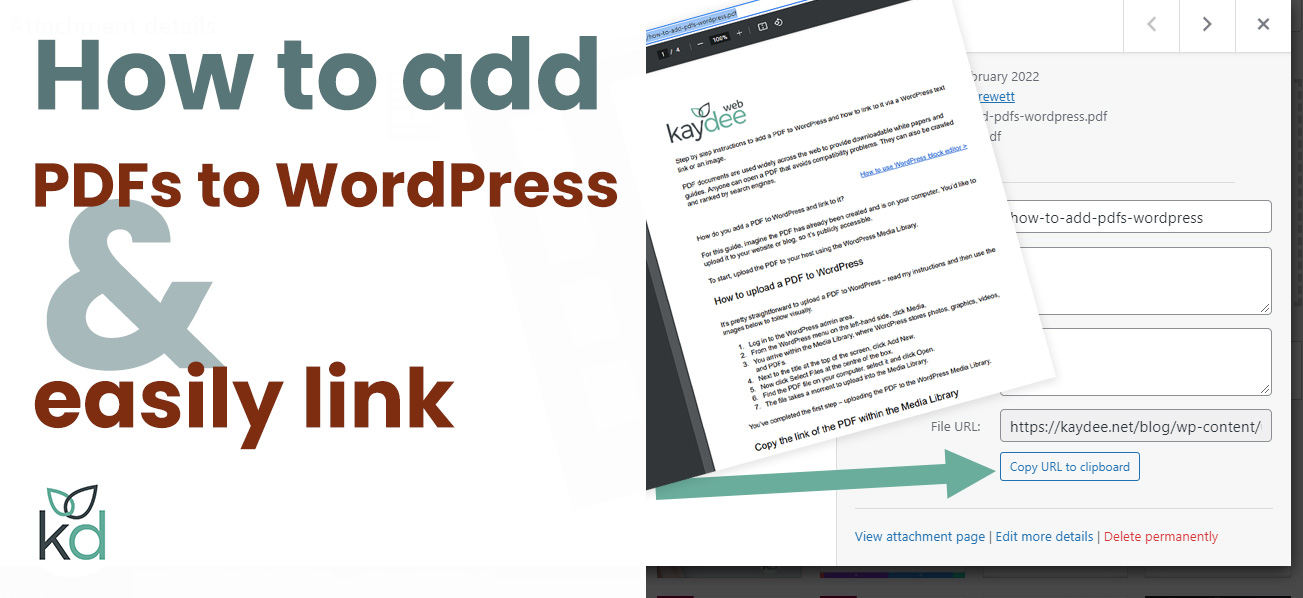
Images make blog posts beautiful. Uploading them in WordPress is simple. First, click on the ‘Add Media’ button. This opens a new window. You see the upload area here. Click on the ‘Select Files’ button. Choose an image from your computer. Wait a few seconds. The image will appear in your library. You can also drag and drop images. This is quick and easy.
After uploading, you can edit the image. Change the size, add captions, or set alignment. Don’t forget to click ‘Insert into post’ when ready. This adds the image to your blog post. Images help readers understand your content. They make posts more engaging. Use good images to improve your blog.
Media Library Features
The Media Library in WordPress helps you manage images. You can easily upload, edit, and organize files. It supports different file types like JPEG, PNG, and GIF. You can use the drag-and-drop feature to upload images fast. This tool also allows you to add descriptions and titles to your files. These details help in improving SEO. You can also search for images quickly using the search box. This makes finding files very easy. The library allows you to delete files you no longer need. This keeps your storage clean and organized. Additionally, you can view images in a list or grid format. This flexibility helps in managing your files better.
Image Editing Options
Cropping helps to cut out unwanted parts of an image. This makes the image fit better in your post. Resizing changes the size of the image. It can be made bigger or smaller. These tools help your images look just right. They make your blog look neat and tidy.
Sometimes images are not straight. Rotation fixes this. You can turn the image left or right. Flipping changes the image’s direction. You can flip it upside down or sideways. These tools help make sure your images look how you want.
Adding Images To Posts
Adding images in the Block Editor is easy. Click the “Add Block” button. Choose the “Image” block. Upload your image from your computer. You can also choose from the media library. Once added, adjust the image size. Use the toolbar to align your image. You can also add a caption below the image. This makes your post more interesting. Pictures help readers understand better.
The Classic Editor is a bit different. Click the “Add Media” button above the text area. Choose an image from your computer. Or pick one from the media library. After selecting, click “Insert into post”. You can also adjust the size here. Align the image as needed. Adding a caption is optional. Images make your posts lively. They catch the reader’s eye.
Credit: kaydee.net
Optimizing Image Seo
Alt Text Importance is crucial for images. It helps search engines understand your images. Alt text describes the image content. Make it short and clear. Use simple words. Describe what the image shows. This helps people who can’t see the image. Alt text improves accessibility. It also boosts your SEO. Search engines use alt text to index images. This can improve your website ranking. Keep it under 125 characters.
Image Titles and Descriptions are also important. They give more information about images. Titles should be short and descriptive. Use relevant keywords. Descriptions provide extra details. They help users understand the image better. Both title and description play a role in SEO. Clear titles and descriptions can attract more visitors. They also make your site more user-friendly.
Managing Image Galleries
To create a gallery, pick the images you like. Click on the “Add Media” button. Next, select “Create Gallery” from the menu. Choose your images and hit “Create a new gallery”. Now, you can see your images. Arrange them in the order you want. Use drag and drop to move them.
After creating a gallery, you can change its look. Use the settings on the right. Change the number of columns. Choose the size of the images. You can also add captions to each image. Captions help explain the picture. Make your gallery fit your style.
Image Formats And Compatibility
Different image formats work in WordPress. The most common are JPEG, PNG, and GIF. JPEG is great for photos. It keeps them clear but small in size. PNG is best for graphics. It shows colors well and keeps the background clear. GIFs are moving images. They are fun and catch attention. WordPress supports these formats easily. But, each format has its own use. Knowing which one to choose is key. Pick the right format for the job. This makes your website look good and work fast. Choose wisely, and your site will shine.
Common Image Attachment Issues
Upload errors can be frustrating. Sometimes, images won’t upload at all. First, check the file size. Too big? Resize the image. Next, check the file type. WordPress likes JPEG, PNG, and GIF. If it’s different, convert it. Internet speed matters too. Slow speed causes errors. Try again later. Always update your plugins. Old ones can cause problems.
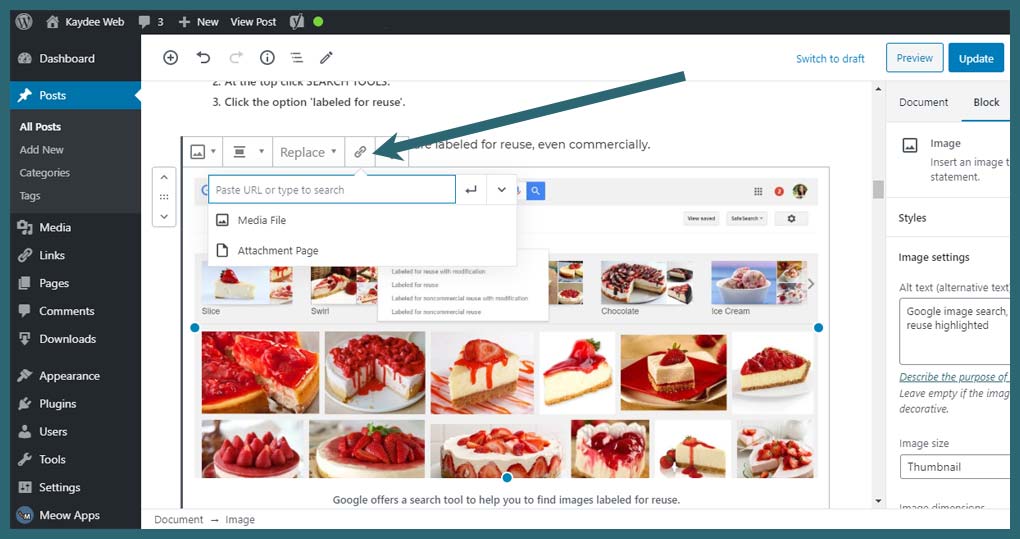
Images may not display correctly. Check your theme settings. Sometimes, themes crop images. Adjust the settings if needed. Also, check image alignment. Misalignment makes pages look bad. Use WordPress’s editor to fix it. Image links can break. Ensure the URL is correct. Broken links lead to missing images. Finally, clear your cache. Cached pages show old images. Refresh to see changes.
Credit: kaydee.net
Frequently Asked Questions
How Do I Attach An Image In WordPress?
Attaching an image in WordPress is simple. Go to the post or page editor, click ‘Add Media’, select or upload your image, and click ‘Insert into post’. This embeds the image directly into your content, enhancing visual appeal and engagement.
What Formats Are Supported For Images?
WordPress supports common image formats like JPEG, PNG, GIF, and WebP. These formats are widely used for web images due to their compatibility and quality. Ensure your images are in one of these formats for optimal display and performance on your WordPress site.
Can I Edit Images In WordPress?
Yes, WordPress has basic image editing features. You can crop, rotate, and resize images directly in the media library. These tools help you optimize image dimensions and orientation before embedding them into your content.
Why Should I Attach Images To Posts?
Attaching images enhances content engagement and readability. Images break up text, illustrate points, and make articles more visually appealing. They can also improve SEO by providing alt text and descriptions, helping search engines understand your content better.
Conclusion
Attaching images in WordPress is simple. Just upload and insert. Images enhance your blog’s appeal. They engage readers and improve understanding. Use relevant images. They should complement your text. Optimize them for faster loading. This helps with SEO. Always name files wisely.
Use descriptive titles. This boosts search visibility. Don’t forget alt text. It aids accessibility and SEO. Keep image sizes manageable. Avoid slow page loading. Regularly update your site. Keep it fresh and dynamic. WordPress makes image attachment easy and effective.
Start using images today. They’ll enrich your content significantly.



