
You’ve just installed WordPress on GoDaddy, and now you’re wondering what comes next. It’s like opening a new book; the pages are blank, waiting for your story.
But where to begin? How do you transform this fresh installation into a vibrant website that captures attention and drives engagement? This is where the real magic happens, and you’re about to dive into it. You’ll learn simple steps to shape your website, from choosing the perfect theme to optimizing settings for peak performance.
Let’s unlock the secrets together, ensuring your site stands out and serves its purpose. Ready to turn your vision into reality? Keep reading to discover how to make the most of your new WordPress site.
Accessing Your WordPress Dashboard
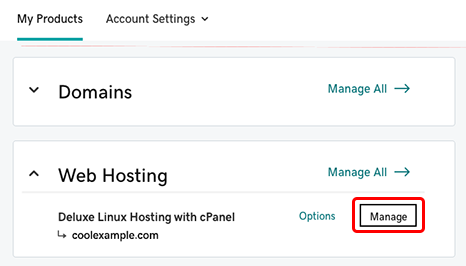
First, you need to log in to your GoDaddy account. Find your WordPress installation in the account dashboard. Click the link to access your WordPress site. Use your login details to enter the WordPress dashboard. This space is where all the work happens. You will see options to add new posts, pages, and media. Explore these features to understand the basics. Make sure to check your settings and customize your site. You can change themes and install plugins. Take your time to learn and explore. The dashboard is your main tool for website management.
Choosing A Suitable Theme
After installing WordPress on GoDaddy, picking a suitable theme is vital. Choose one that matches your site’s purpose and is responsive. Ensure it supports plugins and offers customization options for a tailored look.
Free Vs Premium Themes
Free themes are often simple and easy to use. They can be a good choice for beginners. But some free themes have limited features. Premium themes offer more options. They often have better designs and support. Choosing between free and premium depends on your needs. Free is good for small sites. Premium works well for larger sites with specific needs. Always check user reviews before choosing a theme. Reviews can help you understand a theme’s quality.
Installing A Theme
To install a theme, go to your WordPress dashboard. Click on “Appearance” then “Themes.” You will see an option to “Add New.” Click it. Use the search bar to find themes. Choose a theme you like. Then click “Install” and “Activate.” Your new theme is now live. Make sure to check if the theme works well on your site. Visit your site to see the changes.
Installing Essential Plugins
SEO plugins help your site rank better. They make your content easy to find. The Yoast SEO plugin is popular. It is easy to use. All in One SEO is another choice. Both plugins help with keywords. They also help with meta tags.
Security plugins keep your site safe. They stop hackers. Wordfence is a good option. It scans your site for threats. iThemes Security is also great. It locks out bad users. Both plugins protect your passwords.
Performance plugins make your site fast. Fast sites keep visitors happy. WP Super Cache speeds up your site. It saves web pages in a cache. W3 Total Cache is another tool. It boosts loading times. Both plugins help with speed.
Credit: www.godaddy.com
Configuring Basic Settings
Set your permalink structure for better links. Go to Settings and then Permalinks. Choose Post name for a simple link. This helps in SEO and makes links easy to read.
Your site title is important. It shows what your site is about. Go to Settings, then General. Enter a catchy title. Add a short tagline. This helps visitors know your site quickly.
Set the correct timezone for your site. Go to Settings, then General. Choose your city or timezone. Pick a date format that you like. This helps your posts show the right time and date.
Creating Important Pages
The About Page tells visitors who you are. It shares your story. This page builds trust. Use simple words. Keep sentences short. Add a picture. Show your face. People like to know who they’re reading about. This page should be easy to read. Make it friendly. Make it personal. Share why you started your site. This helps people connect with you.
This page lets people reach you. Add a form. Ask for their name and email. Be sure to include your email too. Some people prefer direct email. Keep it simple. Make sure it works. Test the form. Get help if needed. Your visitors should find this page easily. Place it in the menu at the top.
A Privacy Policy tells users how you use their info. It’s important. This page must be clear. Explain what data you collect. Say why you need it. Mention third parties if any. Be honest. People value privacy. Make sure it’s easy to find. Put a link in the footer. Many people look there for this info.
Setting Up Menus And Navigation
Menus help users find information on your website. They should be clear and easy to use. Start by going to the WordPress dashboard. Find the Appearance tab. Click on Menus. This is where you create and edit your menus.
Add new pages by selecting them from the list. Drag and drop to arrange the order. Make sure important pages are easy to find. You can add categories and custom links too. Use simple names for your menu items.
After creating your menu, assign it to a location. This is usually the header or footer. Check your website to see if the menu looks right. Adjust if needed. Good menus improve user experience. They make it easier for visitors to navigate.
Customizing Your Site’s Appearance
The Customizer helps you change your website’s look. It’s easy and fun. You can change colors, fonts, and more. Try different themes to see what you like best. Each theme gives your site a unique feel. The live preview shows changes instantly. No need to guess how it looks. Use the Customizer to make your site yours. It’s like painting a picture of your own.
Widgets are small tools that add features. They make your site more useful. You can add a search bar or recent posts. Drag and drop them into place. Widgets live in the sidebar or footer. They help users find what they need. Adding widgets is simple. Just go to the Widgets section. Choose what fits your site. They make your site better and easier to use.
Credit: www.godaddy.com
Enhancing Security Measures
Many people use the default admin username. This can be risky. Hackers often target default usernames. It is important to change it. Choose a unique username. This makes your site safer. Avoid using “admin” or your name. Use a mix of letters and numbers. This keeps your site more secure.
Two-Factor Authentication adds an extra layer of security. It needs two steps to login. First, enter your password. Second, use a code from your phone. This code changes every time. Even if someone knows your password, they can’t log in without your phone. Many plugins offer this feature. It’s easy to set up. It keeps your site safer from hackers.
Optimizing For Search Engines
Begin by setting up essential plugins like Yoast SEO. Customize your site’s permalinks for better URL structure. Focus on creating quality content to enhance visibility and engage visitors effectively.
Configuring Seo Settings
After installing WordPress on GoDaddy, focus on SEO settings. First, install an SEO plugin. Popular choices are Yoast SEO or All in One SEO. These plugins help optimize your site. They guide you in setting meta tags and descriptions. Set a unique title for each page. Titles should be brief and clear. Use keywords but avoid stuffing them. Aim for natural placement.
Next, ensure your permalinks are SEO-friendly. Go to settings, then permalinks. Select “Post name” for clear URL structures. This helps search engines understand your pages better. Also, enable breadcrumbs if your theme supports them. Breadcrumbs improve navigation and boost SEO.
Submitting A Sitemap
A sitemap helps search engines find your pages. It lists all your website’s URLs. First, generate a sitemap using your SEO plugin. Find the sitemap option in the plugin settings. Click to generate one. Copy the sitemap URL provided.
Next, submit the sitemap to Google Search Console. Log in to your Google account. Go to the console dashboard. Click on “Sitemaps” in the side menu. Paste the URL and submit it. This process helps search engines index your site quickly. Regularly check for sitemap errors. Fix them promptly to maintain site health.
Backing Up Your WordPress Site
After installing WordPress on GoDaddy, it’s crucial to back up your site. Regular backups protect against data loss. Use plugins like UpdraftPlus or BackupBuddy for easy and reliable backups.
Choosing A Backup Solution
Picking the right backup tool is very important. Many plugins help with backups. Some popular ones include UpdraftPlus and BackWPup. They are easy to use. You can find them in the WordPress plugin store. Always choose a plugin that is trusted and has good reviews. A good backup solution will keep your data safe.
Scheduling Regular Backups
Backups should happen often. Set a schedule for backups. Weekly or daily backups are best. Automatic backups save time. They ensure you never forget to backup. Most plugins have automatic options. Just set it once and it will work. This keeps your site secure and your data safe.
Credit: www.godaddy.com
Frequently Asked Questions
How Do I Access My WordPress Dashboard On Godaddy?
After installing WordPress on GoDaddy, access your dashboard by visiting your domain followed by “/wp-admin”. Log in with your credentials. This interface allows you to manage your site, customize themes, and install plugins. Regularly update your WordPress version and plugins for better security and performance.
What Plugins Should I Install First On WordPress?
Start by installing essential plugins like Yoast SEO for optimization, Akismet for spam protection, and Jetpack for security. Consider WooCommerce if running an online store. Each plugin enhances functionality and improves user experience. Regularly update them to ensure compatibility and security on your WordPress site.
How Can I Change My WordPress Theme On Godaddy?
To change your theme, log into your WordPress dashboard, go to Appearance, and select Themes. Browse available options and click ‘Activate’ to apply a new theme. Customizing themes allows you to adjust your site’s appearance and functionality. Regularly update themes to maintain a fresh and secure website.
Is Backing Up WordPress On Godaddy Necessary?
Yes, backing up your WordPress site is crucial. Use plugins like UpdraftPlus or BackWPup for automatic backups. Regular backups ensure your data is safe from hacks or server issues. Store backups in multiple locations for added security. This practice protects your content and minimizes downtime.
Conclusion
After installing WordPress on GoDaddy, focus on customizing your site. Choose a theme that fits your brand. Install necessary plugins for added functionality. Always keep your site secure with regular updates. Create engaging content that resonates with your audience. Optimize your site for search engines to increase visibility.
Monitor your site’s performance using analytics tools. Stay consistent with updates and improvements. Enjoy your journey as a website owner. Keep learning and adapting to new trends. Your online presence will grow stronger over time. Success comes with patience and persistence.



