
Have you ever wondered why the header image on your WordPress site just doesn’t look quite right? Perhaps it’s too tall, or maybe it’s not as prominent as you’d like it to be.
Understanding what controls the height of your header image in WordPress can be a bit puzzling, but don’t worry—you’re not alone. Many WordPress users face this challenge, and you’re about to discover exactly how to gain control over it. Imagine having the power to make your website’s header image perfectly fit your vision, enhancing your site’s overall appeal and effectiveness.
By understanding the mechanics behind header image height, you can create a visually stunning website that captures your audience’s attention from the very first glance. Dive into this article, and you’ll gain valuable insights into how WordPress themes, CSS, and image settings influence your header image’s height. Unravel the mystery, and transform your website into a masterpiece that stands out in the crowded digital landscape.
Credit: enginescout.com.au
Theme Settings
Many themes let you adjust the header image height. This feature is found in the theme’s settings. A slider or input box might be used for this. Smaller headers can make the design neat. Larger headers can showcase images better. It’s all about the look you want.
Some themes have unique options for header height. These settings can change the layout a lot. Each theme has different settings. Checking the theme documentation can help. It’s important to find the best settings for your site. Your theme might even let you set a fixed height. This is useful for consistency across pages.
Credit: enginescout.com.au
Css Modifications
Custom CSS can change the header image height. Locate the CSS section in your WordPress dashboard. It is often under Appearance or Customize. Add new CSS rules to adjust the image height. Set a specific height using pixels or percentages. For example, use height: 200px; to set the height to 200 pixels. Use height: 50%; to make it half the size of the container. Save your changes after editing. Check the preview to see the effect.
Media queries help with responsive design. They change styles for different devices. Add media queries in your CSS. Use them to adjust the header image for small screens. For example, use @media (max-width: 600px) { .header-image { height: 150px; } }. This code sets the image height to 150 pixels on small devices. Test your site on different screens. Ensure the header looks good everywhere.
Plugins For Header Control
Plugins for header control adjust the height of header images in WordPress. These tools allow customization of header size, offering flexibility in design. Users can easily manage dimensions to suit aesthetic preferences and improve website appearance.
Popular Header Plugins
Many plugins help control the header in WordPress. Elementor is a favorite among users. It offers drag-and-drop features. Beaver Builder is another useful tool. It provides easy customization options. Header Footer Elementor allows specific header designs. It works well with many themes. WP Header Images lets you add different headers to pages. This plugin is good for varied designs. Lastly, SiteOrigin Page Builder is known for its flexibility. It supports responsive designs and is user-friendly. Choosing the right plugin helps improve site visuals.
Plugin Configuration
Configuring plugins is simple. First, install the plugin from the WordPress store. Next, activate it to start using its features. Open the plugin settings to make changes. Adjust the height, width, and style of headers. Use sliders for easy size changes. Some plugins offer predefined templates. These templates can save time. Always preview changes before saving. This ensures everything looks right. Regular updates keep plugins working well. Keep plugins updated for the best performance.
Responsive Design Considerations
Phones have small screens. So, header images need to fit. This helps in making the website look good. A tall image might not look nice. It can push content down. Adjusting the height is important. It keeps the website neat. Using CSS, images can be resized. It allows them to fit well. This ensures better user experience. Always test on different phones.
Desktop screens are bigger than phones. Tablets are in the middle. Header images can be taller on these devices. But, they should not be too tall. Balance is key. The image must fit without scrolling. CSS media queries can help. They adjust image sizes based on screen size. This makes the site look consistent and professional.
Image Aspect Ratio
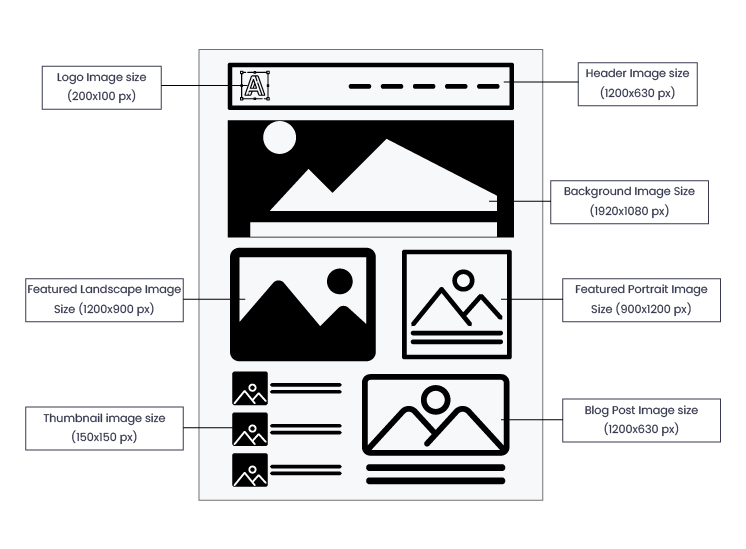
Picking the correct image size is important. A wide image might look stretched. A tall image might get cut off. Always check the recommended size in your theme. This can help your image fit better.
Cropping means cutting parts of the image. This can help focus on the main part. Scaling changes the image size but keeps the same parts. Use tools in WordPress to crop and scale. This helps make the image fit better.
User Preferences And Accessibility
Enhancing User Experience is important for any website. A header image can make a site look nice. It should be the right size for all devices. Users like to see images that fit well. Too big or too small can be bad. Good size helps users stay on your site.
Accessibility Standards are key for everyone. Some people might have trouble seeing images. Images should be clear and easy to see. They need to be the right size for all users. This helps everyone enjoy your site. It is important to think of all users when choosing image size.
Credit: wpexperts.io
Frequently Asked Questions
How To Adjust Header Image Height In WordPress?
The header image height in WordPress is controlled by your theme settings. You can adjust it via the customizer. Navigate to Appearance > Customize > Header. Here, you can change dimensions. If your theme doesn’t support this, custom CSS might be needed.
Consult your theme documentation for precise instructions.
Can Plugins Alter Header Image Height?
Yes, plugins can modify header image height in WordPress. Some plugins offer advanced customization options. They allow you to resize or change header images. Ensure compatibility with your theme before installation. Popular plugins include Elementor or Beaver Builder for detailed header adjustments.
Do Different Themes Affect Header Image Height?
Absolutely, themes significantly influence header image height. Each theme has unique settings and styles. Some offer flexible customization, while others have fixed dimensions. Check your theme’s documentation for specifics. Choosing a theme with adjustable header settings gives you more control over its appearance.
Is Custom Css Needed For Header Image Height?
Custom CSS can be essential for header image adjustments. If theme settings don’t offer height control, CSS provides flexibility. Add custom code via Appearance > Customize > Additional CSS. Ensure correct syntax to avoid issues. Always back up your site before making CSS changes.
Conclusion
Understanding header image height in WordPress enhances your site’s appearance. Adjusting it is simple and effective. Use themes and customization settings. Tailor images to fit your design needs. This helps create a visually appealing website. Keep experimenting with different sizes and formats.
Find what works best for your content. Remember, a well-sized header attracts visitors. It also improves user experience. So, take the time to optimize. Your site will benefit from it. Ultimately, a good header sets the tone. It’s a key part of your website’s identity.



