Are you using the Newspaper theme on your WordPress site and wondering how to keep it updated? Keeping your theme up-to-date is crucial for security, performance, and the latest features.
You might feel overwhelmed by the technical steps involved, but don’t worry—you’re not alone. This article is crafted specifically for you, to guide you through the update process with ease. Imagine having a site that’s not only visually stunning but also runs smoothly and securely.
Intrigued? Let’s dive in and transform your WordPress experience.

Credit: themeforest.net
Importance Of Updating Newspaper Theme
Updating the Newspaper Theme is crucial for your website. New updates often fix bugs and improve security. This keeps your site safe from hackers. Themes can also get new features in updates. These features make your site look better.
Sometimes, updates make the theme work faster. A fast website is important. It helps keep visitors happy. It also helps with search engine rankings. A slow site can lose visitors quickly. Updates can help avoid this problem.
Before updating, always back up your site. This keeps your data safe. If something goes wrong, you can restore it. Check for any compatibility issues with plugins. This ensures everything works well together.

Credit: themeforest.net
Preparing For The Update
Start by creating a backup of your website. This keeps your data safe if something goes wrong. Use a plugin like UpdraftPlus. Store the backup in a secure location. This step is crucial. You wouldn’t want to lose any important data.
Ensure your theme is compatible with the latest WordPress version. Compatibility issues can cause problems. Visit the theme developer’s site. Check for any notes about compatibility. This helps avoid future issues.
Read the changelog before updating. It lists all changes made. You can find out what’s new. It also informs about fixes and updates. Knowing these can help plan your update better.
Manual Update Process
Visit the theme’s official website. Look for the latest version. Click to download it. Save the file to your computer. Ensure it’s the correct version. This step is vital.
Go to your WordPress dashboard. Click on Appearance, then Themes. Click Add New at the top. Choose Upload Theme. Select the downloaded file. Click Install Now. Wait for the process to finish. Activate the theme if needed.
Open your FTP client. Connect to your website server. Navigate to /wp-content/themes/. Delete the old theme folder. Upload the new theme folder. Ensure all files are copied. Check your site for changes.
Automatic Update With Envato Market Plugin
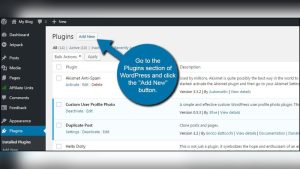
First, download the Envato Market Plugin from their website. Save it to your computer. Next, go to your WordPress dashboard. Click on “Plugins” and then “Add New”. Upload the plugin file you downloaded. Click “Install Now” and then “Activate”. The plugin is now ready to use. It’s very easy to set up. This plugin helps keep your theme updated.
Open the Envato Market settings in your dashboard. You need to connect your Envato Account. Find your Envato API token. You can get it from the Envato website. Enter the token in the plugin settings. Click “Save Changes”. Now your account is connected. This lets the plugin find updates for your theme.
Go to the Envato Market page in your dashboard. It shows your purchased themes. If an update is available, you will see a notice. Click “Update” next to the theme. The plugin updates it for you. No need to download anything. It’s quick and simple. This keeps your theme current and secure.
Post-update Checklist
Updating the Newspaper Theme in WordPress ensures your site stays fresh and secure. After updating, check plugins compatibility and review site design for any changes. Test site functionality to ensure smooth user experience and fix any issues promptly.
Verify Theme Functionality
Ensure all parts of the theme work well. Test the homepage layout. Check if images load correctly. Navigate through different pages. Make sure all links are clickable. Confirm the theme displays properly on mobile devices.
Check For Plugin Conflicts
Plugins can sometimes clash with themes. Disable each plugin one at a time. See if any plugin causes issues. Reactivate plugins once checked. Ensure plugins and theme run smoothly together.
Clear Cache
Cached files may cause display problems. Clear browser cache regularly. Use a plugin to clear WordPress cache. Refresh the site to see changes. A clean cache helps the site run better.
Troubleshooting Common Issues
Sometimes, updates can fail. First, check your internet connection. A stable connection is important. Next, ensure you have enough disk space. Updates need space to install. If still failing, disable all plugins. Some plugins can cause conflicts. Try updating again without plugins.
After an update, display errors can occur. Clear your browser’s cache. A full cache can show old pages. If errors persist, switch to a default theme. This helps check if the issue is theme-related. If the theme is the problem, contact the developer for support.
Sometimes, you may need to go back to an old version. Backups are important for this. Always keep backups before updating. Use your backup to restore the site. Install the old version of the Newspaper theme. This can fix new update issues.
Best Practices For Future Updates
Updating the Newspaper Theme in WordPress involves backing up your site and using the built-in update feature. Always check compatibility with plugins to avoid issues. Regular updates ensure your site remains secure and performs well.
Regular Update Schedule
Regular updates keep your site safe and fast. Plan a schedule for updates. Stick to it every month. This helps avoid big problems later.
Testing In A Staging Environment
Test updates before going live. Use a staging environment. This is like a practice area. Fix any issues here first. This keeps your main site safe.

Credit: www.gabfirethemes.com
Frequently Asked Questions
How Do I Update Newspaper Theme In WordPress?
To update the Newspaper Theme, navigate to your WordPress dashboard. Go to “Appearance” and select “Themes. ” Click on “Update” if available. Alternatively, download the latest version from the ThemeForest website and upload it manually. Always back up your site before updating to prevent data loss.
Can I Update Newspaper Theme Automatically?
Yes, you can update automatically if you enabled automatic updates. Go to the Newspaper Theme panel in your WordPress dashboard. Look for the “Automatic Updates” option and enable it. This feature ensures your theme stays up-to-date without manual intervention. Ensure you’ve entered your ThemeForest credentials correctly for seamless updates.
Why Should I Update My Newspaper Theme?
Updating ensures you have the latest features, security patches, and bug fixes. New updates often improve performance and compatibility with other plugins. Staying updated also enhances your site’s security by fixing vulnerabilities. Keeping your theme current is essential for optimal functionality and user experience.
What Happens If I Don’t Update?
If you don’t update, your site may become vulnerable to security threats. You might miss out on new features and improvements. Compatibility issues with plugins and WordPress updates can arise. Overall, not updating can lead to a suboptimal user experience and potential site malfunctions.
Conclusion
Updating your Newspaper Theme in WordPress is straightforward. Follow the steps carefully. Ensure your site remains functional and secure. Regular updates bring new features. Also, they fix bugs. Check for compatibility with plugins. Backup your site first. It prevents data loss.
An updated theme enhances user experience. It also boosts performance. Keep your website fresh and appealing. Stay informed about updates. Your site deserves the best. Happy updating!