
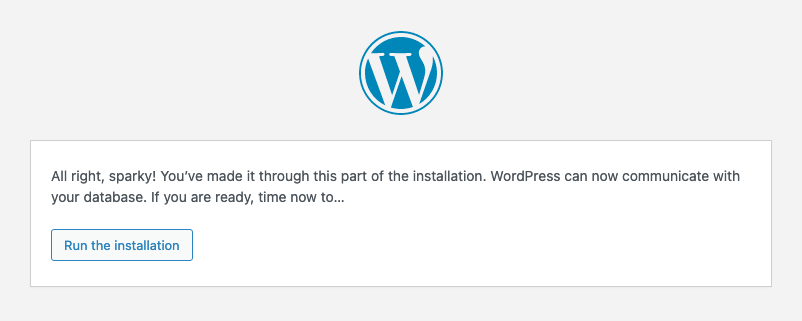
You’ve successfully installed your WordPress database, and now you’re staring at your screen, wondering what to do next. It’s a common feeling, but don’t worry – you’re not alone.
You’ve taken the first big step towards creating your website, but there’s more to discover. Imagine your WordPress database as a foundation. It’s solid, essential, and ready to support your website dreams. The next steps might seem overwhelming, but they’re also thrilling.
Each one brings you closer to launching a website that reflects your vision. In this guide, you’ll learn what to do right after installation. You’ll discover practical tips to enhance security, improve speed, and make your site stand out. Are you ready to transform your database into a fully functioning website? Let’s dive in and unlock your site’s potential, step by step.

Credit: documentation.mamp.info
Setting Up User Roles
The Administrator can do everything on the website. They can add or remove users. They can change the site settings. They have the most power.
The Editor can manage and publish posts. They can also edit other people’s posts. But they can’t change site settings.
An Author can write and publish their own posts. They can’t edit posts by others. They have fewer rights than Editors.
A Contributor can write posts. But they can’t publish them. They need someone else to approve their posts.
The Subscriber can only read posts. They can also comment on posts. They have the least rights on the site.
Credit: www.wpzoom.com
Configuring Basic Settings
Your site title is the name people see. It’s important because it tells what your site is about. The tagline is a short phrase. It gives more details about the site. Make sure both are clear and simple.
Choose the correct time zone for your location. This helps with scheduling posts. Pick a date format that looks good to you. It affects how dates appear on your site. Simple formats are often best.
Permalinks are the URLs for your posts. A good structure helps with navigation. Simple structures are easy to read. Use words that relate to your content. This helps users find your posts easily.
Theme Selection And Customization
Picking the right theme is crucial for your website’s success. A good theme enhances your site’s look and feel. Some themes are free, while others cost money. Think about your website’s purpose. Is it for a blog or business? Choose a theme that fits your needs. Look for themes with good reviews. A popular theme often means it’s reliable.
Make your website unique by customizing its appearance. Change colors and fonts to match your style. Add your logo for a personal touch. Use widgets to display extra info like social media links. Adjust the layout to suit your content. Many themes offer easy customization options. This helps you create a website that stands out.
Responsive design is important for all websites. It ensures your site looks good on phones and tablets. Most users browse on mobile devices. A responsive site improves user experience. Check if your theme supports responsive design. Test your site on different devices. Make adjustments as needed. A site that works well on all screens keeps visitors happy.

Credit: www.interserver.net
Essential Plugins Installation
Protecting your WordPress site is crucial. Security plugins help keep your data safe. They block unwanted access. These plugins scan for malware. They also provide firewall protection. Some popular ones include Wordfence and Sucuri. You can trust them to secure your site.
SEO plugins help your site rank better. They optimize your content. Keywords are important. These plugins suggest keywords. Yoast SEO is a popular choice. It guides you step by step. Another option is All in One SEO Pack. Both are user-friendly.
Backups are essential. They save your data. Backup plugins help you restore easily. Regular backups are important. UpdraftPlus is easy to use. BackWPup is another good choice. These plugins work automatically. Set them up once and relax.
Site speed matters. Performance plugins make your site faster. They optimize images. They also cache your pages. This reduces load time. W3 Total Cache is very effective. WP Super Cache is another option. Both boost your site’s speed.
Creating Content
Posts are time-sensitive. They appear in your blog feed. Pages are for static content. Pages don’t change often. Use posts for news and updates. Pages for contact info or about us sections. Posts can have comments. Pages typically don’t.
Drafting lets you save without publishing. Review before going live. Publishing makes content visible to all. Remember to check spelling. Ensure clarity before publishing. Editing is important. Make sure your message is clear. Use the preview tool to see how it looks.
Categories group posts. They are broad topics. Tags are specific details. Use both for better organization. Categories help in navigation. Tags improve searchability. Choose wisely. Too many can confuse readers. Keep it simple and relevant.
Managing Media Library
Add images to make your blog pretty. You can upload images directly. Use the Add Media button. Select files from your computer. Videos can be uploaded too. Keep them short. Large files slow down your site.
Keep your media tidy. Create folders for different files. Use names you can remember. This helps you find files quickly. Organized files save time. They make your site easy to manage.
Optimize images before uploading. Smaller images load faster. Use tools like TinyPNG. This makes your site faster. Fast sites keep visitors happy. Happy visitors stay longer.
Building Site Navigation
Setting up a menu helps users find pages easily. Go to your WordPress dashboard. Find the Appearance tab. Click on Menus. You can create a new menu there. Add pages, posts, and categories. Arrange them by dragging. Save the menu when done. This process is simple and fun.
Widgets add extra features to your site. Locate the Appearance tab again. Click on Widgets. You will see different widget options. Drag and drop widgets to your sidebar. Each widget has a purpose. Some show recent posts, others show comments. Choose what fits your site best.
Custom links guide visitors to special pages. Go back to the Menus section. Click on Custom Links. Enter the URL and link text. Add it to your menu. Custom links help you connect to other sites or resources. They make your site more useful.
Enhancing Security
Passwords should be tough to guess. Use a mix of letters, numbers, and symbols. Avoid common words. Make each password unique. Never use the same password twice. This keeps accounts safe.
Two-Factor Authentication adds an extra layer of protection. Besides a password, a code is sent to your phone. This means even if someone knows your password, they can’t access your account without your phone.
Regular Updates are important. Update your WordPress and plugins often. Updates fix security problems. They also bring new features. Outdated software can be risky. So, keep everything current.
Monitoring And Analytics
First, you need a Google Analytics account. It helps track your website’s visitors. Log into Google Analytics and create a new property. Then, get the tracking code. Add this code to your WordPress site. Use a plugin like MonsterInsights for easy setup. This will help in monitoring your site effectively.
Google Analytics tells you what visitors do on your site. See which pages they like most. Check how long they stay. Find out if they visit other pages. This data helps improve your content. Make your site more engaging.
Learn where your visitors come from. They may arrive from search engines. Others might find you through social media. Some come from direct links. Use this info to boost your online presence. Focus on popular sources to grow your audience.
Frequently Asked Questions
How To Configure WordPress After Db Install?
After installing your WordPress database, configure your site by accessing the WordPress dashboard. Start by setting up your site title, tagline, and permalinks. Customize themes and install essential plugins for security, SEO, and performance. Ensure regular backups and updates to keep your site secure and functional.
What Plugins Are Essential For WordPress?
Essential plugins for WordPress include SEO plugins like Yoast, security plugins like Wordfence, and caching plugins like WP Super Cache. Backup plugins like UpdraftPlus are crucial for data safety. These plugins enhance performance, security, and search visibility, ensuring a smooth user experience and site management.
How Do I Secure My WordPress Site?
To secure your WordPress site, use strong passwords and update software regularly. Install security plugins like Wordfence and enable two-factor authentication. Regularly back up your site and monitor activity logs. Consider using SSL certificates for encrypted connections, ensuring data protection and user trust.
Why Is WordPress Seo Important?
WordPress SEO is important for improving your site’s visibility on search engines. It helps attract more organic traffic and enhances user engagement. By optimizing content, site structure, and meta tags, you improve your site’s ranking. This leads to increased credibility and potential conversions for your business.
Conclusion
Your WordPress database is ready. Next, focus on content creation. Start by customizing your site’s theme and layout. Add engaging and relevant content. Ensure your site is mobile-friendly and loads quickly. Don’t forget to set up essential plugins. These help with SEO, security, and backups.
Regularly update your site to keep it fresh. Monitor site performance using analytics tools. Keep learning and experimenting. With patience, your site will grow. A well-maintained site attracts more visitors. Engage with your audience through comments and social media. Enjoy the journey of building your site!



