
Are you ready to take your WordPress site to the next level by updating your theme’s PHP? Whether you’re looking to enhance your site’s functionality, improve its speed, or simply fix a pesky bug, updating the PHP in your theme can make a world of difference.
But let’s face it, diving into code can be intimidating, especially if you’re not a tech guru. Don’t worry, though—you’re not alone! In this guide, I’ll walk you through the process step-by-step, demystifying the tech jargon and giving you the confidence to make those necessary updates.
Stick with me, and you’ll discover just how straightforward it can be to keep your WordPress theme up-to-date and running smoothly.

Credit: jetpack.com
Backup Your Website
Before making changes, ensure you backup your website. This keeps your files safe. Use a plugin like UpdraftPlus. It’s easy to use. Install it from your WordPress dashboard. Go to the Plugins section. Click on Add New. Search for UpdraftPlus. Click Install Now, then Activate. Open UpdraftPlus from the dashboard.
Click on the Backup Now button. Wait for the process to complete. Backups help restore your site if needed. Always keep a recent backup. Store it in a safe place. Cloud services are a good option. Consider using Google Drive or Dropbox. This ensures your data is secure and accessible.
Access WordPress Dashboard
First, log in to the WordPress dashboard. Look for the login page. Enter your username and password. Click the login button. Now, you are in the dashboard. You can see many options here.
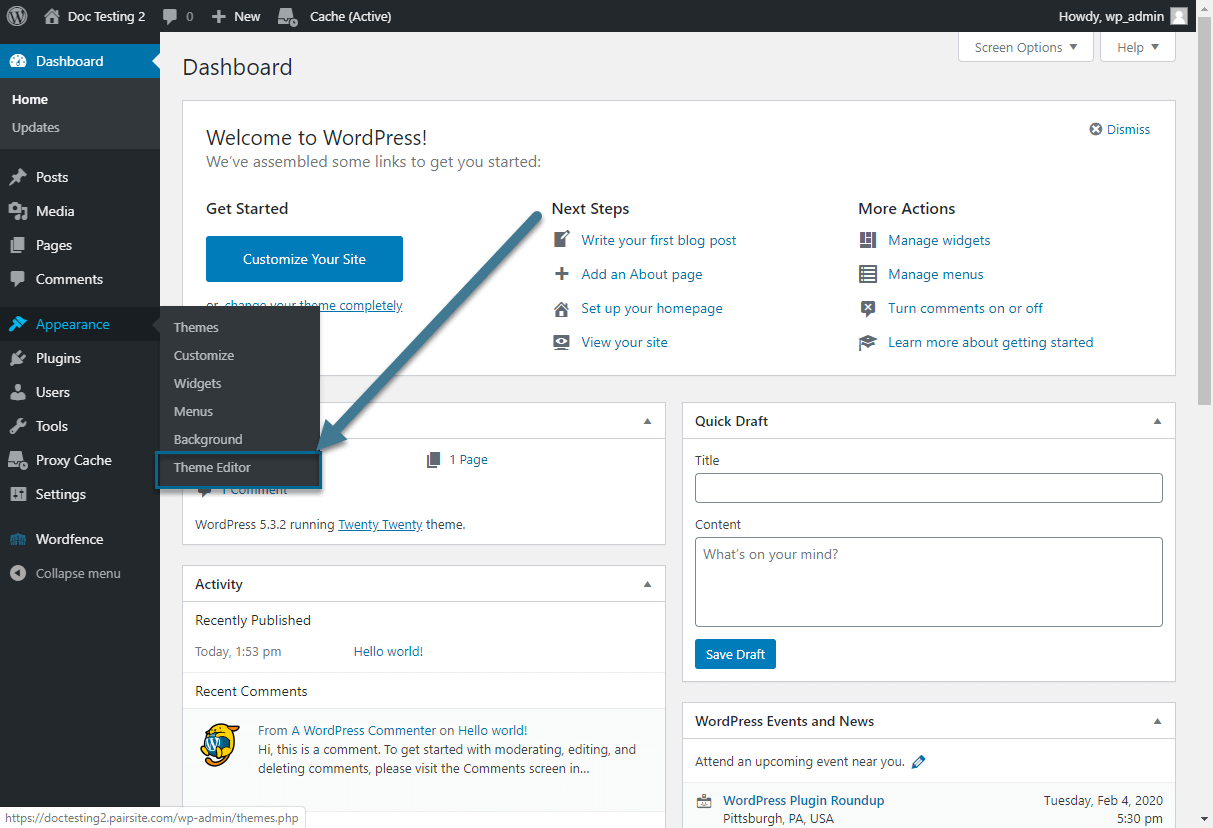
Find the Appearance tab on the left. Click on it. This opens a menu. Choose Theme Editor from the menu. You will see theme files. These files are important. Choose the file you need. Make changes carefully. Mistakes can cause problems. Always save changes after editing.
Consider making a backup first. This keeps your site safe. If something goes wrong, restore from backup. Remember to check your site after changes. Ensure everything works fine.
Navigate To Theme Editor
WordPress has a Theme Editor for editing theme files. First, log into your WordPress dashboard. Find the Appearance section on the left menu. Click on it. You will see Theme Editor as an option. Click on Theme Editor.
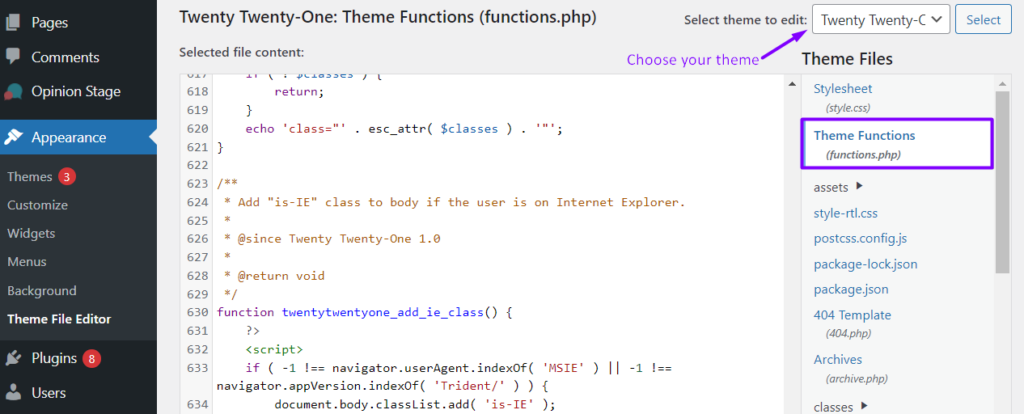
You will see many files and folders. Look for the file named functions.php. This file is very important. Click on it to edit. Always make a backup before editing. This helps if you make a mistake.
Edit the code as needed. Remember, incorrect code can break your site. After editing, click Update File. This saves your changes. Be careful and check your site. Make sure everything works fine after editing.
Identify Theme Php Files
Themes in WordPress have many PHP files. Each file has a job. To find them, go to your WordPress dashboard. Then, click on Appearance and select Theme Editor. You will see a list of files on the right. These are your theme’s files. Each file is important for your site. Be careful before changing anything.
Look for files like functions.php or header.php. They often need updates. Do not forget to save changes. Update one file at a time. This way, you can track what you change. Always make a backup first. It’s safer to have a copy of your files.
Edit Theme Php Code
Child themes are important. They keep your changes safe. Create a child theme before editing. This way, updates won’t erase your work. It’s like having a backup. Follow online guides to set it up. It’s simple and quick.
Adding custom code can change how your site looks. Make sure you understand the code. Check each line before saving. Wrong codes might break your site. Use guides or ask experts. Test your code on a demo site first.
Testing is crucial. After editing, check your site. Look for errors or broken parts. Make sure everything works well. Use different browsers to test. Fix issues right away. Always backup before big changes.
Save And Preview Changes
Making changes to your WordPress theme’s PHP files can be fun. Before you save, always double-check your edits. This helps avoid mistakes and errors. Once you’re happy, save your changes by clicking the “Update File” button. This is often at the bottom of the editor.
Now, it’s time to preview your changes. Open a new browser tab. Visit your website to see how it looks. Check if everything works as you planned. If something looks odd, go back and fix it. Remember, you can always undo changes. This keeps your site safe and looking good.
Common Errors And Fixes
Syntax errors can break your site. Always check for missing semicolons. Missing brackets can cause issues too. Use a code editor to spot errors. It highlights mistakes quickly. Debugging tools are helpful. They show error messages. These messages guide you to the problem. Correct errors before saving changes.
The white screen often means a PHP error. It can be scary. Disable all plugins to test if they cause it. Switch to a default theme. This checks if the theme is the issue. Enable debugging mode in WordPress. Debugging gives error details. These details help fix the problem. Refresh the page after changes.
Reverting changes can save your site. Backups are important. Always keep a recent backup. Use FTP to access your files. Find the last working version. Replace the broken file with it. This restores your site. Check if the site loads correctly. Regular backups prevent future issues.
Credit: www.pair.com
Use Ftp For Direct Edits
Editing the theme PHP in WordPress is easy with FTP. Access files directly for quick updates and changes. Ensure backups to avoid loss of data during edits.
Ftp Client Setup
First, download an FTP client like FileZilla. It’s free and easy to use. Install it on your computer. Open the FTP client and enter your website’s FTP details. These include your host, username, and password. You can find these in your hosting account. Click “Connect” to access your website files.
Access Theme Files
Once connected, look for the folder named wp-content. Inside, find the themes folder. Open it to see your installed themes. Choose the theme you want to update. Click to open its files. Here, you can see all the PHP files. Be careful while editing them. Small changes can break your site. Always keep a backup before editing. This way, you can restore the original files if needed.
Best Practices For Updates
Always make sure to backup your site before changes. This helps to keep your data safe. If anything goes wrong, you can restore your website. Use plugins or manual methods to save your data.
Write down every change you make. It helps you remember what you did. Keeping a list is good practice. This way, you can find problems faster.
Keep your WordPress version updated. New versions fix bugs and improve security. Check for updates regularly. Update themes and plugins too. This keeps your website safe and running smoothly.
Credit: www.easywp.com
Frequently Asked Questions
How To Find Theme Php Files In WordPress?
To locate PHP files in your WordPress theme, navigate to your WordPress dashboard. Click on ‘Appearance’ then ‘Theme Editor’. Here, you can view and edit PHP files such as functions. php, header. php, and footer. php that are part of your active theme.
Why Update Theme Php In WordPress?
Updating theme PHP ensures compatibility with WordPress updates, enhances security, and adds new features. It helps maintain performance and fixes bugs. Regular updates are crucial for optimal site functionality and user experience.
Can I Update Php Without Coding Skills?
Yes, you can update PHP files without coding skills. Use plugins like Code Snippets for safe editing. They offer a user-friendly interface to manage PHP changes without direct file editing, minimizing risks of errors or site crashes.
How To Backup Before Updating Theme Php?
Before updating theme PHP, create a backup using a plugin like UpdraftPlus. It allows easy restoration if issues arise. Regular backups safeguard your site data, ensuring you can revert changes without losing content or customizations.
Conclusion
Updating the theme PHP in WordPress is essential for security. It keeps your website safe and functional. Always back up your site before making changes. This prevents data loss. Use a child theme to preserve customizations. This keeps your work intact after updates.
Follow the steps carefully. Ensure you have the correct files. Use a code editor for accuracy. Regular updates enhance your site’s performance. They also improve user experience. With practice, this task becomes easier. Soon, you’ll manage updates confidently. Your website will benefit from improved efficiency and security.
Keep learning and stay updated with WordPress best practices.


